
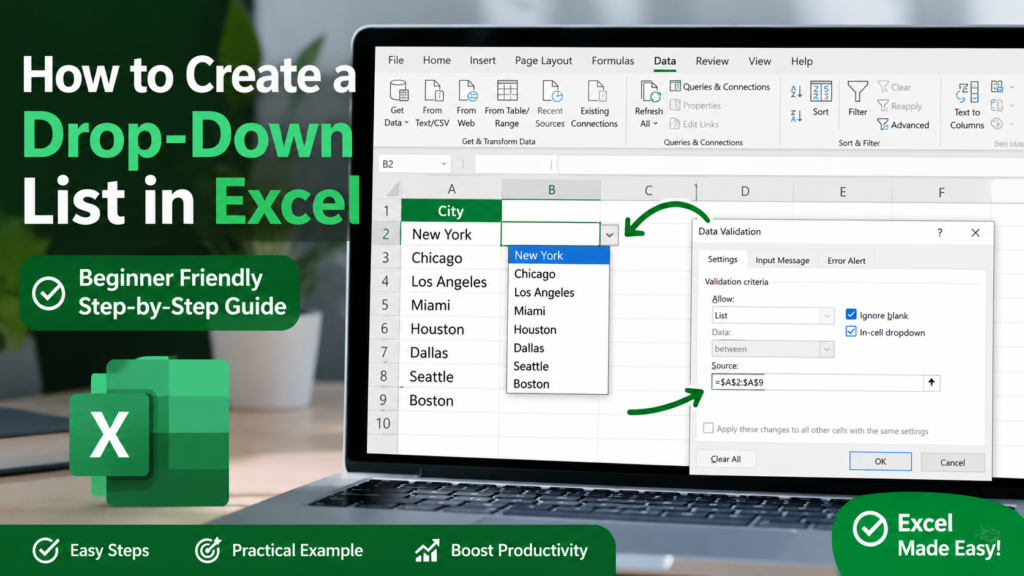

How to Create a Drop-Down List in Excel (Step-by-Step Guide 2026)
Excel is one of the most powerful tools for organizing and managing data. One feature that can instantly make your spreadsheets look more professional is the drop-down list.
A drop-down list allows users to select predefined options instead of typing manually. This helps reduce errors, improve consistency, and make data entry much faster.
Whether you are creating attendance sheets, expense trackers, invoice templates, dashboards, or employee records, drop-down lists can save a lot of time.
In this complete beginner-friendly guide, you’ll learn exactly how to create a drop-down list in Excel step-by-step using the Data Validation feature.
What Is a Drop-Down List in Excel?
A drop-down list in Excel is a menu that appears inside a cell. Users can click the arrow and choose a value from a predefined list.
Instead of typing values manually every time, Excel gives users ready-made options.
Example:
| Select City |
|---|
| New York |
| Chicago |
| Los Angeles |
| Miami |
Why use it?
Drop-down lists improve accuracy, reduce mistakes, and make spreadsheets more interactive.
Benefits of Using Drop-Down Lists in Excel
- Reduces typing mistakes
- Improves spreadsheet accuracy
- Makes forms professional
- Saves time during data entry
- Creates cleaner dashboards
- Helps maintain consistent data
- Easy for beginners to use
Excel Versions Supported
This method works perfectly in:
- Excel for Microsoft 365
- Excel for Microsoft 365 for Mac
- Excel 2019
- Excel 2016
- Excel for the Web
Step-by-Step: How to Create a Drop-Down List in Excel
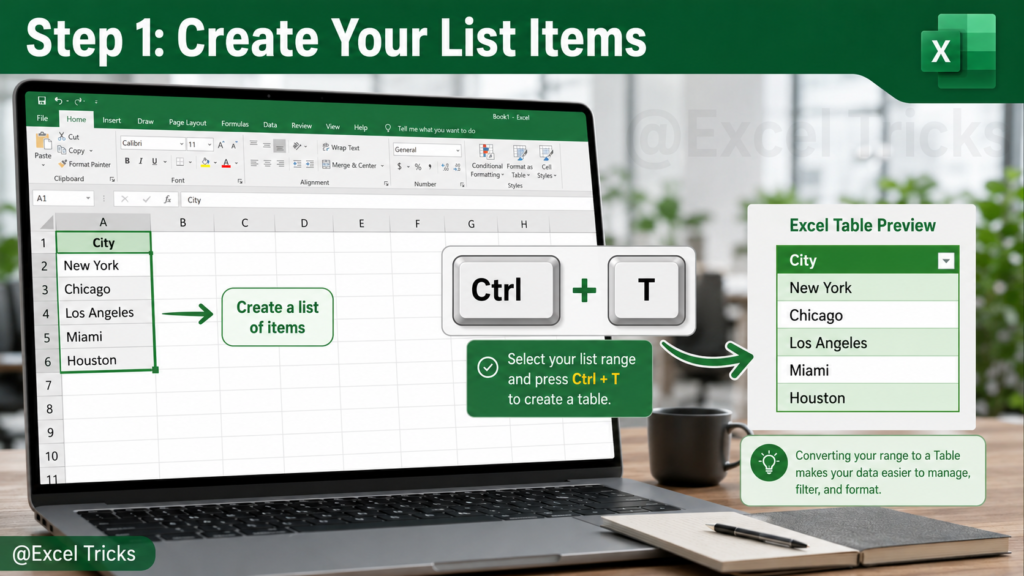
Step 1: Create Your List Items
Open a new worksheet and type all the items you want to appear in your drop-down list.
Example:
| Cities |
|---|
| New York |
| Chicago |
| Los Angeles |
| Miami |
| Houston |
For better organization, convert the list into an Excel Table.
Shortcut: Press Ctrl + T
Using Excel Tables makes your drop-down list dynamic. If you add new items later, the list updates automatically.
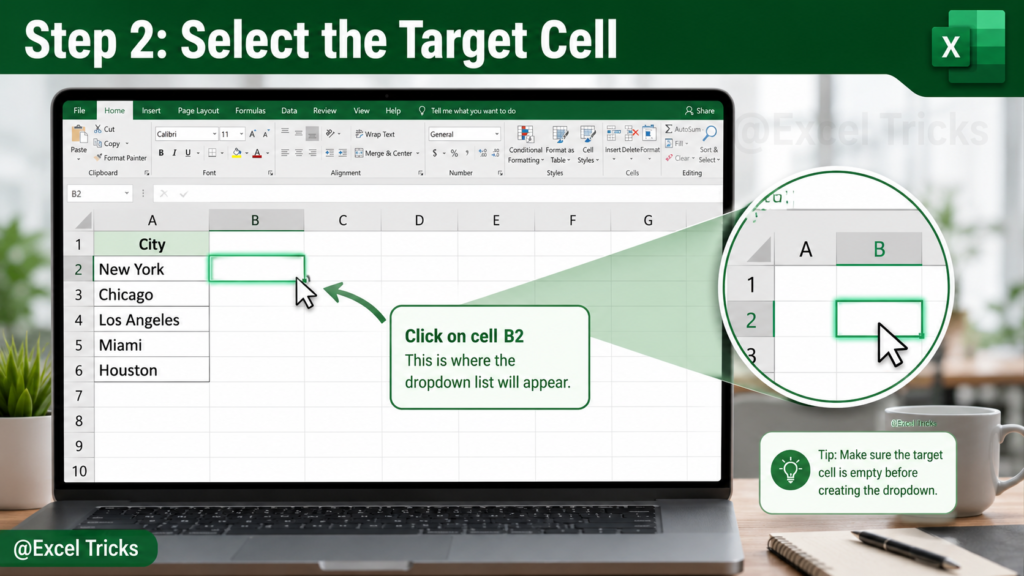
Step 2: Select the Cell for the Drop-Down List
Click the cell where you want the drop-down list to appear.
Example:
- Select cell B2
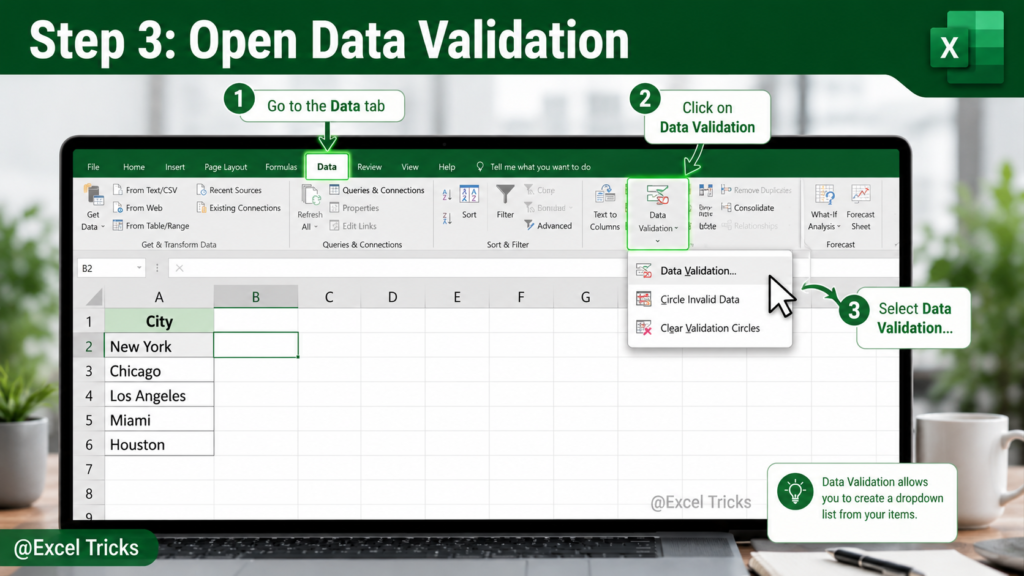
Step 3: Open Data Validation
Go to the Excel Ribbon and follow this path:
Data Tab → Data Validation
The Data Validation dialog box will open.
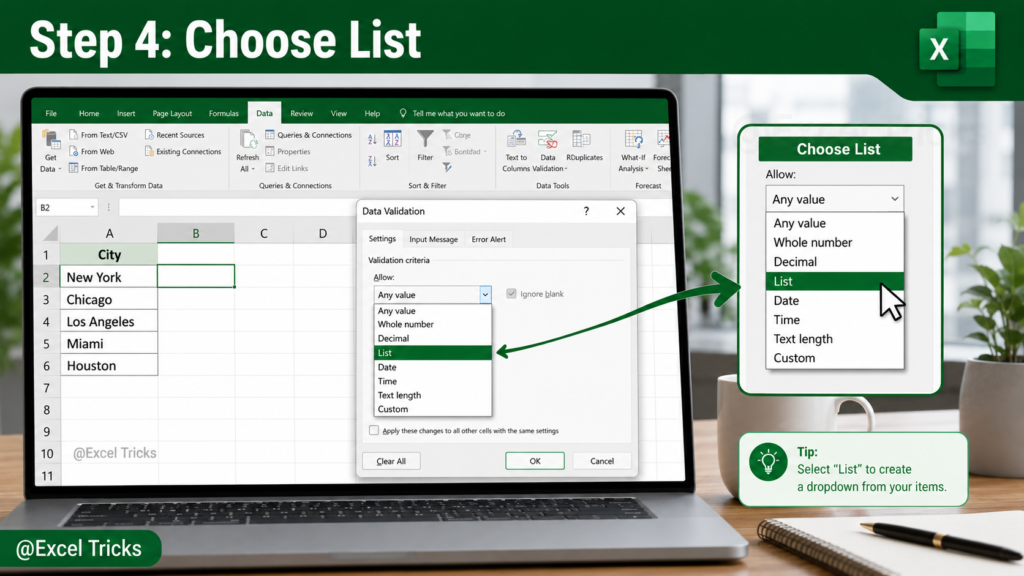
Step 4: Choose “List”
Inside the Settings tab:
- Click the Allow dropdown menu
- Select List
This tells Excel you want to create a drop-down menu.
Step 5: Select the Source List
Click inside the Source box.
Now select the range that contains your list items.
Example:
=Sheet1!A2:A6
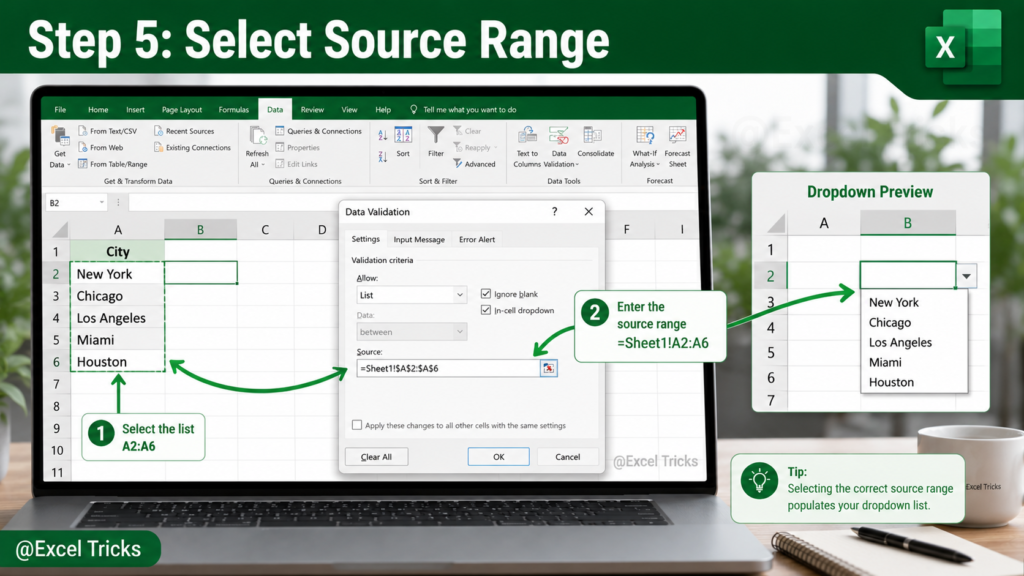
Do not include the header row while selecting the source range.
Once selected, Excel will connect the drop-down list to your source data.
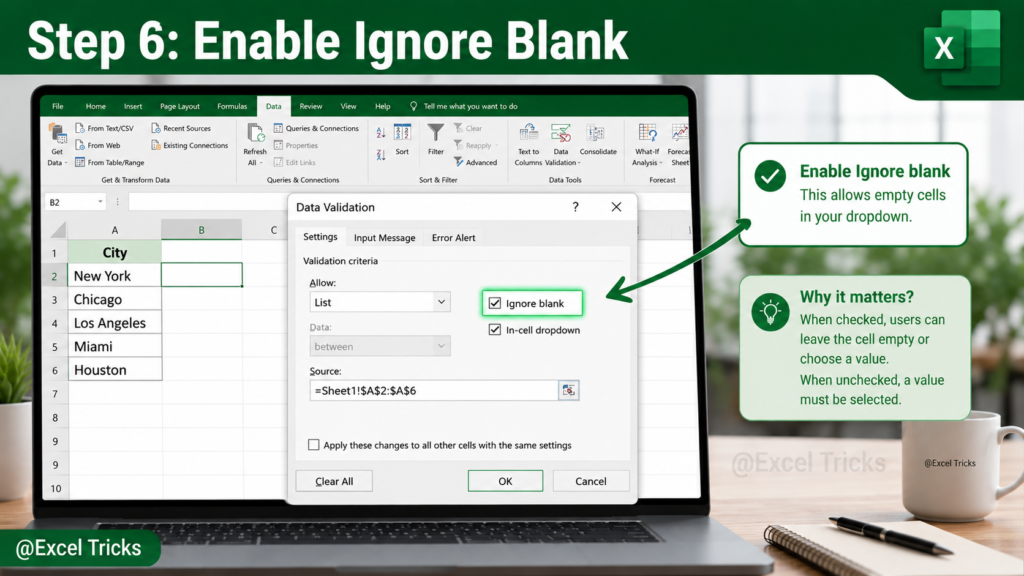
Step 6: Enable Ignore Blank Option
If users are allowed to leave the field empty, check:
- Ignore blank
This is useful for optional fields.
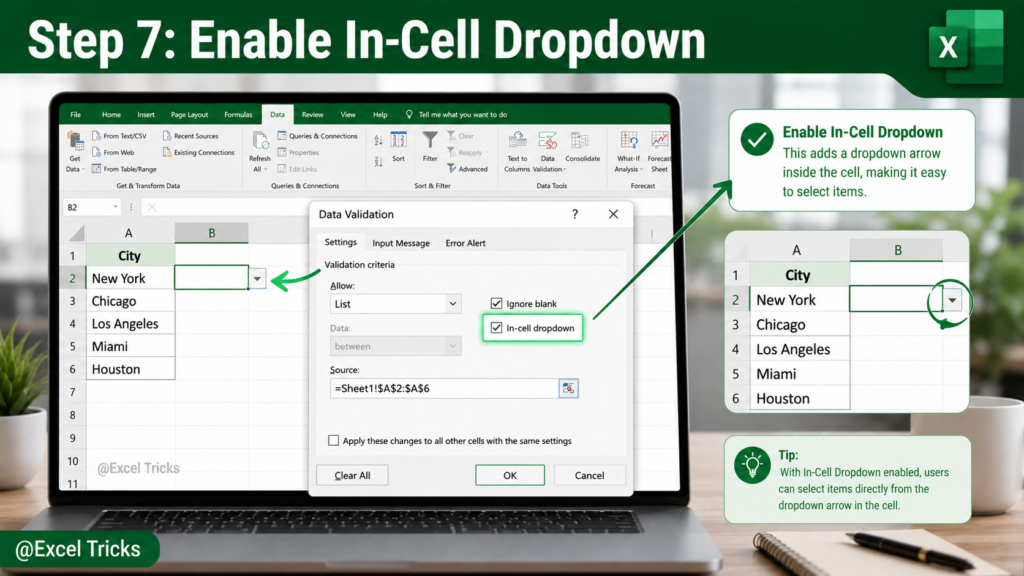
Step 7: Enable In-Cell Dropdown
Make sure the following option is checked:
- In-cell dropdown
This displays the drop-down arrow inside the selected cell.
Step 8: Add an Input Message (Optional)
You can show a helpful message whenever someone clicks the cell.
Go to the:
Input Message Tab
Then:
- Check Show input message when cell is selected
- Enter a title
- Type your message
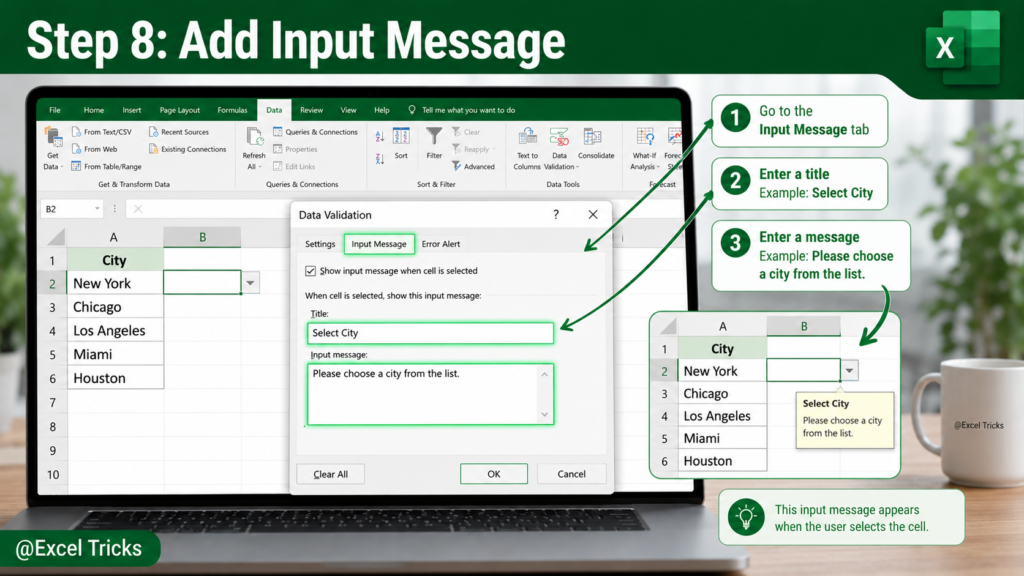
Example:
| Field | Example |
|---|---|
| Title | Select City |
| Message | Please choose a city from the drop-down list. |
Step 9: Add an Error Alert (Optional)
You can prevent users from entering invalid data.
Go to the:
Error Alert Tab
Then:
- Check Show error alert after invalid data is entered
- Select an alert style
- Add a title and message
Example:
| Field | Example |
|---|---|
| Title | Invalid Entry |
| Message | Please select a value from the drop-down list. |
Understanding Error Alert Styles
1. Stop
This prevents users from entering values that are not in the list.
Best for:
- Official reports
- Business forms
- Inventory systems
2. Warning
This shows a warning message but still allows users to continue.
Best for:
- Flexible spreadsheets
- Internal team sheets
3. Information
This displays only an informational message.
Users can still enter custom values.
Best for:
- General reminders
- Optional suggestions
Real-Life Uses of Excel Drop-Down Lists
- Attendance trackers
- Invoice templates
- Expense management systems
- Employee databases
- Student grading sheets
- Task management dashboards
- Project trackers
- Inventory management systems
Pro Tips for Better Drop-Down Lists
1. Use Excel Tables
Tables automatically update when new items are added.
2. Keep Lists Short
Very long drop-down lists can become difficult to use.
3. Use Named Ranges
Named ranges make formulas cleaner and easier to manage.
4. Create Dynamic Lists
Dynamic drop-down lists update automatically whenever data changes.
Common Problems and Solutions
Drop-Down Arrow Not Showing
Solution: Make sure “In-cell dropdown” is checked.
Drop-Down List Not Updating
Solution: Convert your source data into an Excel Table.
Users Enter Invalid Data
Solution: Use the “Stop” error alert style.
Advanced Drop-Down List Ideas
Once you learn the basics, you can also create:
- Searchable drop-down lists
- Dependent drop-down lists
- Multi-select drop-down lists
- Dynamic dashboard filters
- Interactive forms
Frequently Asked Questions (FAQs)
Can I create multiple drop-down lists in Excel?
Yes, you can create unlimited drop-down lists across worksheets.
Does this work in Excel for Mac?
Yes, the same method works in Excel for Mac and Excel Online.
Can I edit the list later?
Yes, simply update the source data range.
Can I make a searchable drop-down list?
Yes, advanced searchable lists can be created using formulas or VBA.
What is the shortcut to create a table?
Press Ctrl + T to quickly convert data into a table.
Final Thoughts
Learning how to create a drop-down list in Excel is one of the most useful skills for improving spreadsheet efficiency.
Drop-down lists help reduce errors, improve data consistency, and make your worksheets look far more professional.
Whether you are building dashboards, trackers, forms, or reports, this feature can dramatically improve your workflow.
Conclusion
Excel drop-down lists are simple to create but incredibly powerful. By using Data Validation, you can make spreadsheets smarter, cleaner, and easier to use.
Start practicing today and take your Excel skills to the next level.
Thanks for Reading!


Pingback: Excel Formulas Cheat Sheet: Best Excel Formulas for Daily Work (2026) - Excel AI Tools and SEO Guides
Pingback: 7 Simple Excel Automations That Take Less Than 5 Minutes (But Save Hours Every Week) - Excel AI Tools and SEO Guides