
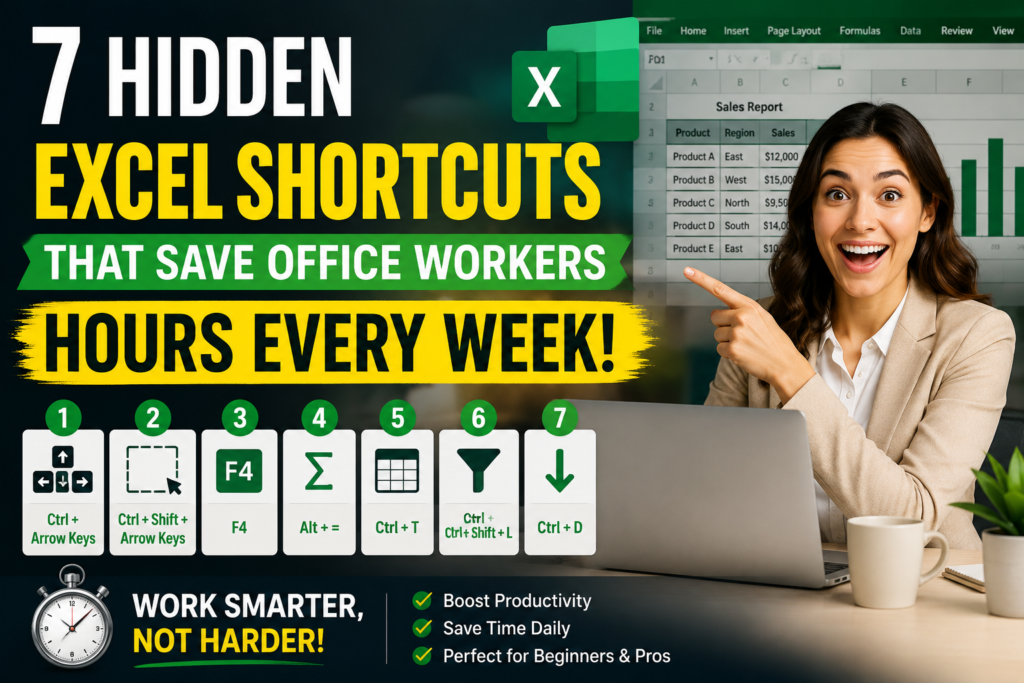

If you use Excel daily, small repetitive tasks can quietly consume a surprising amount of time. Clicking menus, scrolling through large datasets, copying data repeatedly, and manually formatting cells may only take a few seconds, but those seconds quickly turn into hours over a work week.
Most people know shortcuts like Ctrl + C and Ctrl + V, but Excel contains many lesser-known features that can dramatically improve your workflow.
Whether you’re a beginner learning spreadsheets or a professional handling reports every day, these Excel shortcuts can help you work faster and smarter.
1. Jump Through Large Data Instantly Using Ctrl + Arrow Keys
One of the biggest productivity killers in Excel is endless scrolling.
Shortcut:
Ctrl + Arrow Key

What it does
This shortcut instantly moves your cursor to the edge of the data range.
Example
If you have:
- 5,000 employee records
- Sales reports
- Customer databases
- Large inventory sheets
Instead of scrolling:
- Ctrl + Down Arrow → jumps to the last row
- Ctrl + Right Arrow → jumps to the last column
This is one of the most useful Excel keyboard shortcuts for working with large spreadsheets.
2. Select Thousands of Cells in Seconds Using Ctrl + Shift + Arrow
Selecting rows manually can become frustrating when handling large files.
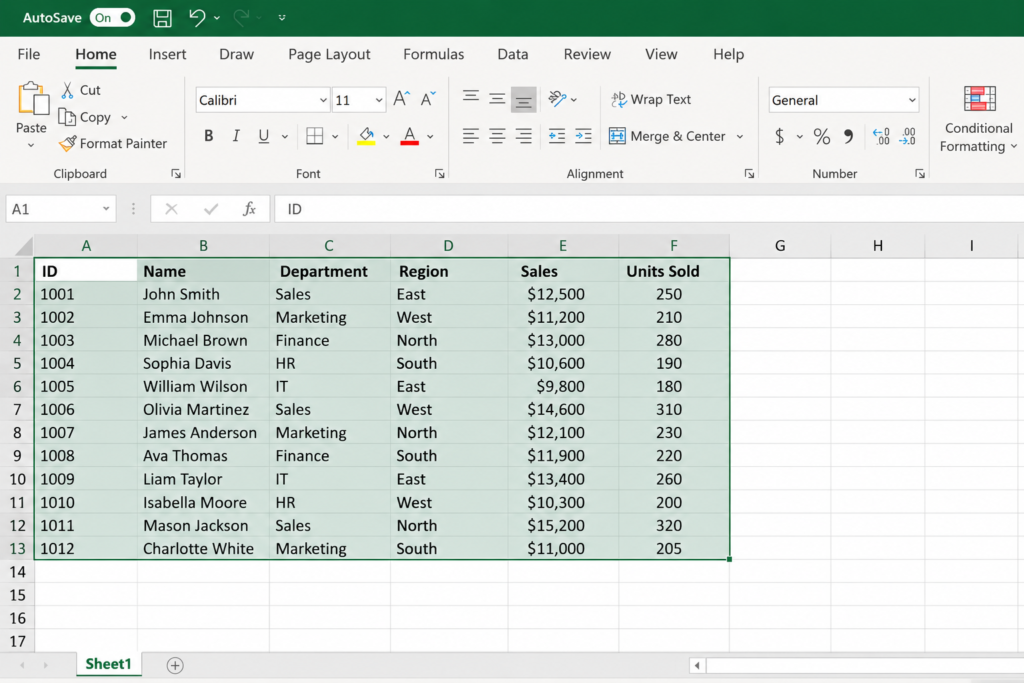
Shortcut:
Ctrl + Shift + Arrow Key
What it does
This shortcut instantly selects connected data.
Best use cases
- Sales reports
- Employee data
- Inventory sheets
- Financial reports
Instead of dragging your mouse endlessly, Excel performs the task immediately.
3. Repeat Your Last Action with F4
Many Excel users never realize how useful this shortcut is.
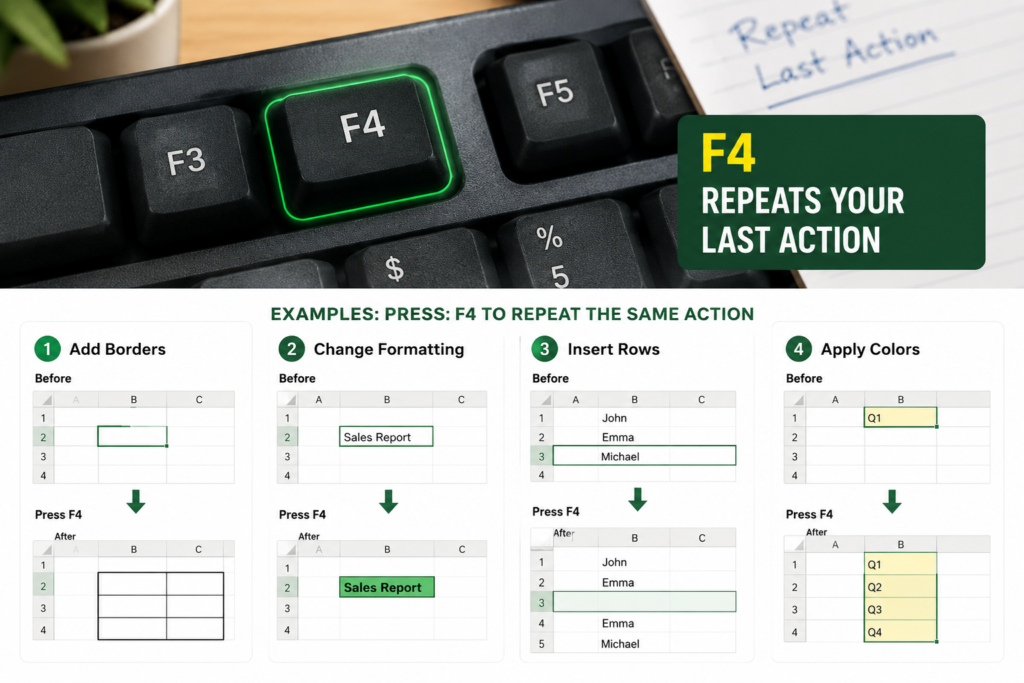
Shortcut:
F4
What it does
Repeats your previous action.
Example
If you:
- Add borders
- Change formatting
- Insert rows
- Apply colors
Press F4 to repeat the same action instantly.
This becomes extremely useful when formatting spreadsheets.
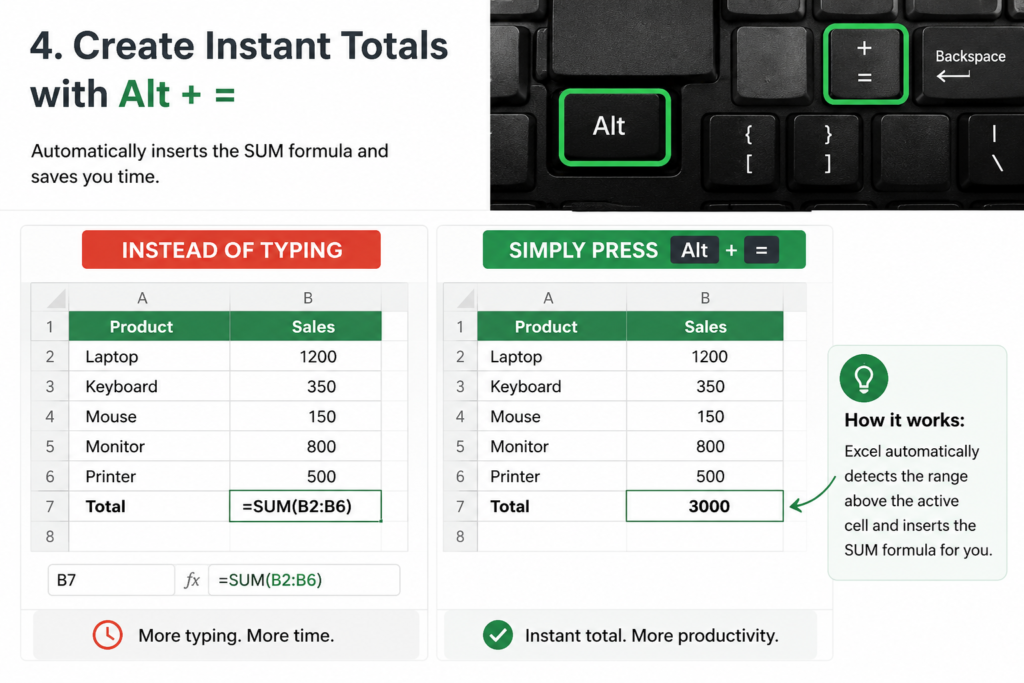
4. Create Instant Totals with Alt + =
Typing formulas repeatedly can slow your workflow.
Shortcut:
Alt + =
What it does
Automatically inserts the SUM formula.
Example
Instead of typing:
=SUM(B2:B20)
Simply press:
Alt + =
Excel often detects the range automatically.
5. Convert Data Into Smart Tables Using Ctrl + T
Many people still work with basic spreadsheets instead of structured tables.
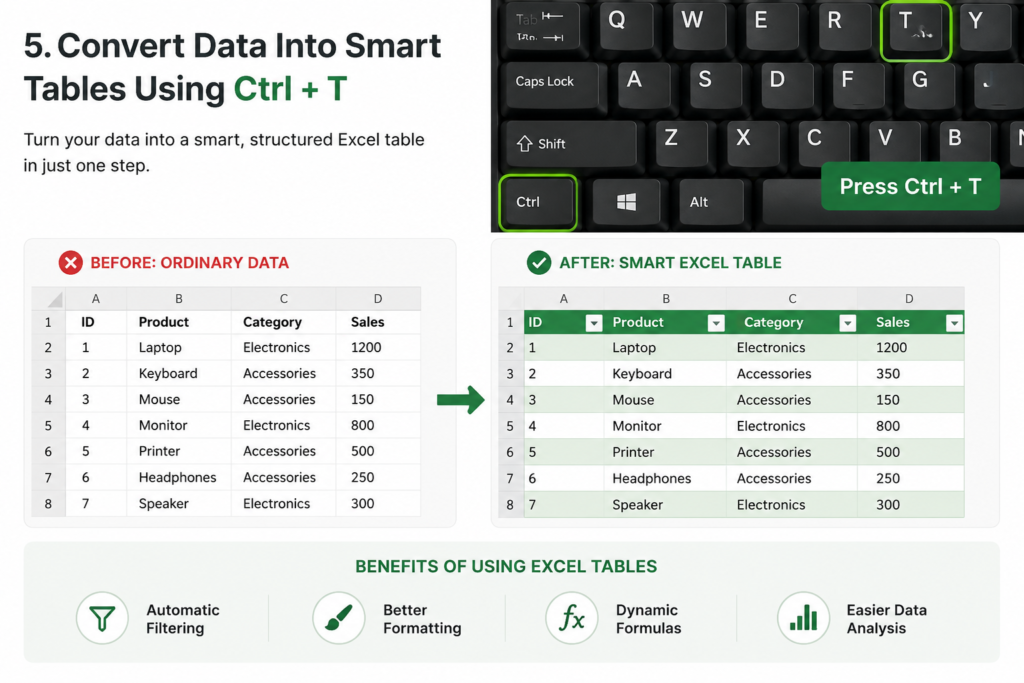
Shortcut:
Ctrl + T
What it does
Converts ordinary data into an Excel table.
Benefits
- Automatic filtering
- Better formatting
- Dynamic formulas
- Easier data analysis
Excel tables make spreadsheets easier to manage and more professional.
6. Add Filters Instantly Using Ctrl + Shift + L
Applying filters manually requires multiple clicks.
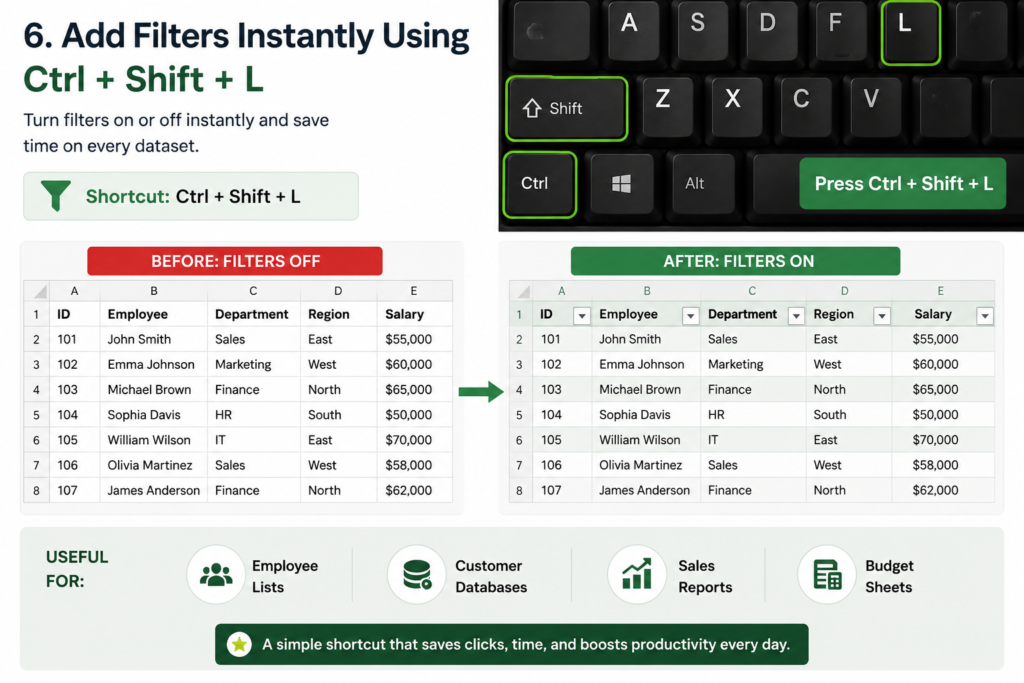
Shortcut:
Ctrl + Shift + L
What it does
Turns filters on or off immediately.
Useful for
- Employee lists
- Customer databases
- Sales reports
- Budget sheets
This is one of the most useful Excel tricks for work.
7. Fill Cells Down Instantly Using Ctrl + D
Copying and pasting repeatedly wastes valuable time.
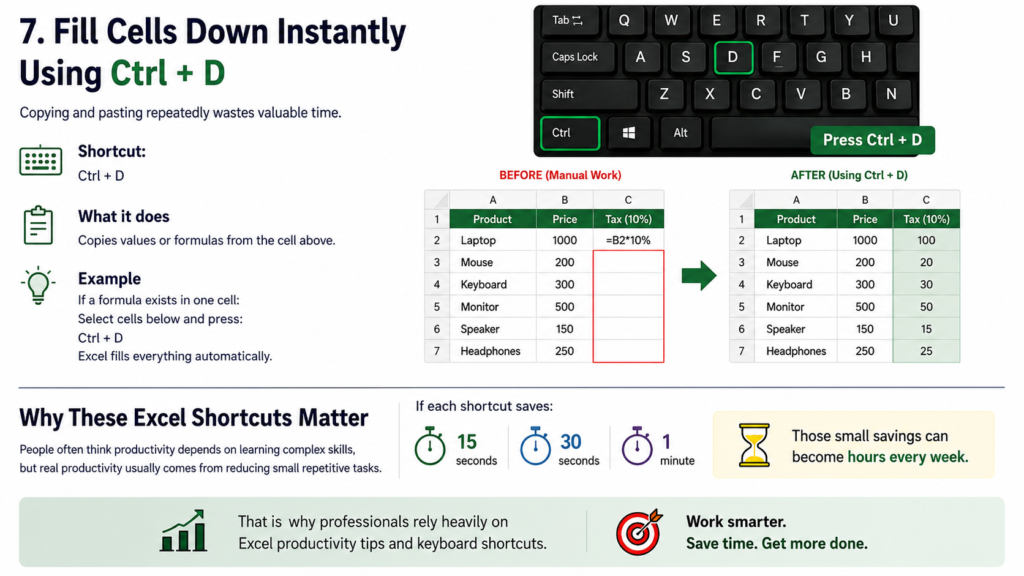
Shortcut:
Ctrl + D
What it does
Copies values or formulas from the cell above.
Example
If a formula exists in one cell:
Select cells below and press:
Ctrl + D
Excel fills everything automatically.
Why These Excel Shortcuts Matter
People often think productivity depends on learning complex skills, but real productivity usually comes from reducing small repetitive tasks.
If each shortcut saves:
- 15 seconds
- 30 seconds
- 1 minute
Those small savings can become hours every week.
That is why professionals rely heavily on Excel productivity tips and keyboard shortcuts.
Frequently Asked Questions
Which Excel shortcuts should beginners learn first?
Beginners should start with:
- Ctrl + Arrow Keys
- Ctrl + Shift + Arrow Keys
- Ctrl + T
- Alt + =
Do Excel shortcuts work on Mac?
Many Excel shortcuts work similarly on Mac, although some use the Command key instead of Ctrl.
Do keyboard shortcuts improve productivity?
Yes. Shortcuts reduce repetitive actions and help users complete tasks faster.
Final Thoughts
Excel is one of the most powerful workplace tools available today, but many users only use a small percentage of its features.
Learning a few hidden Excel shortcuts can completely change the way you work. Start by practicing two or three shortcuts today, and after a week you’ll likely notice a significant improvement in productivity.
The best Excel users are not necessarily the people who know the most formulas. Often, they are simply the people who know how to work smarter.


Pingback: Most People Use Excel Wrong: 9 Excel Mistakes Beginners Make Every Day - Excel AI Tools and SEO Guides