
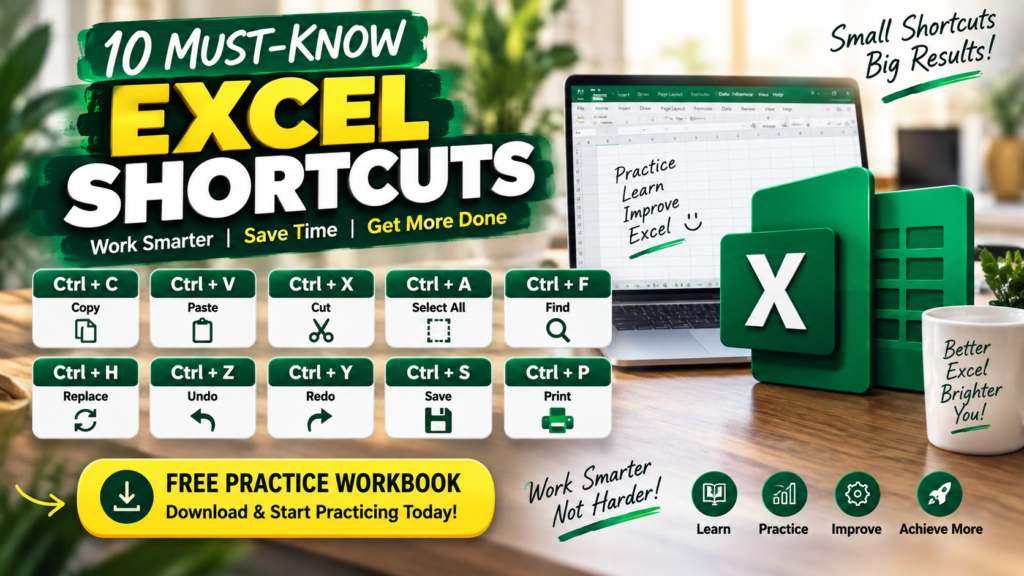

Master 10 must-know Excel shortcuts for Microsoft 365, including Copy, Paste, Find, Replace, Undo, Save and Print. Includes a free practice workbook.
10 Must-Know Excel Shortcuts You’ll Actually Use Every Day
If you use Microsoft Excel regularly, you probably already know a few keyboard shortcuts.
Maybe Ctrl+C for Copy.
Maybe Ctrl+V for Paste.
But here’s the problem: knowing a shortcut exists and actually using it are two completely different things.
I’ve watched plenty of Excel users work with large spreadsheets while constantly moving between the keyboard and mouse. They select something, move to the ribbon, click a command, return to the worksheet, and repeat the process again and again.
None of those individual clicks seems like a big deal.
But when you spend hours in Excel, those tiny interruptions add up.
That’s why I put together these 10 must-know Excel shortcuts. They cover everyday tasks such as copying, finding, replacing, undoing mistakes, saving your workbook and preparing a worksheet for printing.
And rather than simply giving you a list, I’ve also created a free practice workbook so you can try each shortcut yourself.
Note: The shortcuts in this article are primarily for Excel for Microsoft 365 on Windows using a US keyboard layout. Microsoft notes that shortcuts can differ across keyboard layouts, Mac, and Excel for the web.
The 10 Excel shortcuts at a glance
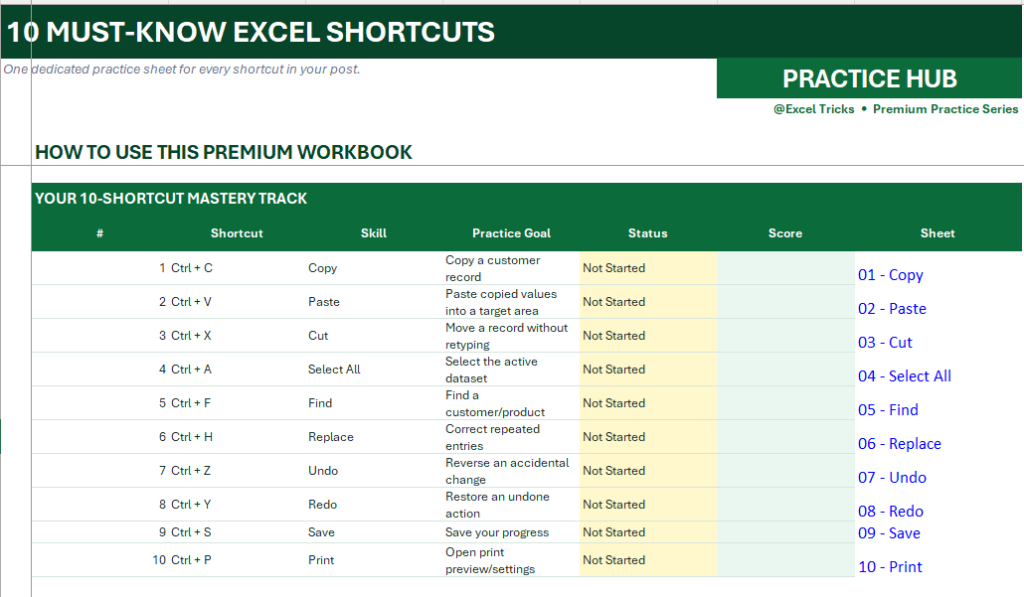
Microsoft’s Excel documentation lists Ctrl+C, Ctrl+V, Ctrl+X, Ctrl+Z, Ctrl+Y, Ctrl+S, Ctrl+A and other commonly used shortcuts among its Excel keyboard shortcuts.
1. Ctrl + C — Copy
Let’s start with the shortcut almost every Excel user should know:
Ctrl + C = Copy
Suppose you have this customer record:
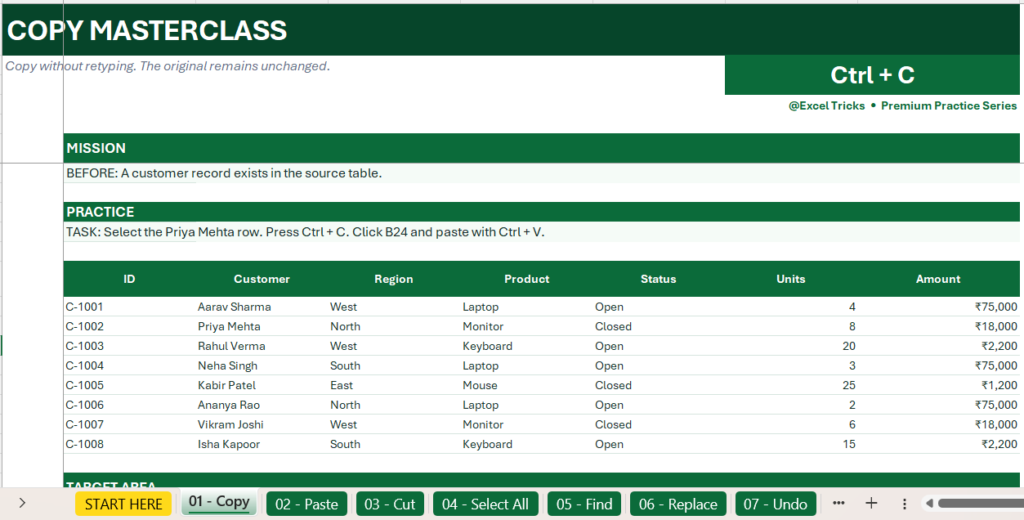
You want to duplicate the record somewhere else.
Instead of:
Select → Home → Copy → navigate → Paste
you can simply:
Select → Ctrl + C
That’s it.
The original information stays where it is, while Excel places a copy on the clipboard ready to paste elsewhere.
Real-world example
Imagine you’re preparing a weekly sales report.
You might need to copy:
- Customer records
- Product information
- Formulas
- Formatting
- Report sections
Instead of repeatedly reaching for the ribbon, use Ctrl+C.
Try it yourself
Open the practice workbook and go to:
01 – Copy
You’ll find a customer dataset and a specific challenge involving Priya Mehta.
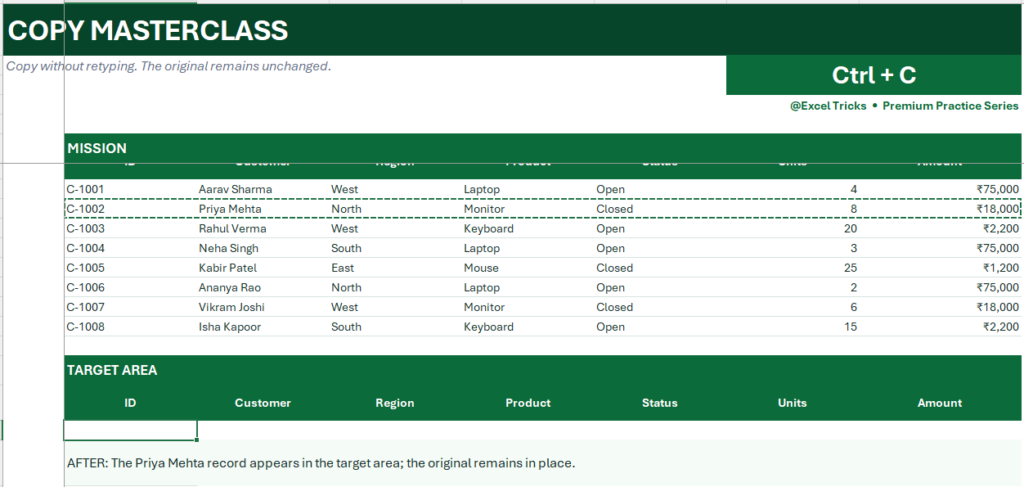
Your task is to copy the complete record into the Target Area.
Don’t just read it. Try it.
2. Ctrl + V — Paste
Once you’ve copied something, you’ll need the other half of the workflow.
Ctrl + V = Paste
After pressing Ctrl+C, click your destination cell and press:
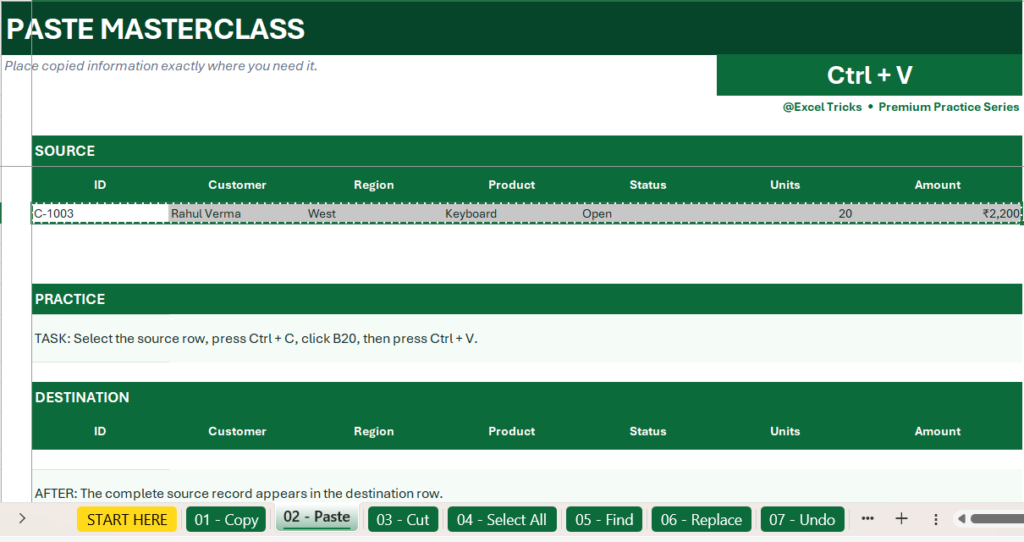
Ctrl + V
Your copied information appears there.
This becomes particularly powerful when you combine the two shortcuts:
Ctrl+C → Ctrl+V
Copy something once and reuse it wherever you need it.
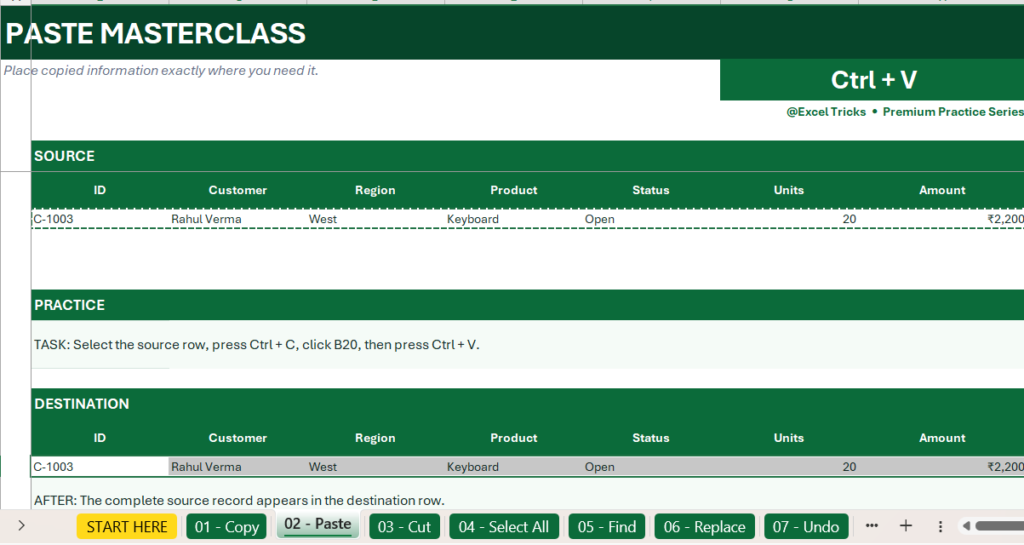
Example
You might copy a customer record from one section of a report and paste it into:
- A summary sheet
- A monthly report
- A tracking table
- A presentation-ready section
Practice it
Open:
02 – Paste
Follow the Before → Practice → After exercise.
Try completing the task without reaching for the Paste button
3. Ctrl + X — Cut
Here’s where things get interesting.
Copy keeps the original.
Cut moves it.
Ctrl + X = Cut
Imagine you accidentally placed a customer record in the wrong section.
You don’t want two copies.
You want the original record moved.
Select it and press:
Ctrl + X
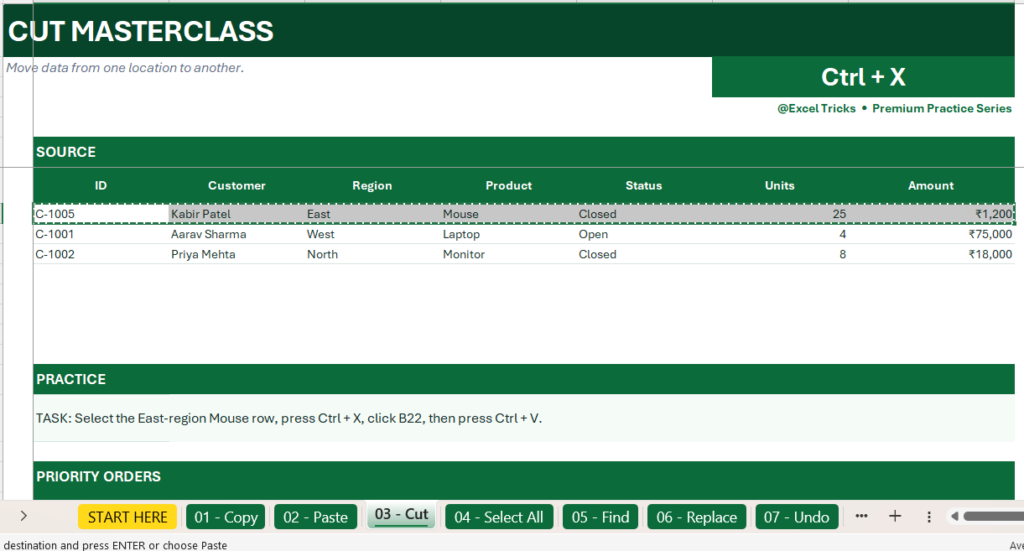
Then select the destination and press:
Ctrl + V
The data moves to its new location.
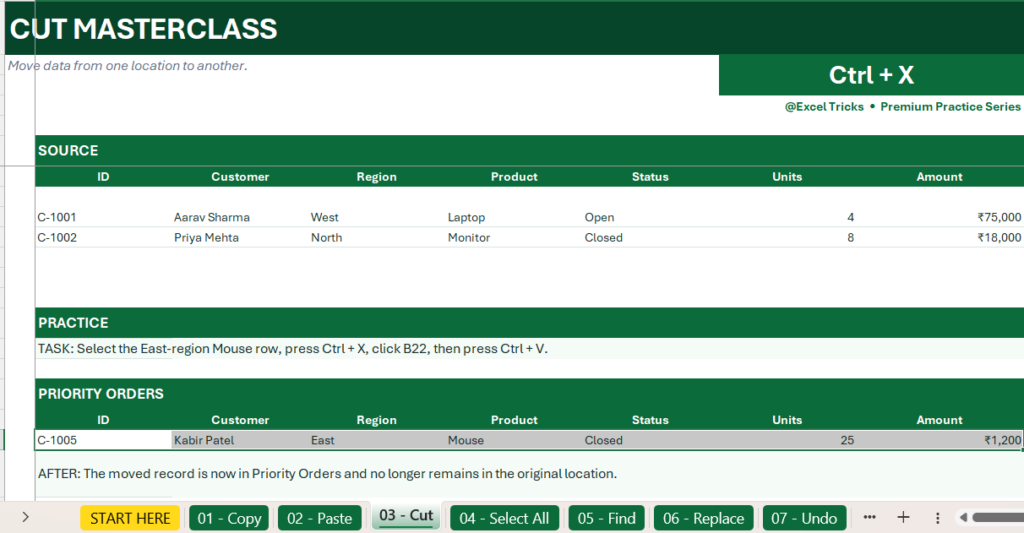
Think of it this way
Ctrl+C
“Make me another copy.”
Ctrl+X
“Move this.”
That distinction becomes incredibly useful when cleaning and reorganizing worksheets.
Practice
Go to:
03 – Cut
Move the designated record into the Priority Orders area.
Then check the Before and After sections.
4. Ctrl + A — Select All
Have you ever dragged your mouse across a huge spreadsheet trying to select everything?
There’s a faster way.
Ctrl + A
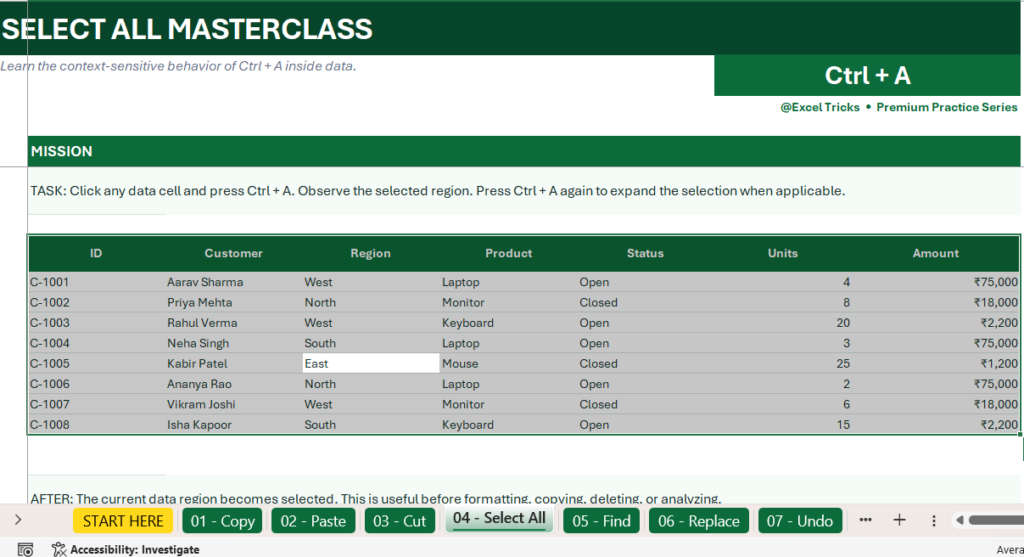
When you’re working inside a data region, Ctrl+A can select the current region. Microsoft documents this context-sensitive behavior and notes that pressing it again can expand the selection in certain worksheet contexts.
Why this matters
Imagine a worksheet containing hundreds or thousands of rows.
You might need to:
- Format the data
- Copy it
- Delete it
- Apply a number format
- Review the entire data region
Instead of dragging through the worksheet:
Click inside the data → Ctrl + A
Practice
Open:
04 – Select All
Click inside the dataset.
Press:
Ctrl + A
Then observe what Excel selects.
Small tip
Don’t assume Ctrl+A always means exactly the same visual selection in every context. Excel’s selection behavior depends on where your active cell is and what kind of content you’re working with.
5. Ctrl + F — Find
This is one of my favorite shortcuts when working with large worksheets.
Ctrl + F = Find
Imagine someone sends you a worksheet with 5,000 rows and asks:
“Can you find Vikram Joshi?”
You could scroll.
You could filter.
Or you could press:
Ctrl + F
Type:
Vikram Joshi
and let Excel take you to the matching result.
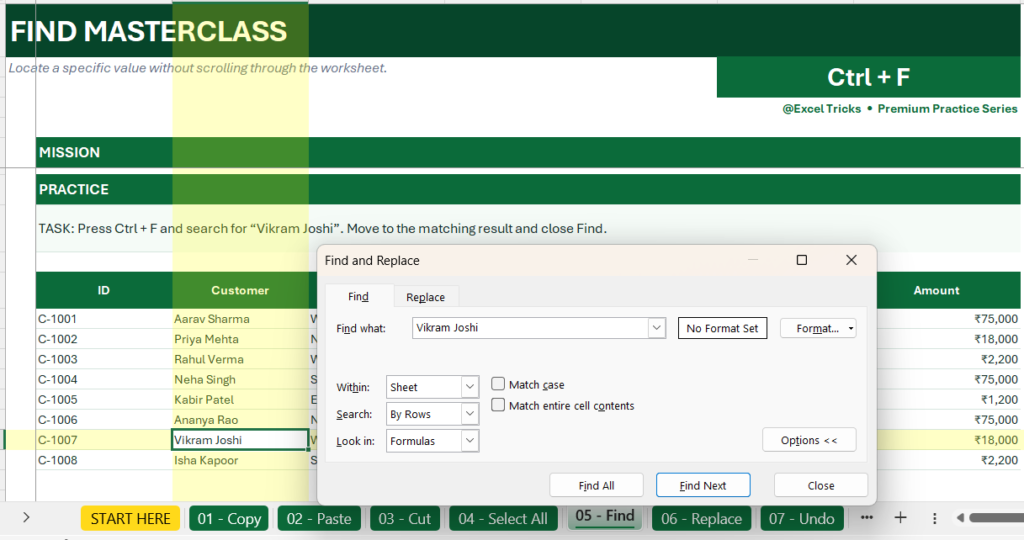
Microsoft documents Ctrl+F for finding text or numbers in a worksheet and provides additional Find options for searching within a selection, worksheet, or workbook.
You can use Find for things like:
- Employee names
- Customer IDs
- Invoice numbers
- Product names
- Department names
- Specific text
- Numbers
Practice challenge
Open:
05 – Find
Try finding:
Vikram Joshi
Then search for:
Monitor
Finally:
C-1006
No scrolling.
Just search.
6. Ctrl + H — Replace
Now imagine the same problem—but bigger.
You have hundreds of cells containing the wrong version of a word.
For example:
West
needs to become:
WEST
Would you edit every cell manually?
Please don’t.
Ctrl + H = Replace
Press:
Ctrl + H
Excel opens the Find and Replace interface.
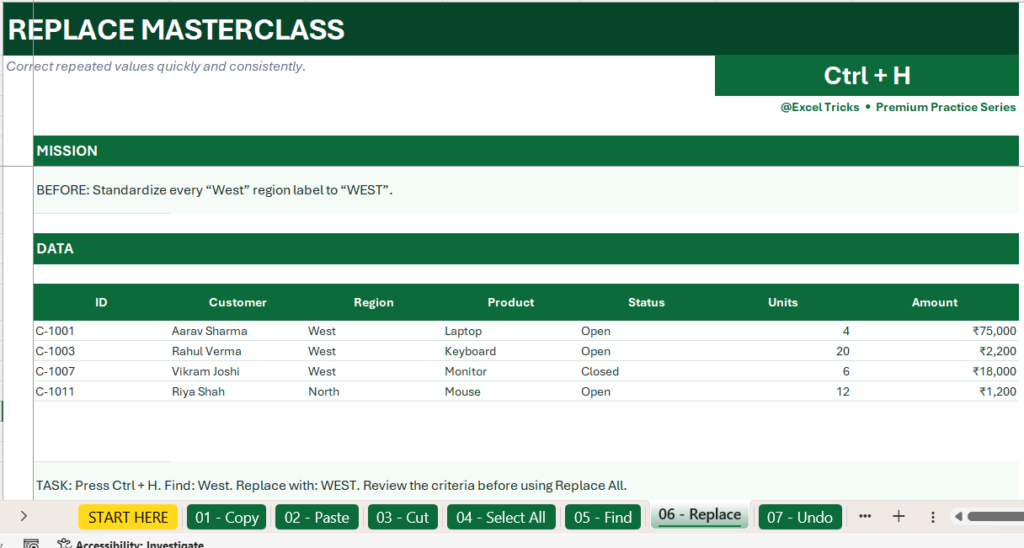
Enter:
Find what: West
Replace with: WEST
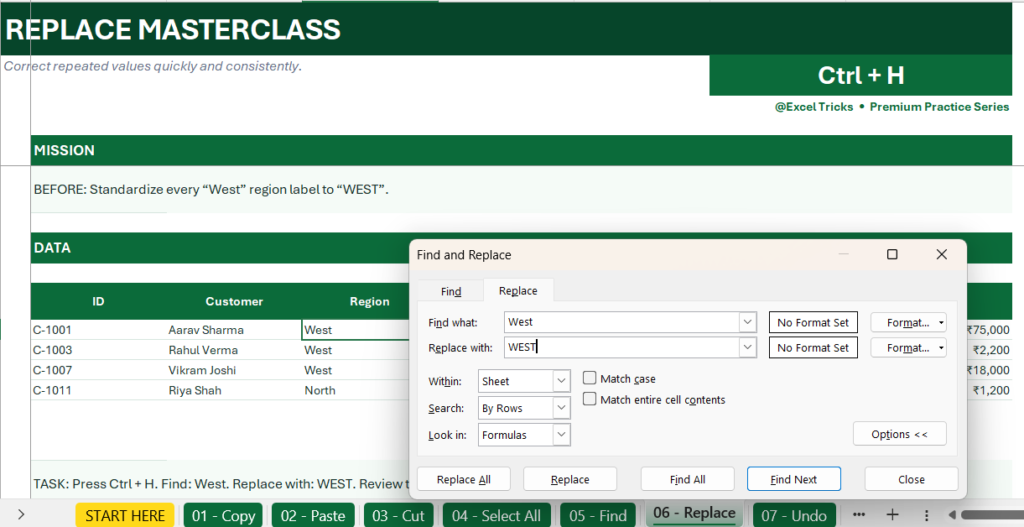
Then review your settings and choose the appropriate Replace option.
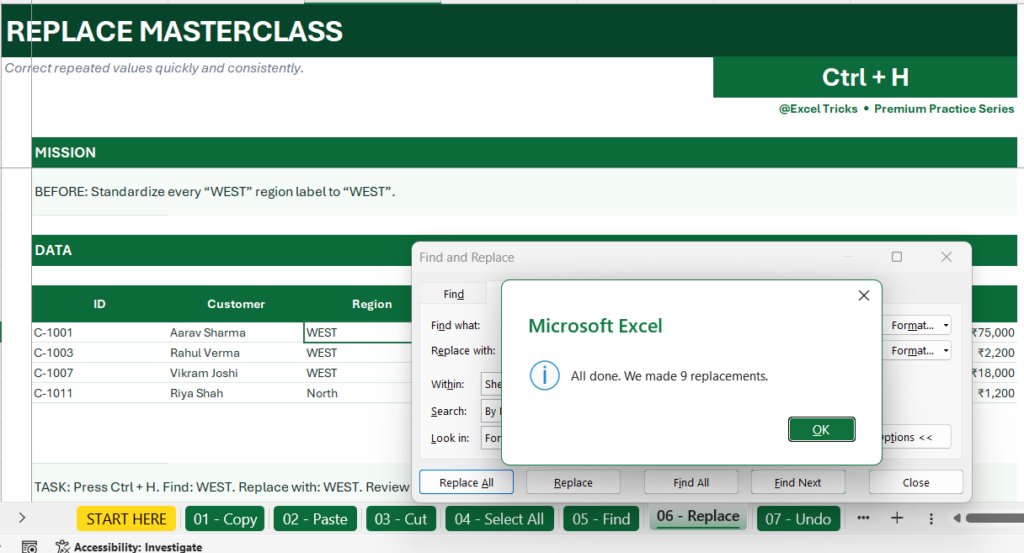
Microsoft specifically documents Ctrl+H for opening Replace and notes that Replace All changes every occurrence matching the search criteria, so checking your search scope and criteria first is important.
Why this shortcut is so useful
Think about correcting:
- Product names
- Department labels
- Abbreviations
- Repeated typos
- Status values
- Standardized terminology
One repeated error can become a one-action cleanup.
Practice
Open:
06 – Replace
Change:
West → WEST
Then check your results.
Pro tip: Don’t blindly click Replace All in a real workbook. First make sure your Find text and scope are correct.
7. Ctrl + Z — Undo
Let’s be honest.
We all make mistakes in Excel. Maybe you deleted something. Maybe you changed formatting.Maybe you moved data somewhere you didn’t intend to.
Before you start rebuilding everything…
Ctrl + Z
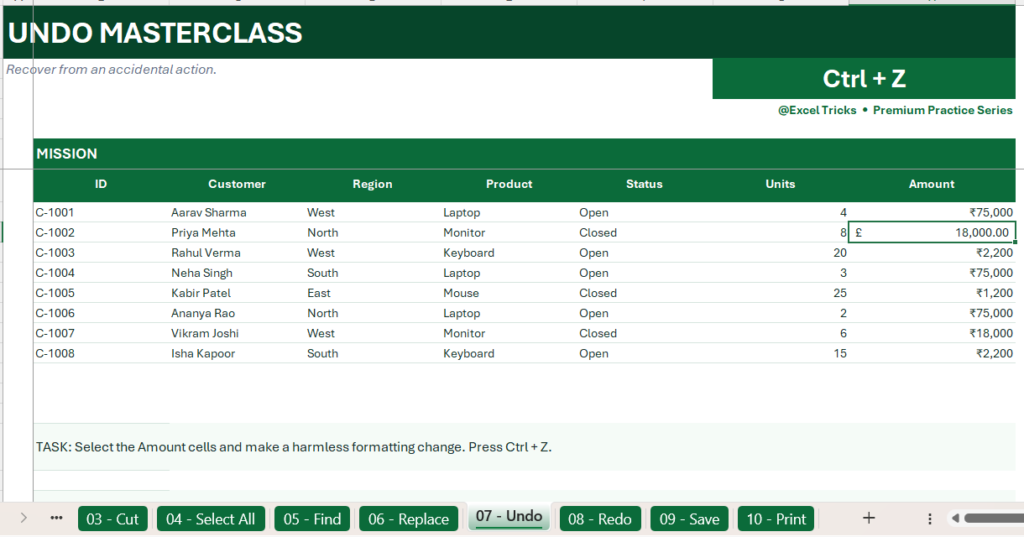
This is your Undo shortcut.
Microsoft lists Ctrl+Z as the shortcut for undoing the last action in Excel.
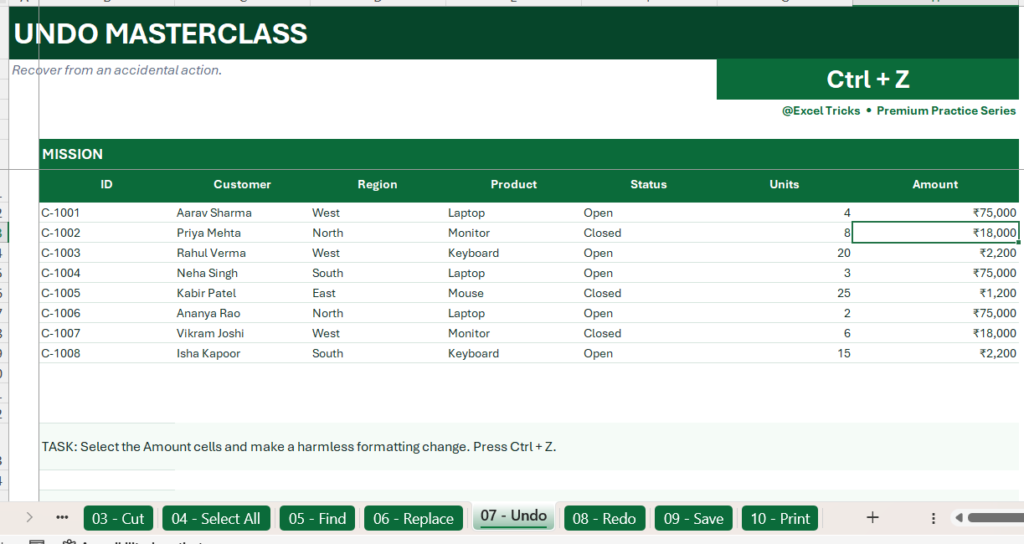
Practice makes this one even more useful
Open:
07 – Undo
Make a harmless formatting change.
Now press:
Ctrl + Z
Watch what happens.
The change is reversed.
A useful habit
Don’t be afraid to experiment in Excel.
When you’re working on a safe copy of a workbook, try something.
If you don’t like the result:
Ctrl + Z
That makes learning much less intimidating.
8. Ctrl + Y — Redo
Here’s a shortcut many people learn only after they discover it by accident.
You just pressed Ctrl+Z.
Then you realize:
“Actually… I wanted that change.”
That’s where Redo comes in.
Ctrl + Y = Redo
Microsoft documents Ctrl+Y as the shortcut for repeating or redoing an action where applicable.
Try this
Open:
08 – Redo
Make the Product column bold.
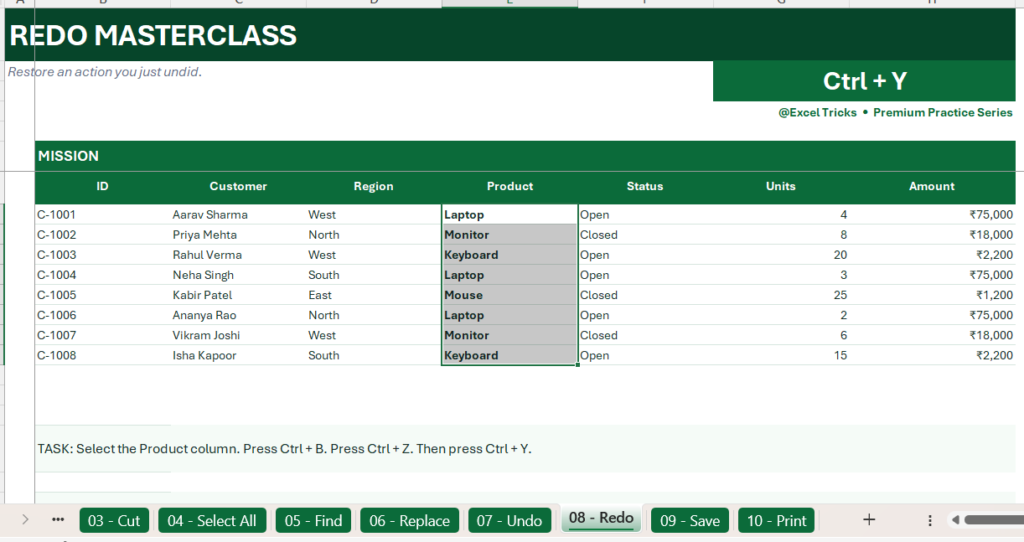
Press Ctrl + Z.
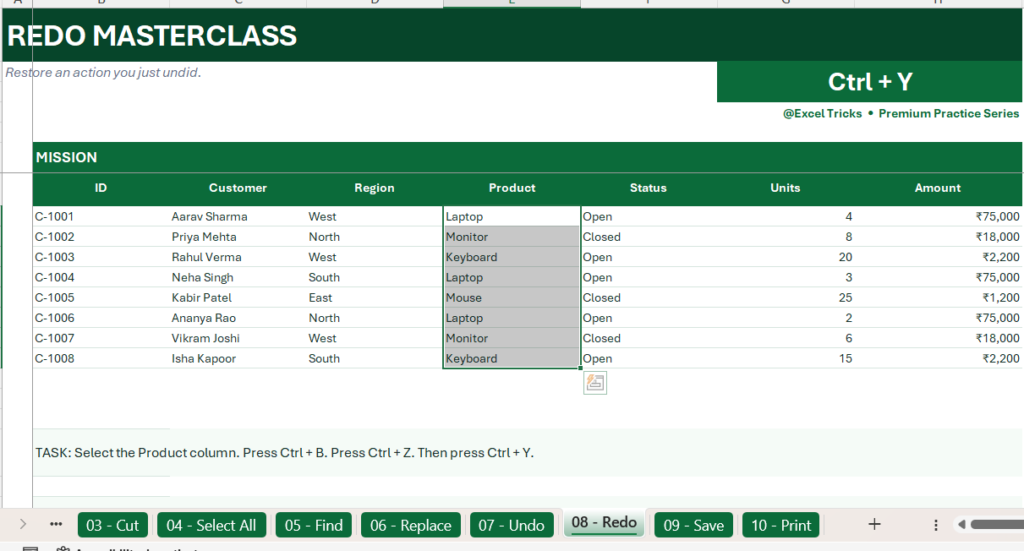
The formatting disappears.
Press Ctrl + Y.
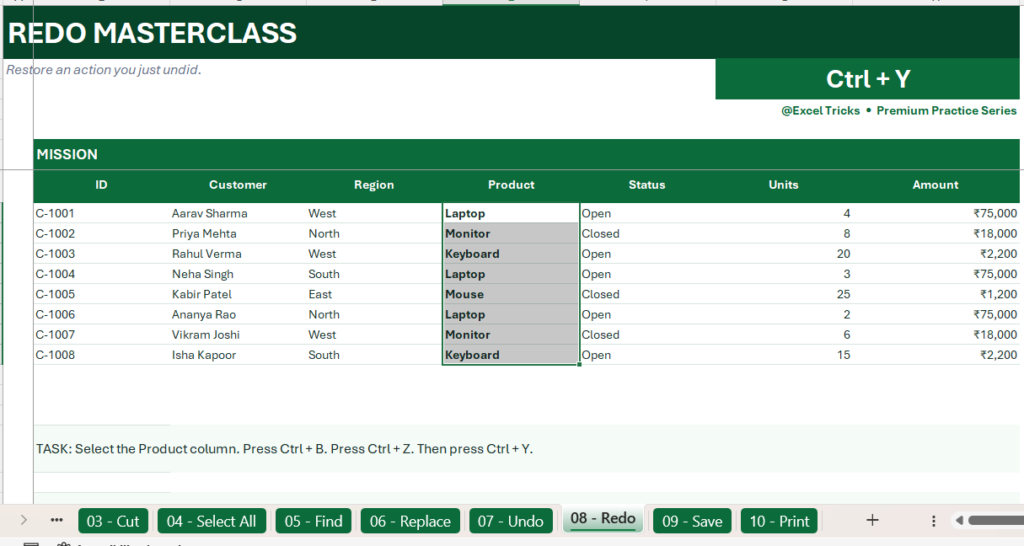
The formatting comes back.
It’s a simple exercise, but it helps you understand the relationship:
Ctrl + Z → Go back
Ctrl + Y → Bring the action forward again
9. Ctrl + S — Save
This shortcut isn’t flashy.
It won’t create a fancy dashboard.It won’t transform your data.
But it’s one of the habits I strongly recommend building.
Ctrl + S = Save
Microsoft lists Ctrl+S as the Save shortcut in Excel.
Imagine spending two hours cleaning a report.
You’ve:
- Fixed the data
- Added formulas
- Applied formatting
- Built a summary
Then you make one final change.
Saving regularly helps protect your progress.
Make it automatic
After an important change:
Ctrl + S
After completing a section:
Ctrl + S
Before closing your workbook:
Ctrl + S
Practice
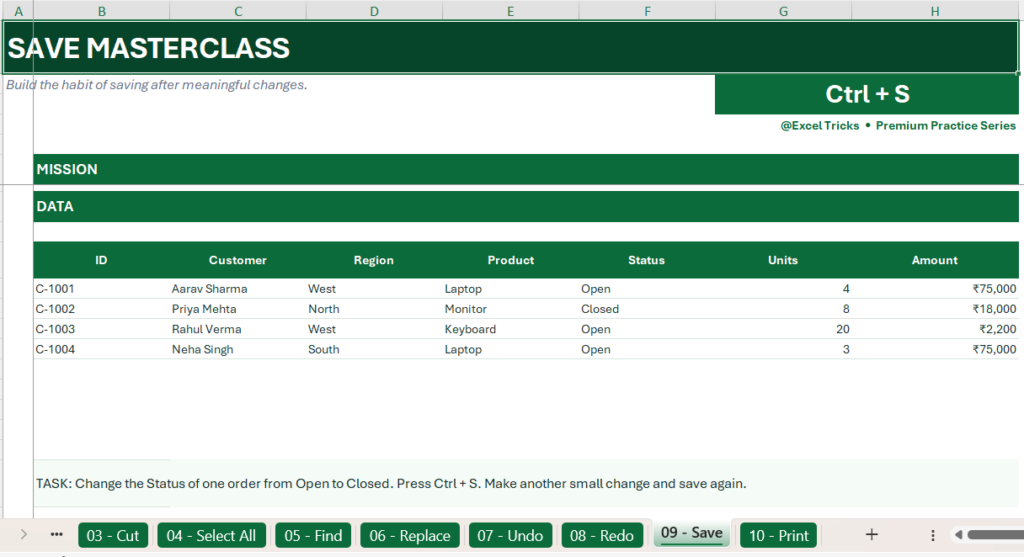
Open:
09 – Save
Change one of the practice values.
Press:
Ctrl + S
Then make another change and save again.The goal isn’t to remember the shortcut once.The goal is to build the habit.
10. Ctrl + P — Print
Here’s one people often overlook.
You finish your Excel report.
Everything looks great on your screen.
Then you print it…
And suddenly:
- A column is cut off.
- The page breaks in the wrong place.
- The report is too wide.
- The layout looks terrible.
That’s why you should preview before printing.
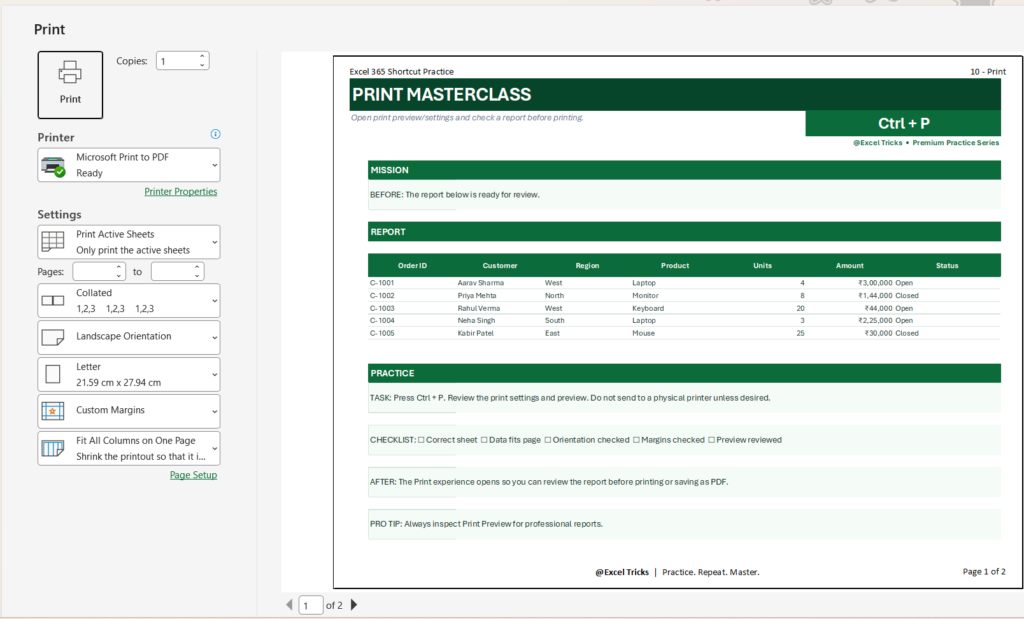
Ctrl + P = Print / Print Preview
Microsoft’s Excel documentation confirms that Ctrl+P opens the Print experience, where you can review and adjust print settings before printing.
Practice
Open:
10 – Print
Press:
Ctrl + P
Then check:
- Is the correct worksheet selected?
- Does the data fit?
- Is the orientation appropriate?
- Are the margins reasonable?
- Does the preview look professional?
You don’t even have to print anything.
Just preview it.
The 10 shortcuts worth memorizing
Now let’s put everything together.
| Shortcut | Action | Think of it as |
|---|---|---|
| Ctrl + C | Copy | Make a duplicate |
| Ctrl + V | Paste | Put it here |
| Ctrl + X | Cut | Move it |
| Ctrl + A | Select All | Select the data |
| Ctrl + F | Find | Where is it? |
| Ctrl + H | Replace | Fix repeated values |
| Ctrl + Z | Undo | Go back |
| Ctrl + Y | Redo | Bring it back |
| Ctrl + S | Save | Keep my work |
| Ctrl + P | Check the output |
Don’t Just Read This — Practice It
This is where I wanted to make this guide different from a typical Excel shortcut list.
Reading ten shortcuts takes a few minutes.
Actually using ten shortcuts is what makes them stick.
So I created a dedicated practice workbook for this article.
📥 Free Excel Shortcut Practice Workbook
Inside you’ll find a dedicated practice sheet for each shortcut:
01 — Copy
02 — Paste
03 — Cut
04 — Select All
05 — Find
06 — Replace
07 — Undo
08 — Redo
09 — Save
10 — Print
Each exercise follows a simple pattern:
Before → Practice → After → Pro Tip → Challenge
So instead of memorizing a shortcut and forgetting it tomorrow, you can actually use it on a small Excel task.
A 10-Minute Excel Shortcut Challenge
Here’s something you can do today.
Set a timer for 10 minutes.
Open the practice workbook and complete all ten exercises.
Round 1
Don’t worry about speed.
Just make sure you use the correct shortcut.
Round 2
Repeat the exercises.
This time, try to reduce your mouse usage.
Round 3
Try to complete each task without looking at the shortcut name.
If you can do that, you’re no longer simply recognizing the shortcut.
You’re beginning to remember it through practice.
What should you learn next?
These ten shortcuts are a great starting point, but they’re only the beginning.
Once these become automatic, the next group worth learning includes shortcuts for:
- Navigation
- Tables
- Filtering
- Formatting
- Formulas
- Filling data
- Working with rows and columns
- Paste Special
- Worksheets
- Data analysis
Microsoft’s current Excel shortcut reference covers these areas along with Ribbon KeyTips, function keys, Power Pivot, Copilot and Excel for the web.
That’s where you start moving from knowing Excel shortcuts to developing a genuinely keyboard-first workflow.
Final Thought
You don’t need to memorize 200 shortcuts this weekend.
Start with ten.
Ctrl + C.
Ctrl + V.
Ctrl + X.
Ctrl + A.
Ctrl + F.
Ctrl + H.
Ctrl + Z.
Ctrl + Y.
Ctrl + S.
Ctrl + P.
Use them repeatedly until your hands start reaching for the keyboard automatically.
Because the real benefit of Excel shortcuts isn’t knowing a long list of key combinations.
It’s getting to the point where you’re working on your spreadsheet…
…and the shortcut happens before you even think about it.

