
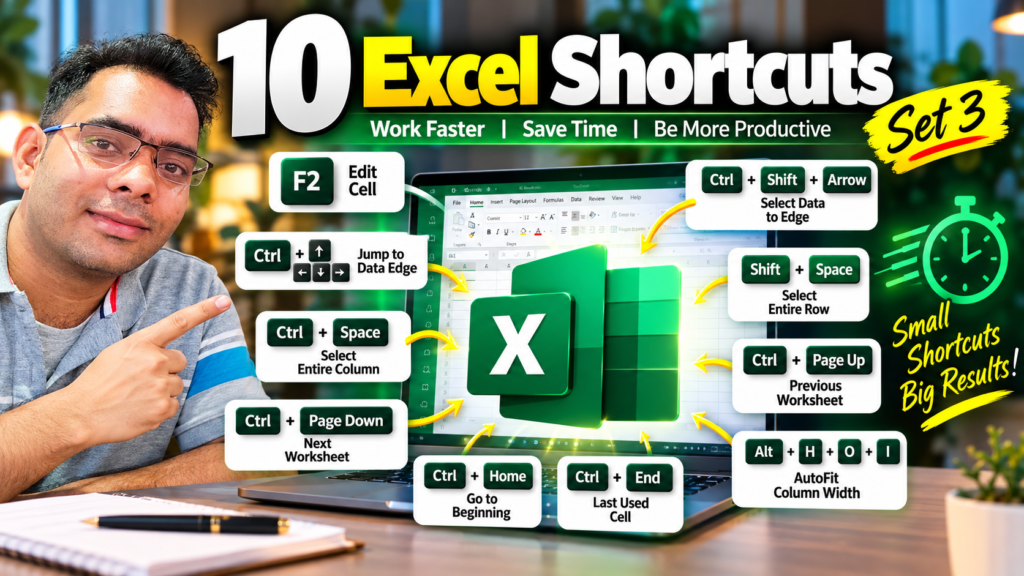

Master 10 powerful Excel shortcuts that can help you edit cells, select data, move between worksheets, navigate large spreadsheets, and work faster every day.
10 Excel Shortcuts That Can Save You Hours Every Week
If you use Excel regularly, you probably spend more time than you realize clicking through menus, scrolling through worksheets, and selecting data with your mouse.
The good news? You don’t need to learn hundreds of keyboard shortcuts to become faster.
Start with a small group of shortcuts that solve common problems — editing cells, navigating data, selecting rows and columns, switching worksheets, and adjusting column widths.
In this guide, we’ll look at 10 practical Excel shortcuts that are easy to learn and genuinely useful in everyday work.
Whether you’re an Excel beginner, analyst, student, accountant, or someone who works with spreadsheets every day, these shortcuts can make your workflow noticeably smoother.
Quick tip: Don’t try to memorize all 10 at once. Pick two or three shortcuts and use them repeatedly until they become automatic.
1. F2 — Edit the Active Cell
Shortcut: F2
Have you ever double-clicked a cell just to make a small correction?
You don’t need to.
Select the cell and press F2. Excel will place the cursor inside the cell so you can edit its contents directly.
Example
Suppose cell A2 contains:
John Smith
You want to change it to:
John A. Smith
Instead of double-clicking the cell:
Select A2 → Press F2 → Edit the text → Press Enter
Why it’s useful
F2 is particularly helpful when you’re working with:
- Long formulas
- Text entries
- Dates
- Cell references
- Complex Excel formulas
It also gives you a quick way to inspect and edit a formula without reaching for the mouse.
Try it: Select a formula cell and press F2. You’ll immediately see the formula in edit mode.
2. Ctrl + Arrow — Jump to the Edge of Your Data
Shortcut: Ctrl + Arrow Key
Large spreadsheets can contain thousands of rows. Scrolling through them manually is slow.
That’s where Ctrl + Arrow becomes extremely useful.
If you’re inside a continuous block of data, pressing:
Ctrl + ↓moves toward the bottom edgeCtrl + ↑moves toward the top edgeCtrl + →moves toward the right edgeCtrl + ←moves toward the left edge
Example
Imagine you have a sales dataset with 10,000 rows.
Instead of dragging the scrollbar all the way down:
Click inside your data → Press Ctrl + ↓
Excel can quickly move you toward the edge of the current data region.
Important detail
The behavior depends on whether there are blank cells in the data. Excel treats blank cells as boundaries, so the shortcut can stop earlier than you expect.
That’s one reason understanding how your dataset is structured matters.
3. Ctrl + Shift + Arrow — Select Data Quickly
Shortcut: Ctrl + Shift + Arrow Key
This shortcut takes the previous trick one step further.
Instead of simply moving to the edge of your data, Ctrl + Shift + Arrow extends the selection.
For example:
Ctrl + Shift + ↓
can select data downward from your active cell until the edge of the current data region.
Why this shortcut is powerful
It’s extremely useful when you need to:
- Format a large range
- Copy data
- Delete data
- Apply borders
- Change number formats
- Create selections for formulas
A simple workflow
Select the first cell in a column.
Then press:
Ctrl + Shift + ↓
Instead of dragging your mouse through hundreds or thousands of rows, Excel handles the selection for you.
4. Ctrl + Space — Select an Entire Column
Shortcut: Ctrl + Space
Need to select an entire column?
Don’t drag your mouse from the column heading.
Click any cell in the column and press:
Ctrl + Space
Excel selects the entire worksheet column.
Example
If you’re working in column B, click any cell in column B and press:
Ctrl + Space
The complete column B becomes selected.
When is this useful?
This is particularly helpful when you want to:
- Format a column
- Change column width
- Apply number formatting
- Delete a column’s contents
- Copy an entire column
5. Shift + Space — Select an Entire Row
Shortcut: Shift + Space
This is the row equivalent of Ctrl + Space.
Click any cell in a row and press:
Shift + Space
Excel selects the entire row.
Example
If your active cell is D15:
Shift + Space
selects Row 15.
This becomes particularly useful when working with large tables where selecting a row with the mouse can be inconvenient.
Remember this simple rule
Ctrl + Space = Column
Shift + Space = Row
That’s an easy pair to memorize.
6. Ctrl + Page Down — Move to the Next Worksheet
Shortcut: Ctrl + Page Down
Working with multiple worksheets?
You don’t need to keep clicking worksheet tabs.
Press:
Ctrl + Page Down
to move to the next worksheet.
Example
Suppose your workbook contains:
- Sales
- Expenses
- Profit
- Dashboard
If you’re currently on Sales, pressing:
Ctrl + Page Down
moves you to the next worksheet.
Press it again to continue moving through the workbook.
Why I like this shortcut
It’s especially useful when you’re comparing information across multiple sheets.
Once you get comfortable with it, switching worksheets becomes much faster.
7. Ctrl + Page Up — Move to the Previous Worksheet
Shortcut: Ctrl + Page Up
This is the reverse of the previous shortcut.
Use:
Ctrl + Page Up
to move to the previous worksheet.
So the two shortcuts work together:
| Shortcut | Action |
|---|---|
Ctrl + Page Down | Next worksheet |
Ctrl + Page Up | Previous worksheet |
Easy way to remember
Think of the Page Up and Page Down keys exactly as their names suggest:
Page Down → Move forward
Page Up → Move backward
8. Ctrl + Home — Go to the Beginning of the Worksheet
Shortcut: Ctrl + Home
Working inside a large spreadsheet and need to quickly return to the beginning?
Press:
Ctrl + Home
In a typical worksheet, Excel moves to the beginning area of the worksheet, normally cell A1.
Why it’s useful
Imagine you’re working around row 5,000 and suddenly need to return to the top.
Instead of scrolling:
Ctrl + Home
That’s it.
This shortcut is particularly useful when working with:
- Large datasets
- Reports
- Financial models
- Long worksheets
- Data-analysis files
9. Ctrl + End — Jump to the Last Used Cell
Shortcut: Ctrl + End
Here’s another incredibly useful navigation shortcut.
Press:
Ctrl + End
and Excel moves to the last cell it considers part of the worksheet’s used range.
This can help you quickly understand how far your worksheet extends.
Example
Suppose your dataset occupies cells:
A1:H2500
Pressing:
Ctrl + End
may take you toward the lower-right area of that used range.
One important Excel behavior
The “last used cell” isn’t always the last cell containing visible data.
Formatting or previously used cells can sometimes cause Excel’s used range to extend farther than expected.
So if Ctrl + End takes you much farther than your actual data, that can be a sign that the worksheet contains leftover formatting or previously used cells.
10. Alt + H + O + I — AutoFit Column Width
Shortcut: Alt + H + O + I
This shortcut is incredibly useful when your data doesn’t fit inside the columns.
Suppose you have:
| Customer Name | Department | Annual Revenue |
|---|---|---|
| Alexander Johnson | Marketing | 125000 |
The column might be too narrow to display the complete text.
Instead of manually dragging the column boundary:
Select the column → Press Alt + H + O + I
Excel automatically adjusts the column width to fit the contents.
Why it’s useful
AutoFit is helpful when:
- Importing data
- Creating reports
- Cleaning datasets
- Preparing dashboards
- Formatting tables
- Working with long text
Bonus
You can also access AutoFit through Excel’s ribbon:
Home → Format → AutoFit Column Width
But the keyboard sequence can be much faster once you’ve practiced it.
The 10 Excel Shortcuts at a Glance
Here’s your quick-reference cheat sheet:
| # | Shortcut | What It Does |
|---|---|---|
| 1 | F2 | Edit the active cell |
| 2 | Ctrl + Arrow | Jump toward the edge of a data region |
| 3 | Ctrl + Shift + Arrow | Select data toward the edge |
| 4 | Ctrl + Space | Select the entire column |
| 5 | Shift + Space | Select the entire row |
| 6 | Ctrl + Page Down | Move to the next worksheet |
| 7 | Ctrl + Page Up | Move to the previous worksheet |
| 8 | Ctrl + Home | Go to the beginning of the worksheet |
| 9 | Ctrl + End | Go to the last used cell |
| 10 | Alt + H + O + I | AutoFit column width |
Which Excel Shortcuts Should You Learn First?
You don’t need to memorize everything immediately.
If you’re new to Excel, start with these five:
Beginner Priority
1. F2
For quickly editing cells and formulas.
2. Ctrl + Arrow
For navigating large datasets.
3. Ctrl + Shift + Arrow
For selecting large ranges.
4. Ctrl + Space
For selecting columns.
5. Shift + Space
For selecting rows.
Once these become natural, add the worksheet-navigation shortcuts and AutoFit.
A Simple 7-Day Excel Shortcut Challenge
Want to actually remember these shortcuts?
Try this:
Day 1
Practice F2
Day 2
Practice Ctrl + Arrow
Day 3
Practice Ctrl + Shift + Arrow
Day 4
Practice Ctrl + Space + Shift + Space
Day 5
Practice Ctrl + Page Up + Ctrl + Page Down
Day 6
Practice Ctrl + Home + Ctrl + End
Day 7
Practice Alt + H + O + I
By the end of the week, these shortcuts should feel much more natural.
Don’t Just Learn Excel Shortcuts — Use Them
The real benefit of keyboard shortcuts isn’t memorizing a long list.
It’s reducing the number of small, repetitive actions you perform every day.
One shortcut might save only a few seconds.
But if you use that shortcut dozens or hundreds of times, those seconds add up.
For example, instead of repeatedly:
Click → Scroll → Select → Click → Format
you can often turn the same task into:
Shortcut → Shortcut → Done
That’s where Excel starts feeling much faster.
Frequently Asked Questions
What is the most useful Excel shortcut?
There isn’t one shortcut that is best for every task. For everyday work, shortcuts such as Ctrl + Arrow, Ctrl + Shift + Arrow, F2, and Ctrl + Space can be particularly useful for navigating, selecting, and editing data.
What does F2 do in Excel?
F2 puts the active cell into edit mode, allowing you to edit the cell’s contents or formula directly.
How do I select an entire column in Excel?
Click a cell in the column and press Ctrl + Space.
How do I select an entire row in Excel?
Click a cell in the row and press Shift + Space.
How do I move between Excel worksheets using the keyboard?
Use Ctrl + Page Down to move to the next worksheet and Ctrl + Page Up to move to the previous worksheet.
How do I automatically adjust column width in Excel?
Use Alt + H + O + I to AutoFit the selected column width.
What does Ctrl + End do in Excel?
Ctrl + End moves to the last cell in Excel’s used range. This may extend beyond your visible data if the worksheet contains previously used or formatted cells.


