
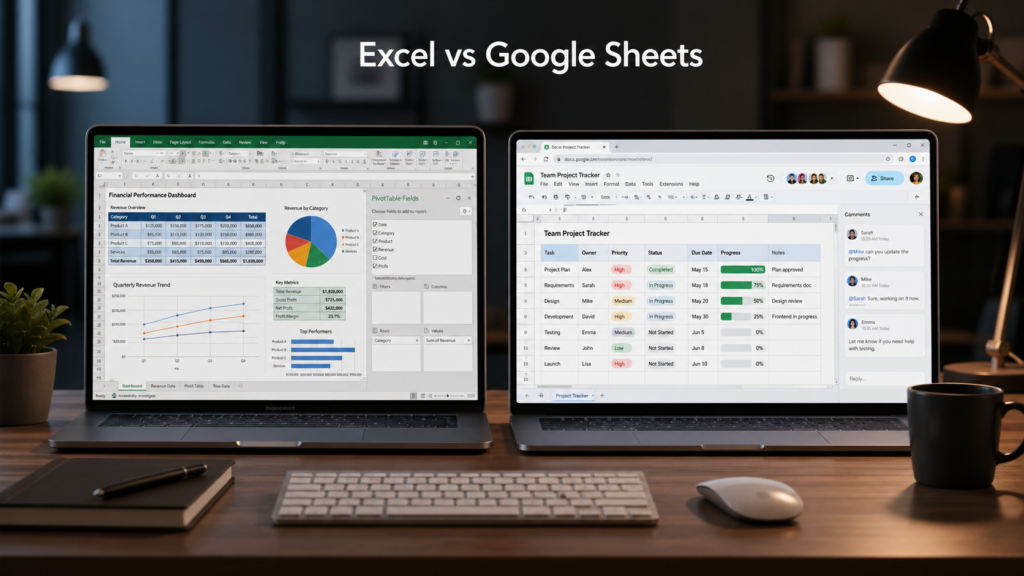

Excel and Google Sheets are two of the most widely used spreadsheet tools for productivity, reporting, and organization. Both are useful for everyday work, but they are designed slightly differently and perform better in different situations.
For many professionals, students, freelancers, and small businesses in the USA, choosing the right spreadsheet tool can improve workflow, save time, and make collaboration easier. While Excel is often preferred for advanced analysis and reporting, Google Sheets is known for its simplicity and cloud-based collaboration features.
The best choice depends on the type of work you do daily.
Why This Comparison Matters
Spreadsheets are now part of everyday work in many industries. People use them for:
- Budget tracking
- Project management
- Business reporting
- Task organization
- Data analysis
- Content planning
- Team collaboration
Understanding the strengths of Excel and Google Sheets can help you work more efficiently and choose the right tool for each task.
Excel for Everyday Work
Microsoft Excel has been one of the most trusted spreadsheet tools for years. It is especially useful for advanced workflows, large datasets, detailed reports, and business dashboards.
Excel offers powerful formulas, strong charting tools, PivotTables, automation features, and better handling of large spreadsheets. Many finance teams, analysts, and office professionals still rely heavily on Excel for daily reporting and structured data management.
Best Uses for Excel
- Financial reporting
- Budget dashboards
- Large spreadsheet analysis
- Inventory management
- Advanced formulas and calculations
- Offline spreadsheet work
- Professional reporting systems
Google Sheets for Everyday Work
Google Sheets is a cloud-based spreadsheet tool that focuses heavily on collaboration and accessibility. Because it runs directly in a web browser, users can access files from almost anywhere without installing software.
Google Sheets works especially well for teams that need real-time editing, shared task management, quick updates, and online collaboration.
For everyday workflows like planning, content calendars, project tracking, and shared lists, Google Sheets can feel very convenient and lightweight.
Best Uses for Google Sheets
- Team collaboration
- Shared project tracking
- Online task management
- Content calendars
- Remote team workflows
- Quick browser access
- Cloud-based organization
Excel vs Google Sheets Comparison
| Feature | Excel | Google Sheets |
|---|---|---|
| Best For | Advanced analysis and reporting | Collaboration and online work |
| Collaboration | Good collaboration features | Excellent real-time collaboration |
| Large Files | Handles large datasets better | Better for lightweight files |
| Accessibility | Desktop-focused workflow | Browser-based cloud access |
| Formulas | More advanced capabilities | Strong for everyday tasks |
| Offline Use | Very strong offline support | Limited compared to Excel |
| Automation | Advanced VBA and automation | Simple automation with Apps Script |
Which Tool Is Better for Office Work?
For traditional office environments, Excel is often the preferred choice because of its advanced reporting features and ability to handle complex spreadsheets.
However, Google Sheets has become extremely popular in remote work environments because teams can edit files together in real time without sending multiple spreadsheet versions back and forth.
Many businesses now use both tools depending on the situation.
Which Tool Is Better for Students and Freelancers?
Students often prefer Google Sheets because it is free, easy to share, and accessible from any browser.
Freelancers frequently use Google Sheets for content planning, project tracking, and collaboration with clients, while Excel is commonly used for invoices, financial reports, and business analysis.
Collaboration Experience
One of the biggest strengths of Google Sheets is real-time collaboration. Multiple users can work on the same spreadsheet simultaneously while leaving comments and updates instantly.
Excel also supports collaboration, especially through Microsoft 365, but Google Sheets still feels more natural for lightweight teamwork and quick updates.
Performance and Speed
Excel generally performs better when handling:
- Large spreadsheets
- Complex formulas
- Advanced dashboards
- Heavy calculations
- Large reporting systems
Google Sheets works best for smaller workflows and collaborative projects where convenience is more important than advanced processing power.
Why Many Professionals Use Both
In real-world workflows, many people use both Excel and Google Sheets together.
For example:
- Excel for reporting and dashboards
- Google Sheets for collaboration and planning
- Excel for finance management
- Google Sheets for team tracking
Using both tools strategically often creates the most efficient workflow.
Final Thoughts
Excel and Google Sheets are both excellent tools for everyday work. Excel is usually better for advanced analysis, reporting, and larger spreadsheets, while Google Sheets is often better for collaboration, accessibility, and cloud-based teamwork.
The right choice depends on your workflow, team needs, and the type of tasks you handle regularly.
For many users, combining both tools provides the best balance between productivity, flexibility, and collaboration.



This is a great breakdown of how Excel and Google Sheets fit into different workflows, especially the distinction between Excel’s heavy-duty analysis versus Sheets’ real-time collaboration strengths. It’s refreshing to see the nuance that many professionals actually leverage both tools depending on the specific task at hand. The section on how these choices impact productivity for teams and students really hits home with personal experience.
The collaboration versus performance trade-off you highlighted really resonates. I’ve noticed that using Excel for heavy data analysis while relying on Google Sheets for team-based updates often saves a lot of back-and-forth. It’s interesting how combining both tools can actually create a more efficient workflow.
Pingback: AI Tools Replacing Manual Work in Excel - Excel AI Tools and SEO Guides