
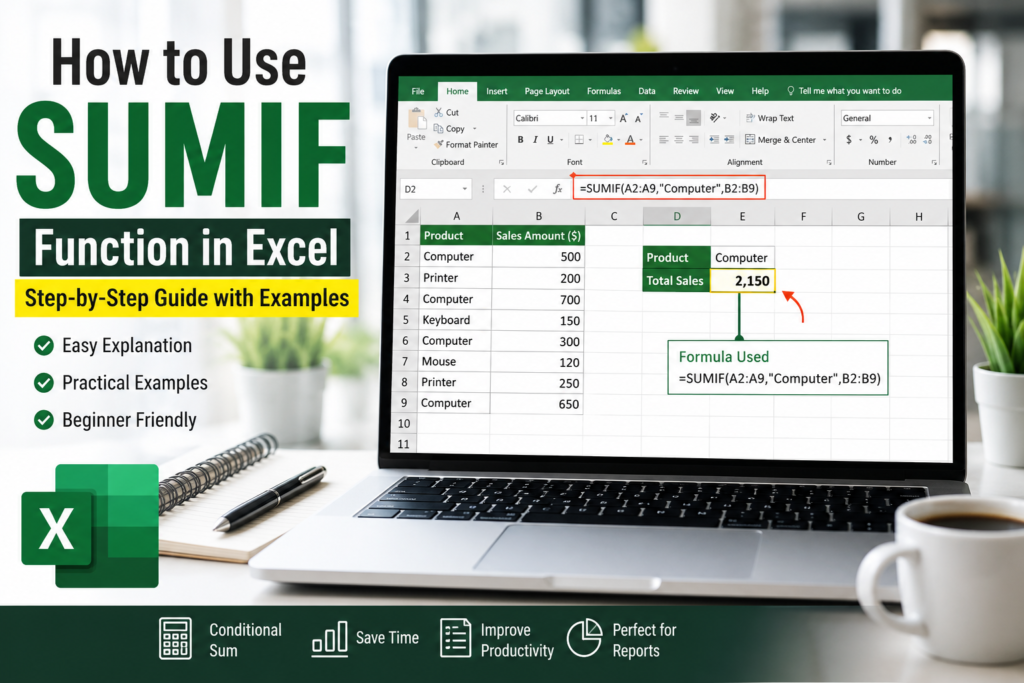

Working with large Excel spreadsheets can become difficult when you need to calculate totals based on specific conditions. That’s where the SUMIF function in Excel becomes extremely useful.
The SUMIF formula helps you add numbers that meet a specific condition without manually filtering or calculating data. Whether you are tracking sales, managing expenses, creating office reports, or analyzing inventory, this function can save a huge amount of time.
In this beginner-friendly guide, you’ll learn how to use the SUMIF function in Excel step-by-step with practical examples.
What Is the SUMIF Function in Excel?
The SUMIF function is used to add values in Excel that meet a particular condition or criteria.
For example, if you have a list of products and sales amounts, you can use SUMIF to calculate only the total sales for a specific product like Computer.
Instead of manually adding numbers one by one, Excel automatically performs the calculation for you.
SUMIF Function Syntax
Syntax:
=SUMIF(range, criteria, [sum_range])
Explanation of the Syntax
| Argument | Description |
|---|---|
| Range | The cells that Excel checks against your condition. |
| Criteria | The condition that must be met. |
| Sum_range | The actual cells that Excel will add. |
Example: Sum Numbers Based on Product Name
Suppose you have the following Excel data:
| Product | Amount |
|---|---|
| Computer | 500 |
| Printer | 200 |
| Computer | 700 |
| Keyboard | 150 |
| Computer | 300 |
Now, if you want to calculate the total amount only for Computer, use this formula:
=SUMIF(A2:A6,"Computer",B2:B6)
Result: 1500
Excel checks the product names in column A and adds only the matching amounts from column B.
Using Cell Reference Instead of Text
You can also use a cell reference instead of typing the text directly inside the formula.
For example, if cell D2 contains the word:
Computer
Then you can use:
=SUMIF(A2:A6,D2,B2:B6)
This method is more flexible because you can simply change the value in D2 without editing the formula.
Understanding Each Part of the SUMIF Formula
1. Range
The Range is the group of cells Excel checks to find your condition.
Example:
A2:A6
Excel searches these cells to find the word “Computer”.
2. Criteria
The Criteria is the condition that decides which values will be added.
Examples of criteria:
- “Computer”
- “Printer”
- “>500”
- “<100”
- D2 (cell reference)
Important: If you type text directly into the formula, always use quotation marks.
Correct:
"Computer"
Incorrect:
Computer
3. Sum_range
The Sum_range contains the actual numbers Excel will add.
Example:
B2:B6
SUMIF With Numbers
The SUMIF function also works with numerical conditions.
For example, if you want to add only values greater than 500:
=SUMIF(B2:B10,">500")
Excel will add only the numbers above 500.
SUMIF With Dates
You can also use dates as criteria in the SUMIF function.
Example:
=SUMIF(A2:A10,">01/01/2026",B2:B10)
This formula sums values after January 1, 2026.
Common SUMIF Mistakes to Avoid
1. Using Different Range Sizes
Make sure the range and sum_range contain the same number of rows.
Correct:
A2:A10
B2:B10
Incorrect:
A2:A10
B2:B15
2. Forgetting Quotation Marks
Text conditions must always use double quotation marks.
"Computer"
3. Selecting the Wrong Range
Always double-check your selected ranges before pressing Enter.
Why the SUMIF Function Is Important
The SUMIF formula is widely used in offices and businesses because it helps users:
- Analyze sales reports
- Track expenses
- Create financial summaries
- Build dashboards
- Generate automated reports
- Save time on calculations
Whether you are a student, office worker, accountant, or business owner, learning SUMIF can improve your Excel skills significantly.
Pro Tip for Beginners
Once you understand the SUMIF function, try combining it with:
- Pivot Tables
- Charts
- Conditional Formatting
- Excel Dashboards
This helps you create professional reports quickly and efficiently.
Related Articles
SUM vs SUMIF vs SUMIFS in Excel: Differences, Examples & When to Use Each
Frequently Asked Questions
What is the SUMIF function used for in Excel?
The SUMIF function is used to add numbers based on a specific condition or criteria.
What is the difference between SUMIF and SUMIFS?
SUMIF works with one condition, while SUMIFS supports multiple conditions.
Can SUMIF work with text?
Yes, SUMIF can calculate totals based on text values such as product names or categories.
Why is my SUMIF formula returning 0?
This usually happens because of incorrect ranges, formatting issues, or missing quotation marks in the criteria.
Final Thoughts
The SUMIF function in Excel is one of the most useful formulas for beginners and professionals alike. It allows you to quickly calculate totals based on conditions, making spreadsheet work faster and more accurate.
If you regularly work with reports, budgets, inventory data, or sales records, mastering the SUMIF function can save you a lot of time.
Start practicing with small datasets and gradually use SUMIF in real-world Excel projects to improve your productivity.



Pingback: SUM vs SUMIF vs SUMIFS in Excel: Differences, Examples & When to Use Each - Excel AI Tools and SEO Guides
Pingback: SUMIF vs SUMIFS in Excel: What’s the Difference? (+ Real Examples) - Excel AI Tools and SEO Guides