


If you use Microsoft Excel regularly, you probably already know a few keyboard shortcuts.
Ctrl + C. Ctrl + V. Ctrl + Z.
But Excel has many more keyboard shortcuts that can make everyday spreadsheet work faster, easier, and more comfortable.
The problem is that remembering Excel shortcuts from a simple list isn’t always easy.
You may see a shortcut such as Ctrl + Shift + Down Arrow and think, “I’ll remember that.”
A few days later, you’re back to clicking and dragging with the mouse.
That’s exactly why we created the Excel Tricks Premium Visual Excel Shortcuts Book.
Instead of simply giving you a long list of keyboard combinations, this visual guide shows what happens BEFORE you press a shortcut, which keys you need to press, and what happens AFTER the shortcut is used.
The examples are presented using realistic Excel-style worksheets so you can understand the shortcut instead of simply memorizing it.
And the complete PDF is available as a free download.
Why Excel Keyboard Shortcuts Are Worth Learning
Excel can be used with a mouse for almost everything, but that doesn’t mean it is always the fastest way to work.
Think about a normal spreadsheet task.
You might need to select data, copy it, paste it somewhere else, format a column, apply filters, edit a cell, fill formulas, create a table, or move around a large worksheet.
If you use the mouse or Ribbon for every small action, those extra clicks and movements can quickly add up.
Keyboard shortcuts reduce unnecessary mouse movement and can make repetitive Excel tasks much faster.
The important thing is that you don’t need to memorize hundreds of shortcuts in one day.
Start with the shortcuts you actually use.
Once those become natural, add a few more.
Over time, you’ll build a personal Excel shortcut toolkit that can save you a surprising amount of time.
The Excel Shortcuts Everyone Should Know
Let’s start with some of the most useful shortcuts included in the Excel Tricks Visual Excel Shortcuts Book.
1. Ctrl + C — Copy Selected Data
Select the cells you want to copy and press:
Ctrl + C
Excel places the selected range into copy mode so you can paste it somewhere else.
This is one of the first Excel shortcuts every user should learn.
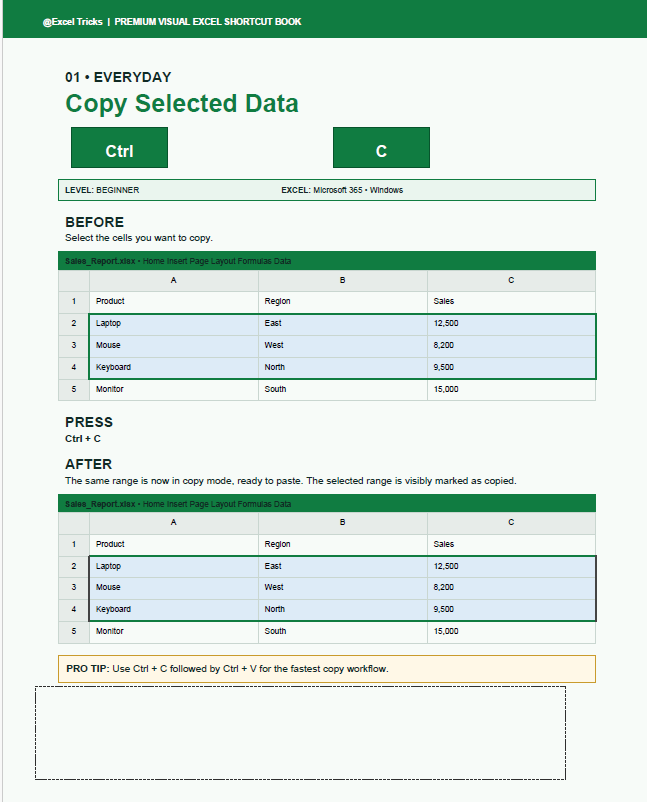
For example, if you have a sales report containing Product, Region, and Sales columns, you can select the required cells and press Ctrl + C instead of using the Copy button from the Ribbon.
Pro Tip: Use Ctrl + C followed by Ctrl + V for a fast copy-and-paste workflow.
2. Ctrl + V — Paste Copied Data
After copying your data, move to the destination cells and press:
Ctrl + V
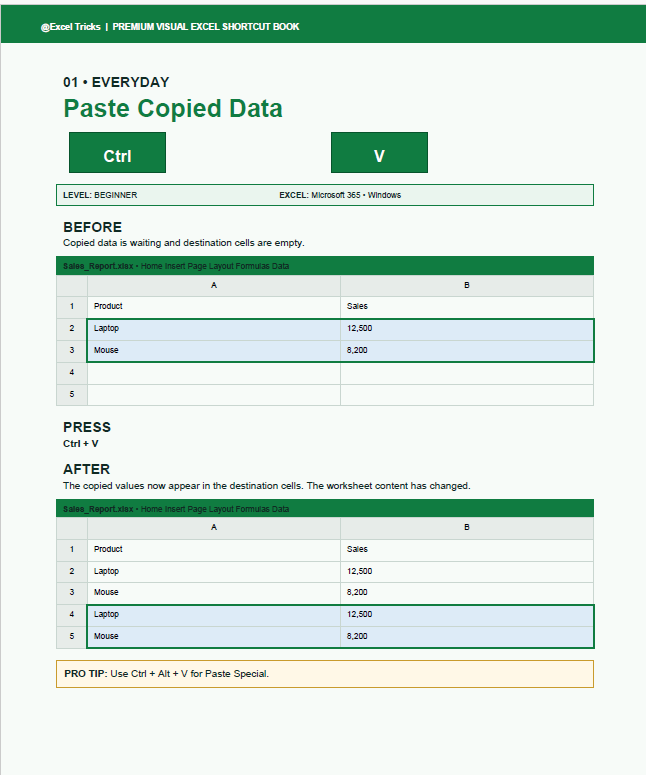
Excel places the copied information into the new location.
This is much faster than repeatedly going to the Home tab and clicking Paste.
If you need more control over how the information is pasted, you can also use:
Ctrl + Alt + V
This opens the Paste Special options.
3. Ctrl + Z — Undo Last Action
Made a mistake in Excel?
Press:
Ctrl + Z
Excel reverses your most recent action.
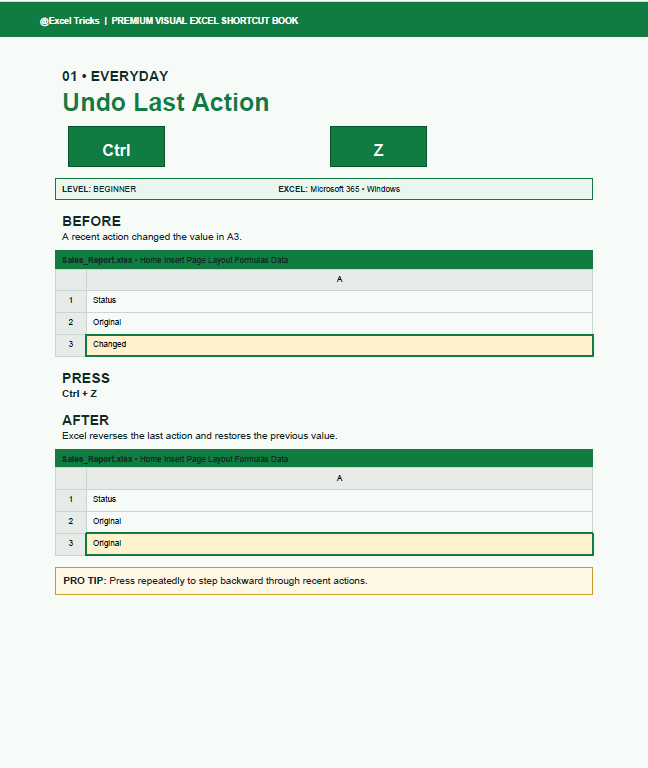
This shortcut is especially useful when you’re experimenting with formulas, formatting, data, or worksheet changes.
You can press Ctrl + Z repeatedly to step backward through recent actions.
Pro Tip: Don’t be afraid to experiment in Excel. Ctrl + Z gives you a quick way to reverse many recent changes.
Excel Navigation Shortcuts
Large worksheets can become difficult to navigate, especially when you’re working with hundreds or thousands of rows.
Instead of constantly scrolling with your mouse, use these navigation shortcuts.
4. Ctrl + Down Arrow — Jump to the Bottom of a Data Region
Place your active cell inside a column containing data and press:
Ctrl + Down Arrow
Excel moves the active cell toward the bottom of the current data region.
For example, if a list contains Product names from A2 to A5, Excel can quickly move from the starting point to the bottom of that data.
This becomes extremely useful when working with larger datasets.
Pro Tip: Blank cells can affect where Excel stops, so always understand how your data is structured.
5. Ctrl + Home — Return to Cell A1
Have you moved deep into a worksheet and want to quickly return to the beginning?
Press:
Ctrl + Home
Excel moves the active cell back to A1.
This is a simple shortcut, but it can save time when you’re working inside large worksheets.
Think of it as a quick navigation reset.
Excel Selection Shortcuts
Selecting data with a mouse is fine when your worksheet contains only a few rows.
But when your spreadsheet becomes larger, keyboard selection can make the job much easier.
6. Ctrl + Shift + Down Arrow — Select Data Instantly
Start with a cell containing data and press:
Ctrl + Shift + Down Arrow
Excel expands the selection down through the current data region.
For example, if your data starts at A2 and continues to A5, the selection can quickly expand from A2 to A5.
This is particularly useful when working with hundreds or thousands of rows.
Instead of clicking and dragging through a long dataset, you can select the data with a simple keyboard combination.
Pro Tip: Use this shortcut together with other selection shortcuts to work with large Excel datasets much faster.
7. Ctrl + Space — Select a Column
Want to select a column without dragging your mouse?
Click inside the column and press:
Ctrl + Space
Excel selects the current column.
This can be useful when you want to format, hide, delete, or otherwise work with a column.
For example, if you’re working with a sales report and want to format the Region column, place your active cell inside that column and press Ctrl + Space.
Pro Tip: This shortcut is especially useful before formatting or managing columns.
Excel Editing Shortcuts
Editing individual cells is another area where keyboard shortcuts can save time.
Instead of clicking multiple times to enter edit mode or create multiple lines, use these shortcuts.
8. F2 — Edit the Active Cell
Select a cell and press:
F2
Excel enters edit mode and places the insertion cursor inside the active cell.
This is particularly useful when editing existing values or formulas.
For example, if a cell contains a formula and you want to make a small change, F2 lets you start editing directly from the keyboard.
Pro Tip: F2 is one of the most useful shortcuts to learn if you work with formulas regularly.
9. Alt + Enter — Insert a New Line Inside a Cell
Want to put multiple lines of text inside one Excel cell?
Press:
Alt + Enter
While editing a cell, Excel inserts a line break.
For example, instead of having:
Sales increased in Q2
on one continuous line, you can create:
Sales increased
in Q2
This can be useful for notes, descriptions, addresses, comments, and other information that needs to appear on multiple lines inside a single cell.
Pro Tip: If the text doesn’t display properly, use Wrap Text to make the multiple lines easier to read.
10. Ctrl + D — Fill Down
Suppose you have a value or formula in the first cell of a selected range and want to fill it downward.
Press:
Ctrl + D
Excel fills the cells below using the content from the top cell.
For example, if A2 contains:
East
and the cells below are empty, selecting the range and pressing Ctrl + D fills the cells below with East.
This shortcut is also extremely useful when working with formulas.
Pro Tip: Ctrl + D can save a lot of time when you need to fill formulas down a long worksheet.
Excel Formatting Shortcuts
Formatting is an important part of creating professional Excel reports.
Instead of repeatedly opening Ribbon menus, use keyboard shortcuts for common formatting tasks.
11. Ctrl + 1 — Open Format Cells
Need to change number formatting, alignment, borders, or other cell settings?
Press:
Ctrl + 1
Excel opens the Format Cells dialog box.
From there, you can control different formatting options.
For example, plain numbers such as:
12500
can be formatted as:
$12,500.00
using the appropriate Currency formatting option.
Pro Tip: Format Cells gives you access to many important formatting controls from one place.
12. Ctrl + B — Apply Bold
Select the cell or text and press:
Ctrl + B
Excel applies bold formatting.
Press Ctrl + B again to toggle the formatting off.
This is especially useful when formatting headings, labels, or important values.
For example:
Monthly Sales
can be quickly emphasized using Ctrl + B.
Pro Tip: Ctrl + B is a toggle, so you can use the same shortcut to turn bold formatting on or off.
Excel Data Shortcuts
If you work with sales reports, customer lists, employee records, inventory, financial data, or other structured information, these shortcuts are worth learning.
13. Ctrl + T — Create an Excel Table
Select a contiguous dataset and press:
Ctrl + T
Excel can convert the selected range into an Excel Table.
For example, a dataset containing:
Product | Region | Sales
can be transformed into a structured Excel Table.
Tables provide several useful features, including:
Filter buttons
Structured references
Automatic expansion
Better data organization
Once your data is converted into a table, working with formulas, filters, and additional rows becomes easier.
Pro Tip: If you regularly work with lists in Excel, Ctrl + T is one of the most useful shortcuts you can learn.
14. Ctrl + E — Flash Fill
Flash Fill can recognize patterns in your data and automatically fill the remaining entries.
For example, suppose you have:
John Smith
and want to extract:
John
Enter the first example and press:
Ctrl + E
Excel attempts to detect the pattern and fill the remaining cells.
For example:
John Smith → John
Sarah Johnson → Sarah
Mike Brown → Mike
This can save time when you need to extract or transform information that follows a recognizable pattern.
Pro Tip: Flash Fill works best when your examples follow a clear and consistent pattern.
15. Ctrl + Shift + L — Toggle Filters
Working with a list and need filter buttons?
Press:
Ctrl + Shift + L
Excel toggles the filter buttons on the headers.
For example, a dataset with:
Product | Region | Sales
can display filter arrows on each header.
You can then use those filters to quickly work with the data.
This is a convenient alternative to manually opening the Data tab every time you want to enable or disable filters.
Pro Tip: Ctrl + Shift + L is one of the most useful shortcuts for people who work with Excel lists and reports.
Excel Formula Shortcuts
If you work with formulas regularly, keyboard shortcuts can make formula creation and checking much faster.
Here are some important ones from the visual guide.
16. Alt + = — Insert AutoSum
Place the active cell below a numeric range and press:
Alt + =
Excel automatically inserts a SUM formula based on the surrounding data.
For example, if you have:
100
200
300
Excel can suggest:
=SUM(A2:A4)
The result is:
600
This is one of the quickest ways to create a basic total in Excel.
Pro Tip: Always check Excel’s suggested range before pressing Enter, especially when your worksheet contains other numbers nearby.
17. F4 — Cycle Formula References
When you’re editing a formula, you may need to change a relative reference into an absolute reference.
For example:
A2
can become:
$A$2
Press:
F4
while editing the reference to cycle through the available reference styles.
This is extremely useful when building formulas that will be copied across rows or columns.
For example, if a formula needs to keep referring to a fixed cell containing a rate or percentage, an absolute reference can prevent that reference from changing when the formula is copied.
Pro Tip: Outside the formula reference context, F4 can also repeat the last action in Excel.
18. Ctrl + ` — Show or Hide Formulas
Want to inspect formulas across a worksheet?
Press:
Ctrl + `
Excel switches between displaying calculated values and displaying the formulas themselves.
For example, instead of seeing:
600
you may see:
=SUM(A2:A4)
This is very useful when checking formulas or auditing a worksheet.
If you have inherited a workbook from someone else and need to understand how calculations were created, this shortcut can make formula checking much easier.
Pro Tip: Use this shortcut when you need to review many formulas at once.
Excel Worksheet Shortcuts
Excel workbooks often contain multiple worksheets.
Instead of using the plus button every time you need a new sheet, you can use a keyboard shortcut.
19. Shift + F11 — Insert a New Worksheet
Press:
Shift + F11
Excel inserts a new worksheet into the workbook.
For example, if your workbook currently contains:
Sheet1 | Sales | Budget
pressing Shift + F11 can add another worksheet.
You can use the shortcut repeatedly when you need to create multiple worksheets quickly.
Pro Tip: This is particularly useful when building workbooks that require several supporting sheets.
A Simple Way to Learn Excel Shortcuts
Trying to memorize a huge list of Excel shortcuts isn’t the best approach.
Instead, start with the shortcuts that match your everyday work.
For example, begin with these five:
Ctrl + C — Copy
Ctrl + V — Paste
Ctrl + Z — Undo
Ctrl + T — Create an Excel Table
Ctrl + Shift + L — Toggle Filters
Use them consistently for a few days.
Once these shortcuts become natural, add five more.
This method is much easier than trying to memorize dozens of keyboard combinations at once.
A 10-Shortcut Excel Practice Challenge
Want to practice?
Open a new Excel workbook and create a small sales dataset with these columns:
Product | Region | Sales
Add a few products and sales values.
Then try these shortcuts without using the Ribbon:
- Ctrl + T — Create an Excel Table
- Ctrl + Shift + L — Toggle Filters
- Ctrl + Space — Select a Column
- Ctrl + C — Copy Data
- Ctrl + V — Paste Data
- Ctrl + Z — Undo
- Ctrl + Down Arrow — Navigate to the Bottom of the Data
- Ctrl + 1 — Open Format Cells
- Alt + = — Insert AutoSum
- Ctrl + Home — Return to A1
Try completing the exercise using your keyboard as much as possible.
The goal isn’t to use every shortcut perfectly on the first attempt.
The goal is to become comfortable using the keyboard instead of reaching for the mouse every time.
Why We Created the Excel Tricks Visual Shortcuts Book
There are hundreds of Excel shortcuts available, but simply reading a giant shortcut list doesn’t always help you remember them.
That’s the reason behind the Excel Tricks Visual Excel Shortcuts Book.
The guide uses a simple visual learning approach:
BEFORE → PRESS → AFTER
You first see the Excel worksheet before using the shortcut.
Then you see exactly which keys to press.
Finally, you see the result after using the shortcut.
This makes the shortcut easier to understand because you’re not just memorizing a keyboard combination.
You’re seeing what the shortcut actually does inside Excel.
The visual guide uses realistic Excel-style workbook examples and is designed for Microsoft Excel 365 on Windows.
What’s Inside the Excel Shortcuts PDF?
The visual book is organized into practical Excel categories.
Everyday Excel Shortcuts
The Everyday section covers common tasks such as:
Copying selected data
Pasting copied data
Undoing the last action
Navigation Shortcuts
The Navigation section helps you move around a worksheet more efficiently.
It includes shortcuts for:
Jumping to the bottom of a data region
Returning to cell A1
Selection Shortcuts
The Selection section focuses on selecting worksheet data quickly.
It includes shortcuts for:
Selecting a data region
Selecting a column
Editing Shortcuts
The Editing section includes useful shortcuts for:
Editing the active cell
Adding a new line inside a cell
Filling data down
Formatting Shortcuts
The Formatting section covers:
Opening Format Cells
Applying bold formatting
Data Shortcuts
The Data section includes:
Creating an Excel Table
Using Flash Fill
Toggling filters
Formula Shortcuts
The Formula section covers:
Inserting AutoSum
Changing formula references
Showing or hiding formulas
Worksheet Shortcuts
The Worksheets section includes:
Inserting a new worksheet
This organization makes the PDF easier to use as a quick reference guide whenever you forget a shortcut.
Who Is This Excel Shortcuts PDF For?
This guide can be useful for many different Excel users.
Excel Beginners
If you’re just starting with Excel, the visual BEFORE → PRESS → AFTER format makes shortcuts easier to understand.
Students
Students can use the shortcuts to speed up assignments, projects, reports, and data-entry tasks.
Office Professionals
If you work with Excel every day, learning shortcuts can reduce repetitive mouse clicks and make common tasks faster.
Data Analysts
People working with larger datasets can benefit from shortcuts for navigation, selection, filtering, tables, and formulas.
Excel Trainers and Teachers
The visual format can also be useful when teaching Excel concepts to beginners.
How Many Excel Shortcuts Should You Learn?
You don’t need to learn every Excel shortcut.
That’s one of the biggest mistakes beginners make.
The better approach is to learn shortcuts based on the type of work you perform.
If you frequently copy and paste information, start with Ctrl + C and Ctrl + V.
If you work with large datasets, learn Ctrl + Down Arrow and Ctrl + Shift + Down Arrow.
If you work with formulas, learn Alt + = and F4.
If you work with tables and data, learn Ctrl + T and Ctrl + Shift + L.
If you format reports frequently, learn Ctrl + 1 and Ctrl + B.
Once you connect a shortcut with a real task, it becomes much easier to remember.
Download the Free Excel Shortcuts Visual PDF
If you’re tired of keeping random Excel shortcut lists that you rarely revisit, the Excel Tricks Visual Excel Shortcuts Book is designed to be a more practical reference.
The PDF gives you realistic Excel-style examples and shows the shortcut workflow visually.
You can download the complete Excel shortcuts PDF and keep it on your computer, tablet, or phone.
The guide is designed for Microsoft Excel 365 on Windows and uses a visual BEFORE → PRESS → AFTER learning format.
If you are learning Excel, teaching Excel, or simply want to work faster, keep the PDF nearby and use it as a quick reference whenever you forget a shortcut.
How to Get the Most From the PDF
Don’t simply download the PDF and forget about it.
Keep it somewhere you can easily access while working in Excel.
When you encounter a repetitive task, check whether there is a shortcut for it.
Pick one shortcut and use it repeatedly.
For example, if you normally use the mouse to select an entire column, start using:
Ctrl + Space
After using it several times, the shortcut will begin to feel natural.
Then move on to another shortcut.
This small habit can gradually change the way you work in Excel.
Final Thoughts
Excel keyboard shortcuts aren’t about becoming a keyboard shortcut expert.
They’re about making everyday spreadsheet work easier.
A shortcut that saves only a few seconds might not seem important.
But when you use that shortcut dozens or hundreds of times, those small savings can add up.
The best place to start is with the shortcuts you actually need.
Learn how to copy and paste faster.
Learn how to navigate large datasets.
Learn how to select data without dragging your mouse.
Learn how to edit cells faster.
Learn how to format your worksheet.
Learn how to create tables and apply filters.
Learn how to work with formulas more efficiently.
And most importantly, practice.
The Excel Tricks Premium Visual Excel Shortcuts Book gives you a visual way to learn these shortcuts instead of simply memorizing a long list of keyboard combinations.
Download the free PDF, keep it beside your keyboard, and start learning one shortcut at a time.


