
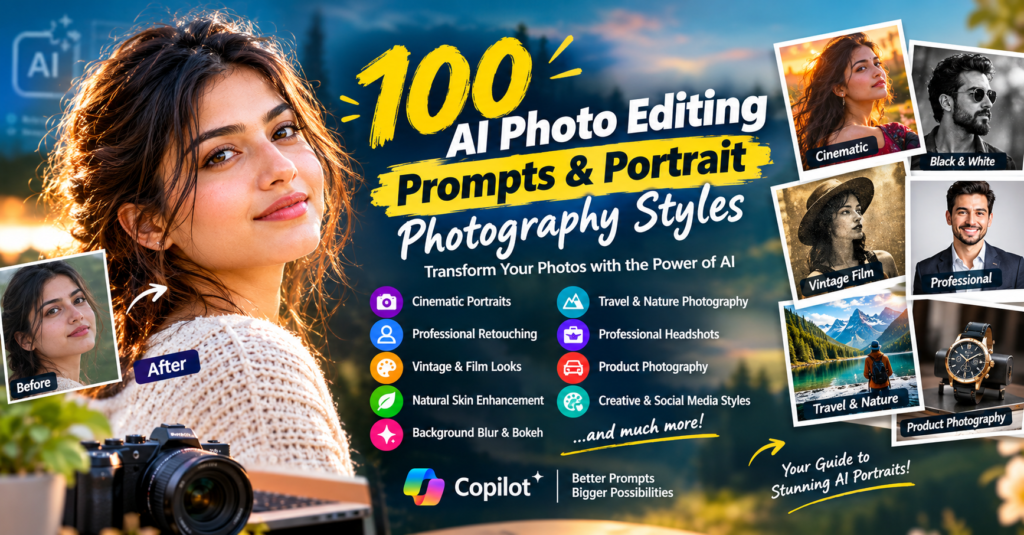

100 AI Photo Editing Prompts for ChatGPT:- A good photograph can capture a moment, but the right editing style can completely change how that moment feels.
Sometimes you want a cinematic portrait with dramatic lighting. Other times, you may prefer a natural skin finish, a professional studio headshot, a vintage film effect, or a beautiful background blur that makes the subject stand out.
The challenge is knowing exactly what style to ask for when using AI photo editors and image-generation tools.
That’s where photo editing keywords come in.
In this guide, you’ll find a collection of 96 AI photo editing keywords covering portrait enhancement, cinematic photography, lighting effects, background editing, image restoration, product photography, social media designs, and more.
You can use these keywords as inspiration when writing instructions for AI image editors, creating photography concepts, or experimenting with different visual styles.
Let’s explore them.
What Are AI Photo Editing Prompts?
AI photo editing prompts are words or instructions that describe how you want an image to look after editing.
Instead of simply asking an AI tool to make a picture better, you can describe the exact visual result you want.
For example:
- Cinematic portrait: Creates a movie-inspired photographic appearance.
- Natural skin: Focuses on realistic skin texture and natural tones.
- Background blur: Separates the subject from the background.
- Golden hour: Creates the warm appearance of sunlight near sunset.
- Professional retouch: Focuses on a polished, professional finish.
These keywords can help communicate your creative direction more clearly.
Important: The slash-style terms below are reference keywords, not universal commands. Different AI tools interpret prompts differently, so combine them with detailed instructions for better results.
1. Cinematic and Professional Portrait Styles
If you want your photographs to look polished, expressive, and professional, start with these portrait editing styles.
They are particularly useful for profile pictures, personal branding, fashion photography, and creative portraits.
| No. | Photo editing keyword |
|---|---|
| 1 | /cinematicportrait |
| 2 | /dslrlook |
| 3 | /professionalretouch |
| 4 | /naturalskin |
| 5 | /skintretouch |
| 6 | /portraitenhance |
| 7 | /facialenhance |
| 8 | /sharpdetails |
| 9 | /softportrait |
| 10 | /luxuryportrait |
| 11 | /editorialportrait |
| 12 | /magazinecover |
| 13 | /fashioneditorial |
| 14 | /streetportrait |
| 15 | /streetportrait |
| 17 | /dramaticportrait |
| 18 | /goldenhour |
| 19 | /sunsetportrait |
| 20 | /sunriseportrait |
| 21 | /nightportrait |
| 22 | /neonportrait |
| 23 | /rainycinematic |
| 24 | /monsoonportrait |
| 25 | /winterportrait |
When should you use these styles?
Use cinematic portrait styles when you want a dramatic, movie-like appearance. Natural skin and professional retouching are better choices when you want a clean result without making the person look artificial.
For social media profile pictures, try soft portraits or luxury portraits. For fashion-related content, editorial and magazine-cover styles can create a more polished visual direction.
2. Vintage, Film and Color-Grading Styles
Sometimes a photograph looks more interesting when it doesn’t feel digitally perfect.
Vintage film effects, retro colors, soft glow, and cinematic color grading can give an image a completely different personality.
These keywords are useful for nostalgic photography, creative portraits, fashion shoots, and cinematic image generation.
| No. | Photo editing keyword |
|---|---|
| 26 | /summerportrait |
| 27 | /autumnportrait |
| 28 | /springportrait |
| 29 | /blackandwhite |
| 30 | /filmlook |
| 31 | /vintagefilm |
| 32 | /90sfilm |
| 33 | /retroportrait |
| 34 | /analoglook |
| 36 | /koclablook |
| 37 | /cinematiccolor |
| 38 | /tealorange |
| 39 | /mattefinish |
| 40 | /highcontrast |
| 41 | /lowkeyportrait |
| 42 | /lowkeyportrait |
| 43 | /softglow |
| 44 | /dreamyglow |
| 45 | /etherealportrait |
| 46 | /dramaticlighting |
| 47 | /softlighting |
| 48 | /rimlighting |
| 49 | /goldenlighting |
| 50 | /studiolighting |
Creative tip: Combine vintage film with a 90s film look for nostalgic portraits. For cinematic images, try teal and orange color grading with dramatic lighting.
If you prefer a softer appearance, dreamy glow and ethereal portrait styles are worth experimenting with.
3. Background Editing, Blur and Photo Restoration
A distracting background can take attention away from the main subject.
Background editing and restoration keywords help describe changes such as removing unwanted objects, improving image clarity, restoring old photographs, and creating depth.
Here are the available keywords from this category.
| No. | Photo editing keyword |
|---|---|
| 51 | /backgroundblur |
| 52 | /portraitbokeh |
| 53 | /depthoffield |
| 54 | /lensblur |
| 55 | /backgroundspace |
| 56 | /backgroundcleanup |
| 57 | /objectremove |
| 58 | /photocleanup |
| 59 | /oldphotorestore |
| 60 | /hdrestore |
| 62 | /4kportrait |
| 63 | /resolutionboost |
| 64 | /colorrestore |
| 65 | /colorespand |
| 66 | /naturalcolors |
| 67 | /colorgrading |
| 68 | /cinematicgrading |
| 69 | /fashioncolorgrade |
| 70 | /luxurycolorgrade |
| 71 | /travelportrait |
| 72 | /travelcinematic |
| 73 | /natureportrait |
| 74 | /beachportrait |
| 75 | /mountainportrait |
Why are these useful?
- Background blur: Helps create separation between the subject and background.
- Portrait bokeh: Describes attractive out-of-focus background highlights.
- Object removal: Helps remove unwanted objects from an image.
- Old photo restoration: Helps repair damaged or faded photographs.
- Resolution boost: Describes an attempt to improve image resolution and clarity.
- Natural colors: Helps maintain realistic-looking colors.
Keep in mind that AI enhancement cannot always recover details that were never captured in the original photograph. Always review restored faces and important details carefully.
4. Creative, Social Media and Professional Photography Styles
The final collection focuses on specialized photography styles.
Whether you’re creating a professional headshot, wedding photograph, product image, Instagram post, or social media cover, these keywords can help you describe the desired result.
| No. | Photo editing keyword |
|---|---|
| 76 | /cityportrait |
| 77 | /urbanlook |
| 78 | /architectureportrait |
| 79 | /carcinematic |
| 80 | /bikecinematic |
| 81 | /productphotography |
| 82 | /productluxury |
| 84 | /productstudio |
| 85 | /socialphotography |
| 86 | /flatlayphotography |
| 87 | /instagramportrait |
| 88 | /instagramstory |
| 89 | /reelcover |
| 90 | /profilepicture |
| 91 | /professionalheadshot |
| 92 | /corporateportrait |
| 93 | /weddingportrait |
| 94 | /festiveportrait |
| 95 | /traditionalportrait |
| 96 | /royalportrait |
| 97 | /creativeportrait |
| 98 | /premiumretouch |
| 99 | /viralphotoedit |
| 100 | /portraitpolish |
Where can you use these?
- Professional headshots: LinkedIn, resumes, company websites, and personal branding.
- Wedding portraits: Wedding albums, invitations, and creative photography.
- Product photography: E-commerce stores, advertisements, and product listings.
- Instagram portraits: Social media profiles and personal branding.
- Reel covers: Instagram Reels and short-form video thumbnails.
- Royal portraits: Creative, traditional, and premium portrait concepts.
How to Combine AI Photo Editing Keywords for Better Results
Using a single keyword can give you a starting point, but a detailed instruction usually provides better control over the final image.
Try combining four important elements:
- Editing style: Describe the overall look you want.
- Lighting: Specify the lighting conditions.
- Background: Explain what should appear behind the subject.
- Image quality: Describe the level of detail and realism.
Example 1: Cinematic Portrait
Keywords: /cinematicportrait + /dramaticlighting + /depthoffield
AI editing prompt:
Transform the uploaded photograph into a cinematic professional portrait. Use dramatic yet natural lighting, realistic skin texture, a softly blurred background, detailed facial features, balanced contrast, and subtle cinematic color grading. Preserve the person’s original identity, facial structure, and expression. Create a realistic professional photography finish without excessive skin smoothing.
Example 2: Professional Headshot
Keywords: /professionalheadshot + /naturalskin + /studiolighting
AI editing prompt:
Create a clean and professional corporate headshot from the uploaded photograph. Use soft studio lighting, natural skin tones, realistic facial details, a simple neutral background, and balanced exposure. Preserve the person’s identity and original facial characteristics. The final result should look like a genuine professional studio photograph.
Example 3: Golden Hour Portrait
Keywords: /goldenhour + /softglow + /sunsetportrait
AI editing prompt:
Enhance the uploaded portrait with beautiful golden-hour lighting. Add warm sunlight falling naturally across the subject, soft highlights, realistic skin texture, subtle background blur, and a warm cinematic color palette. Preserve the original face, pose, and identity. Avoid artificial-looking skin and excessive glow.
Example 4: Vintage Film Portrait
Keywords: /vintagefilm + /90sfilm + /analoglook
AI editing prompt:
Give the uploaded photograph a nostalgic 1990s analog film appearance. Use subtle film grain, slightly faded colors, natural contrast, soft highlights, and authentic vintage photography tones. Preserve the person’s original facial features and keep the image realistic rather than making it look like an illustration.
Tips for Getting Better Results from AI Photo Editors
Before applying any editing style, keep these practical points in mind.
1. Start with a good-quality photograph
A clear, well-lit original image generally gives AI editing tools more useful information to work with.
2. Describe what should remain unchanged
If you are editing a real person’s photograph, explicitly ask the AI to preserve their identity, facial structure, expression, and other important details.
3. Avoid excessive retouching
Over-smoothing can remove natural skin texture and make a portrait look artificial.
4. Be specific about lighting
Words such as soft lighting, golden hour, rim lighting, and studio lighting communicate different visual directions.
5. Experiment with combinations
Try combining two or three compatible keywords instead of adding too many unrelated styles to one instruction.
6. Review the final image
Check facial details, hands, background objects, colors, and overall image quality before publishing or sharing the edited photograph.
Frequently Asked Questions
What are the best AI photo editing prompts?
Some useful starting points include cinematic portrait, professional retouch, natural skin, DSLR look, golden hour, background blur, vintage film, and professional headshot. The best choice depends on the photograph and the result you want.
How can I make my photo look cinematic using AI?
Combine cinematic portrait, dramatic lighting, depth of field, and cinematic color grading. Add instructions about realistic skin texture, balanced contrast, and preserving the original person’s identity.
Which AI photo editing keywords are best for professional photos?
Professional headshot, corporate portrait, studio lighting, natural skin, and professional retouch are useful starting points for professional photography.
Can AI remove unwanted objects from photos?
Many AI editing tools support object removal or generative fill. The /objectremove keyword can be used as inspiration when describing the change you want.
How can I restore old photographs using AI?
Start with old photo restoration and color restoration instructions. Ask the tool to repair visible damage, improve clarity, and preserve original facial characteristics. Results will depend on the quality and condition of the original photograph.
Do these slash-style keywords work in every AI photo editor?
No. These are descriptive reference keywords, not a universal command system. Some tools may recognize similar terms, while others require a complete natural-language prompt.
Final Thoughts
AI photo editing gives you more creative control over how your photographs look and feel.
You don’t always need complicated instructions to get started. Sometimes, a few well-chosen keywords can help you communicate your preferred style much more clearly.
From cinematic portraits and vintage film effects to professional headshots, background editing, and product photography, this collection gives you plenty of ideas to experiment with.
Start with one style, compare the results, and gradually build your own combinations.
Which photo editing style would you try first?
Share your favourite keyword in the comments. It would be interesting to see which styles photographers and AI image creators find most useful.

