

Learn how to track expenses in Excel step-by-step. Includes free Excel expense tracker template, dashboard, and tips to save money fast.
Where Does Your Money Go Every Month?
Ever opened your bank account and wondered…
“Where did all my money go?”
You’re not alone.
Most people in the U.S. don’t struggle with earning—they struggle with tracking.
Small daily expenses quietly drain your money:
- Subscriptions
- Food delivery
- Transportation
- Random purchases
👉 And without tracking, you can’t fix it.
🎯 Quick Answer
To track expenses in Excel:
- Create a table (Date, Category, Amount)
- Add dropdown categories
- Use
SUMto calculate totals - Use
SUMIFSfor monthly tracking - Add charts for visualization
👉 Or use a ready-made Excel expense tracker for instant results.
📊 Why Use Excel for Expense Tracking?
Using Microsoft Excel is still one of the smartest ways to manage money.
✅ Benefits:
- No monthly subscription
- Full control over your data
- Customizable system
- Works offline
- Powerful analytics
👉 Especially useful for freelancers and small businesses in the U.S.
📊 Why Use Excel for Expense Tracking?
Using Microsoft Excel is still one of the smartest ways to manage money.
✅ Benefits:
- No monthly subscription
- Full control over your data
- Customizable system
- Works offline
- Powerful analytics
👉 Especially useful for freelancers and small businesses in the U.S.
🧩 Step 1: Create Your Expense Tracker Table
Start simple.
| Date | Description | Category | Amount |
|---|
Example:
| Jan 1 | Coffee | Food | $5 |
| Jan 2 | Uber | Transport | $12 |
⚙️ Step 2: Add Category Dropdown
Go to:
Data → Data Validation → List
Add categories:
- Food
- Bills
- Business
- Entertainment
- Other
👉 This keeps your data clean and consistent.
📅 Step 3: Track Expenses by Month
Use this formula:
=TEXT(A2,”MMM YY”)
👉 This helps group data like:
- Jan 26
- Feb 26
➕ Step 4: Calculate Monthly Expenses
Use:
=SUMIFS(D:D, B:B, “Feb 26”)
👉 Now you can track spending month-by-month.
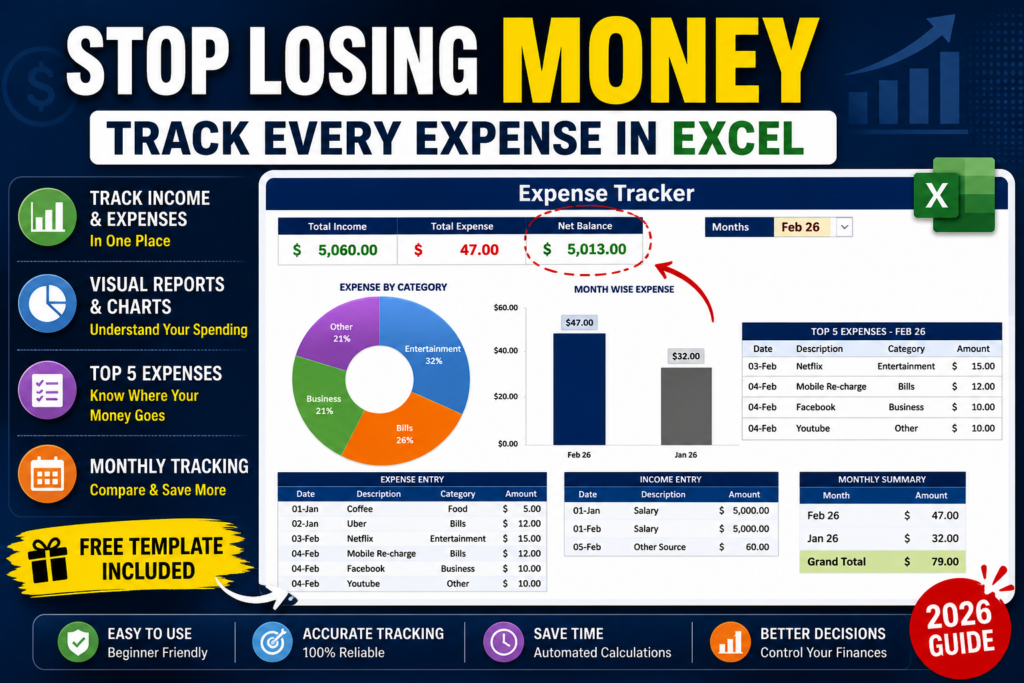
📈 Step 5: Visualize Your Spending
Create:
- Donut chart → category breakdown
- Column chart → monthly comparison
👉 This gives instant clarity on:
- Where your money goes
- Which months cost more
🚀 Step 6: Build a Dashboard
A complete dashboard includes:
- Total Income
- Total Expense
- Net Balance
- Monthly charts
- Top 5 expenses
👉 This transforms your Excel into a financial control system.
🔥 Why Most People Fail at Budgeting
Here’s the real problem:
❌ Too complicated
❌ Too time-consuming
❌ Not consistent
👉 So they quit.
💡 The Smarter Way (Use a Ready Template)
Instead of building everything manually…
👉 Use a ready-made Excel Expense Tracker Dashboard
✔ Features:
- Automatic calculations
- Monthly filter dropdown
- Donut + bar charts
- Top 5 expense tracking
- Clean professional design
👉 Just enter your data—everything updates automatically
🎁 Free + Premium Excel Template
👉 Want to skip setup?
Download your Excel Expense Tracker:
- 🆓 Free Version (Basic Tracker)
→ Simple expense tracking
→ No dashboard - 💎 Pro Version – $9 (Most Popular 🔥) Download
→ Full dashboard
→ Charts + automation
→ Top 5 expense tracking - Pro+ Version – $12 (Best Value)
→ Everything in Pro
→ Customization support
→ Priority updates
👉 Perfect for:
- Personal finance
- Freelancers
- Small businesses
❓ FAQ (SEO BOOST)
Is Excel good for expense tracking?
Yes. It’s flexible, customizable, and powerful for personal and business use.
Can beginners use this?
Absolutely. No advanced skills required.
Is there a free Excel expense tracker?
Yes, you can create one—or download a ready-made template.
What’s better: Excel or apps?
Excel gives more control. Apps are easier but less flexible.

Pingback: How to Use Excel 365 for Free in the USA (Step-by-Step Guide) - Excel AI Tools and SEO Guides