
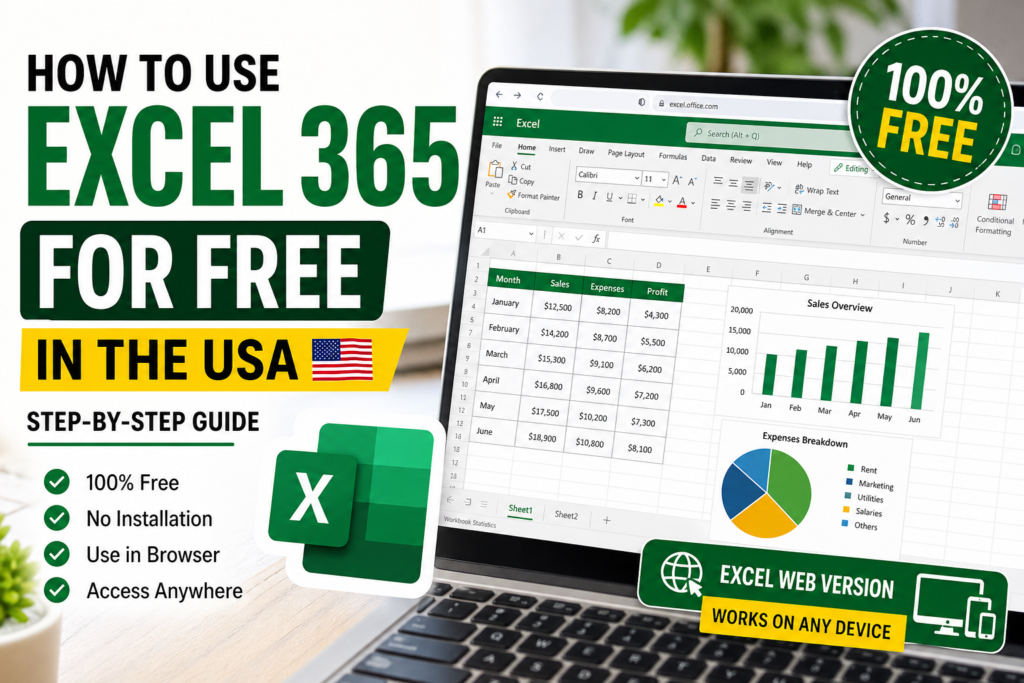

If you want to use Microsoft Excel without paying for a subscription, you’re not alone. Many students, freelancers, and small business owners in the USA are looking for a free solution—and the good news is, it exists.
You can use Excel 365 for free using the web version, which runs directly in your browser. In this guide, I’ll walk you through everything step-by-step in a simple, practical way.
Can You Really Use Excel 365 for Free?
Yes, absolutely.
Microsoft provides a free version of Excel that works online. You don’t need to install anything or pay for a subscription. All you need is a free Microsoft account and an internet connection.
This version is perfect for basic to intermediate use and works great for most daily tasks.
What Is Excel Web Version?
The Excel web version (also called Excel Online) is a browser-based version of Excel that you can use on Chrome, Edge, or any modern browser.
Key Benefits of Excel Web Version
- No installation required
- Works on any device (laptop, desktop, tablet)
- Auto-save feature (no fear of losing data)
- Access files from anywhere
- Easy sharing and collaboration
This makes it a great option if you want flexibility without spending money.
Step-by-Step: How to Use Excel 365 for Free
Let’s go step by step so you can start using it right away.
Step 1: Create a Free Microsoft Account
Go to the Microsoft website and sign up using your email address. If you already have an account, simply log in.
This account gives you access to Excel, Word, PowerPoint, and cloud storage.
Step 2: Open Excel Online
Visit this link:
After logging in, click on the Excel icon.
Step 3: Create a New Workbook
Click on “New Blank Workbook” to start a fresh sheet.
You can now begin entering your data just like in the desktop version.
Step 4: Automatic Saving
One of the best features is auto-save. Your file is automatically saved in OneDrive, so you don’t need to press Ctrl + S.
Step 5: Start Using Excel Features
You can now use common Excel features like:
- Formulas (SUM, IF, VLOOKUP)
- Tables
- Charts
- Sorting and filtering
For most users, this is more than enough.
Features Available in Free Excel 365
Basic Features
- All essential formulas
- Data entry and formatting
- Charts and graphs
- Conditional formatting
Collaboration Features
- Share files with others
- Work together in real-time
- Add comments
Cloud Storage Benefits
- Access files anytime
- No risk of losing data
- Easy backup and recovery
Limitations of Free Excel Web Version
To keep things honest, the free version does have some limitations.
What You Don’t Get
- No VBA or macros support
- Some advanced formulas are missing
- Limited offline access
- Fewer advanced chart options
But for beginners and small business users, these limitations usually don’t matter.
Who Should Use Excel Web Version?
Students
Perfect for assignments, practice, and projects.
Small Business Owners
You can manage inventory, expenses, and sales without paying for software.
Freelancers
Track income, manage budgets, and organize client data easily.
Pro Tips to Use Excel Like a Pro
Use Templates
Start with pre-built templates to save time.
Use Cloud Sharing
Instead of sending files, just share a link.
Learn Shortcuts
Keyboard shortcuts can save hours of work over time.
Excel Web vs Desktop Version
| Feature | Web Version | Desktop Version |
|---|---|---|
| Cost | Free | Paid |
| Installation | No | Yes |
| Advanced Features | Limited | Full |
| Collaboration | Excellent | Good |
If you are just starting out, the web version is more than enough.
How Small Businesses Can Use Excel for Free
Many small businesses in the USA use Excel web version for daily operations.
- Inventory tracking
- Expense management
- Sales reports
- Profit calculation
This can save hundreds of dollars compared to paid tools.
Common Mistakes to Avoid
- Not organizing your data properly
- Ignoring formulas
- Not using cloud storage effectively
Fix these early and your productivity will improve significantly.
Final Thoughts
Using Excel 365 for free is one of the smartest ways to start managing data without spending money.
The web version gives you everything you need to get started—whether you are a student, freelancer, or small business owner.
Start simple, learn consistently, and you’ll quickly become comfortable using Excel.
Want to Save Time?
If you don’t want to build everything from scratch, you can use ready-made Excel templates like:
- Inventory tracker
- Cash flow sheet
- Business dashboard
These templates can save you hours of work and help you stay organized from day one.

Pingback: Excel Formulas for Daily Work (15 Powerful Formulas You Must Know in 2026) - Excel AI Tools and SEO Guides