
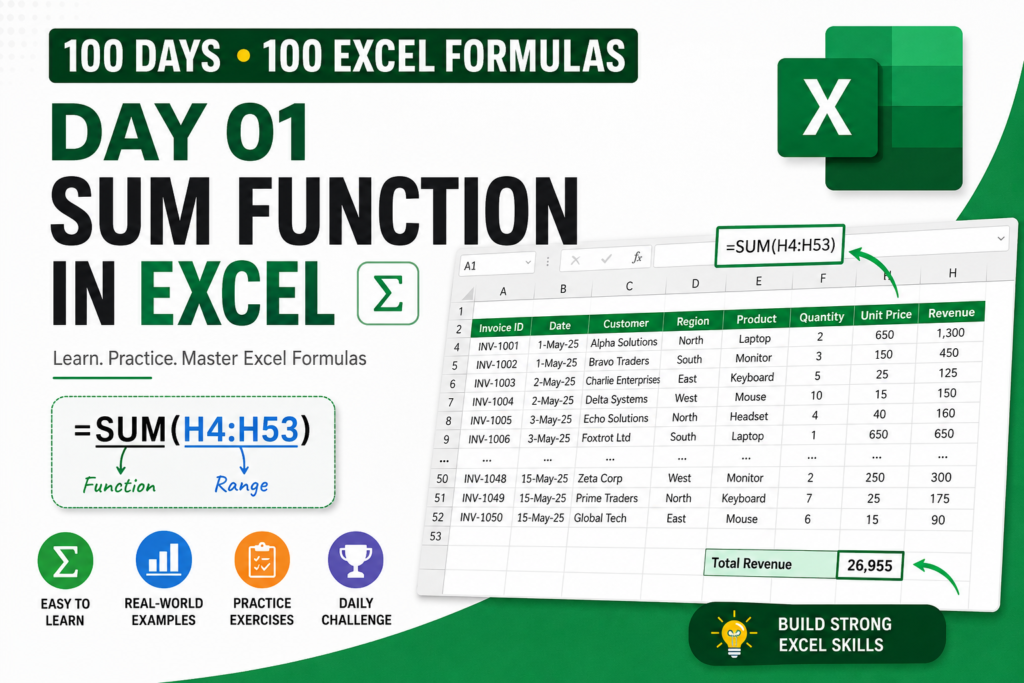

Learn Excel in 100 Days — Day 1-Excel formula to add numbers
If you are just starting with Microsoft Excel, one of the first formulas you should learn is SUM.
The SUM function looks simple, but it is one of the most frequently used Excel formulas in real-world work. Whether you are calculating sales revenue, employee expenses, monthly budgets, inventory quantities, project costs, or financial reports, SUM gives you a quick and reliable way to add numbers.
In this first lesson of our 100 Days • 100 Excel Formulas series, you will learn how the SUM function works, when to use it, several practical examples, common mistakes, and hands-on exercises using a free Excel practice workbook.
Practice level: Beginner
Category: Math & Statistics
Formula: SUM
What Is the SUM Function in Excel?
The SUM function adds numbers together and returns the total.
The basic syntax is:
=SUM(number1, [number2], ...)You can use SUM with individual numbers, individual cells, a continuous range of cells, or multiple separate ranges.
For example:
=SUM(10,20,30)returns:
60
You can also add a range:
=SUM(A2:A10)This adds all the numbers from cells A2 through A10.
That is one reason SUM is so useful: instead of manually adding dozens of values, you can calculate the total with a single formula.
Example 1: Add a Simple List of Numbers
Suppose you have the following sales quantities:
| Product | Quantity |
|---|---|
| Laptop | 5 |
| Monitor | 8 |
| Keyboard | 12 |
| Mouse | 15 |
| Headset | 6 |
If the quantities are in cells B2:B6, enter:
=SUM(B2:B6)The result is:
46
This is much safer than manually typing:
=5+8+12+15+6If the values change later, the SUM formula automatically recalculates the total.
Example 2: Calculate Total Sales Revenue
Now consider a real sales report.
Imagine your worksheet contains these columns:
- Invoice ID
- Date
- Customer
- Region
- Product
- Quantity
- Unit Price
- Revenue
If the Revenue column is in column H and your data runs from row 4 to row 53, you can calculate total revenue with:
=SUM(H4:H53)Excel will add all 50 revenue values and return the total.
This is a common real-world use of SUM in sales dashboards, financial reports, management reports, and business analysis.
Example 3: Calculate Total Quantity
Suppose the Quantity column is column F.
To calculate the total number of products sold:
=SUM(F4:F53)This tells you the total quantity represented by all 50 sales records.
For example, if your records contain quantities ranging from 1 to 12, SUM will add every quantity in the selected range.
Example 4: Add Two Separate Ranges
SUM is not limited to one continuous range.
You can add multiple ranges in the same formula.
For example:
=SUM(F4:F10,F20:F25)This adds:
- F4:F10
- F20:F25
You can also combine individual cells and ranges:
=SUM(F4:F10,F20,F25)This flexibility becomes particularly useful when working with reports where the numbers you need are located in different sections of a worksheet.
Example 5: Calculate Revenue for a Selected Range
You may not always want the total for the entire dataset.
For example, suppose you want to calculate revenue only for the first 12 records.
Use:
=SUM(H4:H15)This adds only the revenue values from H4 through H15.
This simple concept is important because selecting the correct range is just as important as knowing the formula.
Always check the first and last cells in your range before pressing Enter.
SUM Function vs Manual Addition
You can add numbers manually:
=B2+B3+B4+B5+B6But SUM is usually the better approach:
=SUM(B2:B6)Why?
1. Easier to read
Anyone opening your workbook can immediately understand what the formula does.
2. Easier to maintain
If your dataset grows, you can update the range instead of editing a long formula.
3. Less chance of missing a value
With manual addition, it is easy to accidentally leave out a cell.
4. Better for large datasets
SUM can work with hundreds or thousands of cells without creating an unnecessarily long formula.
Common SUM Mistakes
Mistake 1: Selecting the wrong range
For example, if your data ends at row 53 but you use:
=SUM(H4:H50)the last three records will not be included.
Always verify your range.
Mistake 2: Using text instead of numbers
Numbers stored as text can cause unexpected results in calculations.
For example, if a value appears as text rather than a true numeric value, check the cell formatting and underlying data.
Mistake 3: Including the wrong column
In a sales report, Quantity and Revenue are completely different measurements.
For example:
=SUM(F4:F53)calculates total quantity, while:
=SUM(H4:H53)calculates total revenue.
Always confirm that you are summing the correct field.
Mistake 4: Manually adding every value
If you have 50, 500, or 5,000 records, manually adding values is unnecessary and increases the chance of errors.
Use SUM.
Your Day 1 Practice
To make this lesson practical, download the Day 1 SUM Practice Workbook.
The workbook contains five sheets:
- START HERE — lesson overview and learning objective
- DATA — 50 realistic sales records
- PRACTICE — five SUM exercises
- ANSWERS — solutions and explanations
- CHALLENGE — a real-world business problem
Practice Question 1
Calculate the total quantity sold.
=SUM(DATA!F4:F53)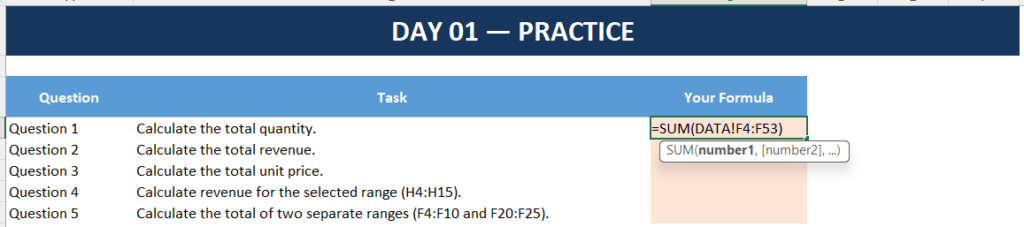
Practice Question 2
Calculate total revenue.
=SUM(DATA!H4:H53)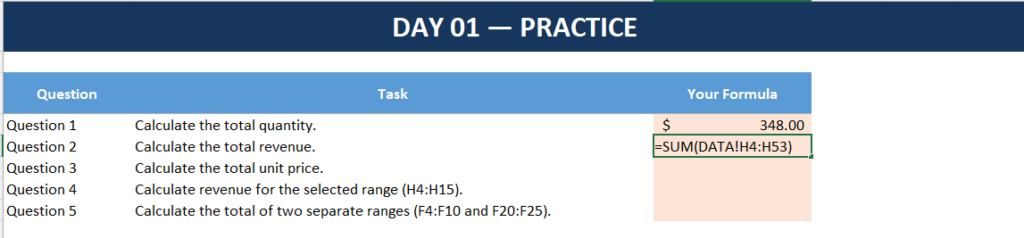
Practice Question 3
Calculate the total of all unit prices.
=SUM(DATA!G4:G53)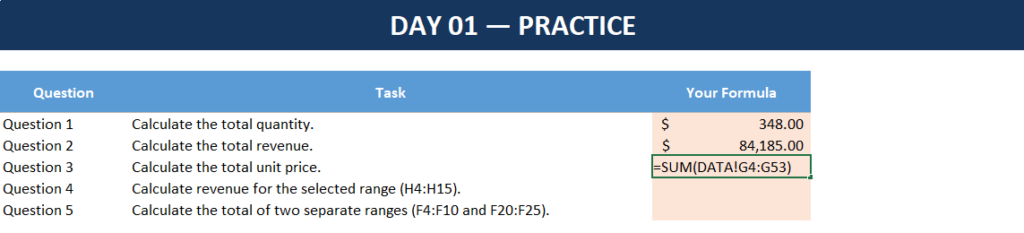
Practice Question 4
Calculate revenue for the selected range H4:H15.
=SUM(DATA!H4:H15)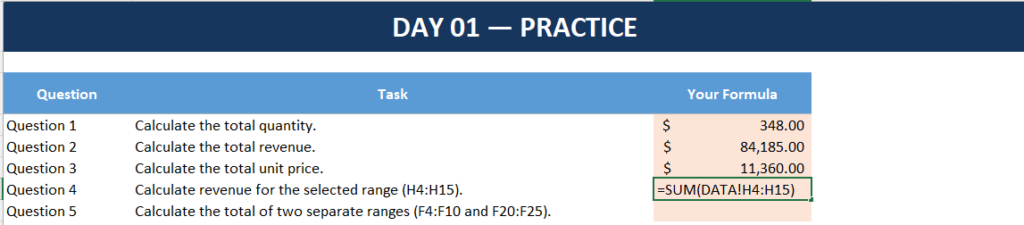
Practice Question 5
Calculate the total of two separate ranges.
=SUM(DATA!F4:F10,DATA!F20:F25)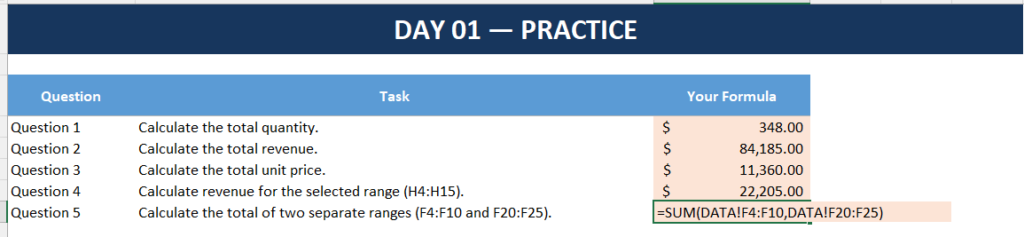
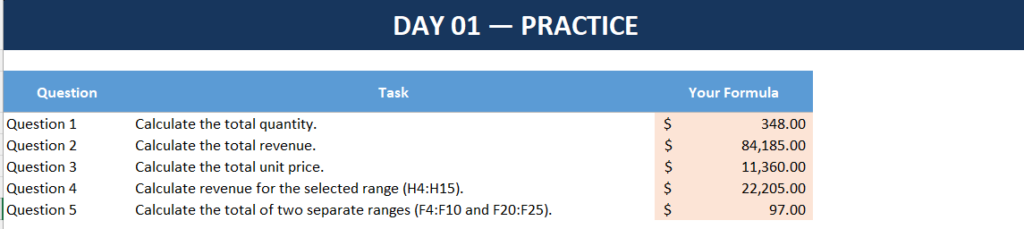
Download the free practice workbook and try the exercises yourself before checking the Answers sheet.
🎯 Day 1 Challenge
Now imagine you are working as a sales analyst.
Your manager sends you a sales report containing 50 transactions and asks:
“What is the total revenue generated by the sales team?”
You need to provide the answer using one Excel formula.
Do not manually add the individual revenue values.
Look at the Revenue column and create a SUM formula that covers the complete dataset.
If your Revenue values are in H4:H53, your formula should be:
=SUM(H4:H53)This is a small exercise, but it represents a task you could perform regularly in a real business environment.
What You Learned Today
By completing Day 1, you should now understand how to:
- Use the SUM function
- Add a continuous range
- Add multiple separate ranges
- Calculate total quantity
- Calculate total revenue
- Select the correct data range
- Avoid common SUM mistakes
- Apply SUM to a real business dataset
The most important formula to remember today is:
=SUM(range)For example:
=SUM(H4:H53)What’s Next?
This is only Day 1 of 100.
In the next lesson, we will move from calculating totals to calculating averages.
Day 2: AVERAGE Function in Excel
You will learn how to calculate the average of a group of numbers, understand how Excel handles blank cells, and practice the formula using another real-world dataset.
Continue the series:
Day 1 → SUM
Day 2 → AVERAGE
Day 3 → MIN
Day 4 → MAX
Day 5 → COUNT
By the end of the 100-day journey, you will have built a practical foundation covering Excel formulas from beginner concepts through advanced problem-solving.
Final Takeaway
The SUM function may be one of the simplest Excel formulas, but it is also one of the most useful.
Whenever you need to answer a question such as:
“How much?”
“How many?”
“What is the total?”
SUM is often the first formula you should consider.
Don’t just read the formula—open the practice workbook, enter the formulas yourself, and complete the challenge.
That’s the goal of 100 Days • 100 Excel Formulas: learn one formula, practice it, and apply it to a realistic problem every day.
Ready for Day 2? Continue with the AVERAGE function.
Frequently Asked Questions About the SUM Function in Excel
1. What is the SUM function in Excel?
The SUM function in Excel is used to add numbers together and calculate a total. It can add individual numbers, cells, ranges, or multiple separate ranges.
For example:
=SUM(A2:A10)This formula adds all numeric values from cells A2 through A10.
2. What is the syntax of the SUM function?
The basic syntax is:
=SUM(number1, [number2], ...)You can provide a single range or multiple values and ranges.
For example:
=SUM(B2:B10)or:
=SUM(B2:B10,D2:D10)3. How do I sum an entire column in Excel?
You can sum an entire column by using a column reference.
For example:
=SUM(H:H)This adds the numeric values contained in column H.
However, for large workbooks, using a specific data range can sometimes be preferable because it makes the formula more precise and can avoid unnecessary calculations.
4. How do I add two separate ranges using SUM?
Use a comma to separate the ranges.
For example:
=SUM(A2:A10,C2:C10)This adds the values from A2:A10 and C2:C10.
You can include more than two ranges if required.
5. Can SUM calculate the total of cells containing text?
SUM ignores text values within referenced cells and adds the numeric values.
For example, if A1:A4 contains:
- 100
- 200
- Excel
- 300
then:
=SUM(A1:A4)returns:
600
It does not add the text “Excel.”
6. Why is my SUM formula returning 0?
One common reason is that the values you are trying to add may actually be stored as text instead of numbers.
For example, imported data from another system may look like numbers but be stored as text.
Check the cells and convert the values to real numbers before using SUM.
7. What is the difference between SUM and the plus (+) operator?
Both can add numbers, but SUM is generally more convenient for ranges.
For example:
=A1+A2+A3+A4+A5can be replaced with:
=SUM(A1:A5)SUM is easier to read and maintain, especially when working with larger datasets.
8. Can I use SUM with a filtered Excel table?
Yes, but there is an important distinction.
If you want a formula that automatically responds to filtered or hidden rows, functions such as SUBTOTAL or AGGREGATE may be more appropriate depending on your requirement.
For a basic total of a range, however, SUM is the standard function.
9. How do I calculate total sales revenue using SUM?
If your revenue values are in cells H4:H53, use:
=SUM(H4:H53)Excel will add all revenue values in that range and return the total sales revenue.
This is one of the most common practical uses of SUM in sales reports.
10. Can SUM add numbers from another worksheet?
Yes.
For example, if the numbers are in cells A2:A20 on a worksheet named DATA, you can use:
=SUM(DATA!A2:A20)This allows you to calculate totals using data stored on another worksheet.
11. What happens if there are blank cells in the SUM range?
Blank cells are ignored by SUM.
For example:
=SUM(A1:A5)will add the numeric values in A1:A5 while ignoring genuinely blank cells.
This makes SUM convenient for datasets where some cells have not yet been populated.
12. Is SUM available in Microsoft Excel 365?
Yes. SUM is a standard Excel function and is available in modern versions of Microsoft Excel, including Microsoft 365.
It is one of the fundamental formulas that Excel users should learn early.
13. What should I practice after learning SUM?
After learning SUM, practice calculating totals from different types of datasets.
For example:
- Total sales
- Total expenses
- Total inventory quantity
- Total working hours
- Total project costs
- Total monthly revenue
Then move to functions such as AVERAGE, MIN, MAX, COUNT, COUNTIF, and SUMIF.
That’s exactly what we will do throughout this 100-day Excel formula series.
Quick SUM Cheat Sheet
| Task | Formula |
|---|---|
| Add a range | =SUM(A1:A10) |
| Add two ranges | =SUM(A1:A10,C1:C10) |
| Add individual cells | =SUM(A1,A3,A5) |
| Add numbers directly | =SUM(10,20,30) |
| Sum another sheet | =SUM(DATA!A1:A10) |
| Sum an entire column | =SUM(A:A) |
| Total quantity | =SUM(F4:F53) |
| Total revenue | =SUM(H4:H53) |
Remember
SUM = Add + Total
Whenever you need to quickly calculate a total, think of:
=SUM(range)Now open the Day 1 practice workbook and complete the five exercises before moving to Day 2.


Pingback: AVERAGE Function in Excel – Complete Guide with Examples & Free Practice File - Excel AI Tools and SEO Guides