
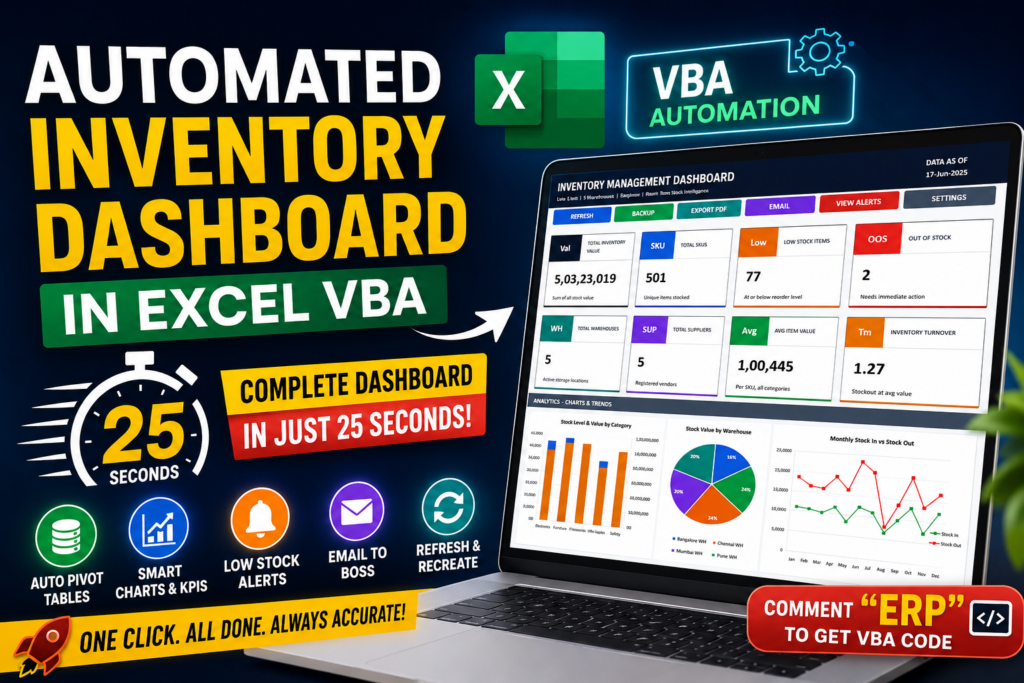

Inventory Dashboard:-Managing inventory is one of the most important tasks for any business. Whether you run a retail store, warehouse, manufacturing unit, or small business, keeping track of stock levels, sales performance, inventory value, and product movement is critical for making informed decisions.
The challenge is that most businesses still rely on manual Excel reports. Creating Pivot Tables, formatting reports, building charts, calculating KPIs, and preparing dashboards can easily consume hours every week. Even a small change in the source data often requires repeating the same tasks again and again.
What if all of this could be automated?
In this project, I created a fully automated Inventory Dashboard using Excel VBA that transforms raw data into a professional business dashboard in just 25 seconds. With a single click, the system formats data, creates Pivot Tables, generates charts, calculates key metrics, and builds an executive-ready dashboard automatically.
Let’s explore how this dashboard works and why VBA automation can completely change the way businesses analyze inventory data.
Why Traditional Inventory Reporting Is Inefficient
Many organizations still prepare inventory reports manually. The typical process involves:
- Cleaning raw data
- Creating multiple Pivot Tables
- Calculating inventory values
- Building charts
- Designing dashboard layouts
- Formatting reports
- Updating reports whenever new data arrives
This process is not only time-consuming but also increases the risk of human error.
Managers need information quickly. Waiting hours to generate reports can delay important business decisions such as stock replenishment, purchasing, and sales planning.
This is where automation becomes a game changer.
The Goal of This VBA Dashboard
The primary goal of this project was simple:
Convert raw inventory data into a professional dashboard automatically with a single click.
Instead of spending hours building reports, users simply press a button and allow VBA to perform all repetitive tasks automatically.
The dashboard was designed to help businesses answer important questions such as:
- What is the current inventory value?
- Which products are running low?
- Which products are selling the most?
- How do purchases compare with sales?
- Which categories generate the highest revenue?
- Where should management focus attention?
All these insights become available within seconds.
VBA Code Download
Option Explicit
'==============================================================
' INVENTORY MANAGEMENT DASHBOARD - ERP v2 (Premium UI)
'==============================================================
Private Const SH_DATA As String = "InventoryData"
Private Const SH_PIVOT As String = "Pivot"
Private Const SH_DASH As String = "Dashboard"
Private Const SH_SETTINGS As String = "Settings"
Private Const SH_AUDIT As String = "AuditTrail"
Private Const C_BG As Long = 16381425
Private Const C_NAVY As Long = 3810072
Private Const C_DKNAVY As Long = 2758673
Private Const C_WHITE As Long = 16777215
Private Const C_BORDER As Long = 15788258
Private Const C_TEXT As Long = 3877150
Private Const C_GREYTXT As Long = 9139300
Private Const C_LGREY As Long = 16579320
Private Const C_DGREY As Long = 6903111
Private Const C_BLUE As Long = 15426341
Private Const C_GREEN As Long = 4891414
Private Const C_RED As Long = 2500316
Private Const C_ORANGE As Long = 809194
Private Const C_PURPLE As Long = 15547004
Private Const C_TEAL As Long = 8950797
Private Const C_GOLD As Long = 423897
Private Const C_ALRTRED As Long = 14869246
Private Const C_ALRTAMB As Long = 13497343
Private Const C_ALRTGRN As Long = 15203548
Private Const C_ALRTREDT As Long = 1776537
Private Const C_ALRTAMBT As Long = 934034
Private Const C_ALRTGRNT As Long = 3433750
Private Const PAUSE_SHORT As Long = 200
Private Const PAUSE_MED As Long = 450
Private Const PAUSE_LONG As Long = 800
Private Const PAUSE_PIVOT As Long = 350
Private Const PAUSE_CHART As Long = 500
Private Const PAUSE_KPI As Long = 300
Private Const PAUSE_ALERT As Long = 250
'==============================================================
' TIMING HELPERS
'==============================================================
Private Sub WaitMs(ByVal ms As Long)
Dim t As Single
t = Timer
Do While (Timer - t) * 1000 < ms
DoEvents
Loop
End Sub
Private Sub ShowBar(ByVal step As Integer, ByVal total As Integer, ByVal msg As String)
Dim bar As String
Dim i As Integer
Dim filled As Integer
filled = Int((CDbl(step) / CDbl(total)) * 12)
bar = "|"
For i = 1 To 12
If i <= filled Then bar = bar & "##" Else bar = bar & "--"
Next i
bar = bar & "|"
Application.StatusBar = bar & " Step " & step & "/" & total & " " & msg
DoEvents
End Sub
'==============================================================
' MAIN ENTRY POINT
'==============================================================
Public Sub BuildInventoryDashboard()
Dim T As Double
T = Timer
On Error GoTo ErrHandler
Application.ScreenUpdating = True
Application.EnableEvents = False
Application.Calculation = xlCalculationManual
Application.DisplayAlerts = False
ShowBar 1, 5, "Preparing data sheet..."
WaitMs PAUSE_MED
Call PrepareDataSheet
WaitMs PAUSE_LONG
ShowBar 2, 5, "Building pivot analysis..."
WaitMs PAUSE_MED
Call BuildPivotSheet
WaitMs PAUSE_LONG
ShowBar 3, 5, "Building dashboard..."
WaitMs PAUSE_MED
Call BuildDashboardSheet
WaitMs PAUSE_LONG
ShowBar 4, 5, "Settings & Audit..."
WaitMs PAUSE_MED
Call BuildSettingsSheet
WaitMs PAUSE_SHORT
Call BuildAuditSheet
WaitMs PAUSE_SHORT
Call AddAuditRow("BUILD", "Dashboard built by " & Environ("USERNAME"))
ShowBar 5, 5, "Done!"
WaitMs PAUSE_MED
Application.Calculation = xlCalculationAutomatic
Application.ScreenUpdating = True
Application.EnableEvents = True
Application.DisplayAlerts = True
Sheets(SH_DASH).Activate
Range("A1").Select
WaitMs PAUSE_LONG
Application.StatusBar = "Dashboard ready! Built in " & Format(Timer - T, "0.0") & "s"
MsgBox "Dashboard Built Successfully!" & vbCrLf & _
"Time: " & Format(Timer - T, "0.0") & " seconds", _
vbInformation, "Inventory ERP v2"
Exit Sub
ErrHandler:
Application.ScreenUpdating = True
Application.EnableEvents = True
Application.Calculation = xlCalculationAutomatic
Application.DisplayAlerts = True
Application.StatusBar = False
MsgBox "ERROR: " & Err.Description & vbCrLf & "Line: " & Erl, _
vbCritical, "Inventory ERP v2"
End Sub
'==============================================================
' STEP 1 - PREPARE DATA SHEET
'==============================================================
Private Sub PrepareDataSheet()
Dim ws As Worksheet
On Error Resume Next
Set ws = Sheets(SH_DATA)
On Error GoTo 0
Application.StatusBar = "Step 1/5 Locating data sheet..."
DoEvents
WaitMs PAUSE_SHORT
If ws Is Nothing Then
Dim s As Worksheet
For Each s In ThisWorkbook.Sheets
If s.Cells(1, 1).Value = "Item ID" Then
s.Name = SH_DATA
Set ws = s
Exit For
End If
Next s
End If
If ws Is Nothing Then
Set ws = Sheets.Add(Before:=Sheets(1))
ws.Name = SH_DATA
End If
ws.Activate
WaitMs PAUSE_MED
Application.StatusBar = "Step 1/5 Styling header row..."
DoEvents
ws.Tab.Color = C_NAVY
Dim hdr As Range
Set hdr = ws.Range("A1:O1")
With hdr
.Font.Bold = True
.Font.Color = C_WHITE
.Font.Size = 10
.Font.Name = "Calibri"
.Interior.Color = C_NAVY
.HorizontalAlignment = xlCenter
.VerticalAlignment = xlCenter
.RowHeight = 30
End With
DoEvents
WaitMs PAUSE_MED
Dim lastR As Long
lastR = GetLastRow(ws)
If lastR > 1 Then
Application.StatusBar = "Step 1/5 Formatting columns..."
DoEvents
ws.Range("G2:M" & lastR).NumberFormat = "#,##0.00"
ws.Range("N2:N" & lastR).NumberFormat = "dd-mmm-yyyy"
DoEvents
WaitMs PAUSE_SHORT
Application.StatusBar = "Step 1/5 Auto-fitting columns..."
DoEvents
ws.Columns("A:O").AutoFit
ws.Columns("B").ColumnWidth = 20
DoEvents
WaitMs PAUSE_SHORT
Application.StatusBar = "Step 1/5 Creating Excel Table..."
DoEvents
If ws.ListObjects.Count = 0 Then
Dim tbl As ListObject
Set tbl = ws.ListObjects.Add(xlSrcRange, _
ws.Range("A1:O" & lastR), , xlYes)
tbl.Name = "tblInv"
tbl.TableStyle = "TableStyleMedium2"
End If
DoEvents
WaitMs PAUSE_MED
ws.Activate
ActiveWindow.FreezePanes = False
ws.Cells(2, 1).Select
ActiveWindow.FreezePanes = True
WaitMs PAUSE_SHORT
End If
End Sub
'==============================================================
' STEP 2 - PIVOT SHEET
' NOTE: All KPI values are stored in named helper cells
' so Dashboard reads from Pivot (not raw data)
'==============================================================
Private Sub BuildPivotSheet()
Dim ws As Worksheet
Dim src As Worksheet
Set ws = GetSheet(SH_PIVOT)
Set src = Sheets(SH_DATA)
ws.Cells.Clear
ws.Tab.Color = C_BLUE
ws.Cells.Font.Name = "Calibri"
ws.Cells.Font.Size = 9
Dim srcName As String
srcName = src.Name
Dim lastR As Long
lastR = GetLastRow(src)
ws.Activate
WaitMs PAUSE_MED
'--- BLOCK 1: Stock by Category ---
Application.StatusBar = "Step 2/5 Building: Stock by Category..."
DoEvents
WritePivotTitle ws, 1, 1, "STOCK SUMMARY BY CATEGORY"
ws.Cells(2, 1).Value = "Category"
ws.Cells(2, 2).Value = "Items"
ws.Cells(2, 3).Value = "Stock In"
ws.Cells(2, 4).Value = "Stock Out"
ws.Cells(2, 5).Value = "Current Stock"
ws.Cells(2, 6).Value = "Stock Value"
StylePivHead ws, 2, 1, 6
Dim cats As Variant
cats = Array("Electronics", "Furniture", "IT Accessories", "Office Supplies", "Safety")
Dim r As Long
Dim i As Integer
r = 3
For i = 0 To UBound(cats)
ws.Cells(r, 1).Value = cats(i)
ws.Cells(r, 2).Formula = "=COUNTIF('" & srcName & "'!C:C,A" & r & ")"
ws.Cells(r, 3).Formula = "=SUMIF('" & srcName & "'!C:C,A" & r & ",'" & srcName & "'!H:H)"
ws.Cells(r, 4).Formula = "=SUMIF('" & srcName & "'!C:C,A" & r & ",'" & srcName & "'!I:I)"
ws.Cells(r, 5).Formula = "=SUMIF('" & srcName & "'!C:C,A" & r & ",'" & srcName & "'!J:J)"
ws.Cells(r, 6).Formula = "=SUMIF('" & srcName & "'!C:C,A" & r & ",'" & srcName & "'!M:M)"
ws.Range(ws.Cells(r, 3), ws.Cells(r, 6)).NumberFormat = "#,##0"
If r Mod 2 = 0 Then ws.Range(ws.Cells(r, 1), ws.Cells(r, 6)).Interior.Color = C_LGREY
r = r + 1
Next i
ws.Cells(r, 1).Value = "TOTAL"
ws.Cells(r, 2).Formula = "=SUM(B3:B" & r - 1 & ")"
ws.Cells(r, 3).Formula = "=SUM(C3:C" & r - 1 & ")"
ws.Cells(r, 4).Formula = "=SUM(D3:D" & r - 1 & ")"
ws.Cells(r, 5).Formula = "=SUM(E3:E" & r - 1 & ")"
ws.Cells(r, 6).Formula = "=SUM(F3:F" & r - 1 & ")"
ws.Range(ws.Cells(r, 3), ws.Cells(r, 6)).NumberFormat = "#,##0"
StyleTotRow ws, r, 1, 6
DoEvents
WaitMs PAUSE_PIVOT
'--- BLOCK 2: Stock by Warehouse ---
Application.StatusBar = "Step 2/5 Building: Stock by Warehouse..."
DoEvents
WritePivotTitle ws, 1, 8, "STOCK SUMMARY BY WAREHOUSE"
ws.Cells(2, 8).Value = "Warehouse"
ws.Cells(2, 9).Value = "Items"
ws.Cells(2, 10).Value = "Current Stock"
ws.Cells(2, 11).Value = "Stock Value"
StylePivHead ws, 2, 8, 11
Dim whs As Variant
whs = Array("Bangalore WH", "Chennai WH", "Delhi WH", "Mumbai WH", "Pune WH")
r = 3
For i = 0 To UBound(whs)
ws.Cells(r, 8).Value = whs(i)
ws.Cells(r, 9).Formula = "=COUNTIF('" & srcName & "'!E:E,H" & r & ")"
ws.Cells(r, 10).Formula = "=SUMIF('" & srcName & "'!E:E,H" & r & ",'" & srcName & "'!J:J)"
ws.Cells(r, 11).Formula = "=SUMIF('" & srcName & "'!E:E,H" & r & ",'" & srcName & "'!M:M)"
ws.Range(ws.Cells(r, 9), ws.Cells(r, 11)).NumberFormat = "#,##0"
If r Mod 2 = 0 Then ws.Range(ws.Cells(r, 8), ws.Cells(r, 11)).Interior.Color = C_LGREY
r = r + 1
Next i
ws.Cells(r, 8).Value = "TOTAL"
ws.Cells(r, 9).Formula = "=SUM(I3:I" & r - 1 & ")"
ws.Cells(r, 10).Formula = "=SUM(J3:J" & r - 1 & ")"
ws.Cells(r, 11).Formula = "=SUM(K3:K" & r - 1 & ")"
ws.Range(ws.Cells(r, 9), ws.Cells(r, 11)).NumberFormat = "#,##0"
StyleTotRow ws, r, 8, 11
DoEvents
WaitMs PAUSE_PIVOT
'--- BLOCK 3: Supplier Analysis ---
Application.StatusBar = "Step 2/5 Building: Supplier Analysis..."
DoEvents
WritePivotTitle ws, 1, 13, "SUPPLIER ANALYSIS"
ws.Cells(2, 13).Value = "Supplier"
ws.Cells(2, 14).Value = "Items"
ws.Cells(2, 15).Value = "Stock In"
ws.Cells(2, 16).Value = "Stock Value"
StylePivHead ws, 2, 13, 16
Dim supps As Variant
supps = Array("ABC Traders", "Elite Distributors", "Global Supply", "Prime Industries", "Tech Source")
r = 3
For i = 0 To UBound(supps)
ws.Cells(r, 13).Value = supps(i)
ws.Cells(r, 14).Formula = "=COUNTIF('" & srcName & "'!F:F,M" & r & ")"
ws.Cells(r, 15).Formula = "=SUMIF('" & srcName & "'!F:F,M" & r & ",'" & srcName & "'!H:H)"
ws.Cells(r, 16).Formula = "=SUMIF('" & srcName & "'!F:F,M" & r & ",'" & srcName & "'!M:M)"
ws.Range(ws.Cells(r, 14), ws.Cells(r, 16)).NumberFormat = "#,##0"
If r Mod 2 = 0 Then ws.Range(ws.Cells(r, 13), ws.Cells(r, 16)).Interior.Color = C_LGREY
r = r + 1
Next i
ws.Cells(r, 13).Value = "TOTAL"
ws.Cells(r, 14).Formula = "=SUM(N3:N" & r - 1 & ")"
ws.Cells(r, 15).Formula = "=SUM(O3:O" & r - 1 & ")"
ws.Cells(r, 16).Formula = "=SUM(P3:P" & r - 1 & ")"
ws.Range(ws.Cells(r, 14), ws.Cells(r, 16)).NumberFormat = "#,##0"
StyleTotRow ws, r, 13, 16
DoEvents
WaitMs PAUSE_PIVOT
'--- BLOCK 4: Monthly Trend ---
Application.StatusBar = "Step 2/5 Building: Monthly Trend..."
DoEvents
WritePivotTitle ws, 14, 1, "MONTHLY INVENTORY TREND"
ws.Cells(15, 1).Value = "Month"
ws.Cells(15, 2).Value = "Stock In"
ws.Cells(15, 3).Value = "Stock Out"
ws.Cells(15, 4).Value = "Net Movement"
ws.Cells(15, 5).Value = "Stock Value"
StylePivHead ws, 15, 1, 5
Dim mths As Variant
mths = Array("Jan", "Feb", "Mar", "Apr", "May", "Jun", _
"Jul", "Aug", "Sep", "Oct", "Nov", "Dec")
r = 16
For i = 0 To 11
ws.Cells(r, 1).Value = mths(i)
ws.Cells(r, 2).Formula = "=SUMIF('" & srcName & "'!O:O,A" & r & ",'" & srcName & "'!H:H)"
ws.Cells(r, 3).Formula = "=SUMIF('" & srcName & "'!O:O,A" & r & ",'" & srcName & "'!I:I)"
ws.Cells(r, 4).Formula = "=B" & r & "-C" & r
ws.Cells(r, 5).Formula = "=SUMIF('" & srcName & "'!O:O,A" & r & ",'" & srcName & "'!M:M)"
ws.Range(ws.Cells(r, 2), ws.Cells(r, 5)).NumberFormat = "#,##0"
If r Mod 2 = 0 Then ws.Range(ws.Cells(r, 1), ws.Cells(r, 5)).Interior.Color = C_LGREY
r = r + 1
Next i
ws.Cells(r, 1).Value = "TOTAL"
ws.Cells(r, 2).Formula = "=SUM(B16:B" & r - 1 & ")"
ws.Cells(r, 3).Formula = "=SUM(C16:C" & r - 1 & ")"
ws.Cells(r, 4).Formula = "=SUM(D16:D" & r - 1 & ")"
ws.Cells(r, 5).Formula = "=SUM(E16:E" & r - 1 & ")"
ws.Range(ws.Cells(r, 2), ws.Cells(r, 5)).NumberFormat = "#,##0"
StyleTotRow ws, r, 1, 5
DoEvents
WaitMs PAUSE_PIVOT
'--- BLOCK 5: Low Stock Alert List ---
Application.StatusBar = "Step 2/5 Building: Low Stock Alert List..."
DoEvents
WritePivotTitle ws, 14, 8, "LOW STOCK ALERT LIST"
ws.Cells(15, 8).Value = "Item ID"
ws.Cells(15, 9).Value = "Item Name"
ws.Cells(15, 10).Value = "Category"
ws.Cells(15, 11).Value = "Warehouse"
ws.Cells(15, 12).Value = "Current Stock"
ws.Cells(15, 13).Value = "Reorder Level"
ws.Cells(15, 14).Value = "Shortage"
StylePivHead ws, 15, 8, 14
Dim srcWs As Worksheet
Set srcWs = Sheets(SH_DATA)
r = 16
Dim j As Long
Dim cs As Double
Dim rl As Double
For j = 2 To lastR
cs = Val(srcWs.Cells(j, 10).Value)
rl = Val(srcWs.Cells(j, 11).Value)
If rl > 0 And cs <= rl Then
ws.Cells(r, 8).Value = srcWs.Cells(j, 1).Value
ws.Cells(r, 9).Value = srcWs.Cells(j, 2).Value
ws.Cells(r, 10).Value = srcWs.Cells(j, 3).Value
ws.Cells(r, 11).Value = srcWs.Cells(j, 5).Value
ws.Cells(r, 12).Value = cs
ws.Cells(r, 13).Value = rl
ws.Cells(r, 14).Value = rl - cs
If cs = 0 Then
ws.Range(ws.Cells(r, 8), ws.Cells(r, 14)).Interior.Color = C_ALRTRED
Else
ws.Range(ws.Cells(r, 8), ws.Cells(r, 14)).Interior.Color = C_ALRTAMB
End If
r = r + 1
End If
Next j
If r = 16 Then ws.Cells(16, 8).Value = "No low-stock items found."
DoEvents
WaitMs PAUSE_PIVOT
'==============================================================
' KPI HELPER CELLS — Row 32 onwards, col A
' Dashboard reads from HERE (Pivot) not from raw data
'==============================================================
Application.StatusBar = "Step 2/5 Writing KPI helper values..."
DoEvents
' Find actual last data row dynamically
Dim dLastR As Long
dLastR = GetLastRow(srcWs)
' KPI labels in col A, formulas in col B (row 32+)
ws.Cells(32, 1).Value = "KPI_LABEL"
ws.Cells(32, 2).Value = "KPI_VALUE"
With ws.Range("A32:B32")
.Interior.Color = C_NAVY
.Font.Color = C_WHITE
.Font.Bold = True
End With
' KPI 1 - Total Stock Value
ws.Cells(33, 1).Value = "Total Stock Value"
ws.Cells(33, 2).Formula = "=SUM(F3:F7)"
ws.Cells(33, 2).NumberFormat = "#,##0"
' KPI 2 - Total SKUs
ws.Cells(34, 1).Value = "Total SKUs"
ws.Cells(34, 2).Formula = "=SUM(B3:B7)"
ws.Cells(34, 2).NumberFormat = "#,##0"
' KPI 3 - Low Stock Count
ws.Cells(35, 1).Value = "Low Stock Count"
ws.Cells(35, 2).Formula = "=SUMPRODUCT(('" & srcName & "'!J2:J" & dLastR & "<='" & srcName & "'!K2:K" & dLastR & ")*('" & srcName & "'!K2:K" & dLastR & ">0))"
ws.Cells(35, 2).NumberFormat = "#,##0"
' KPI 4 - Out of Stock Count
ws.Cells(36, 1).Value = "Out of Stock"
ws.Cells(36, 2).Formula = "=COUNTIF('" & srcName & "'!J2:J" & dLastR & ",0)"
ws.Cells(36, 2).NumberFormat = "#,##0"
' KPI 5 - Total Warehouses
ws.Cells(37, 1).Value = "Total Warehouses"
ws.Cells(37, 2).Formula = "=COUNTA(H3:H7)"
ws.Cells(37, 2).NumberFormat = "#,##0"
' KPI 6 - Total Suppliers
ws.Cells(38, 1).Value = "Total Suppliers"
ws.Cells(38, 2).Formula = "=COUNTA(M3:M7)"
ws.Cells(38, 2).NumberFormat = "#,##0"
' KPI 7 - Avg Item Value
ws.Cells(39, 1).Value = "Avg Item Value"
ws.Cells(39, 2).Formula = "=IFERROR(B33/B34,0)"
ws.Cells(39, 2).NumberFormat = "#,##0"
' KPI 8 - Total Stock In
ws.Cells(40, 1).Value = "Total Stock In"
ws.Cells(40, 2).Formula = "=SUM(C3:C7)"
ws.Cells(40, 2).NumberFormat = "#,##0"
' KPI 9 - Total Current Stock
ws.Cells(41, 1).Value = "Total Current Stock"
ws.Cells(41, 2).Formula = "=SUM(E3:E7)"
ws.Cells(41, 2).NumberFormat = "#,##0"
' KPI 10 - Inventory Turnover
ws.Cells(42, 1).Value = "Inventory Turnover"
ws.Cells(42, 2).Formula = "=IFERROR(B40/IFERROR(B33/B34,1),0)"
ws.Cells(42, 2).NumberFormat = "0.00"
ws.Columns("A:P").AutoFit
ws.Columns("I").ColumnWidth = 22
WaitMs PAUSE_MED
End Sub
'==============================================================
' STEP 3 - DASHBOARD SHEET
' All KPIs now read from Pivot sheet helper cells (B33:B42)
'==============================================================
Private Sub BuildDashboardSheet()
Dim ws As Worksheet
Dim src As Worksheet
Dim pvt As Worksheet
Set ws = GetSheet(SH_DASH)
Set src = Sheets(SH_DATA)
Set pvt = Sheets(SH_PIVOT)
ws.Cells.Clear
Dim shp As Shape
For Each shp In ws.Shapes
shp.Delete
Next shp
ws.Activate
ws.Tab.Color = C_NAVY
ws.Cells.Interior.Color = C_BG
ws.Cells.Font.Name = "Calibri"
ws.Cells.Font.Color = C_TEXT
DoEvents
WaitMs PAUSE_MED
Dim win As Window
For Each win In ThisWorkbook.Windows
win.DisplayGridlines = False
Next win
ws.Columns("A").ColumnWidth = 1.5
Dim c As Long
For c = 2 To 25
ws.Columns(c).ColumnWidth = 9.5
Next c
ws.Columns("Z").ColumnWidth = 1.5
' Row heights
Dim rr As Long
For rr = 1 To 85
ws.Rows(rr).RowHeight = 15
Next rr
ws.Rows(1).RowHeight = 5
ws.Rows(2).RowHeight = 55
ws.Rows(3).RowHeight = 26
ws.Rows(4).RowHeight = 8
' KPI Row 1: rows 5-14
For rr = 5 To 14: ws.Rows(rr).RowHeight = 15: Next rr
ws.Rows(15).RowHeight = 8
' KPI Row 2: rows 16-25
For rr = 16 To 25: ws.Rows(rr).RowHeight = 15: Next rr
ws.Rows(26).RowHeight = 10
ws.Rows(27).RowHeight = 22 ' section bar
ws.Rows(28).RowHeight = 6
For rr = 29 To 48: ws.Rows(rr).RowHeight = 13: Next rr ' chart row 1
ws.Rows(49).RowHeight = 8
For rr = 50 To 69: ws.Rows(rr).RowHeight = 13: Next rr ' chart row 2
ws.Rows(70).RowHeight = 12
ws.Rows(71).RowHeight = 22 ' alert header
For rr = 72 To 81: ws.Rows(rr).RowHeight = 18: Next rr ' alert rows
ws.Rows(82).RowHeight = 10
'-- Header Banner --
Application.StatusBar = "Step 3/5 Drawing header banner..."
DoEvents
Dim titleRng As Range
Set titleRng = ws.Range("B2:S2")
titleRng.Merge
With titleRng
.Value = "INVENTORY MANAGEMENT DASHBOARD" & Chr(10) & _
"Live Data | 5 Warehouses | 5 Suppliers | Real-Time Stock Intelligence"
.WrapText = True
.Interior.Color = C_NAVY
.Font.Color = C_WHITE
.Font.Name = "Calibri"
.VerticalAlignment = xlCenter
.HorizontalAlignment = xlLeft
.IndentLevel = 1
.Characters(1, 31).Font.Size = 18
.Characters(1, 31).Font.Bold = True
.Characters(33, 200).Font.Size = 9
.Characters(33, 200).Font.Color = RGB(150, 175, 215)
End With
Dim dateRng As Range
Set dateRng = ws.Range("T2:Y2")
dateRng.Merge
With dateRng
.Formula = "=""DATA AS OF""&CHAR(10)&TEXT(TODAY(),""dd-mmm-yyyy"")"
.WrapText = True
.Interior.Color = C_DKNAVY
.Font.Color = C_WHITE
.Font.Bold = True
.Font.Size = 11
.HorizontalAlignment = xlCenter
.VerticalAlignment = xlCenter
End With
DoEvents
WaitMs PAUSE_LONG
'-- Toolbar --
Application.StatusBar = "Step 3/5 Adding action buttons..."
DoEvents
Call AddActionButtons(ws)
DoEvents
WaitMs PAUSE_MED
'================================================================
' KPI ROW 1 — All formulas point to Pivot!B33:B42
' This means any data change -> Refresh rebuilds Pivot -> Dash updates
'================================================================
Dim pvtN As String
pvtN = pvt.Name
Application.StatusBar = "Step 3/5 KPI 1/8 - Total Inventory Value..."
DoEvents
MakeKPICard ws, 5, 2, "TOTAL INVENTORY VALUE", _
"='" & pvtN & "'!B33", "#,##0", C_NAVY, "Val", "Sum of all stock value"
DoEvents
WaitMs PAUSE_KPI
Application.StatusBar = "Step 3/5 KPI 2/8 - Total SKUs..."
DoEvents
MakeKPICard ws, 5, 8, "TOTAL SKUs", _
"='" & pvtN & "'!B34", "#,##0", C_BLUE, "SKU", "Unique items tracked"
DoEvents
WaitMs PAUSE_KPI
Application.StatusBar = "Step 3/5 KPI 3/8 - Low Stock Items..."
DoEvents
MakeKPICard ws, 5, 14, "LOW STOCK ITEMS", _
"='" & pvtN & "'!B35", "#,##0", C_ORANGE, "Low", "At or below reorder level"
DoEvents
WaitMs PAUSE_KPI
Application.StatusBar = "Step 3/5 KPI 4/8 - Out of Stock..."
DoEvents
MakeKPICard ws, 5, 20, "OUT OF STOCK", _
"='" & pvtN & "'!B36", "#,##0", C_RED, "OOS", "Needs immediate action"
DoEvents
WaitMs PAUSE_KPI
'-- KPI Row 2 --
Application.StatusBar = "Step 3/5 KPI 5/8 - Total Warehouses..."
DoEvents
MakeKPICard ws, 16, 2, "TOTAL WAREHOUSES", _
"='" & pvtN & "'!B37", "#,##0", C_TEAL, "WH", "Active storage locations"
DoEvents
WaitMs PAUSE_KPI
Application.StatusBar = "Step 3/5 KPI 6/8 - Total Suppliers..."
DoEvents
MakeKPICard ws, 16, 8, "TOTAL SUPPLIERS", _
"='" & pvtN & "'!B38", "#,##0", C_PURPLE, "SUP", "Registered vendors"
DoEvents
WaitMs PAUSE_KPI
Application.StatusBar = "Step 3/5 KPI 7/8 - Avg Item Value..."
DoEvents
MakeKPICard ws, 16, 14, "AVG ITEM VALUE", _
"='" & pvtN & "'!B39", "#,##0", C_GREEN, "Avg", "Per SKU, all categories"
DoEvents
WaitMs PAUSE_KPI
Application.StatusBar = "Step 3/5 KPI 8/8 - Inventory Turnover..."
DoEvents
MakeKPICard ws, 16, 20, "INVENTORY TURNOVER", _
"='" & pvtN & "'!B42", "0.00", C_GOLD, "Trn", "Stock-out vs avg value"
DoEvents
WaitMs PAUSE_LONG
'-- Section Bar --
Application.StatusBar = "Step 3/5 Adding section bar..."
DoEvents
Dim secRng As Range
Set secRng = ws.Range("B27:Y27")
secRng.Merge
With secRng
.Value = " ANALYTICS - CHARTS & TRENDS"
.Interior.Color = C_DGREY
.Font.Color = C_WHITE
.Font.Bold = True
.Font.Size = 10
.HorizontalAlignment = xlLeft
.VerticalAlignment = xlCenter
End With
DoEvents
WaitMs PAUSE_MED
'-- Charts --
Application.StatusBar = "Step 3/5 Drawing charts..."
DoEvents
Call AddCharts(ws, pvt)
WaitMs PAUSE_LONG
'-- Alert Panel --
Application.StatusBar = "Step 3/5 Building alert panel..."
DoEvents
Call BuildAlertPanel(ws, src)
DoEvents
WaitMs PAUSE_LONG
End Sub
'==============================================================
' KPI CARD BUILDER — Improved Layout
'==============================================================
Private Sub MakeKPICard(ws As Worksheet, r1 As Long, c1 As Long, _
lbl As String, frm As String, fmt As String, _
accent As Long, icon As String, subText As String)
Dim r2 As Long
Dim c2 As Long
r2 = r1 + 9 ' card height = 10 rows
c2 = c1 + 4 ' card width = 5 cols
' ── Card background ──
Dim card As Range
Set card = ws.Range(ws.Cells(r1, c1), ws.Cells(r2, c2))
card.Interior.Color = C_WHITE
card.BorderAround xlContinuous, xlThin, , C_BORDER
' ── Accent top bar (full width, 1 row) ──
Dim topBar As Range
Set topBar = ws.Range(ws.Cells(r1, c1), ws.Cells(r1, c2))
topBar.Merge
With topBar
.Interior.Color = accent
.Value = ""
End With
' ── Icon circle area (rows 2-3, cols 1-2 inside card) ──
Dim iconRng As Range
Set iconRng = ws.Range(ws.Cells(r1 + 1, c1), ws.Cells(r1 + 2, c1 + 1))
iconRng.Merge
With iconRng
.Value = icon
.Interior.Color = accent
.Font.Color = C_WHITE
.Font.Size = 10
.Font.Bold = True
.HorizontalAlignment = xlCenter
.VerticalAlignment = xlCenter
End With
' ── Label (rows 2-3, cols 3-5 inside card) ──
Dim lblRng As Range
Set lblRng = ws.Range(ws.Cells(r1 + 1, c1 + 2), ws.Cells(r1 + 2, c2))
lblRng.Merge
With lblRng
.Value = UCase(lbl)
.Font.Size = 7.5
.Font.Bold = True
.Font.Color = C_GREYTXT
.HorizontalAlignment = xlLeft
.VerticalAlignment = xlCenter
.WrapText = True
.IndentLevel = 1
End With
' ── Divider line ──
With ws.Range(ws.Cells(r1 + 3, c1), ws.Cells(r1 + 3, c2))
.Merge
.Interior.Color = C_BORDER
End With
' ── Big value (rows 4-7 inside card) ──
Dim valRng As Range
Set valRng = ws.Range(ws.Cells(r1 + 4, c1), ws.Cells(r1 + 7, c2))
valRng.Merge
With valRng
.Formula = frm
.NumberFormat = fmt
.Font.Size = 22
.Font.Bold = True
.Font.Color = C_TEXT
.HorizontalAlignment = xlLeft
.VerticalAlignment = xlCenter
.IndentLevel = 1
End With
' ── Subtitle (rows 8-9 inside card) ──
Dim subRng As Range
Set subRng = ws.Range(ws.Cells(r1 + 8, c1), ws.Cells(r2, c2))
subRng.Merge
With subRng
.Value = subText
.Font.Size = 7.5
.Font.Color = C_GREYTXT
.Font.Italic = True
.HorizontalAlignment = xlLeft
.VerticalAlignment = xlCenter
.IndentLevel = 1
End With
' ── Accent bottom border ──
With card.Borders(xlEdgeBottom)
.LineStyle = xlContinuous
.Weight = xlMedium
.Color = accent
End With
End Sub
'==============================================================
' CHARTS — updated row references to match new layout
'==============================================================
Private Sub AddCharts(ws As Worksheet, pvt As Worksheet)
Dim cht As Chart
'--- Chart 1: Stock by Category ---
Application.StatusBar = "Step 3/5 Chart 1/5: Stock by Category..."
DoEvents
Set cht = PlaceChart(ws, "ChCat", xlColumnClustered, "B29", "I48")
Dim sr1 As Series
Dim sr2 As Series
Set sr1 = cht.SeriesCollection.NewSeries()
sr1.Name = "Current Stock"
sr1.Values = pvt.Range("E3:E7")
sr1.XValues = pvt.Range("A3:A7")
sr1.Interior.Color = C_BLUE
sr1.Border.LineStyle = xlNone
Set sr2 = cht.SeriesCollection.NewSeries()
sr2.Name = "Stock Value"
sr2.Values = pvt.Range("F3:F7")
sr2.XValues = pvt.Range("A3:A7")
sr2.Interior.Color = C_GOLD
sr2.Border.LineStyle = xlNone
sr2.AxisGroup = xlSecondary
StyleCht cht, "Stock Level & Value by Category"
DoEvents
WaitMs PAUSE_CHART
'--- Chart 2: Warehouse Pie ---
Application.StatusBar = "Step 3/5 Chart 2/5: Stock by Warehouse..."
DoEvents
Set cht = PlaceChart(ws, "ChWH", xlPie, "J29", "Q48")
Dim sr3 As Series
Set sr3 = cht.SeriesCollection.NewSeries()
sr3.Name = "Stock Value"
sr3.Values = pvt.Range("K3:K7")
sr3.XValues = pvt.Range("H3:H7")
sr3.HasDataLabels = True
sr3.DataLabels.ShowPercentage = True
sr3.DataLabels.ShowCategoryName = False
sr3.DataLabels.ShowValue = False
sr3.DataLabels.Font.Size = 8
sr3.DataLabels.Font.Bold = True
sr3.DataLabels.Font.Color = C_WHITE
Dim pieColors As Variant
pieColors = Array(C_BLUE, C_GREEN, C_ORANGE, C_PURPLE, C_TEAL)
Dim p As Long
For p = 1 To 5
sr3.Points(p).Interior.Color = pieColors(p - 1)
sr3.Points(p).Border.Color = C_WHITE
Next p
StyleCht cht, "Stock Value by Warehouse"
cht.HasLegend = True
cht.Legend.Position = xlLegendPositionBottom
cht.Legend.Font.Size = 8
DoEvents
WaitMs PAUSE_CHART
'--- Chart 3: Monthly Line ---
Application.StatusBar = "Step 3/5 Chart 3/5: Monthly Trend..."
DoEvents
Set cht = PlaceChart(ws, "ChTrend", xlLineMarkers, "R29", "Y48")
Dim sr4 As Series
Dim sr5 As Series
Set sr4 = cht.SeriesCollection.NewSeries()
sr4.Name = "Stock In"
sr4.Values = pvt.Range("B16:B27")
sr4.XValues = pvt.Range("A16:A27")
sr4.Border.Color = C_GREEN
sr4.Border.Weight = 2.25
sr4.MarkerForegroundColor = C_GREEN
sr4.MarkerBackgroundColor = C_GREEN
sr4.MarkerSize = 5
Set sr5 = cht.SeriesCollection.NewSeries()
sr5.Name = "Stock Out"
sr5.Values = pvt.Range("C16:C27")
sr5.XValues = pvt.Range("A16:A27")
sr5.Border.Color = C_RED
sr5.Border.Weight = 2.25
sr5.MarkerForegroundColor = C_RED
sr5.MarkerBackgroundColor = C_RED
sr5.MarkerSize = 5
StyleCht cht, "Monthly Stock In vs Stock Out"
DoEvents
WaitMs PAUSE_CHART
'--- Chart 4: Supplier Bar ---
Application.StatusBar = "Step 3/5 Chart 4/5: Stock by Supplier..."
DoEvents
Set cht = PlaceChart(ws, "ChSupp", xlBarClustered, "B50", "M69")
Dim sr6 As Series
Set sr6 = cht.SeriesCollection.NewSeries()
sr6.Name = "Stock Value"
sr6.Values = pvt.Range("P3:P7")
sr6.XValues = pvt.Range("M3:M7")
sr6.Interior.Color = C_PURPLE
sr6.Border.LineStyle = xlNone
StyleCht cht, "Stock Value by Supplier"
cht.HasLegend = False
DoEvents
WaitMs PAUSE_CHART
'--- Chart 5: Net Movement ---
Application.StatusBar = "Step 3/5 Chart 5/5: Net Stock Movement..."
DoEvents
Set cht = PlaceChart(ws, "ChNet", xlColumnClustered, "N50", "Y69")
Dim sr7 As Series
Set sr7 = cht.SeriesCollection.NewSeries()
sr7.Name = "Net Movement"
sr7.Values = pvt.Range("D16:D27")
sr7.XValues = pvt.Range("A16:A27")
sr7.Interior.Color = C_TEAL
sr7.Border.LineStyle = xlNone
StyleCht cht, "Monthly Net Stock Movement"
cht.HasLegend = False
DoEvents
WaitMs PAUSE_CHART
End Sub
Private Function PlaceChart(ws As Worksheet, nm As String, _
ctype As XlChartType, topLeftCell As String, _
bottomRightCell As String) As Chart
Dim r1 As Range
Dim r2 As Range
Set r1 = ws.Range(topLeftCell)
Set r2 = ws.Range(bottomRightCell)
Dim L As Double, T As Double, W As Double, H As Double
L = r1.Left + 2
T = r1.Top + 2
W = (r2.Left + r2.Width) - r1.Left - 4
H = (r2.Top + r2.Height) - r1.Top - 4
Dim co As ChartObject
Set co = ws.ChartObjects.Add(L, T, W, H)
co.Name = nm
co.Chart.ChartType = ctype
Set PlaceChart = co.Chart
End Function
Private Sub StyleCht(cht As Chart, ttl As String)
On Error Resume Next
With cht
.HasTitle = True
.ChartTitle.Text = ttl
.ChartTitle.Font.Size = 10
.ChartTitle.Font.Bold = True
.ChartTitle.Font.Name = "Calibri"
.ChartTitle.Font.Color = C_TEXT
.ChartArea.Format.Fill.ForeColor.RGB = C_WHITE
.ChartArea.Format.Line.Visible = msoFalse
.PlotArea.Format.Fill.ForeColor.RGB = C_WHITE
.PlotArea.Format.Line.Visible = msoFalse
If .HasLegend Then
.Legend.Font.Size = 8
.Legend.Font.Name = "Calibri"
End If
Dim axV As Axis
Dim axC As Axis
Set axV = .Axes(xlValue)
axV.Format.Line.ForeColor.RGB = C_BORDER
axV.TickLabels.Font.Size = 8
axV.TickLabels.Font.Color = C_GREYTXT
axV.MajorGridlines.Format.Line.ForeColor.RGB = C_BORDER
Set axC = .Axes(xlCategory)
axC.Format.Line.ForeColor.RGB = C_BORDER
axC.TickLabels.Font.Size = 8
axC.TickLabels.Font.Color = C_GREYTXT
End With
On Error GoTo 0
End Sub
'==============================================================
' ALERT PANEL — updated row references
'==============================================================
Private Sub BuildAlertPanel(ws As Worksheet, src As Worksheet)
Dim lastR As Long
lastR = GetLastRow(src)
Dim oos As Long
Dim low As Long
oos = 0
low = 0
Dim j As Long
Dim cs As Double
Dim rl As Double
For j = 2 To lastR
cs = Val(src.Cells(j, 10).Value)
rl = Val(src.Cells(j, 11).Value)
If cs = 0 Then
oos = oos + 1
ElseIf rl > 0 And cs <= rl Then
low = low + 1
End If
Next j
Application.StatusBar = "Step 3/5 Alert Panel: drawing header..."
DoEvents
Dim tRng As Range
Set tRng = ws.Range("B71:Q71")
tRng.Merge
With tRng
.Value = " LIVE INVENTORY ALERTS"
.Interior.Color = C_RED
.Font.Color = C_WHITE
.Font.Bold = True
.Font.Size = 10
.HorizontalAlignment = xlLeft
.VerticalAlignment = xlCenter
End With
DoEvents
WaitMs PAUSE_SHORT
Dim sRng As Range
Set sRng = ws.Range("R71:Y71")
sRng.Merge
With sRng
.Value = "Out of Stock: " & oos & " | Low Stock: " & low
.Interior.Color = C_DKNAVY
.Font.Color = RGB(255, 210, 210)
.Font.Bold = True
.Font.Size = 9
.HorizontalAlignment = xlRight
.IndentLevel = 1
.VerticalAlignment = xlCenter
End With
DoEvents
WaitMs PAUSE_SHORT
Dim ar As Long
Dim cnt As Integer
ar = 72
cnt = 0
Dim rowRng As Range
For j = 2 To lastR
If cnt >= 10 Then Exit For
cs = Val(src.Cells(j, 10).Value)
rl = Val(src.Cells(j, 11).Value)
If cs = 0 Then
Application.StatusBar = "Step 3/5 Alert " & cnt + 1 & ": OUT OF STOCK - " & src.Cells(j, 2).Value
DoEvents
Set rowRng = ws.Range(ws.Cells(ar, 2), ws.Cells(ar, 25))
rowRng.Merge
rowRng.Value = " OUT OF STOCK - " & src.Cells(j, 2).Value & _
" | Warehouse: " & src.Cells(j, 5).Value & _
" | Reorder Level: " & rl
rowRng.Font.Color = C_ALRTREDT
rowRng.Font.Bold = True
rowRng.Font.Size = 9
rowRng.Interior.Color = C_ALRTRED
rowRng.HorizontalAlignment = xlLeft
rowRng.VerticalAlignment = xlCenter
DoEvents
WaitMs PAUSE_ALERT
ar = ar + 1
cnt = cnt + 1
ElseIf rl > 0 And cs <= rl Then
Application.StatusBar = "Step 3/5 Alert " & cnt + 1 & ": LOW STOCK - " & src.Cells(j, 2).Value
DoEvents
Set rowRng = ws.Range(ws.Cells(ar, 2), ws.Cells(ar, 25))
rowRng.Merge
rowRng.Value = " LOW STOCK - " & src.Cells(j, 2).Value & _
" | Stock: " & cs & " / Reorder: " & rl & _
" | Warehouse: " & src.Cells(j, 5).Value
rowRng.Font.Color = C_ALRTAMBT
rowRng.Font.Bold = False
rowRng.Font.Size = 9
rowRng.Interior.Color = C_ALRTAMB
rowRng.HorizontalAlignment = xlLeft
rowRng.VerticalAlignment = xlCenter
DoEvents
WaitMs PAUSE_ALERT
ar = ar + 1
cnt = cnt + 1
End If
Next j
If cnt = 0 Then
Set rowRng = ws.Range(ws.Cells(72, 2), ws.Cells(72, 25))
rowRng.Merge
rowRng.Value = " All stock levels are healthy. No alerts at this time."
rowRng.Font.Color = C_ALRTGRNT
rowRng.Font.Bold = True
rowRng.Interior.Color = C_ALRTGRN
rowRng.HorizontalAlignment = xlLeft
rowRng.VerticalAlignment = xlCenter
ar = 73
End If
Dim k As Long
For k = ar To 81
ws.Range(ws.Cells(k, 2), ws.Cells(k, 25)).Interior.Color = C_WHITE
Next k
End Sub
'==============================================================
' ACTION BUTTONS
'==============================================================
Private Sub AddActionButtons(ws As Worksheet)
Dim shp As Shape
For Each shp In ws.Shapes
If Left(shp.Name, 3) = "Btn" Then shp.Delete
Next shp
Dim names(0 To 5) As String
Dim macros(0 To 5) As String
Dim colors(0 To 5) As Long
Dim startCol(0 To 5) As String
Dim endCol(0 To 5) As String
names(0) = "REFRESH": macros(0) = "RefreshDashboard": colors(0) = C_BLUE
names(1) = "BACKUP": macros(1) = "BackupWorkbook": colors(1) = C_GREEN
names(2) = "EXPORT PDF": macros(2) = "ExportToPDF": colors(2) = C_TEAL
names(3) = "EMAIL": macros(3) = "EmailReport": colors(3) = C_PURPLE
names(4) = "VIEW ALERTS": macros(4) = "ShowAllAlerts": colors(4) = C_RED
names(5) = "SETTINGS": macros(5) = "OpenSettings": colors(5) = C_DGREY
startCol(0) = "B": endCol(0) = "E"
startCol(1) = "F": endCol(1) = "I"
startCol(2) = "J": endCol(2) = "M"
startCol(3) = "N": endCol(3) = "Q"
startCol(4) = "R": endCol(4) = "U"
startCol(5) = "V": endCol(5) = "Y"
Dim b As Integer
Dim r1 As Range
Dim r2 As Range
Dim btn As Shape
For b = 0 To 5
Set r1 = ws.Range(startCol(b) & "3")
Set r2 = ws.Range(endCol(b) & "3")
Set btn = ws.Shapes.AddShape(msoShapeRoundedRectangle, _
r1.Left + 3, r1.Top + 3, _
(r2.Left + r2.Width) - r1.Left - 6, _
r1.Height - 6)
With btn
.Name = "Btn" & b
.Fill.ForeColor.RGB = colors(b)
.Line.Visible = msoFalse
.TextFrame2.TextRange.Text = names(b)
.TextFrame2.TextRange.Font.Size = 9
.TextFrame2.TextRange.Font.Bold = msoTrue
.TextFrame2.TextRange.Font.Fill.ForeColor.RGB = C_WHITE
.TextFrame2.TextRange.Font.Name = "Calibri"
.TextFrame2.VerticalAnchor = msoAnchorMiddle
.TextFrame2.TextRange.ParagraphFormat.Alignment = msoAlignCenter
.OnAction = macros(b)
End With
Next b
End Sub
'==============================================================
' STEP 4 - SETTINGS SHEET
'==============================================================
Private Sub BuildSettingsSheet()
Dim ws As Worksheet
Set ws = GetSheet(SH_SETTINGS)
ws.Tab.Color = C_PURPLE
If ws.Cells(2, 1).Value <> "" Then Exit Sub
ws.Cells(1, 1).Value = "SETTING"
ws.Cells(1, 2).Value = "VALUE"
ws.Cells(1, 3).Value = "DESCRIPTION"
With ws.Range("A1:C1")
.Font.Bold = True
.Font.Color = C_WHITE
.Interior.Color = C_NAVY
End With
Dim cfg(0 To 11, 0 To 2) As String
cfg(0, 0) = "AutoRefreshMinutes": cfg(0, 1) = "30": cfg(0, 2) = "Auto-refresh interval in minutes"
cfg(1, 0) = "EmailTo": cfg(1, 1) = "inventory@company.com": cfg(1, 2) = "Primary email for reports"
cfg(2, 0) = "EmailCC": cfg(2, 1) = "manager@company.com": cfg(2, 2) = "CC email for reports"
cfg(3, 0) = "CompanyName": cfg(3, 1) = "My Company": cfg(3, 2) = "Company name for reports"
cfg(4, 0) = "BackupFolder": cfg(4, 1) = Environ("USERPROFILE") & "\Documents\": cfg(4, 2) = "Backup save location"
cfg(5, 0) = "PDFFolder": cfg(5, 1) = Environ("USERPROFILE") & "\Documents\": cfg(5, 2) = "PDF export location"
cfg(6, 0) = "LowStockThreshold%": cfg(6, 1) = "100": cfg(6, 2) = "Alert when stock at or below reorder"
cfg(7, 0) = "CurrencySymbol": cfg(7, 1) = "Rs.": cfg(7, 2) = "Currency for display"
cfg(8, 0) = "AdminPassword": cfg(8, 1) = "Admin@123": cfg(8, 2) = "Settings password"
cfg(9, 0) = "AuditEnabled": cfg(9, 1) = "TRUE": cfg(9, 2) = "Log all actions"
cfg(10, 0) = "LastBackup": cfg(10, 1) = "Never": cfg(10, 2) = "Last backup timestamp"
cfg(11, 0) = "Version": cfg(11, 1) = "2.0.0": cfg(11, 2) = "Dashboard version"
Dim r As Integer
For r = 0 To 11
ws.Cells(r + 2, 1).Value = cfg(r, 0)
ws.Cells(r + 2, 2).Value = cfg(r, 1)
ws.Cells(r + 2, 3).Value = cfg(r, 2)
If r Mod 2 = 0 Then
ws.Range(ws.Cells(r + 2, 1), ws.Cells(r + 2, 3)).Interior.Color = C_LGREY
End If
Next r
ws.Columns("A:C").AutoFit
End Sub
'==============================================================
' STEP 5 - AUDIT TRAIL
'==============================================================
Private Sub BuildAuditSheet()
Dim ws As Worksheet
Set ws = GetSheet(SH_AUDIT)
ws.Tab.Color = C_DGREY
If ws.Cells(1, 1).Value <> "" Then Exit Sub
ws.Cells(1, 1).Value = "Timestamp"
ws.Cells(1, 2).Value = "User"
ws.Cells(1, 3).Value = "Action"
ws.Cells(1, 4).Value = "Detail"
ws.Cells(1, 5).Value = "Workbook"
With ws.Range("A1:E1")
.Font.Bold = True
.Font.Color = C_WHITE
.Interior.Color = C_NAVY
End With
ws.Rows(1).RowHeight = 24
ws.Columns("A:E").AutoFit
End Sub
Public Sub AddAuditRow(act As String, det As String)
On Error Resume Next
Dim ws As Worksheet
Set ws = GetSheet(SH_AUDIT)
Dim nr As Long
nr = GetLastRow(ws) + 1
ws.Cells(nr, 1).Value = Now()
ws.Cells(nr, 1).NumberFormat = "dd-mmm-yyyy hh:mm:ss"
ws.Cells(nr, 2).Value = Environ("USERNAME")
ws.Cells(nr, 3).Value = act
ws.Cells(nr, 4).Value = det
ws.Cells(nr, 5).Value = ThisWorkbook.Name
End Sub
'==============================================================
' BUTTON ACTIONS
'==============================================================
Public Sub RefreshDashboard()
AddAuditRow "REFRESH", "Manual refresh by " & Environ("USERNAME")
BuildInventoryDashboard
End Sub
Public Sub BackupWorkbook()
On Error GoTo Err1
Dim folder As String
folder = GetSetting("BackupFolder")
If folder = "" Then folder = Environ("USERPROFILE") & "\Documents\"
If Right(folder, 1) <> "\" Then folder = folder & "\"
If Dir(folder, vbDirectory) = "" Then MkDir folder
Dim fn As String
fn = folder & "INV_Backup_" & Format(Now, "YYYYMMDD_HHMMSS") & ".xlsm"
Application.DisplayAlerts = False
ThisWorkbook.SaveCopyAs fn
Application.DisplayAlerts = True
SetSetting "LastBackup", Format(Now, "dd-mmm-yyyy hh:mm")
AddAuditRow "BACKUP", fn
MsgBox "Backup saved:" & vbCrLf & fn, vbInformation, "Inventory ERP v2"
Exit Sub
Err1:
MsgBox "Backup failed: " & Err.Description, vbCritical, "Inventory ERP v2"
End Sub
Public Sub ExportToPDF()
On Error GoTo Err2
Dim folder As String
folder = GetSetting("PDFFolder")
If folder = "" Then folder = Environ("USERPROFILE") & "\Documents\"
If Right(folder, 1) <> "\" Then folder = folder & "\"
If Dir(folder, vbDirectory) = "" Then MkDir folder
Dim fn As String
fn = folder & "INV_Dashboard_" & Format(Now, "YYYYMMDD_HHMMSS") & ".pdf"
Sheets(SH_DASH).ExportAsFixedFormat _
Type:=xlTypePDF, Filename:=fn, _
Quality:=xlQualityStandard, IncludeDocProperties:=True
AddAuditRow "PDF", fn
MsgBox "PDF saved:" & vbCrLf & fn, vbInformation, "Inventory ERP v2"
Shell "explorer.exe """ & fn & """", vbNormalFocus
Exit Sub
Err2:
MsgBox "PDF export failed: " & Err.Description, vbCritical, "Inventory ERP v2"
End Sub
Public Sub EmailReport()
On Error GoTo Err3
Dim eTo As String
Dim eCC As String
eTo = GetSetting("EmailTo")
eCC = GetSetting("EmailCC")
If eTo = "" Then
MsgBox "Set EmailTo in Settings sheet first.", vbExclamation, "Inventory ERP v2"
Exit Sub
End If
Dim tmp As String
tmp = Environ("TEMP") & "\INV_Report_" & Format(Now, "YYYYMMDD_HHMMSS") & ".pdf"
Sheets(SH_DASH).ExportAsFixedFormat xlTypePDF, tmp
Dim ol As Object
Dim ml As Object
Set ol = CreateObject("Outlook.Application")
Set ml = ol.CreateItem(0)
With ml
.To = eTo
.CC = eCC
.Subject = GetSetting("CompanyName") & " - Inventory Report - " & Format(Date, "dd-mmm-yyyy")
.Body = "Dear Team," & vbCrLf & vbCrLf & _
"Please find the Inventory Report attached." & vbCrLf & _
"Generated: " & Format(Now, "dd-mmm-yyyy hh:mm") & vbCrLf & vbCrLf & _
"Regards," & vbCrLf & Environ("USERNAME")
.Attachments.Add tmp
.Display
End With
AddAuditRow "EMAIL", "Report drafted to " & eTo
Exit Sub
Err3:
MsgBox "Email failed: " & Err.Description & vbCrLf & "Ensure Outlook is installed.", _
vbCritical, "Inventory ERP v2"
End Sub
Public Sub ShowAllAlerts()
Dim src As Worksheet
Set src = Sheets(SH_DATA)
Dim lastR As Long
lastR = GetLastRow(src)
Dim msg As String
Dim oos As Integer
Dim low As Integer
oos = 0: low = 0: msg = ""
Dim j As Long
Dim cs As Double
Dim rl As Double
For j = 2 To lastR
cs = Val(src.Cells(j, 10).Value)
rl = Val(src.Cells(j, 11).Value)
If cs = 0 Then
msg = msg & "[OUT OF STOCK] " & src.Cells(j, 2).Value & " | " & src.Cells(j, 5).Value & vbCrLf
oos = oos + 1
ElseIf rl > 0 And cs <= rl Then
msg = msg & "[LOW STOCK] " & src.Cells(j, 2).Value & " Stock=" & cs & " Reorder=" & rl & vbCrLf
low = low + 1
End If
Next j
Dim out As String
out = "INVENTORY ALERT SUMMARY" & vbCrLf & String(40, "-") & vbCrLf & _
"Out of Stock : " & oos & vbCrLf & "Low Stock : " & low & vbCrLf & _
String(40, "-") & vbCrLf
If msg = "" Then out = out & "All items are well stocked!" Else out = out & msg
AddAuditRow "ALERTS_VIEWED", "OOS=" & oos & " Low=" & low
MsgBox out, vbExclamation, "Inventory Alerts - ERP v2"
End Sub
Public Sub OpenSettings()
Dim pwd As String
Dim stored As String
pwd = InputBox("Enter Admin Password:", "Settings Access", "")
If pwd = "" Then Exit Sub
stored = GetSetting("AdminPassword")
If pwd <> stored Then
MsgBox "Incorrect password.", vbCritical, "Inventory ERP v2"
AddAuditRow "AUTH_FAIL", "Wrong password by " & Environ("USERNAME")
Exit Sub
End If
AddAuditRow "SETTINGS", "Settings opened by " & Environ("USERNAME")
Sheets(SH_SETTINGS).Activate
End Sub
Public Sub ScheduleAutoRefresh()
Dim mins As Integer
mins = Val(GetSetting("AutoRefreshMinutes"))
If mins <= 0 Then mins = 30
Application.OnTime Now + TimeSerial(0, mins, 0), "RefreshDashboard"
MsgBox "Auto-refresh set for every " & mins & " minutes.", vbInformation, "Inventory ERP v2"
End Sub
'==============================================================
' UTILITY FUNCTIONS
'==============================================================
Private Function GetSheet(nm As String) As Worksheet
Dim ws As Worksheet
On Error Resume Next
Set ws = Sheets(nm)
On Error GoTo 0
If ws Is Nothing Then
Set ws = Sheets.Add(After:=Sheets(Sheets.Count))
ws.Name = nm
End If
Set GetSheet = ws
End Function
Private Function GetLastRow(ws As Worksheet) As Long
Dim lr As Long
lr = ws.Cells(ws.Rows.Count, 1).End(xlUp).Row
If lr < 1 Then lr = 1
GetLastRow = lr
End Function
Private Sub WritePivotTitle(ws As Worksheet, r As Long, c As Integer, ttl As String)
Dim rng As Range
Set rng = ws.Range(ws.Cells(r, c), ws.Cells(r, c + 7))
rng.Merge
With rng
.Value = " " & ttl
.Interior.Color = C_NAVY
.Font.Color = C_WHITE
.Font.Bold = True
.Font.Size = 10
.Font.Name = "Calibri"
.HorizontalAlignment = xlLeft
.VerticalAlignment = xlCenter
.RowHeight = 22
End With
End Sub
Private Sub StylePivHead(ws As Worksheet, r As Long, c1 As Integer, c2 As Integer)
Dim c As Integer
For c = c1 To c2
With ws.Cells(r, c)
.Interior.Color = C_DGREY
.Font.Color = C_WHITE
.Font.Bold = True
.Font.Size = 9
.HorizontalAlignment = xlCenter
.RowHeight = 20
End With
Next c
End Sub
Private Sub StyleTotRow(ws As Worksheet, r As Long, c1 As Integer, c2 As Integer)
With ws.Range(ws.Cells(r, c1), ws.Cells(r, c2))
.Interior.Color = C_NAVY
.Font.Color = C_WHITE
.Font.Bold = True
End With
End Sub
Private Function GetSetting(key As String) As String
On Error Resume Next
Dim ws As Worksheet
Set ws = Sheets(SH_SETTINGS)
Dim i As Long
For i = 2 To 20
If ws.Cells(i, 1).Value = key Then
GetSetting = CStr(ws.Cells(i, 2).Value)
Exit Function
End If
Next i
GetSetting = ""
End Function
Private Sub SetSetting(key As String, val As String)
On Error Resume Next
Dim ws As Worksheet
Set ws = Sheets(SH_SETTINGS)
Dim i As Long
For i = 2 To 20
If ws.Cells(i, 1).Value = key Then
ws.Cells(i, 2).Value = val
Exit Sub
End If
Next i
End Sub
'==============================================================
' WORKBOOK EVENTS - PASTE INTO "ThisWorkbook" MODULE
'==============================================================
' Private Sub Workbook_Open()
' BuildInventoryDashboard
' End Sub
'
' Private Sub Workbook_BeforeSave(ByVal SaveAsUI As Boolean, Cancel As Boolean)
' AddAuditRow "SAVE", "Saved by " & Environ("USERNAME")
' End Sub
'
' Private Sub Workbook_BeforeClose(Cancel As Boolean)
' Application.StatusBar = False
' End SubWhat Happens When You Click the Dashboard Button?
The most exciting part of this project is the automation process.
After clicking the Dashboard button, the VBA code immediately starts working in the background.
The automation performs several actions:
Step 1: Raw Data Processing
The system begins by organizing and formatting the source data.
Raw inventory files often contain inconsistent formatting, blank spaces, duplicate entries, and other issues that affect reporting accuracy.
The VBA code automatically prepares the data so that it is ready for analysis.
This eliminates the need for manual data cleaning every time a new dataset is imported.
Step 2: Automatic Pivot Table Creation
Once the data is ready, VBA generates multiple Pivot Tables automatically.
Pivot Tables are powerful analytical tools in Excel, but creating them manually can take considerable time.
The automation creates all required Pivot Tables instantly, ensuring consistency and accuracy throughout the dashboard.
Step 3: KPI Calculation
Business leaders need quick access to key metrics.
The dashboard automatically calculates important KPIs including:
- Total Product Quantity
- Total Inventory Value
- Total Sales
- Total Purchases
- Product Count
- Stock Availability Status
Instead of manually creating formulas, everything is generated automatically.
Step 4: Chart Generation
Visual representation is essential for understanding business performance.
The VBA automation creates professional charts that display:
- Purchase vs Sales Comparison
- Top Selling Products
- Inventory Distribution
- Category Performance
- Product Trends
These charts help decision-makers identify patterns and opportunities much faster than reviewing rows of data.
Step 5: Dashboard Formatting
A dashboard is only effective if it is easy to read.
The VBA code automatically formats:
- KPI cards
- Titles
- Headers
- Tables
- Charts
- Dashboard layout
The result is a polished and professional dashboard that looks like a premium business intelligence report.
Key Features of the Inventory Dashboard
Total Inventory Value Tracking
Inventory value is one of the most important metrics for any business.
The dashboard instantly calculates the total value of inventory available in stock.
This allows business owners to understand how much capital is currently tied up in inventory and make informed purchasing decisions.
Low Stock Alerts
Running out of stock can lead to lost sales and dissatisfied customers.
The dashboard automatically identifies products that are approaching critical stock levels.
Managers can quickly identify which products need replenishment before shortages occur.
Sales Performance Monitoring
Understanding sales trends is critical for growth.
The dashboard provides a clear view of total sales and product performance, helping businesses identify high-performing products and categories.
Purchase vs Sales Analysis
One of the most useful visualizations in the dashboard compares purchases with sales.
This analysis helps businesses understand whether inventory levels are aligned with demand.
It can also highlight overstocking or understocking situations before they become costly problems.
Top Selling Product Analysis
Not all products contribute equally to revenue.
The dashboard automatically highlights the best-performing products.
This insight helps businesses focus marketing efforts, optimize inventory levels, and improve profitability.
One-Click Refresh
Perhaps the most powerful feature is the refresh capability.
Whenever new inventory data becomes available, users simply click a button.
The dashboard automatically rebuilds itself using the latest information.
There is no need to recreate reports, charts, or Pivot Tables manually.
Benefits of VBA Automation
Many Excel users underestimate the power of VBA.
While Excel itself is an excellent analytical tool, VBA transforms Excel into a powerful automation platform.
Here are some of the biggest benefits of using VBA automation:
Significant Time Savings
Tasks that normally take hours can be completed in seconds.
The dashboard creation process that once required extensive manual effort now finishes in approximately 25 seconds.
Reduced Human Error
Manual reporting often introduces mistakes.
Automation ensures that the same process is executed consistently every time.
Professional Reporting
The dashboard creates a polished and visually appealing report that can be shared with managers, clients, and stakeholders.
Improved Productivity
Instead of spending time creating reports, users can focus on analyzing insights and making decisions.
Scalability
As data grows, the automation continues to perform efficiently without requiring additional effort from the user.
Who Can Use This Dashboard?
This inventory dashboard is suitable for a wide range of users including:
Small Business Owners
Business owners can monitor stock levels, sales, and inventory value from a single dashboard.
Warehouse Managers
Warehouse teams can quickly identify low-stock products and inventory trends.
Retail Businesses
Retail stores can analyze product performance and improve inventory planning.
Inventory Analysts
Analysts can save time by automating repetitive reporting tasks.
Excel Professionals
Excel enthusiasts can learn advanced VBA techniques by studying the dashboard automation process.
Why Businesses Are Moving Toward Automated Dashboards
Modern businesses need faster access to information.
Manual reporting methods are becoming increasingly difficult to justify when automation can deliver the same results within seconds.
Automated dashboards provide:
- Faster reporting
- Better accuracy
- Consistent results
- Improved decision-making
- Greater operational efficiency
As organizations continue to embrace digital transformation, Excel VBA remains one of the most accessible and cost-effective automation tools available.
Final Thoughts
This project demonstrates how powerful Excel VBA can be when applied to real business challenges.
What starts as a simple inventory dataset is transformed into a complete business dashboard through automation.
With a single click, the system processes raw data, creates Pivot Tables, calculates KPIs, generates charts, formats reports, and delivers meaningful business insights in approximately 25 seconds.
For businesses looking to save time, reduce manual effort, and improve reporting accuracy, automated dashboards like this can provide tremendous value.
If you’re interested in learning how this dashboard was built and want access to the VBA code, simply comment “ERP” and I’ll share the code with you.
Automation is not just about saving time—it’s about creating smarter systems that help businesses make better decisions every day.


Pingback: Inventory Management Is Broken for Many Businesses — This Excel VBA Dashboard Changes Everything 2026 - Excel AI Tools and SEO Guides
ERP
ERP