
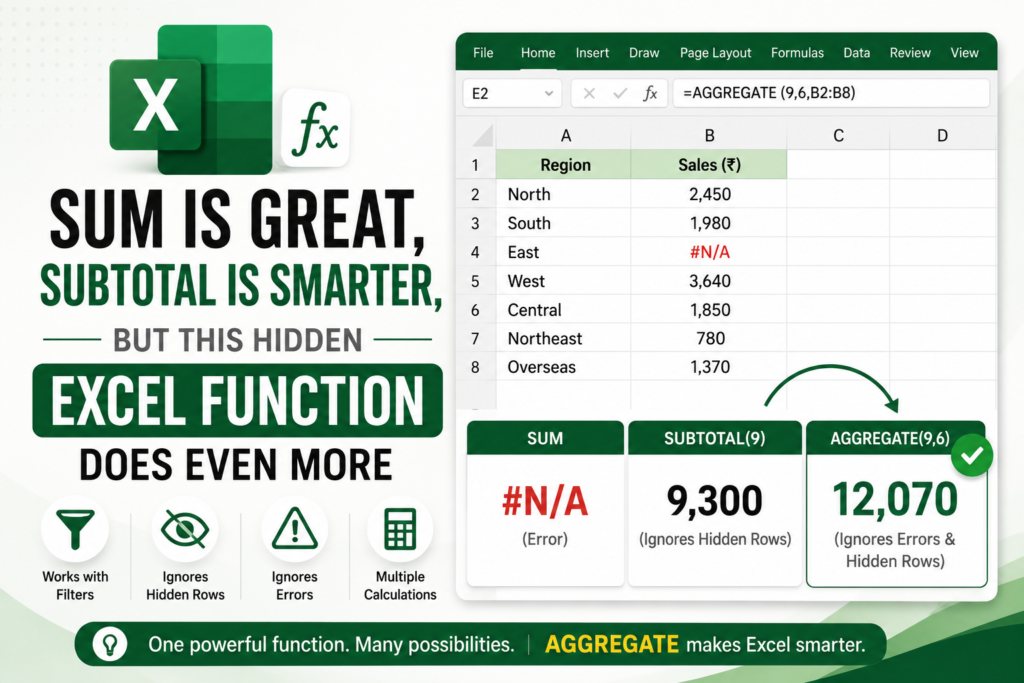

Discover why the Excel AGGREGATE function is more powerful than SUM and SUBTOTAL. Learn how to ignore errors, hidden rows, and filtered data with one smart formula.
Most Excel users rely on the SUM function every day. It’s one of the first formulas we learn, and for good reason—it’s simple, fast, and gets the job done.
As spreadsheets become more advanced, many users move on to SUBTOTAL because it works well with filtered data and dynamic reports.
But there’s one function that quietly does even more.
It’s called AGGREGATE.
Despite being available in Microsoft Excel for years, many users have never tried it. That’s surprising because it can ignore errors, work with filtered data, skip hidden rows, and perform several different calculations—all with a single function.
If you regularly work with dashboards, reports, or large datasets, AGGREGATE might become one of your favorite Excel formulas.
What Is the AGGREGATE Function?
The AGGREGATE function is one of Excel’s most versatile formulas.
Instead of creating separate formulas for different situations, AGGREGATE allows you to perform calculations while deciding how Excel should treat hidden rows, filtered data, and error values.
Think of it as a smarter version of SUM that gives you much more control over your calculations.
Whether you’re analyzing sales figures, inventory reports, financial statements, or business dashboards, AGGREGATE can help you build cleaner and more reliable spreadsheets.
Why SUM Isn’t Always Enough
Let’s imagine you’re preparing a monthly sales report.
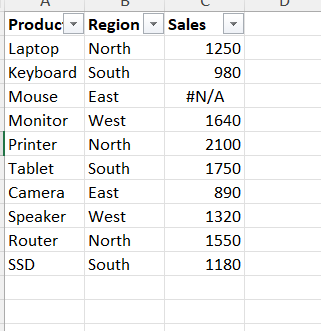
Everything looks perfect until one of the cells suddenly displays #N/A because some data wasn’t imported correctly.
Now you use the SUM function expecting to calculate your total sales.
Instead of getting a number, Excel returns an error.
One incorrect value has now broken your entire calculation.
Many users solve this problem by creating helper columns or wrapping every formula inside IFERROR, but there’s a much easier solution.
Why SUBTOTAL Is Better for Filtered Data
The SUBTOTAL function improves on SUM by automatically ignoring rows hidden by filters.
Suppose you’re looking at sales from only the North region.
When you filter the table, SUBTOTAL recalculates the total using only the visible rows.
This makes it incredibly useful for reports and interactive dashboards.
However, SUBTOTAL still has one weakness.
If your data contains errors like #N/A, #VALUE!, or #DIV/0!, your calculation can still fail.
Meet AGGREGATE: The Best of Both Worlds
This is where AGGREGATE really shines.
It combines the simplicity of SUM with the flexibility of SUBTOTAL while adding another powerful feature—it can ignore errors.
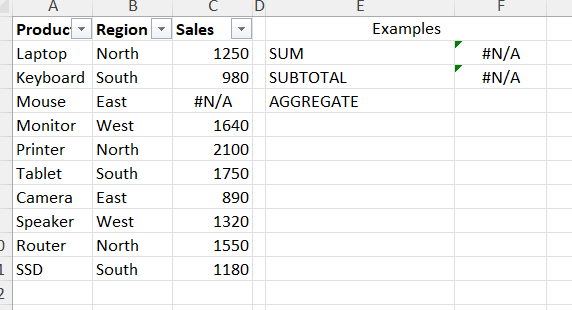
Suppose your worksheet contains these values:
1250
980
#N/A
1640
2100
Using the SUM function returns an error.
Instead, enter:
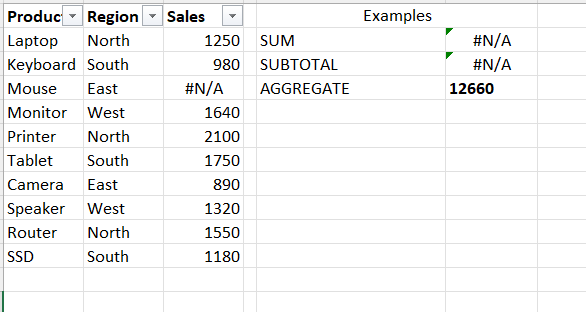
=AGGREGATE(9,6,C2:C11)
Here’s what those numbers mean:
- 9 tells Excel to calculate a SUM.
- 6 tells Excel to ignore error values.
Even though one cell contains #N/A, Excel still calculates the correct total.
No helper columns.
No complicated formulas.
Just one clean function.
AGGREGATE Does Much More Than Add Numbers
One of the biggest misconceptions about AGGREGATE is that it’s only used for totals.
In reality, it’s much more powerful.
It can calculate:
- Averages
- Maximum values
- Minimum values
- Counts
- Medians
- Percentiles
- Quartiles
- The second-largest value
- The third-largest value
- And many other calculations
Instead of remembering multiple formulas, AGGREGATE brings many of them together into one flexible function.
A Real-World Example
Imagine you’re building a sales dashboard for your manager.
The report updates automatically every morning using imported data.
One day, the import process leaves a few missing values, creating several #N/A errors.
If your dashboard relies on SUM, the total sales immediately display an error.
Using AGGREGATE, the dashboard continues working because the function simply ignores the error values and calculates the remaining data correctly.
That’s one reason many experienced Excel professionals include AGGREGATE in their dashboards and automated reports.
SUM vs SUBTOTAL vs AGGREGATE
Although all three functions are useful, each serves a different purpose.
SUM is the best choice for quick and simple calculations.
SUBTOTAL works well when you’re filtering tables and only want visible records included.
AGGREGATE goes a step further by handling filtered data, hidden rows, and error values while also supporting many different types of calculations.
If you’re building reports or dashboards that other people depend on, AGGREGATE offers the greatest flexibility.
When Should You Use AGGREGATE?
AGGREGATE is especially useful if you regularly work with:
- Excel dashboards
- Sales reports
- Financial statements
- Inventory management systems
- HR reports
- Imported CSV files
- Business analytics
- Large datasets containing occasional errors
Whenever your spreadsheet becomes more complex than simple addition, AGGREGATE is worth considering.
Why More Excel Users Should Learn It
Excel includes hundreds of built-in functions, but only a small number become part of most people’s daily workflow.
AGGREGATE deserves to be one of them.
It helps reduce formula errors, simplifies reports, and makes spreadsheets much more reliable.
Once you understand how it works, you’ll probably start using it in situations where you previously relied on several different formulas.
Sometimes the most valuable Excel features aren’t the newest ones—they’re simply the ones most people have overlooked.
Final Thoughts
If you’ve only been using SUM and SUBTOTAL, now is a great time to explore AGGREGATE.
It combines the strengths of both functions while solving problems they can’t handle on their own.
Whether you’re creating business dashboards, analyzing sales data, preparing financial reports, or simply trying to build cleaner spreadsheets, AGGREGATE can save you time and make your work more dependable.
The next time a single error breaks your formula or filtered data gives you unexpected results, remember that Excel already has a smarter solution waiting for you.
Learning just one new function today could make every spreadsheet you build tomorrow a little smarter.
I Built This Dynamic Excel Dashboard Using Gemini AI — No VBA Experience Required-2026
Frequently Asked Questions
Is the AGGREGATE function available in all versions of Excel?
AGGREGATE is available in Microsoft Excel 2010 and later, including Microsoft 365.
Can AGGREGATE replace SUM?
For simple calculations, SUM remains the quickest option. However, AGGREGATE is a better choice when your worksheet contains filtered data, hidden rows, or error values.
Why do Excel professionals use AGGREGATE?
Because it makes formulas more reliable, especially in dashboards and reports where data changes frequently.
Is AGGREGATE difficult to learn?
Not at all. Once you understand the function number and option number, it becomes one of the easiest advanced formulas to use.


