
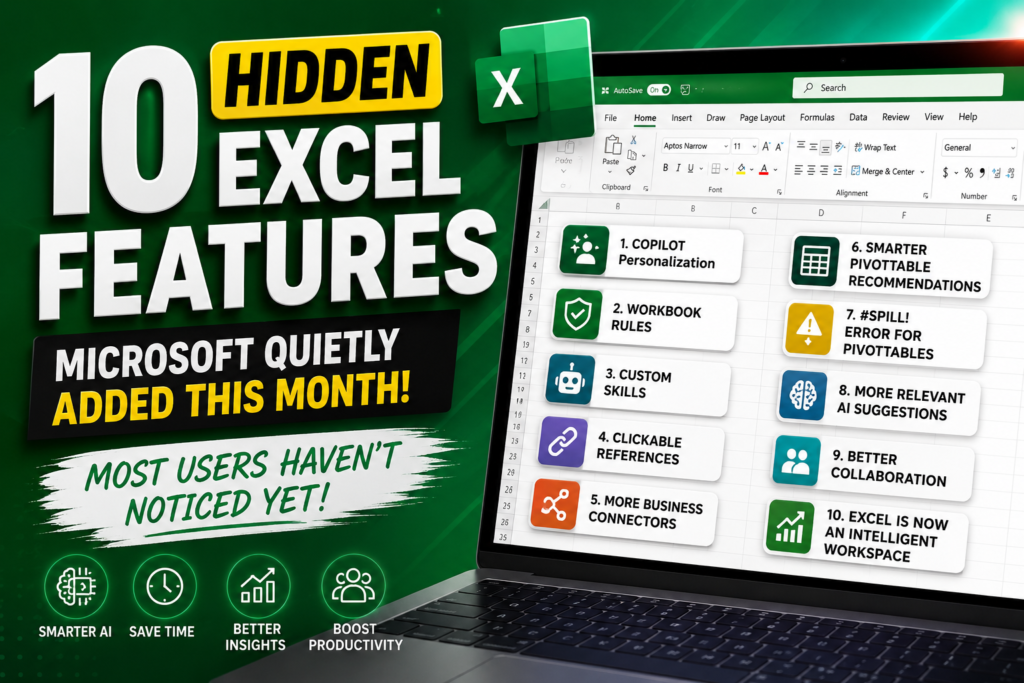

10 Hidden Excel Features Microsoft:- Microsoft updates Excel regularly, but many of its most useful improvements don’t receive the same attention as major feature launches. While AI-powered tools often grab the headlines, several practical updates released this month can make everyday work in Excel faster, more accurate, and more efficient.
Whether you’re a finance professional, accountant, business analyst, student, or Excel enthusiast, these new capabilities are worth exploring. Some are small quality-of-life improvements, while others could significantly change how you build reports, analyze data, and collaborate with your team.
Let’s look at ten Excel features that many users may have missed.
1. Copilot Is Becoming More Personalized
One of the biggest improvements this month isn’t something you’ll immediately notice on the ribbon.
Excel Copilot is becoming better at understanding how you like to work. Instead of giving generic responses every time, it can better align its suggestions with your preferred formatting, reporting style, and workflow.
For example, if you usually create professional-looking financial reports with tables instead of plain ranges, Copilot can increasingly produce results that match your style.
Why this matters
- Less time rewriting prompts
- More consistent reports
- Faster document creation
- Better AI-generated summaries
This makes Copilot feel more like a personal assistant rather than a generic chatbot.
2. Workbook Rules Help Keep Everything Consistent
If you’ve ever worked in a company where every spreadsheet follows specific formatting rules, you’ll appreciate this improvement.
Workbook Rules allow organizations to define how AI should behave inside a workbook. Instead of generating random formatting, Copilot can follow the standards already established in the file.
Examples include:
- Use company colors
- Preserve formulas
- Keep existing table structures
- Don’t remove hidden worksheets
- Follow company formatting standards
This helps maintain consistency across reports, especially when multiple people collaborate on the same workbook.
3. Custom Skills Can Automate Repetitive Tasks
Many Excel users perform the same tasks every week:
- Monthly sales reports
- Budget summaries
- Expense analysis
- Inventory reviews
- KPI dashboards
Instead of explaining these tasks repeatedly, Custom Skills allow you to reuse instructions for recurring workflows.
Imagine asking Excel:
“Run my Monthly Sales Analysis”
Instead of explaining every individual step, Copilot can use your saved workflow to complete the task much faster.
For professionals who spend hours inside Excel every day, this could become a major productivity boost.
4. Copilot Responses Now Point to the Actual Data
One challenge with AI-generated answers is knowing where the information came from.
Microsoft has improved this experience by making it easier to navigate back to the original data used in Copilot’s responses.
Instead of manually searching through thousands of rows, you can quickly move to the relevant cells, tables, or worksheets that support the answer.
Benefits include:
- Easier auditing
- Faster validation
- More confidence in AI-generated insights
- Less manual searching
For large workbooks, this can save a surprising amount of time.
5. Excel Works with More Business Services
Modern businesses rarely store all their information in a single application.
Microsoft continues expanding the number of services that work alongside Excel and Copilot, making it easier to use information from multiple business platforms.
Depending on your Microsoft 365 environment and licensing, supported services continue to grow.
This allows Excel to become a central place for reporting and analysis instead of requiring constant manual imports.
Businesses using CRM platforms, project management tools, research platforms, and collaboration software will likely benefit the most from these improvements.
6. Recommended PivotTables Are Smarter Than Before
PivotTables remain one of Excel’s most powerful features, but many users avoid them because they seem complicated.
Microsoft has improved the Recommended PivotTables experience to make it easier to discover useful summaries without building everything manually.
Instead of guessing:
- Which fields belong in rows
- Which values should be summarized
- Which layout works best
Excel now provides more useful starting suggestions.
This is especially helpful for beginners who want insights without learning every PivotTable setting.
7. PivotTable Errors Are Easier to Understand
Almost every experienced Excel user has refreshed a PivotTable only to discover that something went wrong.
One common reason is that Excel doesn’t have enough space to expand the PivotTable.
Instead of leaving users wondering what happened, Excel now provides clearer feedback when this situation occurs.
The result?
- Faster troubleshooting
- Less confusion
- Easier fixes
- Better understanding of workbook layout
Small usability improvements like this often save more time than large headline features.
8. AI Suggestions Feel More Relevant
Microsoft continues improving how Copilot understands workbook context.
Rather than generating generic recommendations, Excel is getting better at producing suggestions that match your current data and workflow.
For example, depending on the workbook, Copilot may provide:
- Better chart suggestions
- More relevant formulas
- Improved summaries
- Cleaner report layouts
- Context-aware recommendations
While these improvements may seem subtle, they make AI feel much more useful during everyday work.
9. Collaboration Continues to Improve
Modern Excel is no longer just a spreadsheet application.
It’s increasingly becoming a collaborative workspace where multiple users, AI tools, and business systems work together.
Recent improvements continue supporting:
- Shared workbooks
- Team reporting
- Standardized formatting
- AI-assisted collaboration
- Faster report generation
For organizations that rely heavily on Microsoft 365, these enhancements help teams spend less time cleaning spreadsheets and more time analyzing information.
10. Excel Is Quietly Becoming an Intelligent Productivity Platform
Looking at all of this month’s updates together, one trend becomes obvious.
Microsoft isn’t simply adding random new features.
Instead, Excel is evolving into a smarter workspace that can:
- Understand user preferences
- Respect workbook standards
- Improve collaboration
- Reduce repetitive work
- Help users find information faster
- Produce better AI-assisted reports
Rather than replacing Excel’s traditional strengths, these updates build on them by making everyday tasks easier.
Which Feature Is the Most Useful?
Every user works differently, but a few updates stand out.
For business users, Workbook Rules and Custom Skills could significantly reduce repetitive work.
For analysts, improved data references make it easier to verify AI-generated insights.
For beginners, smarter Recommended PivotTables lower the learning curve.
And for everyone using Microsoft 365, better Copilot personalization means spending less time writing prompts and more time getting work done.
Tips to Get the Most from These New Features
If you’re using Microsoft 365, here are a few suggestions:
- Keep Excel updated to the latest version.
- Explore Copilot features if they’re available with your subscription.
- Use Excel Tables instead of plain ranges for better AI results.
- Organize your data with clear column headers.
- Regularly review Microsoft’s Excel release notes to stay informed about new capabilities.
Small changes in your workflow can make these new features even more valuable.
Final Thoughts
Excel continues to evolve far beyond a traditional spreadsheet application.
The latest updates focus less on flashy redesigns and more on practical improvements that help users save time, reduce repetitive work, and produce more consistent results.
Whether you’re building dashboards, managing business reports, analyzing financial data, or simply organizing everyday information, these enhancements make Excel a more capable productivity tool.
Some of these features are rolling out gradually, so availability may depend on your Microsoft 365 subscription, update channel, or Insider status.
If you use Excel regularly, it’s worth checking for updates and exploring these new capabilities—they could simplify tasks you perform every single day.
Frequently Asked Questions
Are these Excel features available for everyone?
Some features are rolling out gradually and may first appear in Microsoft 365 Insider builds before becoming widely available.
Do I need Microsoft 365?
Many of the newest AI-powered capabilities require a Microsoft 365 subscription, and some also require access to Microsoft Copilot.
Which update is the biggest productivity improvement?
For many professionals, personalized Copilot, Workbook Rules, and Custom Skills have the potential to save the most time.
Should I update Excel immediately?
Keeping Excel updated ensures you receive the latest security improvements, bug fixes, and new productivity features as they become available.
What do you think about these new Excel features? Have you tried any of them yet? Share your favorite update in the comments below.


