
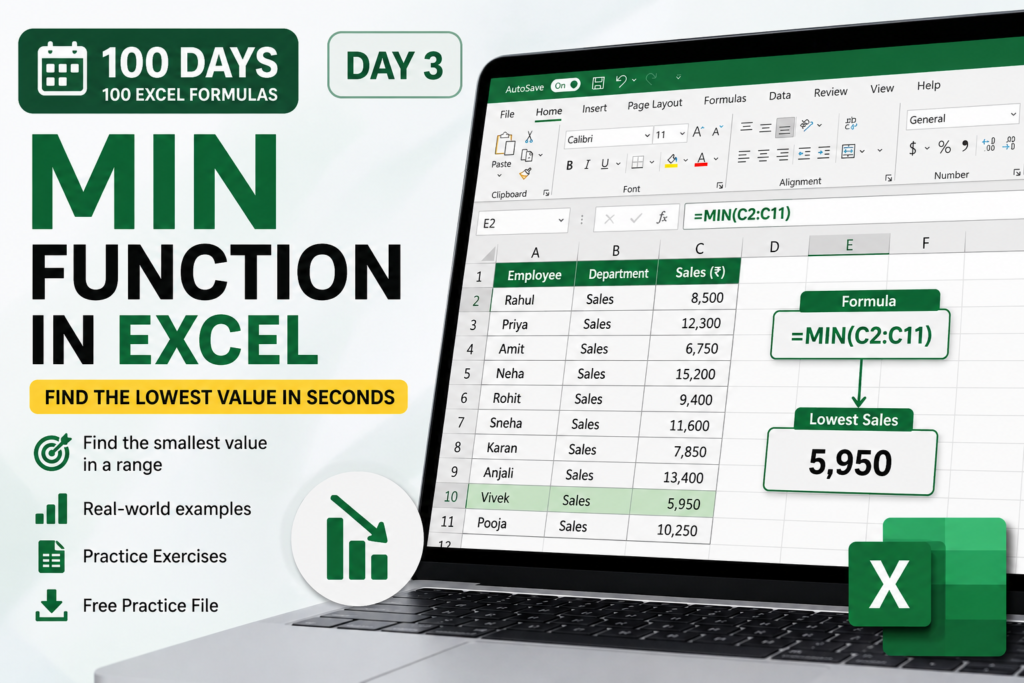

Day 3 of 100 Days • 100 Excel Formulas (MIN Function in Excel)
Finding the lowest number in a large Excel dataset doesn’t need to involve manually scanning rows and rows of values.
The MIN function in Excel can find the smallest number in a range almost instantly.
In this lesson, you’ll learn how to use MIN with a simple sales example, understand its syntax, practice with real-world data, and download a free Excel workbook to try the exercises yourself.
Today’s formula:
MIN
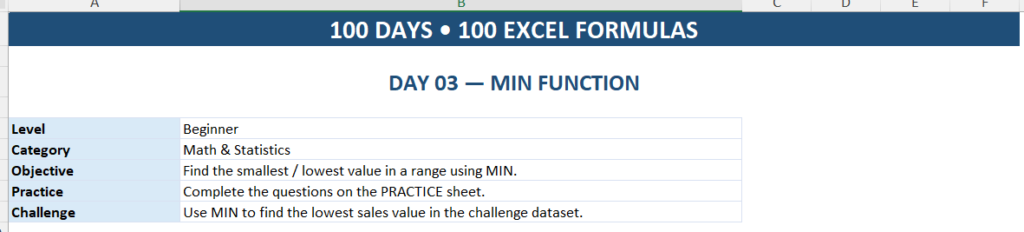
Level: Beginner
Category: Math & Statistics
Learning goal: Find the smallest value in an Excel range
Practice file: Available below
What Does the MIN Function Do in Excel?
The MIN function returns the smallest numerical value from a group of numbers, cells, or a range.
For example, if your sales values are:
| Employee | Sales |
|---|---|
| Rahul | 8,500 |
| Priya | 12,300 |
| Amit | 6,750 |
| Neha | 15,200 |
| Rohit | 9,400 |
You could manually look through the numbers to find the lowest sale.
But Excel can do it for you.
Use:
=MIN(B2:B6)The result is:
6,750
Excel has identified the smallest number in the range.
MIN Function Syntax
The basic syntax is:
=MIN(number1,[number2],...)What does this mean?
number1— the first number or range you want Excel to evaluate[number2]— an optional additional number or range...— you can provide additional values or ranges
The most common way you’ll use MIN is with a cell range:
=MIN(B2:B10)How to Use MIN in Excel
Let’s work through a practical example.
Imagine you’re analyzing employee sales performance.
| Employee | Department | Sales |
|---|---|---|
| Rahul | Sales | 8,500 |
| Priya | Sales | 12,300 |
| Amit | Sales | 6,750 |
| Neha | Sales | 15,200 |
| Rohit | Sales | 9,400 |
| Sneha | Sales | 11,600 |
| Karan | Sales | 7,850 |
| Anjali | Sales | 13,400 |
| Vivek | Sales | 5,950 |
| Pooja | Sales | 10,250 |
You want to know:
What is the lowest sales value?
Click an empty cell and enter:
=MIN(C2:C11)Press Enter.
The result is:
5,950
So the lowest sales value in this dataset is 5,950.
Why MIN Is Useful in Real-World Excel Work
MIN isn’t limited to employee sales.
You can use it whenever you need to identify the smallest numerical value in your data.
Sales
Find the lowest sales transaction.
=MIN(C2:C100)Inventory
Find the lowest stock level.
=MIN(F2:F500)Pricing
Find the lowest product price.
=MIN(D2:D200)Student Results
Find the lowest score.
=MIN(E2:E50)Financial Data
Find the lowest monthly expense.
=MIN(G2:G13)The same basic formula can solve all of these problems.
MIN Can Work With Individual Numbers Too
You don’t always have to reference a range.
For example:
=MIN(450,780,125,920,340)
The result is:
125
This is useful when you have a small number of individual values.
However, when you’re working with business data, using a cell range is generally much more practical.
MIN Can Also Work With Multiple Ranges
You can give MIN more than one range.
For example:
=MIN(B2:B10,D2:D10)
Excel checks both ranges and returns the smallest numerical value it finds.
You can also combine individual values and ranges:
=MIN(B2:B10,500,250)
Excel evaluates all of them together.
A Real Business Example
Imagine you’re managing inventory.
| Product | Current Stock |
|---|---|
| Laptop | 48 |
| Monitor | 32 |
| Keyboard | 75 |
| Mouse | 18 |
| Printer | 25 |
You want to know the lowest stock level.
Use:
=MIN(B2:B6)
Result:
18
This immediately tells you that the lowest current stock level is 18 units.
That could be a signal to review the product and decide whether additional inventory is required.
Important: MIN Finds the Value, Not the Person
This is an important concept to understand.
Suppose:
=MIN(C2:C11)
returns:
5,950
MIN tells you the lowest sales value.
It does not automatically return the employee associated with that value.
So you get:
Lowest sales = 5,950
But you don’t automatically get:
Employee = Vivek
Finding the corresponding employee requires another technique, such as XLOOKUP or another lookup approach.
That’s an important distinction between finding a value and finding the record associated with that value.
You’ll encounter these more advanced techniques later in the 100 Days • 100 Excel Formulas challenge.
MIN vs Manually Checking Numbers
Imagine a report contains 5,000 transactions.
You could manually scan the column looking for the smallest value.
That’s slow and error-prone.
Instead:
=MIN(C2:C5001)
Excel checks the entire range and returns the smallest numerical value.
This is one reason basic Excel functions are so valuable: simple formulas can eliminate repetitive manual work.
Common MIN Function Mistakes
Mistake 1: Selecting the Wrong Range
If your sales are in column C but you write:
=MIN(B2:B100)
you’re analyzing the wrong column.
Always check the selected range.
Mistake 2: Forgetting the Equals Sign
Incorrect:
MIN(C2:C10)
Correct:
=MIN(C2:C10)
Excel formulas normally begin with =.
Mistake 3: Expecting MIN to Return a Name
This:
=MIN(C2:C11)
returns the lowest number, not the employee name.
If you need the associated employee, you’ll need a lookup solution.
MIN Function Practice Challenge
Now it’s your turn.
Consider these numbers:
| Value |
|---|
| 450 |
| 780 |
| 125 |
| 920 |
| 340 |
Your challenge
Write a formula that finds the smallest number.
Try it before looking at the answer.
Answer
=MIN(A2:A6)
Result:
125
📥 Download the Day 3 Practice File
I’ve created a dedicated workbook for this lesson so you can practice the formula instead of simply reading about it.
The workbook includes:
- START HERE — lesson instructions
- DATA — realistic employee sales data
- PRACTICE — guided exercises
- ANSWERS — correct formulas and results
- CHALLENGE — a professional-level MIN exercise
Download: Day 3 — MIN Function Practice Workbook
Tip: Try completing the PRACTICE and CHALLENGE sheets before opening the ANSWERS sheet.
Professional Tip: Use MIN With an Excel Table
If your data is stored in an Excel Table called SalesData, you can use a structured reference:
=MIN(SalesData[Sales])
This is especially useful for professional workbooks because the table can expand as new records are added.
Instead of constantly changing:
=MIN(C2:C100)
you can work with the table column directly.
Quick Formula Reference
| Task | Formula |
|---|---|
| Find minimum in a range | =MIN(B2:B10) |
| Find minimum from individual values | =MIN(10,25,5,40) |
| Find minimum from multiple ranges | =MIN(B2:B10,D2:D10) |
| Find minimum from an Excel Table | =MIN(SalesData[Sales]) |
Day 3 Complete 🎯
Today you learned how to:
- Find the smallest value in Excel
- Use the
MINfunction with a range - Use MIN with individual values
- Use MIN with multiple ranges
- Apply MIN to sales, inventory, pricing, and other business data
- Understand the difference between finding a minimum value and finding the associated record
But there’s one more important question:
If MIN finds the lowest value, how do we find the highest value?
That’s exactly what we’ll learn next.
Day 4 → MAX Function in Excel
100 Days • 100 Excel Formulas
One formula at a time. One practical skill at a time.


