
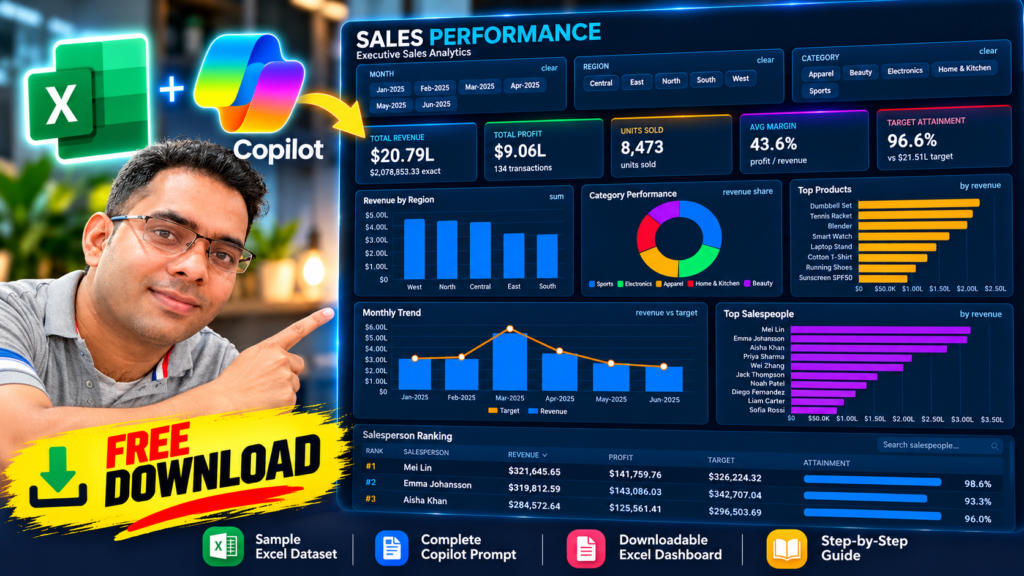

Excel Sales Dashboard Using Microsoft Copilot:-Have you ever wanted to create a professional Excel dashboard with interactive filters, KPI cards, colorful charts, and a salesperson ranking table without designing everything from scratch?
In this tutorial, we’ll show you how to transform a simple sales dataset into a modern, dark-themed Excel Sales Performance Dashboard using Microsoft Copilot.
You don’t need to design the entire dashboard manually. You’ll start with a sample Excel dataset, use our ready-to-copy Copilot prompt, refine the dashboard, and validate the results.
At the end of this tutorial, you can download the completed dashboard workbook and use it as a reference for your own Excel projects.
Project Downloads
Start by downloading the sample dataset. Follow the tutorial using the same workbook so that your results match the examples shown in this guide.
Download the project files:
- Sample Sales Dataset:
- Complete Copilot Prompt: Copy the master prompt included in Step 4.
- Final Excel Dashboard:
Note for the website publisher: Replace the two download placeholders with your actual hosted Excel file URLs before publishing. Upload the completed dashboard workbook separately from the sample dataset.
What Will You Build?
The completed dashboard contains five main sections:
- Interactive Filters: Month, Region, and Category.
- KPI Cards: Total Revenue, Total Profit, Units Sold, Average Margin, and Target Attainment.
- Revenue Charts: Revenue by Region, Category Performance, and Top Products.
- Performance Charts: Monthly Revenue vs Target and Top Salespeople.
- Salesperson Ranking: A detailed table showing Revenue, Profit, Target, and Attainment.
The dashboard uses a modern dark navy theme with colorful charts, compact labels, bold KPI numbers, and a professional business intelligence layout.
Step 1: Download the Sample Dataset
Download the sample workbook using the link above and open it in Microsoft Excel.
The dataset contains 134 sales transactions across six months, five regions, five product categories, and ten salespeople.
The source data includes these fields:
| Field | Purpose |
|---|---|
| Month | Monthly filtering and trend analysis |
| Region | Regional performance |
| Category | Category-level sales analysis |
| Product | Product performance |
| Salesperson | Salesperson ranking |
| UnitsSold | Units sold |
| Revenue | Total revenue |
| Cost | Cost of sales |
| Profit | Sales profit |
| Target | Sales target |
Before continuing, confirm that the source data is intact and that the numerical columns contain valid numeric values.
Step 2: Understand the Expected Results
Before generating the dashboard, establish the expected overall figures.
| KPI | Expected Value |
|---|---|
| Total Revenue | $2,078,853.33 |
| Total Profit | $905,970.07 |
| Units Sold | 8,473 |
| Total Target | $2,151,083.84 |
| Profit Margin | Approximately 43.6% |
| Target Attainment | Approximately 96.6% |
| Transactions | 134 |
These figures provide a useful validation checklist after Copilot finishes creating the dashboard.
Your dashboard should calculate these results from the source dataset rather than storing them as manually typed values.
Step 3: Copy the Complete Microsoft Copilot Prompt
This is the most important step of the project.
Open Copilot in Excel and paste the following prompt. It specifies the dashboard structure, KPI cards, chart types, colors, formulas, filters, and ranking table.
Master Copilot Prompt
I want you to transform this Excel workbook into a premium, executive-level Sales Performance Dashboard.

IMPORTANT:
Do NOT create a generic Excel dashboard.
Do NOT change, overwrite, delete, or alter my original Raw Data.
Use the existing data exactly as provided.

The dashboard must visually reproduce the attached reference dashboard as closely as possible — target at least 95% visual similarity in:
• Layout
• Positioning
• Chart types
• KPI structure
• Dark color palette
• Typography
• Spacing
• Borders
• Rounded-card appearance
• Filter layout
• Table layout
• Number formatting
• Chart proportions
• Overall premium SaaS/BI dashboard appearance

The dashboard should look like a modern Power BI / Tableau / premium web analytics dashboard, but built natively inside Excel.

====================================================
1. SOURCE DATA
====================================================

Use the existing worksheet:

Raw Data

The columns are:

A = Month
B = Region
C = Category
D = Product
E = Salesperson
F = UnitsSold
G = Revenue
H = Cost
I = Profit
J = Target

Do not modify the raw data.

Convert the source range into an Excel Table named:

tblSales

Ensure all formulas, PivotTables, PivotCharts and dashboard calculations dynamically reference tblSales so that the dashboard updates automatically when new rows are added.

====================================================
2. CREATE THESE WORKSHEETS
====================================================

Create the following worksheets:

1. Raw Data
2. Calculations
3. Pivot Data
4. Dashboard

Keep Raw Data unchanged.

The main user-facing sheet must be:

Dashboard

Hide gridlines on the Dashboard sheet.

Use a professional dark theme throughout the Dashboard.

====================================================
3. DASHBOARD CANVAS
====================================================

Create a wide dashboard layout similar to the reference image.

Recommended dashboard size:

Approximately 16:9 landscape format.

Use a dark navy/near-black background.

Suggested background:

#070B14

Primary card background:

#11182A

Secondary card background:

#121B30

Border:

#263653

Primary text:

#E8EDF7

Secondary text:

#8D9BB5

Muted text:

#65748F

Blue:

#3B82F6

Green:

#16A34A

Orange:

#F28C28

Purple:

#9333EA

Red:

#EF2B2B

Gold/yellow:

#F5B700

Use these colors consistently.

Do not use bright white backgrounds.

Do not use Excel's default blue chart theme.

====================================================
4. TOP FILTER AREA
====================================================

At the very top create three large filter cards.

LEFT FILTER CARD:

Title:

MONTH

Available values:

Jan-2025
Feb-2025
Mar-2025
Apr-2025
May-2025
Jun-2025

CENTER FILTER CARD:

Title:

REGION

Available values:

Central
East
North
South
West

RIGHT FILTER CARD:

Title:

CATEGORY

Available values:

Apparel
Beauty
Electronics
Home & Kitchen
Sports

Create slicers for:

Month
Region
Category

Style the slicers to resemble the reference screenshot:

• Dark navy background
• Thin dark-blue border
• Rounded/premium appearance where supported
• Light gray text
• Selected item should have a blue highlight
• Compact buttons
• Multiple selections allowed
• Clear Filter option visible
• Minimal slicer headers
• No unnecessary white Excel styling

Arrange the three slicers horizontally.

Month slicer should contain 6 buttons.

Region slicer should contain 5 buttons.

Category slicer should contain 5 buttons.

====================================================
5. KPI CARDS
====================================================

Directly below the filters create FIVE KPI cards.

Use equal-width cards with consistent spacing.

CARD 1:

Title:
TOTAL REVENUE

Main value:
Total Revenue

Secondary text:
Show the exact revenue underneath.

Expected total:

$2,078,853.33

Display the main KPI in abbreviated form:

$20.79L

Secondary:

$2,078,853.33 exact

Use a blue accent line at the top of the card.

----------------------------------------------------

CARD 2:

Title:
TOTAL PROFIT

Main value:

$9.06L

Secondary:

134 transactions

Calculate total profit dynamically.

Expected total profit:

$905,970.07

Use green accent line.

----------------------------------------------------

CARD 3:

Title:
UNITS SOLD

Main value:

8,473

Secondary:

units sold

Calculate dynamically from UnitsSold.

Use orange accent line.

----------------------------------------------------

CARD 4:

Title:
AVG MARGIN

Main value:

43.6%

Secondary:

profit / revenue

Formula:

Total Profit / Total Revenue

Expected:

approximately 43.6%

Use purple accent line.

----------------------------------------------------

CARD 5:

Title:
TARGET ATTAINMENT

Main value:

96.6%

Secondary:

vs $21.51L target

Formula:

Total Revenue / Total Target

Expected total target:

$2,151,083.84

Display target approximately:

$21.51L

Use red accent line.

====================================================
6. KPI CARD DESIGN
====================================================

Each KPI must look like a premium dashboard card.

Use:

• Dark navy fill
• Thin border
• Rounded corners if possible
• Large bold number
• Small uppercase label
• Small muted secondary text
• Consistent internal padding
• Accent line at top
• No gridlines
• No unnecessary chart borders

Main KPI number should be approximately 24–30 pt.

Title approximately 9–11 pt.

Secondary approximately 9–10 pt.

Use a clean modern font such as Aptos, Segoe UI or similar.

====================================================
7. MAIN CHART AREA
====================================================

Create the next section with THREE charts in one row.

LEFT:

REVENUE BY REGION

Chart type:

Vertical Column Chart

Title:

Revenue by Region

Subtitle / small label:

SUM

Categories:

West
North
Central
East
South

Sort regions descending by revenue.

Expected values approximately:

West = $467,789.87
North = $457,310.00
Central = $447,078.44
East = $362,759.22
South = $343,915.80

Use blue columns.

Remove unnecessary chart clutter.

Dark chart background.

Minimal gridlines.

Axis labels in muted gray.

Currency axis should use compact notation:

$0
$0.5M
$1.0M etc.

====================================================

CENTER:

CATEGORY PERFORMANCE

Chart type:

Doughnut Chart

Title:

Category Performance

Subtitle:

revenue share

Show Revenue Share by Category.

Categories:

Sports
Electronics
Apparel
Home & Kitchen
Beauty

Expected revenue totals approximately:

Sports = $577,980.96
Electronics = $439,115.70
Apparel = $432,071.68
Home & Kitchen = $346,259.78
Beauty = $283,425.21

Use five distinct dashboard colors.

Recommended:

Sports = Blue
Electronics = Green
Apparel = Orange
Home & Kitchen = Red
Beauty = Purple

Create a clean doughnut with a large center hole.

Place the legend at the bottom.

Avoid data labels cluttering the chart.

====================================================

RIGHT:

TOP PRODUCTS

Chart type:

Horizontal Bar Chart

Title:

Top Products

Subtitle:

by revenue

Show TOP 8 PRODUCTS by Revenue.

Expected order:

1. Dumbbell Set
2. Tennis Racket
3. Blender
4. Smart Watch
5. Laptop Stand
6. Cotton T-Shirt
7. Running Shoes
8. Sunscreen SPF50

Expected approximate revenues:

Dumbbell Set = $215,862.07
Tennis Racket = $207,250.34
Blender = $200,154.39
Smart Watch = $171,917.12
Laptop Stand = $147,126.38
Cotton T-Shirt = $139,349.60
Running Shoes = $115,954.05
Sunscreen SPF50 = $100,908.99

Use orange bars.

Sort descending.

Put product names on the left.

Use compact currency axis.

====================================================
8. SECOND CHART ROW
====================================================

Create another row containing two charts.

LEFT CHART:

MONTHLY TREND

Make this chart approximately twice the width of the Top Salespeople chart.

Chart type:

COMBO CHART

Use:

Revenue = Column

Target = Line

Title:

Monthly Trend

Subtitle:

revenue vs target

Months:

Jan-2025
Feb-2025
Mar-2025
Apr-2025
May-2025
Jun-2025

Revenue values:

Jan-2025 = $312,884.79
Feb-2025 = $331,405.14
Mar-2025 = $560,455.59
Apr-2025 = $374,847.62
May-2025 = $256,395.29
Jun-2025 = $242,864.90

Target values:

Jan-2025 = $327,677.70
Feb-2025 = $339,480.49
Mar-2025 = $570,748.09
Apr-2025 = $405,648.98
May-2025 = $267,588.68
Jun-2025 = $239,939.90

Revenue should be blue columns.

Target should be orange line.

Target line should have circular markers.

Legend at the bottom:

Target
Revenue

Use minimal gridlines.

Do not use a secondary axis unless absolutely necessary.

====================================================

RIGHT CHART:

TOP SALESPEOPLE

Chart type:

Horizontal Bar Chart

Title:

Top Salespeople

Subtitle:

by revenue

Show all 10 salespeople sorted by Revenue descending.

Expected order:

1. Mei Lin
2. Emma Johansson
3. Aisha Khan
4. Priya Sharma
5. Wei Zhang
6. Jack Thompson
7. Noah Patel
8. Diego Fernandez
9. Liam Carter
10. Sofia Rossi

Use purple bars.

Expected revenues approximately:

Mei Lin = $321,645.65
Emma Johansson = $319,812.59
Aisha Khan = $284,572.64
Priya Sharma = $235,197.35
Wei Zhang = $222,253.37
Jack Thompson = $169,478.06
Noah Patel = $164,234.42
Diego Fernandez = $141,611.86
Liam Carter = $123,564.67
Sofia Rossi = $96,482.72

Sort descending.

Use compact currency axis.

====================================================
9. SALESPERSON RANKING TABLE
====================================================

At the bottom create a large table card.

Title:

Salesperson Ranking

Place a search box at the upper-right if possible.

The table must contain:

RANK
SALESPERSON
REVENUE
PROFIT
TARGET
ATTAINMENT

Create 10 rows.

Sort by Revenue descending.

Expected values:

#1 Mei Lin
Revenue $321,645.65
Profit $141,759.76
Target $326,224.32
Attainment 98.6%

#2 Emma Johansson
Revenue $319,812.59
Profit $143,086.03
Target $342,707.04
Attainment 93.3%

#3 Aisha Khan
Revenue $284,572.64
Profit $125,561.41
Target $296,503.69
Attainment 96.0%

#4 Priya Sharma
Revenue $235,197.35
Profit $98,242.81
Target $243,532.19
Attainment 96.6%

#5 Wei Zhang
Revenue $222,253.37
Profit $91,617.61
Target $249,032.90
Attainment 89.2%

#6 Jack Thompson
Revenue $169,478.06
Profit $77,504.71
Target $164,565.64
Attainment 103.0%

#7 Noah Patel
Revenue $164,234.42
Profit $69,560.44
Target $176,144.27
Attainment 93.2%

#8 Diego Fernandez
Revenue $141,611.86
Profit $58,079.70
Target $130,998.18
Attainment 108.1%

#9 Liam Carter
Revenue $123,564.67
Profit $58,629.26
Target $126,954.19
Attainment 97.3%

#10 Sofia Rossi
Revenue $96,482.72
Profit $41,928.34
Target $94,421.42
Attainment 102.2%

====================================================
10. SALESPERSON TABLE DESIGN
====================================================

Make the table look like the reference.

Dark navy table background.

Header:

Slightly lighter navy.

Header text:

Muted blue-gray.

Rows:

Alternate subtle dark shades.

Thin horizontal separators.

Revenue and Profit:

Bold.

Attainment:

Display as percentage.

Also create a horizontal data bar inside the Attainment column.

Use blue data bars.

The percentage should remain visible at the right side.

Example:

████████████████ 98.6%

Do NOT use default Excel green/red conditional formatting.

Use blue data bars only.

Rank #1, #2 and #3 can have subtle gold/silver/bronze emphasis.

Do not overdo colors.

====================================================
11. BOTTOM STATUS BAR
====================================================

At the bottom of the ranking table show:

Left:

10 salespersons

Right:

Total Revenue: $2,078,853.33

Use small muted text.

====================================================
12. NUMBER FORMATTING
====================================================

Use these formats consistently.

Revenue:

$#,##0.00

Profit:

$#,##0.00

Target:

$#,##0.00

Units:

#,##0

Percentage:

0.0%

For KPI cards use compact notation:

$20.79L
$9.06L
$21.51L

Important:

"L" represents 100,000.

Therefore:

$2,078,853.33 → $20.79L
$905,970.07 → $9.06L
$2,151,083.84 → $21.51L

Do not confuse L with millions.

====================================================
13. CALCULATIONS
====================================================

Create a Calculations sheet containing dynamic formulas.

Create calculations for:

Total Revenue
Total Profit
Total Units
Total Target
Profit Margin
Target Attainment
Transaction Count
Revenue by Region
Revenue by Category
Revenue by Product
Revenue by Month
Target by Month
Revenue by Salesperson
Profit by Salesperson
Target by Salesperson
Salesperson Attainment

Use Excel formulas, PivotTables, or Power Pivot where appropriate.

Important formulas:

Profit Margin:

=Total Profit / Total Revenue

Target Attainment:

=Total Revenue / Total Target

Salesperson Attainment:

=Salesperson Revenue / Salesperson Target

Transaction Count:

=ROWS(tblSales[Revenue])

====================================================
14. INTERACTIVITY
====================================================

All dashboard components must respond to:

Month
Region
Category

Use slicers and connect them to all relevant PivotTables/PivotCharts.

When the user selects:

March-2025

all KPIs and charts should update.

When the user selects:

West

all KPIs and charts should update.

When the user selects:

Sports

all KPIs and charts should update.

When multiple filters are selected, combine them.

Do NOT create static charts.

Do NOT hard-code dashboard results.

Everything must remain dynamic.

====================================================
15. VISUAL STYLE
====================================================

The visual appearance is extremely important.

Match the reference dashboard with:

• Dark navy background
• Rounded dashboard cards
• Thin blue-gray borders
• Subtle spacing
• Premium SaaS appearance
• Small uppercase section labels
• Large bold KPI numbers
• Muted secondary labels
• Minimal chart decoration
• No unnecessary legends
• No default Excel chart backgrounds
• No 3D charts
• No gradients unless subtle
• No excessive shadows
• No bright white chart areas

Use consistent card spacing.

All cards should have equal heights where appropriate.

Charts should have consistent internal margins.

====================================================
16. CHART FORMATTING
====================================================

For every chart:

Remove chart border.

Remove unnecessary axis lines.

Use dark background.

Use muted gray axis labels.

Use subtle gridlines.

Use consistent font.

Use compact currency formatting.

Do not display unnecessary decimals.

Do not use 3D.

Do not use pie charts except the Category Performance doughnut.

Do not use default Excel colors.

Use the specified dashboard palette.

====================================================
17. DASHBOARD LAYOUT
====================================================

Follow this exact structure:

ROW 1:
------------------------------------------------
MONTH FILTER | REGION FILTER | CATEGORY FILTER
------------------------------------------------

ROW 2:
------------------------------------------------
TOTAL REVENUE | TOTAL PROFIT | UNITS SOLD |
AVG MARGIN | TARGET ATTAINMENT
------------------------------------------------

ROW 3:
------------------------------------------------
REVENUE BY REGION | CATEGORY PERFORMANCE | TOP PRODUCTS
------------------------------------------------

ROW 4:
------------------------------------------------
                MONTHLY TREND
                         | TOP SALESPEOPLE
------------------------------------------------

ROW 5:
------------------------------------------------
             SALESPERSON RANKING
------------------------------------------------

The Monthly Trend chart should be wider than Top Salespeople.

The Salesperson Ranking table should span almost the entire dashboard width.

Maintain equal margins around all objects.

====================================================
18. DASHBOARD TITLE
====================================================

Add a subtle dashboard title near the top-left if space permits:

SALES PERFORMANCE

Use:

Large bold white text.

Under it:

Executive Sales Analytics

Small muted text.

Do not let the title consume too much vertical space.

====================================================
19. RESPONSIVENESS
====================================================

Make sure the dashboard is usable at normal Excel zoom levels.

Set an appropriate zoom level such as:

85%–95%

Freeze nothing on the Dashboard.

Hide gridlines.

Do not leave unused rows and columns visually distracting.

Set appropriate column widths and row heights.

====================================================
20. DATA VALIDATION
====================================================

Verify that:

• Month values are correctly recognized
• Revenue is numeric
• Cost is numeric
• Profit is numeric
• Target is numeric
• UnitsSold is numeric

Do not change the underlying data.

====================================================
21. QUALITY CONTROL
====================================================

After creating the dashboard, validate all calculations against Raw Data.

Expected overall values:

Total Revenue:
$2,078,853.33

Total Profit:
$905,970.07

Total Target:
$2,151,083.84

Units Sold:
8,473

Profit Margin:
approximately 43.6%

Target Attainment:
approximately 96.6%

Transactions:
134

If the dashboard numbers do not match these values, investigate the formulas/PivotTables before finishing.

====================================================
22. IMPORTANT VISUAL PRIORITY
====================================================

The visual design is as important as the calculations.

Prioritize the following in this order:

1. Overall layout
2. Dark premium appearance
3. KPI cards
4. Filter/slicer positioning
5. Chart types
6. Chart sizing
7. Colors
8. Typography
9. Ranking table
10. Number formatting

The finished result should look like a professional commercial analytics template that could be sold as a premium Excel dashboard.

====================================================
23. FINAL CHECK
====================================================

Before finishing:

• Check every KPI
• Check every chart
• Check all filters
• Check slicer connections
• Check salesperson ranking
• Check number formats
• Check chart sorting
• Check dark theme
• Check alignment
• Check spacing
• Check that Raw Data remains unchanged
• Check that dashboard is dynamic

Do not stop after creating PivotTables.

Finish the complete visual Dashboard sheet.

The final result should closely reproduce the provided reference dashboard, using the actual data from this workbook.
Step 4: Let Copilot Create the Dashboard
After pasting the prompt, review Copilot’s output and follow any steps it requests.
Depending on the available Excel features, Copilot may create some elements automatically while requiring you to complete other elements manually.
Check that the dashboard includes:
- Five KPI cards.
- Three filters.
- Five charts.
- A ten-person salesperson ranking table.
- The dark navy design.
- Dynamic calculations linked to the dataset.
If Copilot creates only the calculations or charts, continue with the refinement steps below.
Step 5: Connect the Filters
Select a PivotTable and insert slicers for Month, Region, and Category.
Use the slicer’s Report Connections or PivotTable Connections option to connect each slicer to the compatible PivotTables used by the dashboard.
Test each filter individually and in combination.
VERY IMPORTANT: Use This Second Prompt After Copilot Creates It
Copilot may create the structure correctly but the first version usually won’t match the screenshot closely enough visually.
After it generates the dashboard, paste this:
Now perform a visual refinement pass on the Dashboard sheet.

Do NOT change the underlying calculations or Raw Data.

Compare the current Dashboard against my reference design and improve the visual match.

Focus specifically on:

1. DARK BACKGROUND
Use a near-black/navy dashboard background.

2. CARD DESIGN
Every KPI and chart should sit inside a dark navy card with:
• subtle border
• consistent spacing
• consistent padding
• premium appearance
• no white backgrounds

3. KPI CARDS
Make all five KPI cards:
• identical height
• similar width
• aligned perfectly
• large bold values
• small uppercase titles
• muted secondary text
• colored accent line at the top

4. FILTERS
Place Month, Region and Category filters across the top.

Style slicers like modern dark dashboard buttons.

5. CHARTS
Match the reference proportions.

Revenue by Region:
vertical blue columns.

Category Performance:
doughnut chart.

Top Products:
horizontal orange bars.

Monthly Trend:
blue revenue columns + orange target line.

Top Salespeople:
horizontal purple bars.

6. TABLE
Make Salesperson Ranking a large dark table card.

Use:
• dark header
• muted header text
• bold revenue/profit
• blue attainment data bars
• subtle row separators
• #1 #2 #3 visual emphasis

7. TYPOGRAPHY
Use a modern font such as Aptos or Segoe UI.

Use:
• white for primary values
• gray-blue for secondary text
• small uppercase labels

8. REMOVE EXCEL DEFAULT STYLING
Remove:
• white chart backgrounds
• chart borders
• unnecessary legends
• unnecessary axis titles
• excessive gridlines
• 3D effects
• default Excel colors

9. ALIGNMENT
Everything must line up precisely.

Use consistent:
• left/right margins
• card heights
• chart heights
• gaps
• padding

10. PREMIUM LOOK
The dashboard should resemble a modern SaaS analytics product rather than a traditional Excel report.

Do not introduce new charts.

Do not change the dashboard's analytical structure.

Only improve visual accuracy and polish.

Finally verify that all slicers still work correctly.
Important: Ordinary SUM formulas over the entire source table do not automatically respond to PivotTable slicers. Ensure that KPI calculations use compatible filtered calculations or formulas that explicitly account for the selected filters.
Step 6: Refine the Visual Design
After the initial dashboard is created, paste this second prompt into Copilot.
Visual Refinement Prompt
Perform a final pixel-level style refinement of the Dashboard.

Do not change the data, formulas, PivotTables, slicers, chart types, or analytical logic.

Only improve visual fidelity.

Reference layout:

TOP:
Month / Region / Category filters

SECOND:
5 equal KPI cards

THIRD:
3 equal chart cards:
Revenue by Region | Category Performance | Top Products

FOURTH:
Large Monthly Trend chart | Top Salespeople

FIFTH:
Full-width Salesperson Ranking table

VISUAL REQUIREMENTS:

Background:
#070B14

Cards:
#11182A

Borders:
#263653

Primary text:
#E8EDF7

Secondary text:
#8D9BB5

Blue:
#3B82F6

Green:
#16A34A

Orange:
#F28C28

Purple:
#9333EA

Red:
#EF2B2B

Gold:
#F5B700

Make the dashboard feel dense but not crowded.

Use approximately 10–16 px visual spacing between cards.

Make KPI values large and highly readable.

Make chart titles bold and aligned top-left.

Make chart subtitles small and aligned top-right.

Keep chart legends compact.

Use subtle horizontal gridlines only.

Ensure chart plot areas blend into their surrounding cards.

Make the Monthly Trend chart approximately 60% of the row width and Top Salespeople approximately 40%.

Make the Salesperson Ranking table nearly full width.

Make the dashboard look like a premium financial/business intelligence product.

Do not add unnecessary decorative elements.

Do not use gradients.

Do not use 3D effects.

Do not use bright white.

Do not change the underlying numbers.

After refinement, verify all slicers and charts remain functional.
Step 7: Perform a Final Quality Check
Before saving the workbook, confirm that the calculations match the expected results and that all filters work.
Test the following:
- Select March 2025 and verify that the dashboard updates.
- Select West and verify that the dashboard updates.
- Select Sports and verify that the dashboard updates.
- Combine two or three filters and verify that the results reflect all selections.
- Check that the monthly chart is in chronological order.
- Check that the product and salesperson charts are sorted correctly.
- Confirm that the ranking table updates with the selected filters.
- Verify that the source data remains intact.
If PivotTables require refreshing, use Data → Refresh All.
Step 8: Save and Download the Completed Dashboard
When the dashboard is complete, save the workbook as an Excel .xlsx file.
Use a descriptive filename such as:
Professional_Sales_Performance_Dashboard.xlsx
Keep the completed dashboard and the original sample dataset as separate files.
The completed dashboard workbook should include:
- The original sales data.
- The calculations.
- The supporting PivotTables.
- The Dashboard worksheet.
- The charts and slicers created in Excel.
- The final formatting.
If you plan to distribute the workbook, reopen the saved file and test its filters before sharing it.
Final Result
You now have a repeatable workflow for converting a raw sales dataset into a professional Excel dashboard with Microsoft Copilot.
Download the sample workbook, use the complete prompt, refine the output, validate the calculations, and save the final dashboard.
The same approach can be adapted to financial dashboards, expense trackers, inventory reports, sales reports, and other business intelligence projects.
Next project idea: Use the same workflow to build an interactive financial dashboard with Income, Cash Flow, Expenses, and Budget worksheets.

