
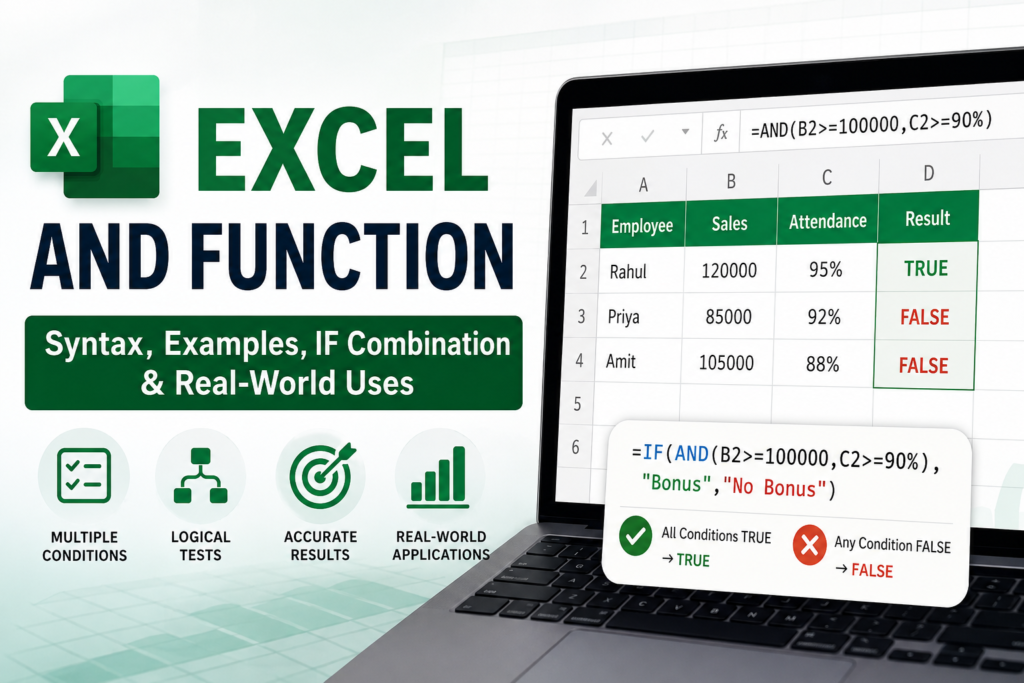

AND Function:-
Imagine this scenario.
You manage employee attendance for a company. Your boss asks:
“Show me employees who have completed training AND achieved more than 90% attendance.”
You could manually check hundreds of rows.
Or you could let Excel do the work in seconds.
This is exactly where the Excel AND function becomes powerful.
The AND function helps you test multiple conditions at the same time and returns TRUE only when every condition is satisfied. If even one condition fails, the result becomes FALSE. It is one of the most commonly used logical functions in Excel and is often combined with the IF function to create intelligent spreadsheets.
In this guide, you’ll learn everything about the Excel AND function—from beginner basics to advanced business applications.
What Is the Excel AND Function?
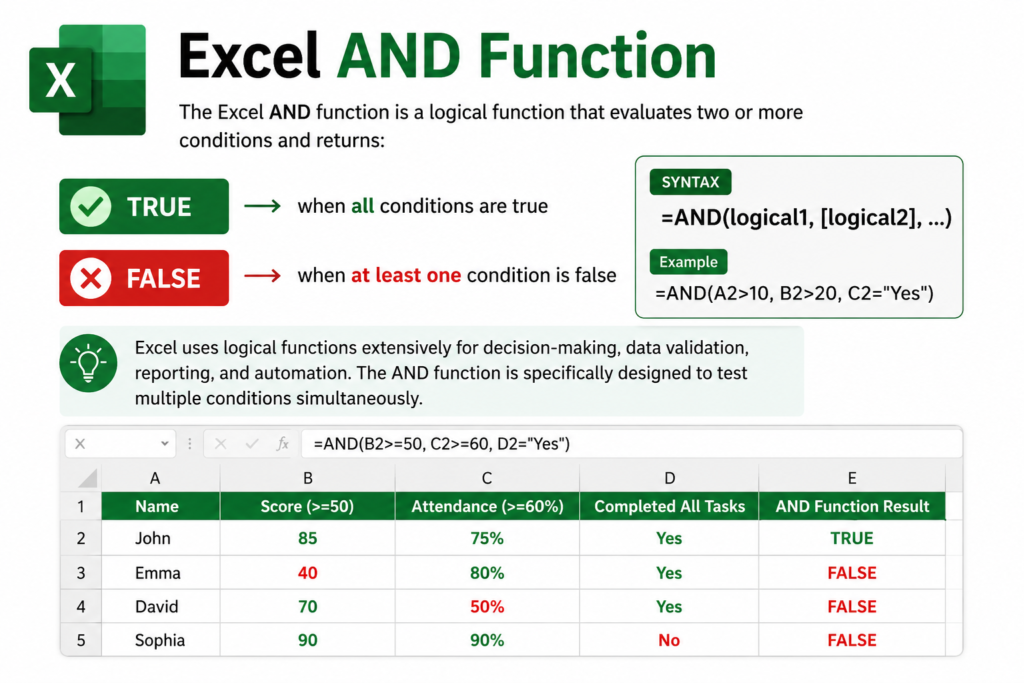
The Excel AND function is a logical function that evaluates two or more conditions and returns:
- TRUE → when all conditions are true
- FALSE → when at least one condition is false
Excel uses logical functions extensively for decision-making, data validation, reporting, and automation. The AND function is specifically designed to test multiple conditions simultaneously.
Excel AND Function Syntax
=AND(logical1, logical2, ...)Parameters
| Parameter | Description |
|---|---|
| logical1 | First condition |
| logical2 | Second condition |
| logical3+ | Additional conditions (optional) |
You can include multiple conditions depending on your requirement.
How the AND Function Works
Think of AND as a strict examiner.
Every condition must pass.
Example:
=AND(10>5,20>15)Result:
TRUEBecause both conditions are true.
Now:
=AND(10>5,20<15)Result:
FALSEOne condition failed, so the entire formula becomes FALSE.
Example 1: Check Age Eligibility
Suppose:
| Name | Age |
|---|---|
| John | 25 |
Formula:
=AND(B2>=18,B2<=60)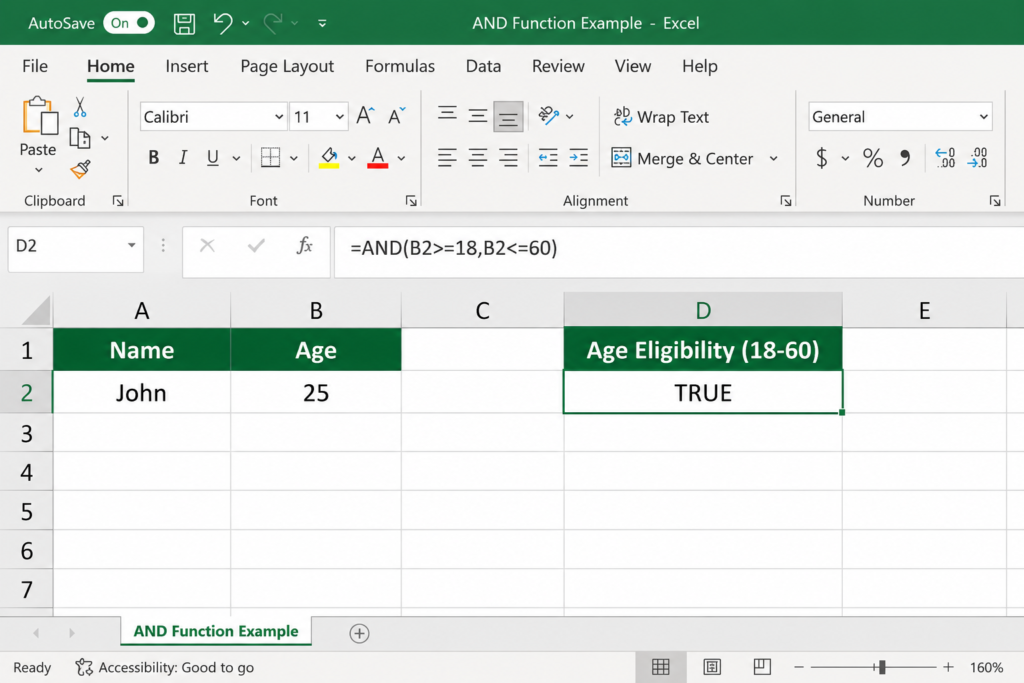
Result:
TRUE
This confirms the age falls between 18 and 60.
Example 2: Employee Bonus Qualification
| Employee | Sales | Attendance |
|---|---|---|
| Rahul | 120000 | 95% |
Formula:
=AND(B2>=100000,C2>=90%)Result:
TRUE
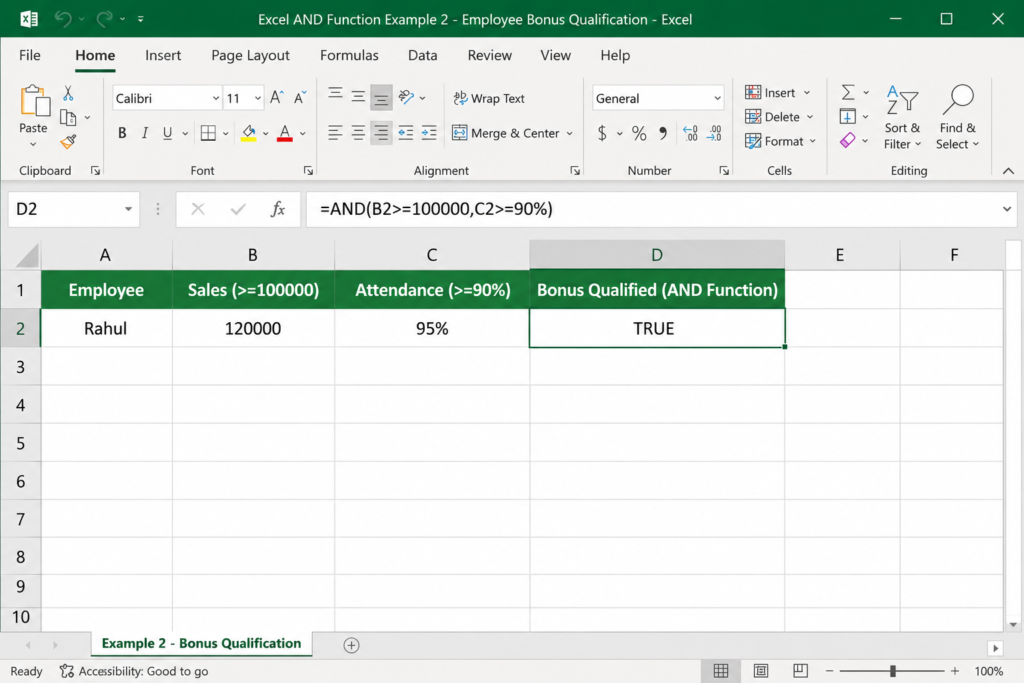
The employee qualifies for a bonus because both conditions are met.
Example 3: Student Pass Criteria
| Student | Marks | Attendance |
|---|---|---|
| Aditi | 78 | 85% |
Formula:
=AND(B2>=40,C2>=75%)Result:
TRUE
The student passes both requirements.
Combining AND with IF Function
Most Excel professionals rarely use AND alone.
Instead, they combine it with IF.
The IF function returns custom results based on TRUE or FALSE conditions.
Syntax
=IF(AND(condition1,condition2),"Yes","No")Example
=IF(AND(B2>=100000,C2>=90),"Bonus","No Bonus")Output:
Bonus
This creates user-friendly results instead of displaying TRUE or FALSE.
Real-World Business Applications
1. HR Department
Check whether employees completed mandatory requirements.
=IF(AND(C2="Completed",D2="Completed"),"Eligible","Pending")2. Sales Dashboard
Identify top performers.
=IF(AND(B2>50000,C2>10),"Top Performer","Normal")Explore More Ready-to-Use Dashboard Solutions
- Project INSPECT: School Infrastructure Monitoring System & Dashboard 2026
- Free Inventory Management System in Excel – Complete Dashboard
- Stop Losing Money: Track Every Expense in Excel Like a Pro
3. Inventory Management
Check stock status.
=IF(AND(B2<50,C2="Active"),"Reorder","OK")4. Finance Reporting
Approve transactions.
=IF(AND(B2<=10000,C2="Verified"),"Approved","Review")Using Multiple Conditions
Excel allows many conditions.
Example:
=AND(
A2="Completed",
B2>=90,
C2="Yes",
D2<100
)
All four conditions must be TRUE.
If one fails:
Result = FALSE
AND vs OR Function
Many beginners confuse these functions.
| Feature | AND | OR |
|---|---|---|
| All conditions required | Yes | No |
| Returns TRUE when | Every condition is true | Any condition is true |
| Strict checking | Yes | No |
Example AND:
=AND(A1>10,B1>10)Example OR:
=OR(A1>10,B1>10)The OR function returns TRUE when at least one condition passes.
Advanced Example: Performance Rating System
Suppose:
| Employee | Sales | Attendance |
|---|---|---|
| Amit | 150000 | 96% |
Formula:
=IF(
AND(B2>=100000,C2>=95),
"Excellent",
"Needs Improvement"
)
Result:
Excellent
This creates automated employee evaluations.
Using AND with Conditional Formatting
You can visually highlight rows meeting multiple criteria.
Example:
Highlight employees when:
- Sales > 100000
- Attendance > 90%
Formula:
=AND($B2>100000,$C2>90%)Rows meeting both conditions are highlighted automatically.
Common Errors and Fixes
Error 1: Missing Parentheses
Wrong:
=AND(A1>10,B1>10
Correct:
=AND(A1>10,B1>10)
Error 2: Text Without Quotes
Wrong:
=AND(A1=Yes,B1=Completed)Correct:
=AND(A1="Yes",B1="Completed")Error 3: Wrong Cell References
Always verify references before copying formulas.
Error 4: Data Type Mismatch
Comparing text with numbers often causes unexpected results.
Example:
Wrong:
=AND(A1="100",B1>50)Prefer consistent data formats.
Performance Tips
When working with large datasets:
Use Helper Columns
Instead of long nested formulas.
Avoid Excessive Nesting
Complex formulas become difficult to maintain.
Use Tables
Excel tables improve readability and formula management.
Best Practices
✔ Keep formulas simple
✔ Use descriptive column names
✔ Combine AND with IF for better reports
✔ Test formulas on sample data first
✔ Document complex formulas
✔ Use conditional formatting for visual analysis
Frequently Asked Questions
What does the AND function do in Excel?
It checks multiple conditions and returns TRUE only when every condition is TRUE.
Can AND work with more than two conditions?
Yes. You can include several logical tests within the same formula.
Why am I getting FALSE?
At least one condition is not meeting the required criteria.
Can I use AND with IF?
Yes. This is the most common use case in Excel.
What is the difference between AND and OR?
AND requires every condition to be TRUE. OR requires only one condition to be TRUE.
Is AND case-sensitive?
No. Excel’s AND function is generally not case-sensitive when comparing text.
Final Thoughts
The Excel AND function may look simple, but it is one of the most powerful logical functions available in Excel. Whether you’re managing employees, tracking sales, validating inventory, analyzing student performance, or building advanced dashboards, the AND function helps automate decisions with remarkable accuracy.
Mastering AND is also the first step toward learning advanced Excel logic involving IF, IFS, OR, COUNTIFS, SUMIFS, and data validation.
If you’re serious about improving your Excel skills, learn AND thoroughly because you’ll use it in almost every professional spreadsheet you build.


