
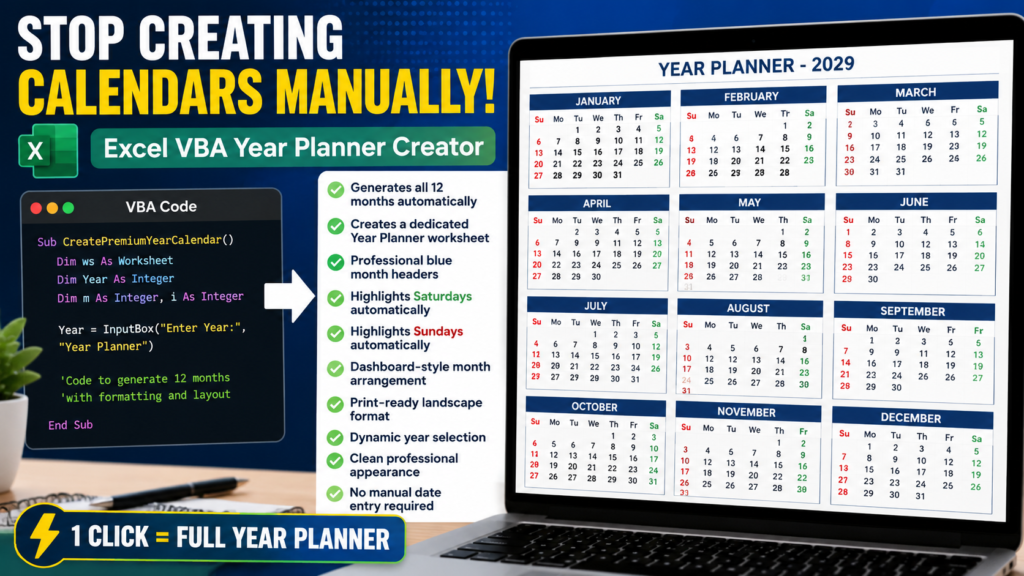

Stop Creating Calendars Manually – This Excel VBA Tool Generates an Entire Year Planner in Seconds
Stop Creating Calendars Manually
This Excel VBA Tool Generates an Entire Year Planner in Seconds
Imagine it’s December and your manager asks for a yearly planner for next year. You open Excel and start creating January. Then February. Then March. Before long, you’re formatting dates, adjusting weekends, aligning cells, and repeating the same work you’ve done every year.
“What if Excel could generate an entire year calendar automatically with a single click?”
That is exactly what this VBA project does. Instead of manually creating all 12 months, this Excel VBA Calendar Creator automatically builds a complete yearly planner with professional formatting, weekend highlighting, and print-ready design.
What This Excel VBA Calendar Creator Does
This VBA project automatically creates a complete annual planner for any year entered by the user.
Key Features:
- ✔ Generates all 12 months automatically
- ✔ Creates a dedicated Year Planner worksheet
- ✔ Professional blue month headers
- ✔ Highlights Saturdays automatically
- ✔ Highlights Sundays automatically
- ✔ Dashboard-style month arrangement
- ✔ Print-ready landscape format
- ✔ Dynamic year selection
- ✔ Clean professional appearance
- ✔ No manual date entry required
Why I Built This VBA Project
Most Excel users create calendars manually every year. The process is repetitive, time-consuming, and often leads to formatting inconsistencies.
I wanted a solution that could:
- Generate any year’s calendar instantly
- Apply consistent formatting automatically
- Highlight weekends automatically
- Create a professional planner layout
- Be ready for printing immediately
The result was this Premium Excel VBA Year Planner Generator.
How the VBA Calendar Works
Step 1: Enter the Year
When the macro starts, Excel prompts the user to enter a year.
2029
or
2030
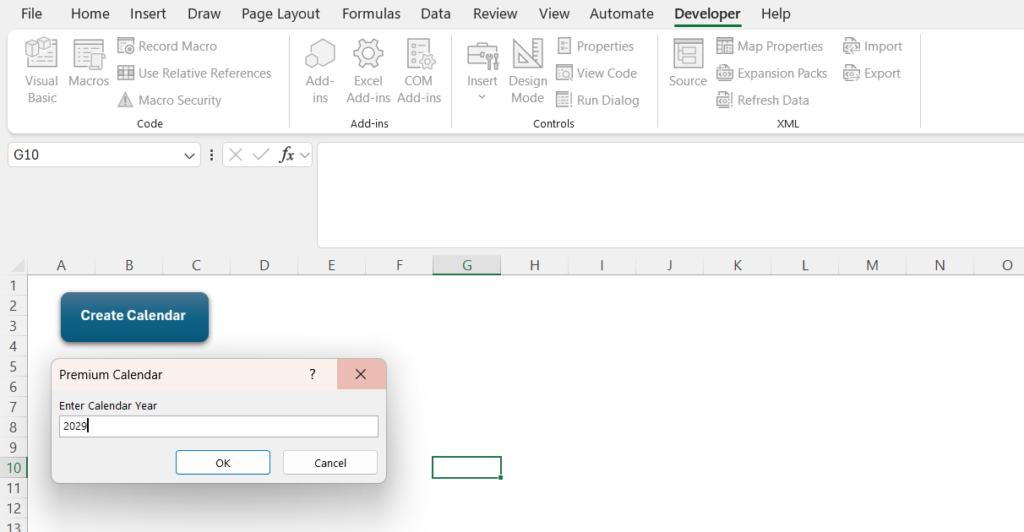
The macro can generate calendars for virtually any valid year.
Step 2: Create a New Worksheet
The VBA code automatically creates a worksheet named:
Year Planner
If a previous planner already exists, it is replaced automatically.
Step 3: Generate All 12 Months
The macro creates:
- January
- February
- March
- April
- May
- June
- July
- August
- September
- October
- November
- December
Everything is generated automatically.
Step 4: Arrange Months in Dashboard Layout
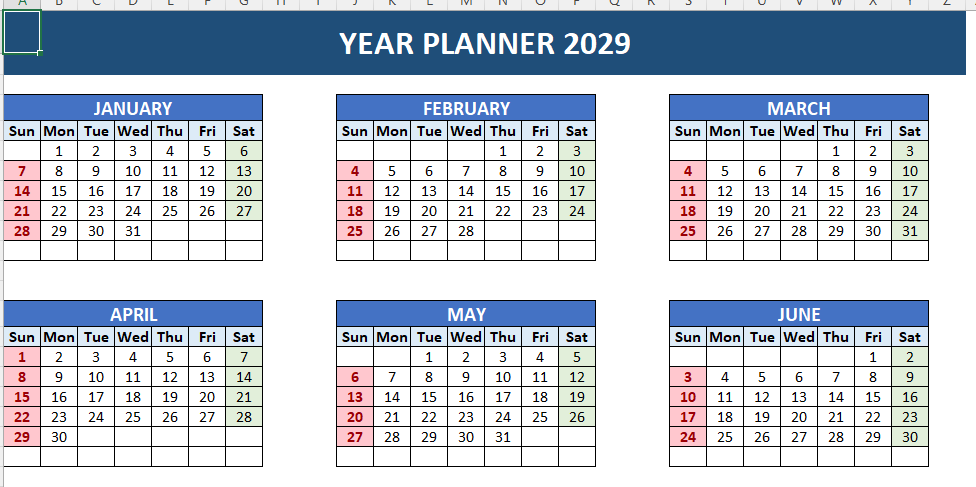
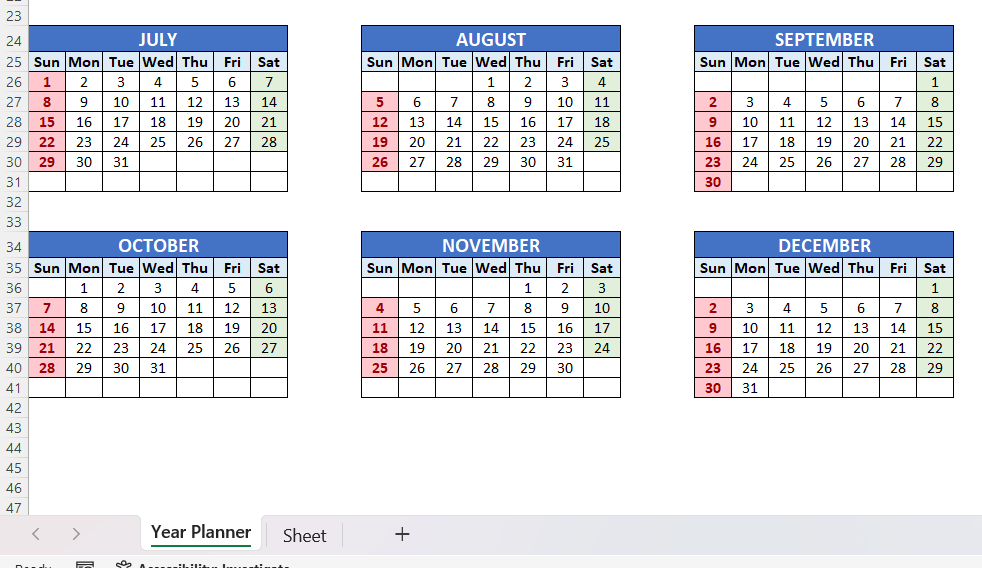
Unlike many calendar templates, all months are arranged in a structured planner view.
JANUARY FEBRUARY MARCH APRIL MAY JUNE JULY AUGUST SEPTEMBER OCTOBER NOVEMBER DECEMBER
This makes it easy to view the entire year on a single worksheet.
Step 5: Weekend Highlighting
The macro automatically identifies weekends.
| Day | Formatting |
|---|---|
| Saturday | Green Highlight |
| Sunday | Red Highlight |
This is especially useful for planning projects, leave schedules, and events.
- Project INSPECT: School Infrastructure Monitoring System & Dashboard 2026
- 25 ChatGPT Prompts Every Excel User Should Save in 2026
- Top 10 Excel 365 Features You Won’t Find in Older Versions
Real-World Uses
HR and Attendance Tracking
- Employee leave planning
- Shift scheduling
- Attendance management
- Holiday planning
Project Management
- Milestone tracking
- Project scheduling
- Resource planning
- Deadline management
Education
- Academic calendars
- Exam schedules
- Semester planning
- School events
Personal Planning
- Vacation planning
- Fitness tracking
- Goal setting
- Family events
Advantages Over Manual Calendar Creation
| Manual Method | VBA Automation |
|---|---|
| Time-consuming | Creates in seconds |
| Formatting inconsistencies | Consistent formatting |
| Prone to errors | Accurate date calculation |
| Requires yearly setup | Works for any year instantly |
How to Run the VBA Calendar Creator
- Open Microsoft Excel
- Press ALT + F11
- Select Insert → Module
- Paste the VBA code
- Run the macro
- Enter the desired year
Sub CreatePremiumYearCalendar()

    Dim ws As Worksheet
    Dim Yr As Long
    Dim MonthNum As Integer
    Dim StartDate As Date
    Dim CurrentDate As Date
    Dim DayNum As Integer
    Dim RowPos As Long
    Dim ColPos As Long
    Dim StartCol As Integer
    Dim r As Long, c As Long

    Yr = Application.InputBox("Enter Calendar Year", "Premium Calendar", Year(Date), Type:=1)

    If Yr = 0 Then Exit Sub

    Application.ScreenUpdating = False

    On Error Resume Next
    Application.DisplayAlerts = False
    Worksheets("Year Planner").Delete
    Application.DisplayAlerts = True
    On Error GoTo 0

    Set ws = Worksheets.Add
    ws.Name = "Year Planner"

    ws.Cells.Clear

    '=========================
    ' MAIN HEADER
    '=========================
    With ws.Range("A1:Z2")
        .Merge
        .Value = "YEAR PLANNER " & Yr
        .HorizontalAlignment = xlCenter
        .VerticalAlignment = xlCenter
        .Font.Size = 24
        .Font.Bold = True
        .Font.Color = RGB(255, 255, 255)
        .Interior.Color = RGB(31, 78, 121)
    End With

    ws.Rows(1).RowHeight = 30
    ws.Rows(2).RowHeight = 15

    '=========================
    ' CREATE MONTHS
    '=========================
    For MonthNum = 1 To 12

        RowPos = ((MonthNum - 1) \ 3) * 10 + 4
        ColPos = ((MonthNum - 1) Mod 3) * 9 + 1

        'Month Header
        With ws.Range(ws.Cells(RowPos, ColPos), ws.Cells(RowPos, ColPos + 6))
            .Merge
            .Value = UCase(MonthName(MonthNum))
            .HorizontalAlignment = xlCenter
            .Font.Bold = True
            .Font.Size = 14
            .Font.Color = RGB(255, 255, 255)
            .Interior.Color = RGB(68, 114, 196)
        End With

        'Weekday Header
        Dim DaysArr
        DaysArr = Array("Sun", "Mon", "Tue", "Wed", "Thu", "Fri", "Sat")

        For c = 0 To 6
            With ws.Cells(RowPos + 1, ColPos + c)
                .Value = DaysArr(c)
                .Font.Bold = True
                .HorizontalAlignment = xlCenter
                .Interior.Color = RGB(221, 235, 247)
            End With
        Next c

        StartDate = DateSerial(Yr, MonthNum, 1)
        DayNum = 1
        StartCol = Weekday(StartDate, vbSunday)

        r = RowPos + 2
        c = ColPos + StartCol - 1

        Do While Month(DateSerial(Yr, MonthNum, DayNum)) = MonthNum

            CurrentDate = DateSerial(Yr, MonthNum, DayNum)

            With ws.Cells(r, c)
                .Value = DayNum
                .HorizontalAlignment = xlCenter
                .VerticalAlignment = xlCenter

                'Saturday
                If Weekday(CurrentDate, vbSunday) = 7 Then
                    .Interior.Color = RGB(226, 239, 218)
                End If

                'Sunday
                If Weekday(CurrentDate, vbSunday) = 1 Then
                    .Interior.Color = RGB(255, 199, 206)
                    .Font.Color = RGB(156, 0, 6)
                    .Font.Bold = True
                End If
            End With

            DayNum = DayNum + 1

            c = c + 1

            If c > ColPos + 6 Then
                c = ColPos
                r = r + 1
            End If

        Loop

        'Month Border Card
        With ws.Range(ws.Cells(RowPos, ColPos), ws.Cells(RowPos + 7, ColPos + 6))
            .Borders.LineStyle = xlContinuous
            .Borders.Weight = xlThin
        End With

    Next MonthNum

    '=========================
    ' COLUMN WIDTHS
    '=========================
    ws.Cells.Font.Name = "Calibri"

    Dim i As Long
    For i = 1 To 30
        ws.Columns(i).ColumnWidth = 4
    Next i

    '=========================
    ' PAGE SETUP
    '=========================
    With ws.PageSetup
        .Orientation = xlLandscape
        .Zoom = False
        .FitToPagesWide = 1
        .FitToPagesTall = 1
        .CenterHorizontally = True
    End With

    ws.Activate
    ActiveWindow.DisplayGridlines = False

    Application.ScreenUpdating = True

    MsgBox "Premium Calendar Created Successfully!", vbInformation

End Sub
The calendar will be generated automatically.
Premium Features You Can Add
If you’re planning to sell this project or enhance it further, consider adding:
- Holiday Database
- Birthday Tracker
- Leave Management System
- Event Scheduler
- One-Click PDF Export
- Dashboard Statistics
- Dark Mode Theme
- Company Branding
- Employee Planner Module
- Attendance Tracker Integration
Frequently Asked Questions
Does the VBA code support future years?
Yes. The macro can generate calendars for any valid year.
Does it handle leap years automatically?
Yes. February 29 is calculated automatically when required.
Can I customize the colors?
Absolutely. You can modify month headers, weekend colors, fonts, and borders.
Can I add public holidays?
Yes. A holiday database can easily be integrated into the VBA project.
Final Thoughts
Creating yearly calendars manually is one of the most repetitive Excel tasks. This VBA Calendar Creator eliminates that work completely by generating a professional Year Planner automatically.
With automatic month generation, weekend highlighting, professional formatting, and print-ready design, this project demonstrates how VBA can transform Excel into a powerful productivity tool.
The best part is simple: Enter a year, click a button, and Excel creates an entire annual planner in seconds.


How to make week to start with monday?