
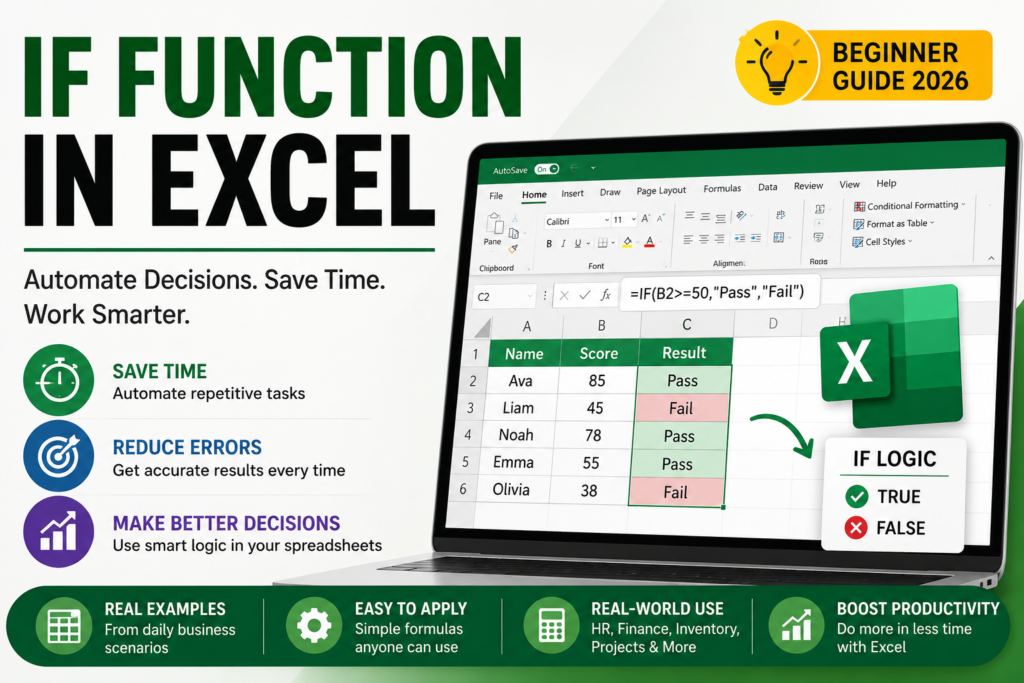

IF Function in Excel: Still checking Excel rows manually? Learn how the IF Function in Excel can automate decisions, reduce errors, and save hours of repetitive work with practical examples, business use cases, and easy-to-follow formulas.
IF Function in Excel:Real Examples That Save Hours of Manual Work
Most Excel users spend hours manually checking spreadsheets, verifying conditions, and updating statuses. The IF Function eliminates that repetitive work by allowing Excel to make decisions automatically based on rules you define.
Imagine This Scenario
You’re reviewing 2,000 employee records and need to identify who qualifies for a performance bonus. To qualify, employees must achieve their sales targets and complete mandatory training.
Without formulas, you would manually review every row. With the IF Function, Excel can instantly determine eligibility and return the result automatically.
What Is the IF Function?
The IF Function evaluates a condition and returns one value when the condition is TRUE and another value when it is FALSE.
Example 1: Pass or Fail System
A school wants to automatically determine whether students pass or fail based on a score of 40.
When the score is 40 or higher, Excel returns “Pass”. Otherwise, it returns “Fail”.
Example 2: Employee Bonus Eligibility
If sales exceed $10,000, the employee qualifies for a bonus.
Example 3: Inventory Reorder Alert
This formula automatically alerts users when stock levels fall below a safe threshold.
Why Businesses Depend on IF Formulas
- HR teams use them for bonus calculations.
- Teachers use them for grading systems.
- Managers use them for project tracking.
- Business owners use them for inventory monitoring.
- Finance teams use them for budget control.
IF Function with AND
Sometimes a single condition isn’t enough.
Both conditions must be TRUE before Excel approves the bonus.
IF Function with OR
Only one condition needs to be TRUE.
Expert Tips
- Combine IF with AND for multiple conditions.
- Use IF with OR for flexible decision-making.
- Pair IF with Conditional Formatting for visual dashboards.
- Use IF in attendance trackers and inventory systems.
- Combine IF with XLOOKUP for advanced automation.
Final Thoughts
The IF Function is one of the most valuable Excel skills you can learn. It saves time, reduces manual work, improves accuracy, and enables spreadsheet automation.
Whether you’re a student, teacher, HR professional, analyst, accountant, or business owner, mastering the IF Function will help you build smarter spreadsheets and make better decisions faster.


Pingback: How to Create an Automated Employee Attendance Report in Excel Using Power Query 2026 - Excel AI Tools and SEO Guides