
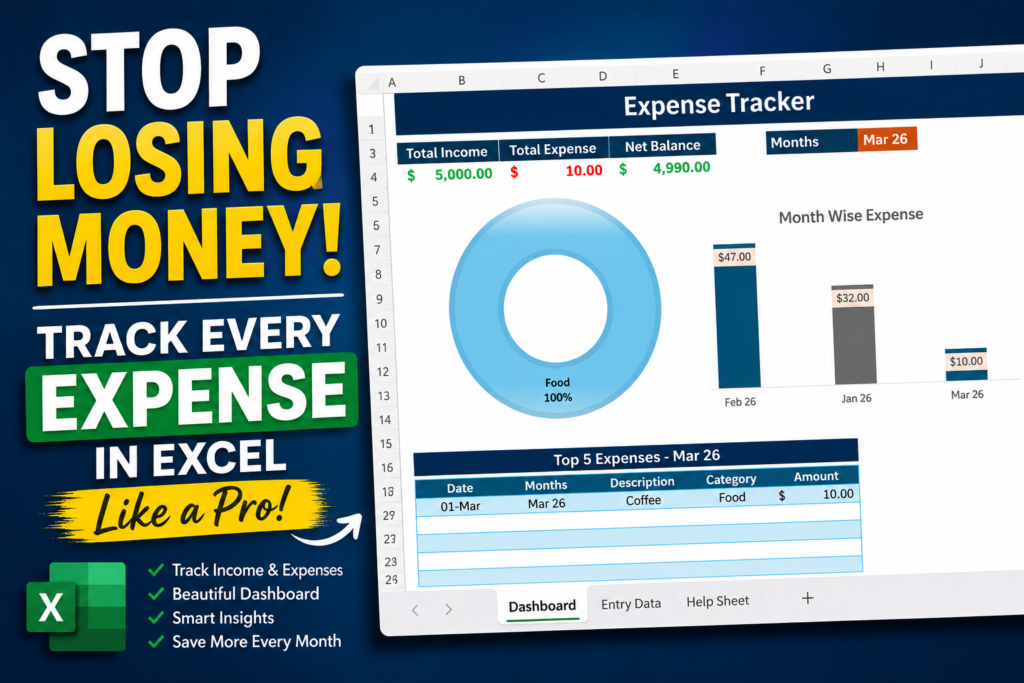

Stop Losing Money: Track Every Expense in Excel Like a Pro (Step-by-Step Guide)
Track Every Expense in Excel:- Ever opened your banking app near the end of the month and suddenly wondered:
“Wait… where did all my money go?”
That feeling is more common than most people admit.
Money rarely disappears because of one huge purchase. Usually, it’s the tiny daily expenses that quietly drain your wallet—coffee, food deliveries, subscriptions, transportation, online shopping, and random purchases that seem small in the moment.
The problem isn’t always earning less. The real problem is not tracking where your money goes.
The good news? You don’t need expensive budgeting apps or complicated accounting software.
With a smart Excel Expense Tracker template, you can see exactly where every rupee is being spent and build better financial habits over time.
Imagine This Situation
You receive your salary on the 1st of the month.
Everything feels great.
- Salary received ✔
- Account balance looks healthy ✔
- Plans for savings ✔
Then suddenly, two weeks later:
- Food delivery: ₹300
- Coffee: ₹100
- Mobile recharge: ₹249
- Streaming subscriptions: ₹499
- Online shopping: ₹899
Individually these amounts don’t feel dangerous. Together they become a problem.
Small expenses create big leaks.
That is exactly where an expense tracker becomes powerful.
Step 1: Open Your Excel Expense Tracker Dashboard
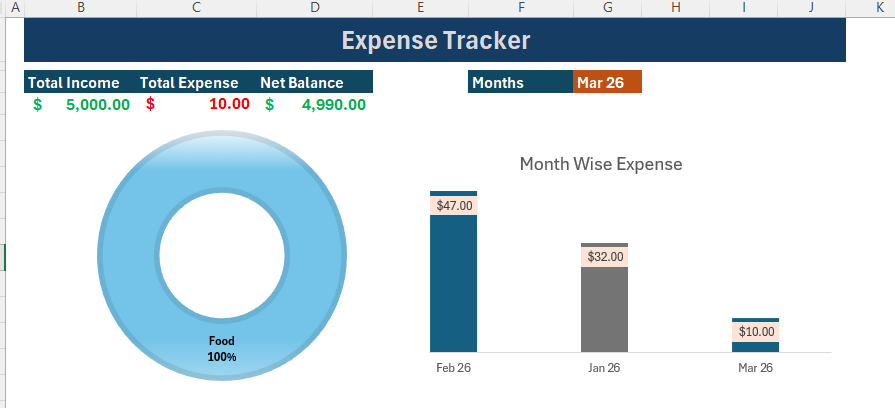
When you first open your Excel template, you will usually see a dashboard screen.
Think of this dashboard as your personal finance control center.
Instead of reading hundreds of rows of data manually, Excel summarizes everything automatically.
Dashboard usually contains:
- Total Income
- Total Expenses
- Net Balance
- Monthly Summary
- Category Analysis
- Charts and Visual Reports
Example:
| Income | Expense | Balance |
|---|---|---|
| $5000 | $10 | $4990 |
One quick glance instantly tells you where you stand financially.
Step 2: Open the Entry Data Sheet
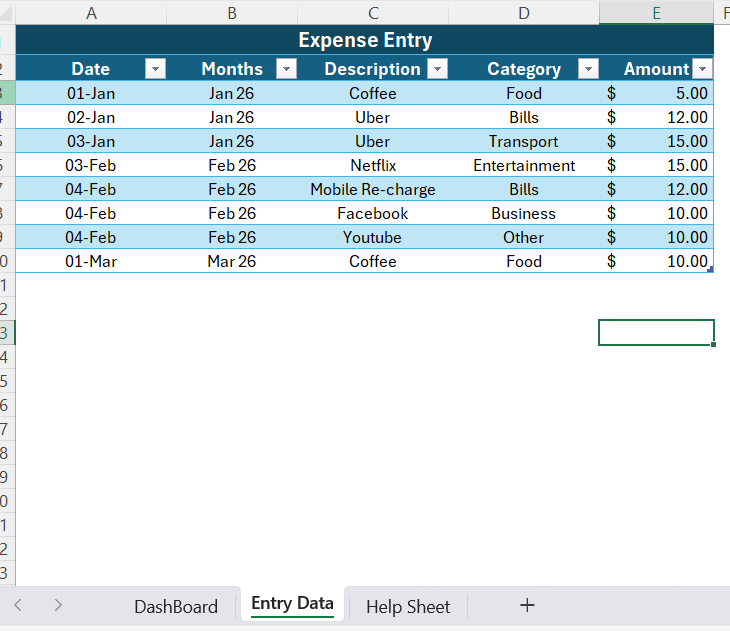
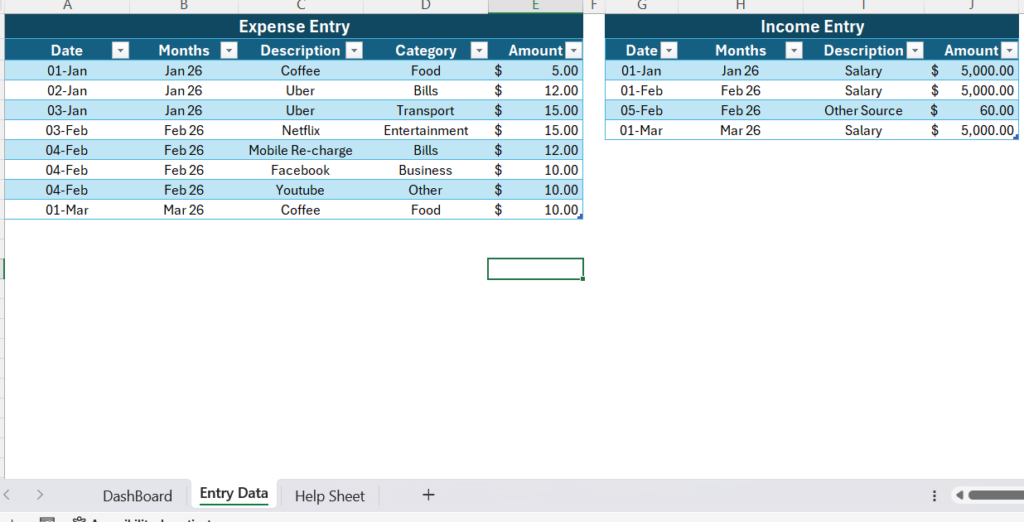
Now move to the data entry sheet where you will record your daily activities.
This acts like your personal money journal.
Expense Table Example
| Date | Month | Description | Category | Amount |
|---|---|---|---|---|
| 1 Jan | January | Coffee | Food | $50 |
Income Table Example
| Date | Month | Description | Amount |
|---|---|---|---|
| 1 Jan | January | Salary | $5000 |
Step 3: Add Every Expense You Make
This is where most people make mistakes.
They only enter large purchases and ignore small spending.
Track everything—even small expenses.
Example Daily Entries
| Date | Description | Category | Amount |
|---|---|---|---|
| Jan 1 | Coffee | Food | $50 |
| Jan 2 | Uber | Transport | $150 |
| Jan 4 | Netflix | Entertainment | $499 |
| Jan 6 | Mobile Recharge | Bills | $249 |
Remember:
Tiny expenses repeated daily become major expenses monthly.
Step 4: Add Your Income Sources
Many people only record salary and forget other income sources.
Track every source of money entering your account.
Examples:
- Salary
- Freelance Income
- Business Income
- Bonuses
- Side Hustles
- Extra Payments
Recording income gives you a complete picture of your finances.
Step 5: Refresh the Excel Dashboard
After entering your data, refresh your workbook.
How to refresh:
Data → Refresh All
Excel automatically updates calculations, reports, charts, and dashboard numbers.
Now your tracker starts working like a smart financial assistant.
Step 6: Read Your Spending Insights
This is where things become interesting.
Numbers start revealing habits you never noticed before.
Example Monthly Summary
| Category | Amount |
|---|---|
| Food | ₹1500 |
| Entertainment | ₹1200 |
| Transport | ₹900 |
| Bills | ₹700 |
You might suddenly realize:
“I had no idea I spent this much on food delivery.”
That realization is valuable because awareness creates change.
Step 7: Follow This for 30 Days
Do not try complicated budgeting systems immediately.
Keep it simple:
- Enter expenses daily
- Add income sources
- Refresh the dashboard
- Review spending habits
Spend only 30 seconds per day updating the sheet.
Within one month you will notice:
- Spending patterns
- Unnecessary expenses
- Savings opportunities
- Monthly trends
- Financial improvement areas
Why Expense Tracking Matters More Than Budgeting
Most people believe budgeting is difficult.
The reality is:
Budgeting becomes easy when you know where your money goes.
Tracking comes first. Budgeting comes second.
Final Thoughts
Money tracking is not about restricting yourself.
It’s about creating awareness and control.
You stop saying: “I don’t know where my money went.” And start saying: “I know exactly where every rupee went.”
Your Excel tracker is not just another spreadsheet. It’s a mirror of your financial habits.
Start small. Track daily. Trust the numbers.
Frequently Asked Questions (FAQs)
Can I track expenses in Excel without formulas?
Yes. You can manually enter expenses and use ready-made templates that already contain formulas and dashboards.
Is Excel better than mobile budgeting apps?
Excel offers greater customization and flexibility compared to many budgeting apps.
How often should I update my expense tracker?
Daily updates work best because they prevent missing expenses.
Can beginners use an Excel expense tracker?
Absolutely. Most templates are beginner-friendly and require only simple data entry.
Please rate your experience and let us know how helpful this article was.


Pingback: SUMIF vs SUMIFS in Excel: What’s the Difference? (+ Real Examples) - Excel AI Tools and SEO Guides
Pingback: Project INSPECT: School Infrastructure Monitoring System & Dashboard 2026 - Excel AI Tools and SEO Guides