

Quick Fix
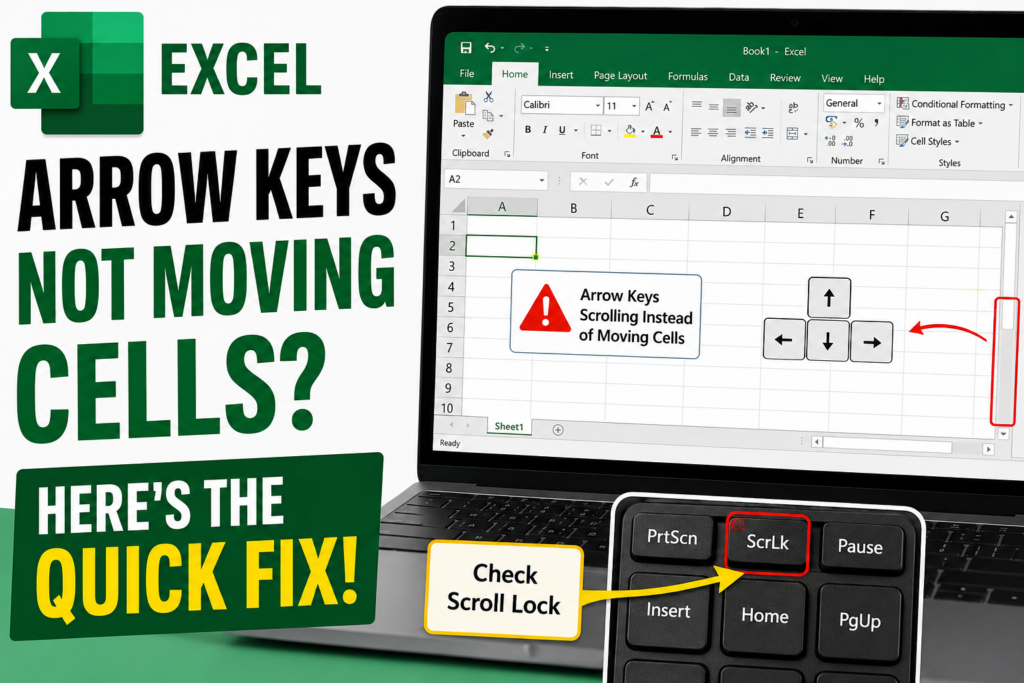
If Excel arrow keys are scrolling the worksheet instead of moving cells:
- Press Scroll Lock (ScrLk)
- If unavailable, open On-Screen Keyboard
- Turn off ScrLk
- Test arrow keys again
This fixes the issue in most cases.
Excel Arrow Keys Not Moving Cells
You open Excel and start working normally.
You press the down arrow expecting Excel to move from cell A2 to A3.
But suddenly something strange happens.
Instead of moving between cells, the entire worksheet starts scrolling.
“Wait… did Excel freeze?” “Is my keyboard broken?” “Why are arrow keys suddenly not working?”
If this happened to you, don’t worry.
Many Excel users face this problem and assume something serious has happened.
The good news?
In most cases, the fix takes less than 10 seconds.
Let’s go through every possible solution step by step.
Why Excel Arrow Keys Stop Moving Cells
Normally, arrow keys help move between cells:
- ↑ Move up
- ↓ Move down
- ← Move left
- → Move right
When the problem occurs, Excel behaves differently.
Instead of moving cell selection, the worksheet itself starts scrolling.
This usually happens because of one small setting.
Most Common Cause: Scroll Lock Is Turned On
Scroll Lock changes how arrow keys behave inside Excel.
Instead of moving cells, Excel scrolls the entire worksheet.
This is the most common reason behind this issue.
Fix 1: Turn Off Scroll Lock
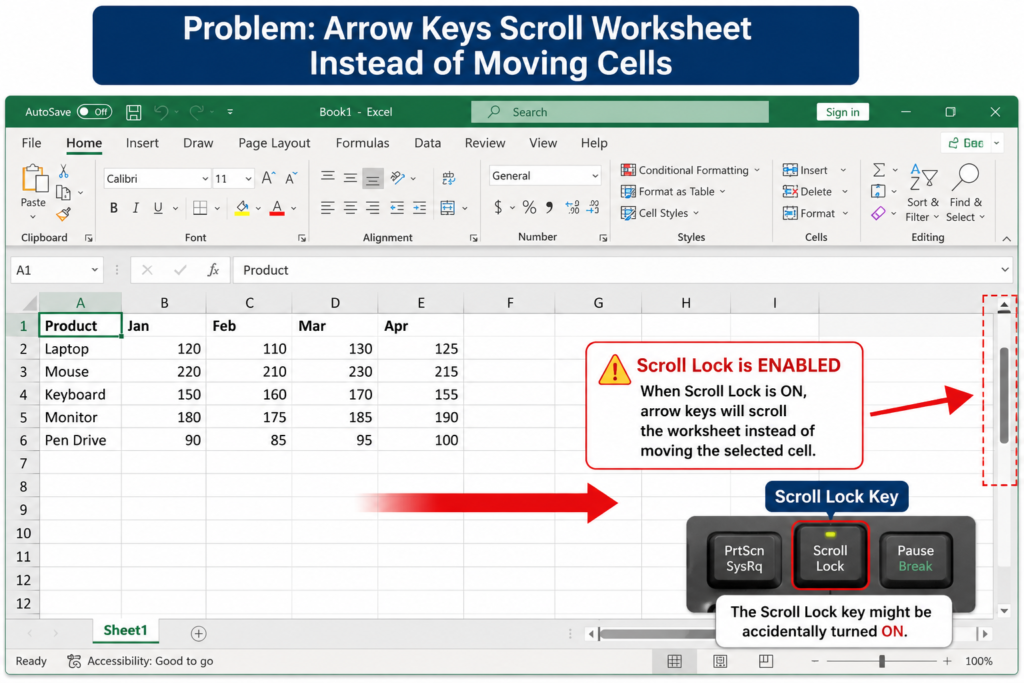
Look for the Scroll Lock key on your keyboard.
It may appear as:
- Scroll Lock
- ScrLk
- Scr LK
Press the key once.
Open Excel again and test the arrow keys.
In many cases this fixes the problem instantly.
Fix 2: Use On-Screen Keyboard
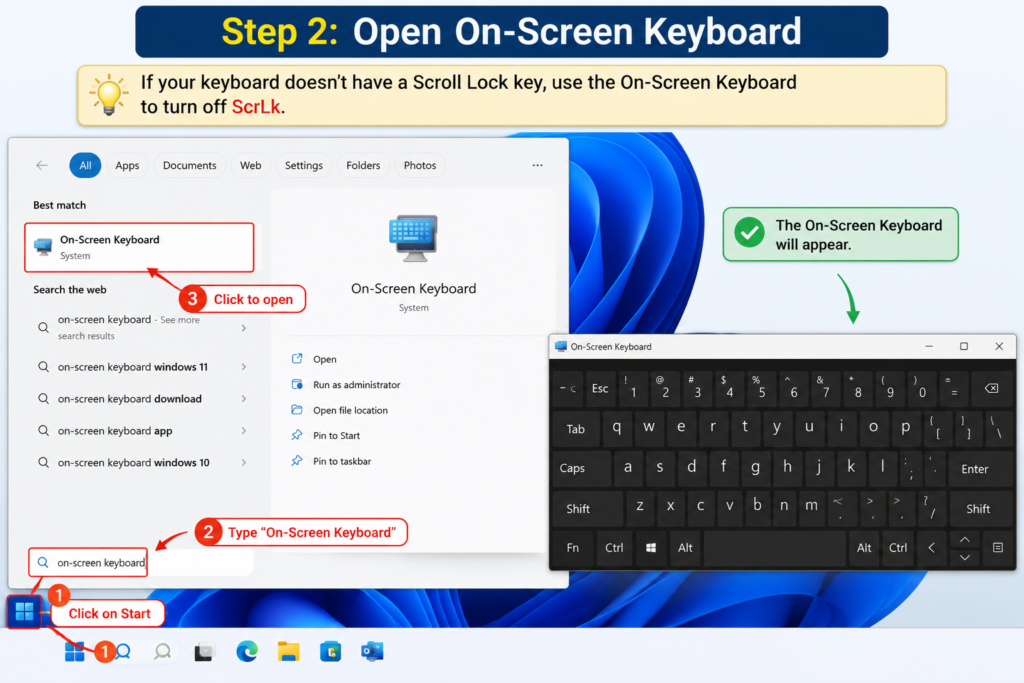
Many laptops do not have a dedicated Scroll Lock key.
Windows provides an On-Screen Keyboard.
Steps:
- Press Windows key
- Search:
On Screen Keyboard
Open it Find ScrLk button Click once
Fix 3: Restart Excel
Sometimes Excel may temporarily behave strangely.
Close:
- Excel
- Background Excel processes
Then reopen your workbook.
Fix 4: Disable Excel Add-ins
Certain add-ins can interfere with Excel behavior.
Steps:
- Open Excel
- Click File
- Options
- Add-ins
- Select COM Add-ins
- Click Go
- Disable suspicious add-ins
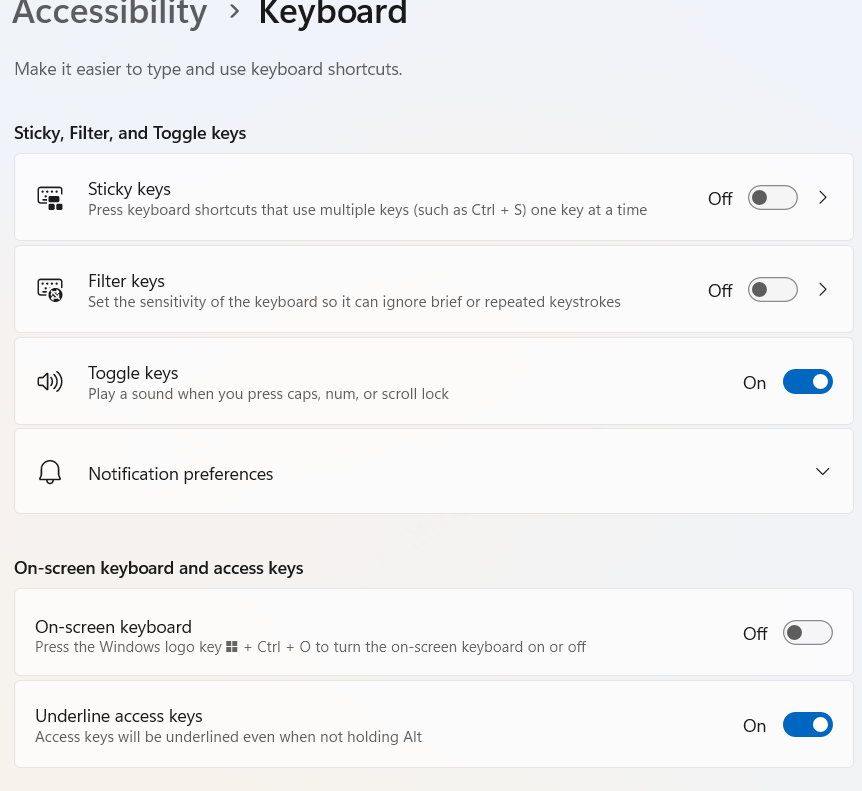
Fix 5: Check Sticky Keys Settings
Windows keyboard accessibility settings can occasionally affect behavior.
Go to:
Settings → Accessibility → Keyboard
Review:
- Sticky Keys
- Filter Keys
- Toggle Keys
How to Know the Problem Is Fixed
Try clicking any cell inside Excel.
Press:
- ↑
- ↓
- ←
- →
If the selection moves between cells normally, your problem has been fixed.
Once Scroll Lock is disabled, Excel returns to normal behavior immediately.
Common Mistakes Users Make
- Restarting the computer before checking Scroll Lock
- Reinstalling Excel unnecessarily
- Thinking keyboard hardware is damaged
- Changing random Excel settings
Do not reinstall Office immediately. Scroll Lock causes this issue most of the time.
Related Articles
Why Does Excel Think Arrow Keys Should Scroll?
Excel uses the Scroll Lock feature to change how the arrow keys behave. When Scroll Lock is enabled, pressing the arrow keys scrolls the worksheet instead of moving the active cell selection.
This feature was originally designed to help users navigate large spreadsheets without changing the selected cell. However, it is rarely used today and is often turned on accidentally by pressing the Scroll Lock (ScrLk) key on the keyboard.
As a result, many users believe their arrow keys have stopped working, when in fact Excel is simply responding to the Scroll Lock setting. Turning off Scroll Lock usually restores normal arrow key behavior immediately.
If your Excel screen moves instead of the selected cell when you press the arrow keys, the most common cause is Scroll Lock being enabled.
Excel Arrow Keys Troubleshooting Table
| Problem | Possible Cause | Recommended Fix |
|---|---|---|
| Arrow keys scroll the worksheet instead of moving cells | Scroll Lock is enabled | Turn off Scroll Lock (ScrLk) |
| Arrow keys are not responding in Excel | Excel add-in conflict | Disable unnecessary add-ins and restart Excel |
| Keyboard works normally outside Excel | Temporary Excel issue | Close and reopen Excel |
| Arrow keys move the screen instead of the selected cell | Scroll Lock is active | Disable Scroll Lock using your keyboard or On-Screen Keyboard |
| Cursor behaves unexpectedly in Excel | Accessibility settings enabled | Check Sticky Keys and Filter Keys settings |
| Arrow keys stop working after opening a workbook | Workbook-specific issue | Open a new workbook and test the keys |
| Arrow keys work intermittently | Keyboard driver issue | Update or reinstall the keyboard driver |
| Arrow keys not working on a laptop | Missing Scroll Lock key | Use the Windows On-Screen Keyboard to disable Scroll Lock |
Frequently Asked Questions
Why are arrow keys scrolling instead of moving cells?
The most common reason is Scroll Lock being enabled.
How do I disable Scroll Lock on a laptop?
Use Windows On-Screen Keyboard if your keyboard does not have a Scroll Lock button.
Can add-ins cause this issue?
Yes. Certain Excel add-ins can interfere with keyboard behavior.
Should I reinstall Excel?
No. Check Scroll Lock and settings first.
Excel Screen Moving Instead of Cell Selection
If pressing arrow keys scrolls the worksheet instead of moving the active cell, Scroll Lock is usually enabled.


Pingback: Stop Losing Money: Track Every Expense in Excel Like a Pro (Step-by-Step Guide-2026) - Excel AI Tools and SEO Guides