
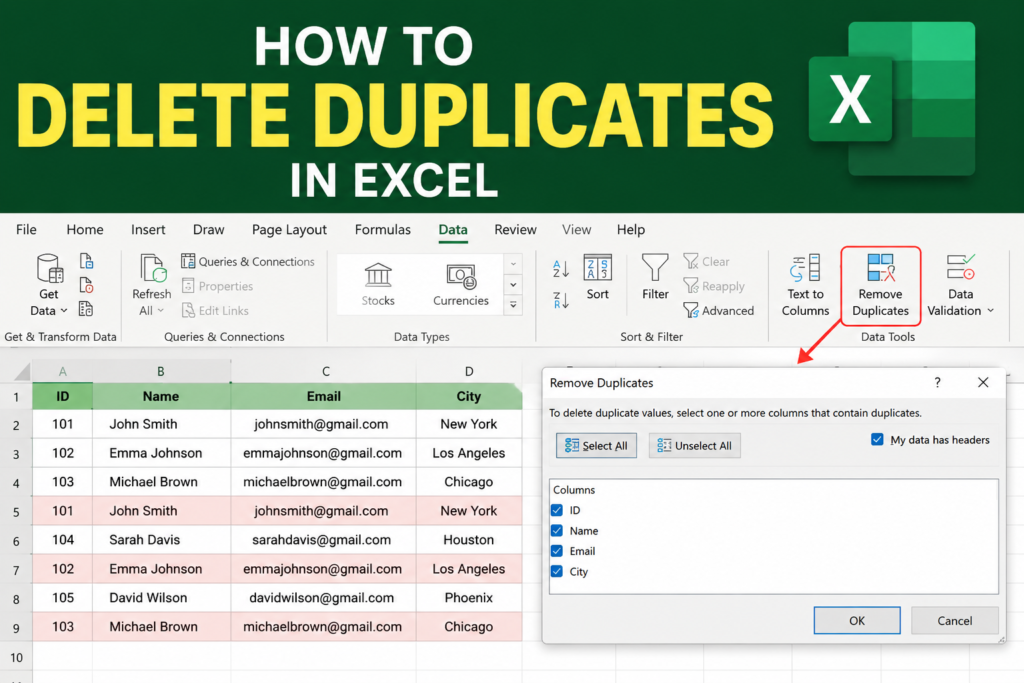

How to Delete Duplicates in Excel:– Imagine opening a customer list containing 5,000 rows and suddenly noticing that the same customer appears three or four times. Duplicate values create incorrect reports, inaccurate totals, and messy spreadsheets.
The good news? Excel already includes built-in tools that can remove duplicate entries within seconds.
Quick Answer: Select your data → Click Data → Select Remove Duplicates → Choose columns → Click OK
Why Duplicate Data Creates Problems
Duplicate values can cause serious issues in spreadsheets:
- Incorrect sales reports
- Duplicate customer records
- Wrong calculations
- Inflated totals
- Confusing dashboards
If duplicates are not removed, decision-making becomes less accurate.
Method 1: Delete Duplicates Using Remove Duplicates Tool
This is the fastest and most popular method.
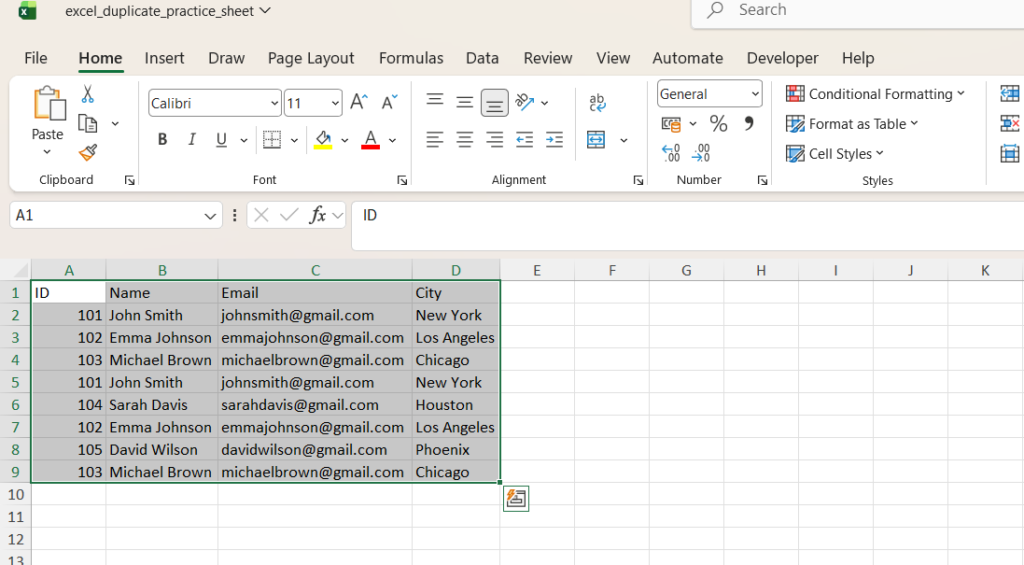
Step 1: Select Your Data
Highlight the table or range containing duplicate values.
Example:
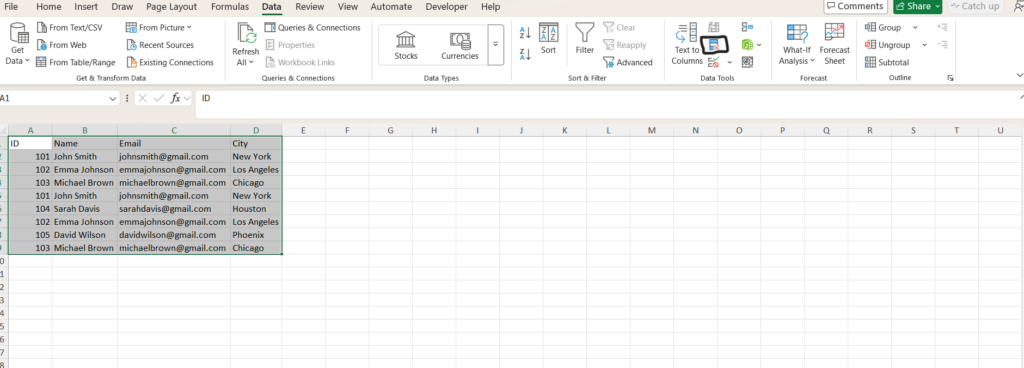
Step 2: Open Data Tab
Go to:
Data → Remove Duplicates
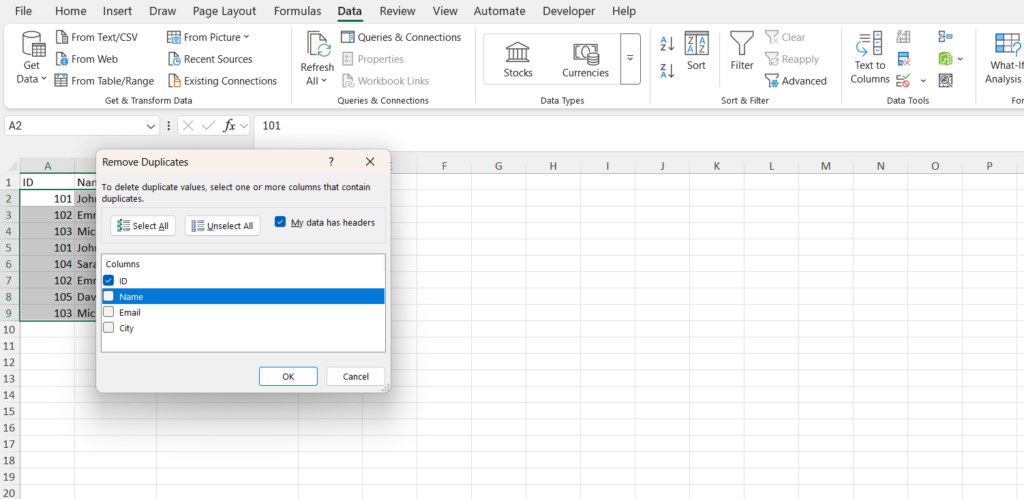
Step 3: Choose Columns
Excel asks which columns should be checked.
You can:
- Check all columns
- Check only specific columns
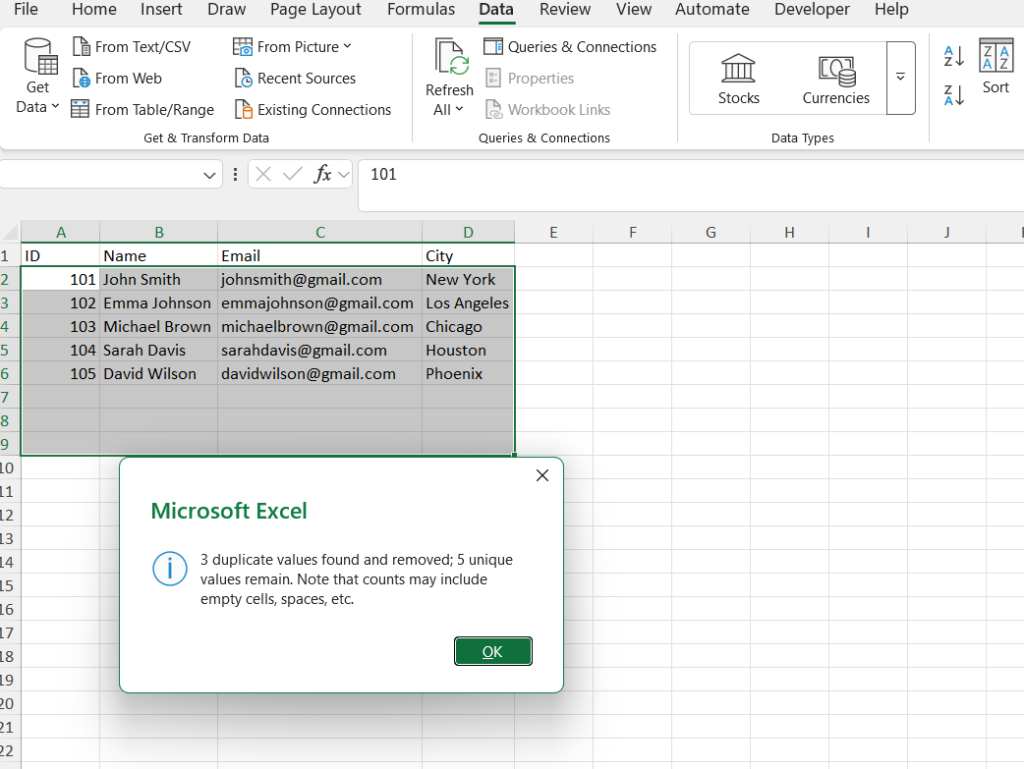
Step 4: Click OK
Excel instantly removes duplicate rows.
Excel always keeps the first occurrence and removes repeated entries.
Method 2: Highlight Duplicates Before Deleting Them
Many users prefer reviewing duplicate values before removing them.
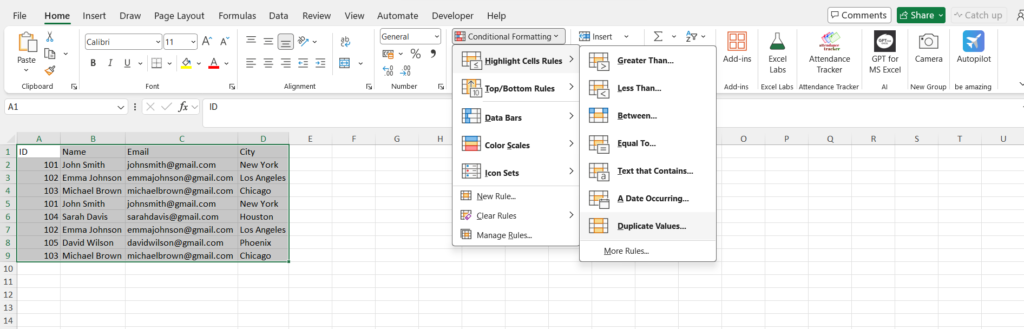
Steps:
- Select your data
- Click Home
- Select Conditional Formatting
- Choose Highlight Cells Rules
- Click Duplicate Values
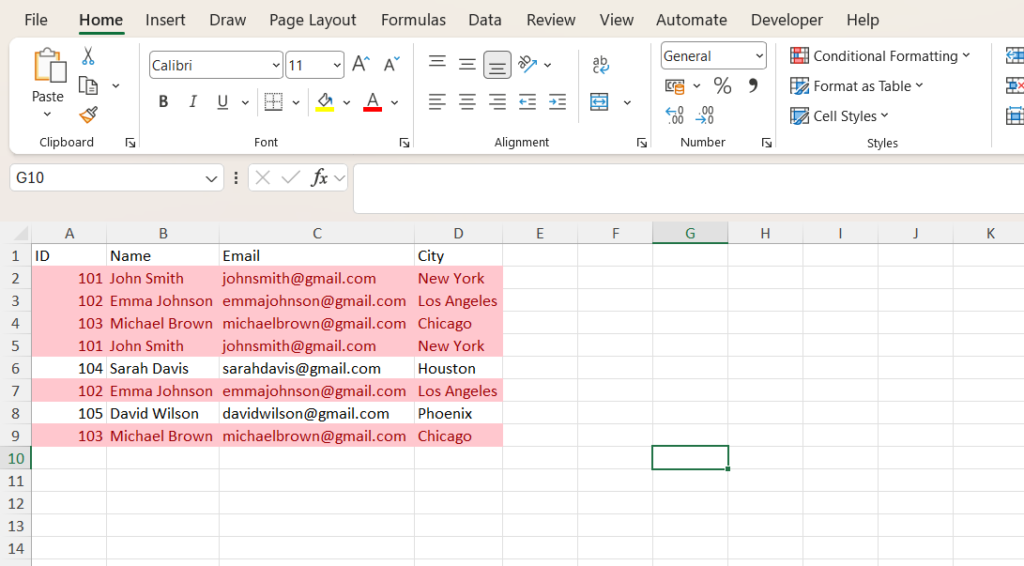
Excel immediately highlights duplicate entries.
This method is useful when you don’t want to accidentally remove important information.
Method 3: Remove Duplicates Using Excel Formula
If you want a dynamic solution, formulas work well.
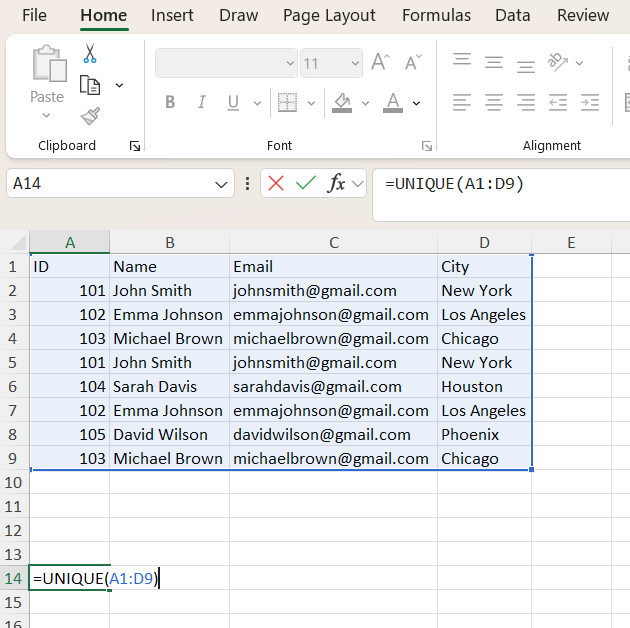
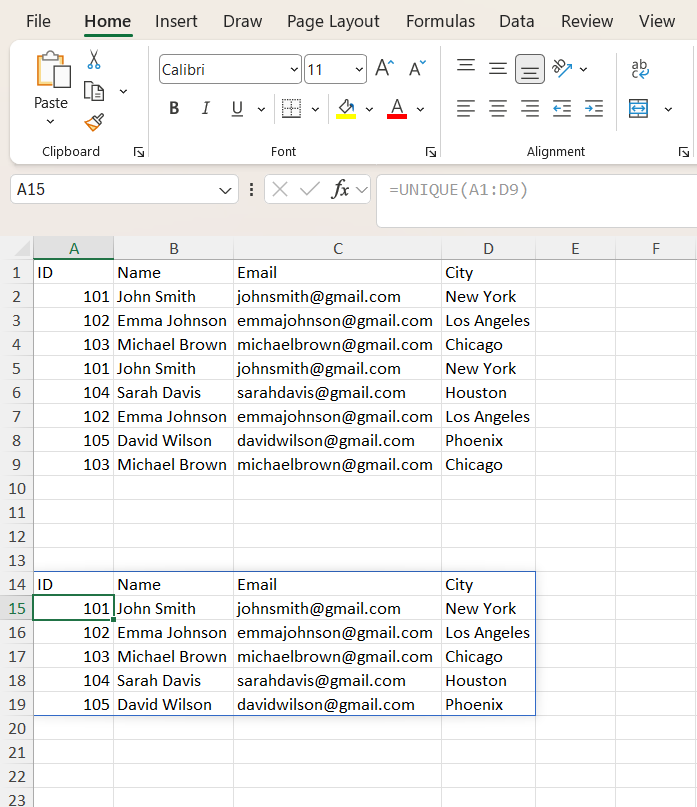
Formula:
=UNIQUE(A2:A100)
The UNIQUE function automatically extracts only unique values.
Benefits:
- No manual work
- Updates automatically
- Useful for dashboards
The UNIQUE function works in Excel 365 and newer versions.
Method 4: Remove Duplicate Rows Based on Multiple Columns
Sometimes duplicate values depend on more than one field.
Example:
| Name | Department |
|---|---|
| John | Sales |
| John | Marketing |
Although the name is the same, departments differ.
To avoid deleting useful information:
- Select multiple columns
- Open Remove Duplicates
- Check all required columns
Common Mistakes to Avoid
- Removing duplicates without creating a backup
- Selecting the wrong columns
- Deleting values before reviewing them
- Ignoring hidden rows
Pro Tip: Create a copy of your spreadsheet before deleting duplicate records.
When Should You Remove Duplicates?
Duplicate removal is especially useful for:
- Email lists
- Sales reports
- Customer databases
- Attendance sheets
- Inventory reports
Related Articles
- 7 Simple Excel Automations That Take Less Than 5 Minutes (But Save Hours Every Week)
- How to Turn Off Copilot in Excel (2026 Guide) — Stop AI Suggestions in Seconds
- Excel Interview Questions for Freshers: Real Scenarios Recruiters Ask in 2026
Frequently Asked Questions
What happens when Excel removes duplicates?
Excel keeps the first occurrence and deletes repeated entries.
Can I highlight duplicates before deleting them?
Yes. Conditional Formatting allows you to highlight duplicates first.
Does Excel remove duplicate rows automatically?
Yes. The Remove Duplicates feature handles this automatically.
Which Excel version supports UNIQUE function?
Excel 365 and newer versions support the UNIQUE function.


Pingback: How to Make a Pivot Table in Excel? Complete Step-by-Step Visual Guide 2026 - Excel AI Tools and SEO Guides
Pingback: Excel Arrow Keys Not Moving Cells? Here's the Quick Fix (Step-by-Step Guide 2026) - Excel AI Tools and SEO Guides