

You probably think Excel automation means learning VBA, complicated formulas, or spending hours watching tutorials.
That is exactly what most people believe.
Then something surprising happens.
An office employee sitting next to you finishes work faster, creates reports in seconds, and somehow leaves early while everyone else is still typing manually.
The difference usually isn’t experience.
The difference is automation.
The good news? Some of Excel’s most useful automations take less time than making a cup of coffee.
Quick Reality: Saving 10 minutes daily equals over 40 hours every year.
1. Automatically Highlight Important Data
If you’re manually scanning large sheets searching for low sales, overdue payments, or important values, Excel can do this automatically.
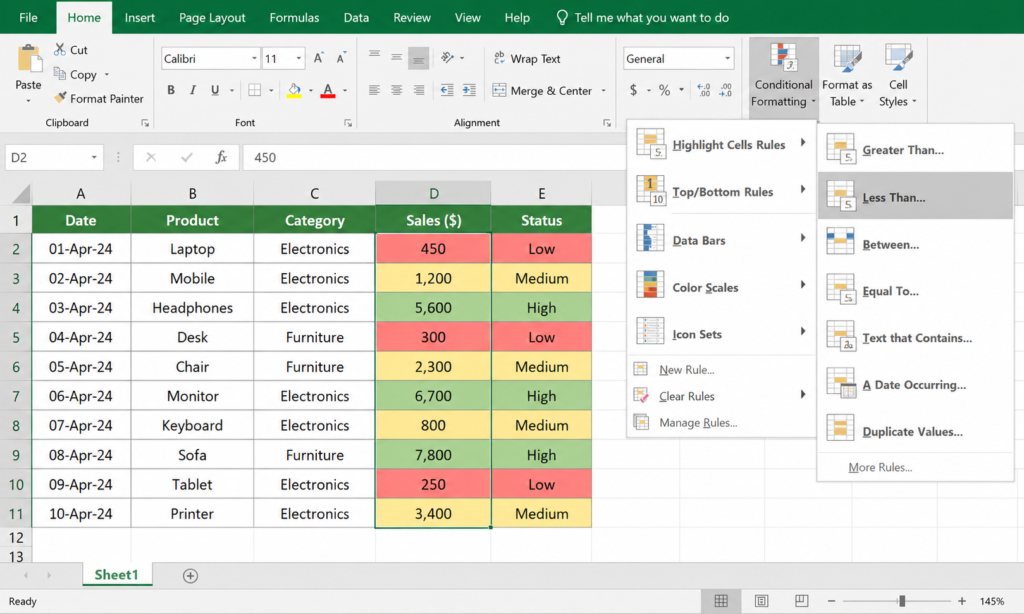
Use Conditional Formatting.
- Sales below $500 → Red
- Sales above $5000 → Green
- Sales above $500 → Yellow
Setup time: About 2 minutes
Imagine opening your sheet and instantly spotting problems without searching through hundreds of rows.
2. Automatically Insert Today’s Date
Typing dates repeatedly becomes frustrating very quickly.
Press:
Ctrl + ;
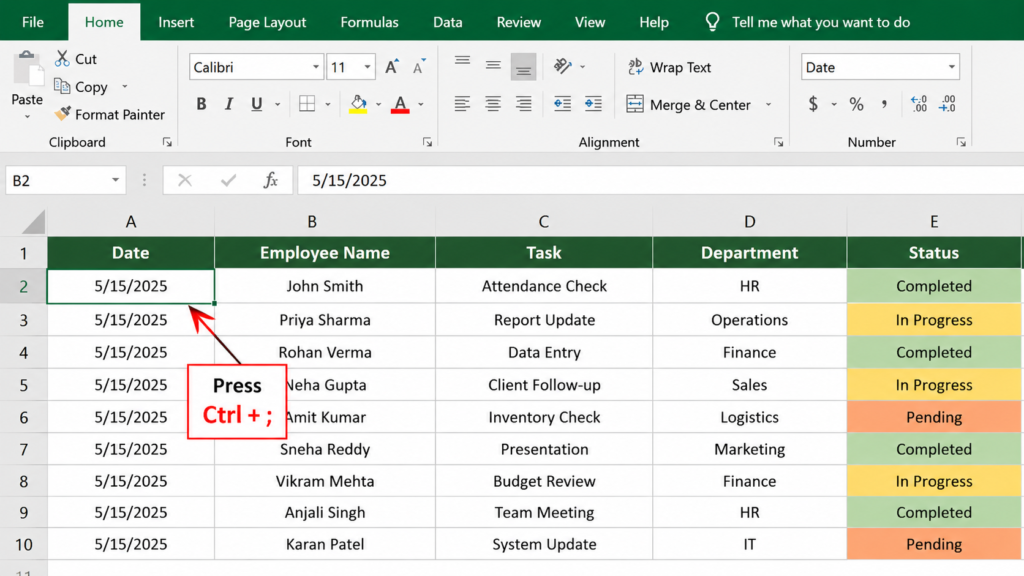
This instantly inserts today’s date.
Useful for:
- Attendance sheets
- Invoices
- Task management
- Daily reports
3. Create Drop-Down Lists
Repeated typing creates mistakes.
Instead of typing status values manually, create dropdown menus.
Example:
- Completed
- Pending
- In Progress
- Cancelled
Dropdown lists also prevent spelling mistakes.
4. Convert Data Into Smart Tables
Many users ignore one of Excel’s most useful features.
Select your data and press:
Ctrl + T
Excel instantly:
- Adds filters
- Creates formatting
- Extends formulas automatically
- Updates data ranges
After converting your sheet into a table, new rows automatically inherit formulas.
5. Generate Charts Automatically
Instead of creating charts manually:
Select data and press:
Alt + F1
Excel instantly generates a chart.
This is useful during meetings when you need quick visual reports.
6. Flash Fill Feels Like Magic
Flash Fill detects patterns automatically.
Press:
Ctrl + E
Examples:
- Split full names
- Extract emails
- Format phone numbers
- Combine text
Enter one example manually first and Excel usually predicts the rest.
7. Create Reports Using Pivot Tables
Thousands of rows can become meaningful reports in seconds.
Pivot tables can instantly show:
- Total sales by month
- Best performing products
- Department performance
- Customer summaries
Many users spend hours manually summarizing data that Pivot Tables can handle automatically.
Why These Tiny Automations Matter
Individually these tricks might save 2–3 minutes.
Together they can save hours every week.
Most people don’t need advanced coding to become faster in Excel.
They simply need to stop repeating the same actions manually.
Related Articles
Frequently Asked Questions
Can beginners automate Excel?
Yes. Most automations require no coding knowledge.
Do I need VBA?
No. Most built-in Excel tools already automate repetitive work.
Which automation saves the most time?
Flash Fill and Pivot Tables are usually among the biggest time savers.


