

SUM Function in Excel: Formula, Examples, Syntax and Tips
Learn how to use the SUM function in Excel with simple examples. Discover SUM syntax, multiple ranges, entire columns, rows, SUMIF, SUMIFS, and useful shortcuts.
SUM Function in Excel: A Complete Beginner’s Guide
The SUM function in Excel is one of the most useful and commonly used formulas for anyone working with numbers. Whether you are managing monthly expenses, calculating sales, preparing reports, tracking a budget, or analyzing business data, the SUM function helps you add numbers quickly and accurately.
Instead of manually adding values with a calculator, Excel can automatically calculate totals for individual cells, entire ranges, multiple ranges, rows, and columns.
For beginners, the SUM function is also one of the best formulas to learn because it is simple, flexible, and used in almost every type of spreadsheet.
In this guide, you will learn what the SUM function does, how to write the formula, practical examples, useful shortcuts, and advanced alternatives such as SUMIF and SUMIFS.
What Is the SUM Function in Excel?
The SUM function is used to add numbers together in Excel.
For example, if you have the following numbers:
- 100
- 250
- 150
- 300
- 200
You can use the SUM function to calculate the total automatically.
=SUM(100,250,150,300,200)The result will be:
1,000
However, in real spreadsheets, you will usually add cell references or ranges instead of typing every number directly into the formula.
For example:
=SUM(B2:B6)This tells Excel to add all the numbers from cell B2 through B6.
SUM Function Syntax
The basic syntax of the SUM function is:
=SUM(number1, [number2], ...)Understanding the syntax
- number1 – The first number, cell, or range you want to add.
- number2 – An additional number, cell, or range.
- … – You can continue adding more numbers or ranges.
The SUM function can work with:
- Individual numbers
- Individual cells
- Cell ranges
- Multiple ranges
- Entire columns
- Entire rows
This flexibility makes SUM one of the most powerful basic Excel formulas.
How to Add Two Cells in Excel
Suppose:
- Cell A1 contains 10
- Cell B1 contains 20
You can add them using:
=SUM(A1,B1)The result will be:
30
You can also use the traditional addition operator:
=A1+B1Both formulas produce the same result.
However, the SUM function becomes much more useful when you need to add many cells or ranges.
How to Add a Range of Cells in Excel
One of the most common uses of the SUM function is adding a range of cells.
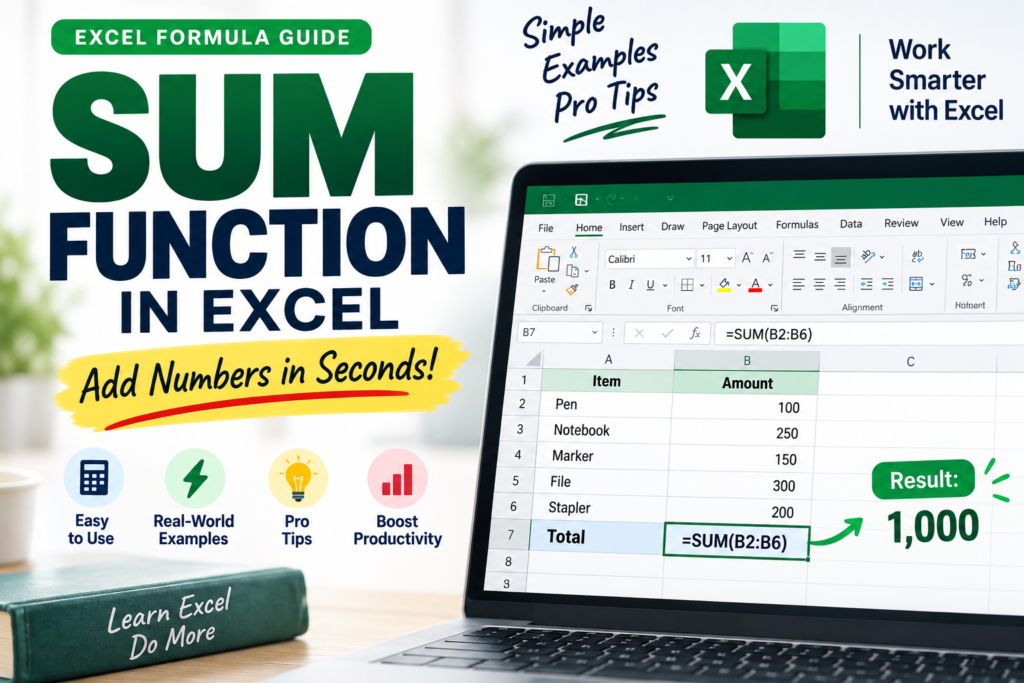
Suppose your expense amounts are stored in cells B2 to B6.
| Item | Amount |
|---|---|
| Pen | 100 |
| Notebook | 250 |
| Marker | 150 |
| File | 300 |
| Stapler | 200 |
To calculate the total, use:
=SUM(B2:B6)The result is:
1,000
The colon (:) means from B2 to B6, including all cells between them.
This is much faster than writing:
=B2+B3+B4+B5+B6For larger datasets, using SUM is cleaner and easier to manage.
How to Add Multiple Ranges in Excel
Sometimes your data is stored in different sections of a worksheet.
For example, you may want to add:
- A1 to A5
- C1 to C5
You can use:
=SUM(A1:A5,C1:C5)Excel will add both ranges together.
You can also add more ranges:
=SUM(A1:A5,C1:C5,E1:E5)This is useful when your spreadsheet contains separate groups of data that need to be included in one total.
For example, you could combine:
- January sales
- March sales
- May sales
without changing your worksheet structure.
How to Add Specific Cells in Excel
You may not always want to add an entire range.
Suppose you only want to add cells:
- A1
- A5
- A10
Use:
=SUM(A1,A5,A10)This is useful when selected cells contain important values but the cells between them should not be included.
You can also combine individual cells and ranges:
=SUM(A1:A5,C10,D15:D20)
Excel will add everything included in the formula.
How to Sum an Entire Column in Excel
To add all numbers in column A, use:
=SUM(A:A)
This formula includes the entire column.
Similarly, to add column B:
=SUM(B:B)
This can be useful for large datasets where new records are added regularly.
However, if your worksheet contains headers, notes, or other numeric values that should not be included, it is often better to use a specific range.
For example:
=SUM(B2:B1000)
Using a defined range can give you more control over the calculation.
How to Sum an Entire Row in Excel
You can also add all values in a row.
For example, to add everything in row 2:
=SUM(2:2)
To add all values in row 5:
=SUM(5:5)
This can be helpful when creating monthly reports or summary tables where each row represents a category.
For example:
| Product | Jan | Feb | Mar | Total |
|---|---|---|---|---|
| Product A | 500 | 600 | 700 | 1,800 |
The Total column could use:
=SUM(B2:D2)
How to Use the AutoSum Shortcut in Excel
Excel provides a quick shortcut for inserting the SUM function.
The keyboard shortcut is:
Alt + =
This automatically inserts the SUM formula and usually suggests the range Excel thinks you want to calculate.
For example, if you select the cell below a list of numbers and press:
Alt + =
Excel may automatically create:
=SUM(B2:B6)
You simply press Enter to confirm.
This is one of the fastest Excel shortcuts for calculating totals.
Using the AutoSum Button
You can also use the AutoSum button from the Excel ribbon.
Steps:
- Select the cell where you want the result.
- Go to the Home tab.
- Click AutoSum (Σ).
- Excel suggests a range.
- Check the selected range.
- Press Enter.
This method is especially useful for beginners who are still learning Excel formulas.
SUM Function for Business and Expense Reports
The SUM function is extremely useful for business reporting.
Imagine you are managing an Expense Analytics Dashboard with expenses from multiple departments.
You may have data such as:
| Department | Expense |
|---|---|
| Operations | 24,540 |
| Sales | 16,280 |
| Marketing | 12,760 |
| HR | 8,930 |
| Finance | 6,475 |
You can calculate total expenses using:
=SUM(B2:B6)
The same approach can be used for:
- Total sales
- Total expenses
- Total profit
- Monthly revenue
- Department spending
- Employee reimbursements
- Inventory value
- Project costs
This is why the SUM function is often the starting point for building Excel reports and dashboards.
SUMIF Function: Add Values Based on One Condition
The basic SUM function adds everything in the selected range.
But what if you only want to add values that match a specific condition?
For example, suppose you have departments in column A and expenses in column B.
You only want to calculate the total expense for Sales.
Use:
=SUMIF(A:A,"Sales",B:B)
This formula tells Excel:
- Look in column A.
- Find cells containing “Sales”.
- Add the corresponding values from column B.
This is extremely useful for creating dynamic business reports.
You can use SUMIF for:
- Sales by region
- Expenses by department
- Revenue by product
- Payments by category
- Transactions by status
SUMIFS Function: Add Values Based on Multiple Conditions
The SUMIFS function is used when you need more than one condition.
For example, suppose you want to calculate expenses where:
- Department = Sales
- Status = Approved
You can use:
=SUMIFS(C:C,A:A,"Sales",B:B,"Approved")
This formula adds values from column C only when both conditions are true.
SUMIFS is useful for advanced reporting and dashboards because business data often requires multiple filters.
Examples include:
- Sales from a specific region during a specific month
- Approved expenses from a specific department
- Revenue from a particular product category
- Transactions above a certain amount
Does the SUM Function Ignore Text?
Yes, in most normal situations, the SUM function ignores text values inside a selected range.
For example:
| Value |
|---|
| 100 |
| 200 |
| Pending |
| 300 |
Using:
=SUM(A1:A4)
will return:
600
The text value Pending is ignored.
This makes SUM convenient when your data range contains both numbers and text.
However, always review your data because errors such as #VALUE! or other formula errors can affect calculations depending on how the data is structured.
Common SUM Function Mistakes
Even though SUM is simple, beginners sometimes make mistakes.
1. Selecting the Wrong Range
Always check the range before pressing Enter.
For example:
=SUM(B2:B10)
Make sure all required values are actually located between B2 and B10.
2. Missing New Data
If your formula uses:
=SUM(B2:B10)
but new data is added to B11, it will not automatically be included.
You may need to update the formula:
=SUM(B2:B11)
Using an Excel Table can also help formulas automatically expand as new data is added.
3. Using SUM Instead of SUMIF
If you only need a specific category, do not use:
=SUM(B:B)
Instead, use a conditional formula such as:
=SUMIF(A:A,"Sales",B:B)
Choosing the correct formula makes your reports more accurate.
SUM Function vs SUMIF vs SUMIFS
Here is a simple comparison:
| Function | Best Use |
|---|---|
| SUM | Add numbers without conditions |
| SUMIF | Add numbers based on one condition |
| SUMIFS | Add numbers based on multiple conditions |
Example:
SUM
=SUM(B2:B10)
Adds all numbers.
SUMIF
=SUMIF(A:A,"Sales",B:B)
Adds Sales values only.
SUMIFS
=SUMIFS(C:C,A:A,"Sales",B:B,"Approved")
Adds values matching multiple conditions.
Final Thoughts
The SUM function in Excel may look simple, but it is one of the most important formulas you can learn. From calculating a few numbers to building complex financial reports and interactive dashboards, SUM provides the foundation for accurate calculations.
Start by learning these essential formulas:
=SUM(A1:A10)
=SUM(A1,A5,A10)
=SUM(A1:A5,C1:C5)
=SUMIF(A:A,"Sales",B:B)
=SUMIFS(C:C,A:A,"Sales",B:B,"Approved")
Once you understand when to use SUM, SUMIF, and SUMIFS, you can create faster, cleaner, and more powerful Excel reports.
Remember: The SUM function does one simple job—adding numbers—but mastering it can save time, reduce errors, and make your Excel work much more efficient.
Frequently Asked Questions About the SUM Function in Excel
What is the shortcut for SUM in Excel?
The fastest shortcut is Alt + =, which inserts the AutoSum function.
How do I add a column in Excel?
Use a formula such as:
=SUM(A:A)
How do I add multiple ranges?
Use:
=SUM(A1:A10,C1:C10)
Can SUM add cells from different locations?
Yes. For example:
=SUM(A1,A5,B10,D15)
What is the difference between SUM and SUMIF?
SUM adds all selected values. SUMIF adds values only when a specified condition is met.
Can SUM be used for Excel dashboards?
Absolutely. SUM is commonly used to calculate KPI totals, sales, expenses, revenue, budgets, and other key metrics used in Excel dashboards.


Pingback: XLOOKUP vs VLOOKUP in Excel 365 – Which One Should You Use? - Excel AI Tools and SEO Guides