
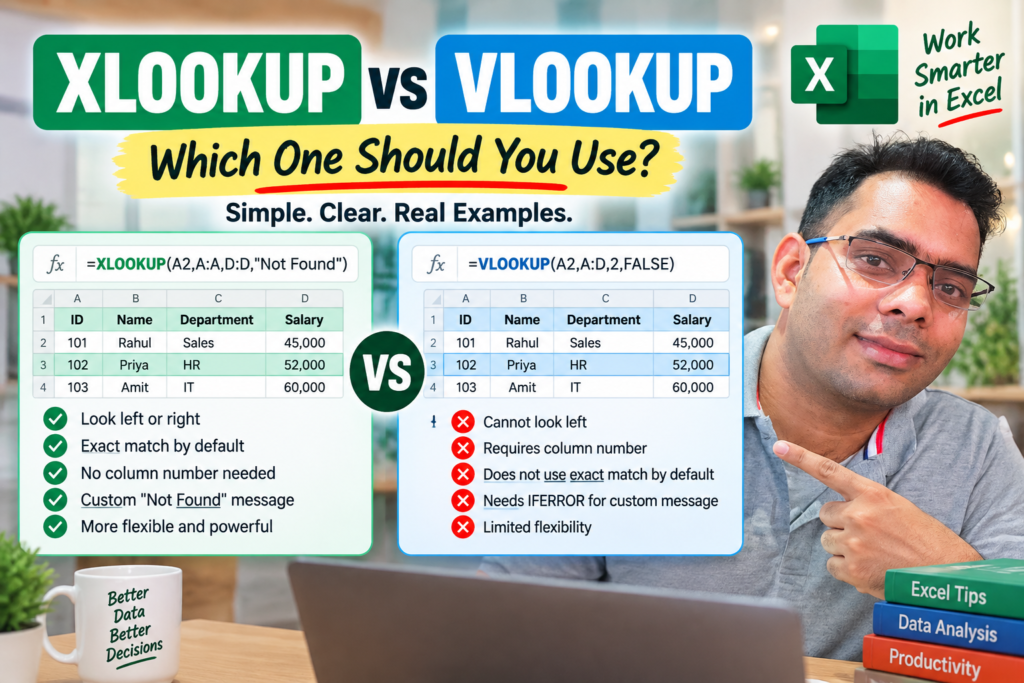

XLOOKUP vs VLOOKUP in Excel 365 : If you are still using VLOOKUP for everything, you may be making your Excel work harder than it needs to be.
For years, VLOOKUP was one of the most popular Excel functions. It helped millions of users find prices, employee names, product details, customer information, and much more.
But Excel 365 introduced a more powerful alternative: XLOOKUP.
So, which one should you use?
The short answer is simple:
For most new Excel work in Microsoft 365, XLOOKUP is the better choice.
However, VLOOKUP still has its place—especially when you need compatibility with older versions of Excel.
In this guide, you’ll learn the real difference between XLOOKUP and VLOOKUP, see practical examples, understand their advantages and limitations, and know exactly which function to use in different situations.
XLOOKUP vs VLOOKUP: Quick Comparison
| Feature | XLOOKUP | VLOOKUP |
|---|---|---|
| Available in Excel 365 | Yes | Yes |
| Works in older Excel versions | No | Yes |
| Can look left | Yes | No |
| Can look right | Yes | Yes |
| Requires column number | No | Yes |
| Exact match by default | Yes | No |
| Can return custom “Not Found” text | Yes | No |
| Can search from bottom to top | Yes | No |
| Easier to maintain | Yes | Less |
| Best for new Excel files | Yes | Sometimes |
Winner: XLOOKUP
But let’s understand why.
What Is VLOOKUP in Excel?
VLOOKUP stands for Vertical Lookup.
It searches for a value in the first column of a table and returns a value from another column in the same row.
For example, imagine you have this data:
| Employee ID | Name | Department | Salary |
|---|---|---|---|
| 101 | Rahul | Sales | 45,000 |
| 102 | Priya | HR | 52,000 |
| 103 | Amit | IT | 60,000 |
If you want to find the name of employee ID 102, you can use:
=VLOOKUP(102,A2:D4,2,FALSE)
Excel searches for 102 in the first column and returns the value from the second column.
Result:
Priya
VLOOKUP is simple and useful, which is one reason it became so popular.
But it also has some important limitations.
What Is XLOOKUP in Excel?
XLOOKUP is a newer lookup function available in modern versions of Excel, including Microsoft 365.
It performs the same basic job as VLOOKUP—but with much more flexibility.
The same example using XLOOKUP would look like this:
=XLOOKUP(102,A2:A4,B2:B4)
Result:
Priya
Notice something important.
With XLOOKUP, you simply tell Excel:
- What value to search for
- Where to search
- What to return
There is no need to count column numbers.
That alone makes formulas easier to read and maintain.
XLOOKUP vs VLOOKUP: The Biggest Difference
The biggest difference is flexibility.
VLOOKUP follows a strict structure:
=VLOOKUP(lookup_value,table_array,column_index,[range_lookup])
XLOOKUP uses a more logical structure:
=XLOOKUP(lookup_value,lookup_array,return_array)
Let’s compare them.
VLOOKUP
=VLOOKUP(A2,Products!A:D,4,FALSE)
XLOOKUP
=XLOOKUP(A2,Products!A:A,Products!D:D)
The XLOOKUP formula clearly shows:
- Search for the value in A2
- Look in column A
- Return the value from column D
For beginners, this can be much easier to understand.
1. XLOOKUP Can Look Left. VLOOKUP Cannot.
This is one of the biggest advantages of XLOOKUP.
Imagine this table:
| Name | Employee ID |
|---|---|
| Rahul | 101 |
| Priya | 102 |
| Amit | 103 |
Suppose you want to search for Employee ID 102 and return the employee’s name.
The ID column is on the right.
With VLOOKUP
This becomes difficult because VLOOKUP can only search in the first column and return values to the right.
You would usually need to rearrange the data or use another function combination.
With XLOOKUP
It’s simple:
=XLOOKUP(102,B2:B4,A2:A4)
Result:
Priya
Why this matters
Real-world Excel files are rarely perfectly organized.
Sometimes:
- IDs are on the right
- Prices are on the left
- Names are in the middle
- Data comes from another system
XLOOKUP gives you much more freedom.
Winner: XLOOKUP
2. XLOOKUP Uses Exact Match by Default
This is an important difference that many Excel users don’t realize.
VLOOKUP does not automatically use exact match unless you specify it correctly.
For an exact match, you should use:
=VLOOKUP(A2,A2:D100,4,FALSE)
The FALSE is important.
With XLOOKUP, exact match is the default behavior:
=XLOOKUP(A2,A2:A100,D2:D100)
This makes XLOOKUP safer and easier to write.
You don’t have to remember to add FALSE every time.
For beginners, this reduces mistakes.
Winner: XLOOKUP
3. XLOOKUP Doesn’t Need a Column Number
This is one of the most annoying parts of VLOOKUP.
Consider this formula:
=VLOOKUP(A2,A:D,4,FALSE)
What does the number 4 mean?
It means:
Return the value from the fourth column of the selected table.
This creates a problem.
Imagine someone inserts a new column into your worksheet.
Your formula may suddenly return the wrong information.
For example:
Before:
| ID | Name | Department | Salary |
After someone inserts a column:
| ID | Name | Email | Department | Salary |
Now the column positions have changed.
Your VLOOKUP may need to be updated.
XLOOKUP Solves This Problem
With XLOOKUP:
=XLOOKUP(A2,A:A,D:D)
You directly specify the return column.
You don’t have to count columns.
This makes formulas:
- Easier to read
- Easier to update
- Less likely to break
- Better for large workbooks
Winner: XLOOKUP
4. XLOOKUP Has a Built-In “Not Found” Option
One common problem with lookup formulas is the #N/A error.
For example:
=XLOOKUP(A2,A:A,D:D)
If Excel cannot find the value, it returns:
#N/A
But XLOOKUP allows you to display a custom message.
Example:
=XLOOKUP(A2,A:A,D:D,"Not Found")
Now, if the value doesn’t exist, Excel displays:
Not Found
You can also write:
=XLOOKUP(A2,A:A,D:D,"Employee Not Found")
This is especially useful when creating:
- Dashboards
- Reports
- Employee trackers
- Sales reports
- Customer databases
- Interactive Excel tools
VLOOKUP Requires IFERROR
With VLOOKUP, you usually need:
=IFERROR(VLOOKUP(A2,A:D,4,FALSE),"Not Found")
It works, but the formula is longer.
Winner: XLOOKUP
5. XLOOKUP Can Search from Bottom to Top
This feature is extremely useful for real-world data.
Imagine you have a sales history:
| Product | Date | Price |
|---|---|---|
| Laptop | Jan | 50,000 |
| Laptop | Feb | 52,000 |
| Laptop | Mar | 55,000 |
Suppose you want the latest price.
XLOOKUP can search from the bottom of the list.
Example:
=XLOOKUP("Laptop",A2:A4,C2:C4,,0,-1)
The last argument tells Excel to search in reverse order.
This is useful for:
- Latest transaction
- Most recent salary
- Last order
- Latest stock price
- Most recent customer activity
- Last recorded attendance
VLOOKUP does not provide this feature directly.
Winner: XLOOKUP
6. XLOOKUP Can Replace Multiple Lookup Functions
One reason Excel users love XLOOKUP is that it can handle many situations that previously required different functions.
Before XLOOKUP, users often needed:
- VLOOKUP
- HLOOKUP
- INDEX
- MATCH
For example, VLOOKUP searches vertically.
HLOOKUP searches horizontally.
XLOOKUP is more flexible.
This means you may need to remember fewer functions for basic lookup tasks.
Practical Example: Finding Product Prices
Let’s say you have this table:
| Product ID | Product Name | Price |
|---|---|---|
| P101 | Keyboard | 1,500 |
| P102 | Mouse | 800 |
| P103 | Monitor | 15,000 |
You enter a Product ID in cell F2.
Using VLOOKUP
=VLOOKUP(F2,A2:C4,3,FALSE)
Excel searches for the Product ID and returns the price.
Using XLOOKUP
=XLOOKUP(F2,A2:A4,C2:C4,"Product Not Found")
The XLOOKUP version is easier to understand.
It clearly separates:
- Lookup value
- Lookup column
- Return column
- Error message
When Should You Use XLOOKUP?
For most new Excel 365 work, use XLOOKUP.
It’s especially useful when:
1. Your data structure may change
XLOOKUP is more resilient when columns are inserted or moved.
2. You need to look left
VLOOKUP cannot easily do this.
XLOOKUP can.
3. You want simpler formulas
XLOOKUP formulas are often easier to understand later.
This is important when you return to an Excel file after several months.
4. You are building dashboards
Dashboards often require flexible lookup formulas.
XLOOKUP works well for:
- KPI dashboards
- Sales dashboards
- Employee dashboards
- Inventory dashboards
- Financial reports
5. You work with large datasets
When your workbook contains thousands of rows, clear formulas become even more important.
XLOOKUP can make your formulas easier to maintain and audit.
When Should You Still Use VLOOKUP?
Despite its limitations, VLOOKUP is not dead.
You should still consider VLOOKUP when compatibility matters.
For example:
Use VLOOKUP if your file will be opened in older Excel versions
XLOOKUP is not available in many older versions of Excel.
If you send your workbook to someone using an older version, XLOOKUP may not work for them.
In that situation, VLOOKUP may be the safer choice.
Use VLOOKUP if you’re working with legacy Excel files
Many companies have old Excel files containing hundreds or thousands of VLOOKUP formulas.
There may be no reason to replace everything.
If the formulas work correctly, changing them could introduce unnecessary risk.
Use VLOOKUP when compatibility is more important than flexibility
For example:
- Shared corporate files
- Older client systems
- Legacy templates
- Files used by multiple Excel versions
XLOOKUP vs VLOOKUP Formula Comparison
Here is a simple side-by-side comparison.
Find Employee Name
VLOOKUP
=VLOOKUP(A2,Employees!A:D,2,FALSE)
XLOOKUP
=XLOOKUP(A2,Employees!A:A,Employees!B:B)
Find Employee Salary
VLOOKUP
=VLOOKUP(A2,Employees!A:D,4,FALSE)
XLOOKUP
=XLOOKUP(A2,Employees!A:A,Employees!D:D)
Show Custom Error Message
VLOOKUP
=IFERROR(VLOOKUP(A2,Employees!A:D,4,FALSE),"Not Found")
XLOOKUP
=XLOOKUP(A2,Employees!A:A,Employees!D:D,"Not Found")
Is XLOOKUP Faster Than VLOOKUP?
For most normal Excel tasks, the difference may not be noticeable.
If you are working with a small spreadsheet containing a few hundred rows, both functions will usually feel fast.
However, performance depends on many factors, including:
- Number of formulas
- Size of the dataset
- Use of entire column references
- Other calculations in the workbook
- Excel version
- Computer hardware
The bigger advantage of XLOOKUP is usually not raw speed.
It’s flexibility and maintainability.
A formula that is easier to understand and less likely to break can save far more time than a tiny calculation speed difference.
Can XLOOKUP Completely Replace VLOOKUP?
For many Excel 365 users, yes.
If:
- You use Microsoft 365
- You don’t need old Excel compatibility
- You create new workbooks
- You want easier formulas
Then XLOOKUP can replace VLOOKUP for most lookup tasks.
However, you should still understand VLOOKUP.
Why?
Because millions of existing Excel files still use it.
You may open a company spreadsheet tomorrow and see formulas like:
=VLOOKUP(A2,Sheet2!A:G,5,FALSE)
Understanding VLOOKUP is still an important Excel skill.
Common XLOOKUP Mistakes Beginners Make
Even though XLOOKUP is easier, beginners can still make mistakes.
Mistake #1: Lookup and Return Ranges Have Different Sizes
This can cause errors.
For example:
=XLOOKUP(A2,A2:A100,B2:B90)
The ranges should normally match in size.
Correct:
=XLOOKUP(A2,A2:A100,B2:B100)
Mistake #2: Searching the Wrong Column
Always check:
Which column contains the value I’m searching for?
That is your lookup array.
Then ask:
Which column contains the result I want?
That is your return array.
Mistake #3: Using XLOOKUP Without Checking Compatibility
Before sending your workbook, check which Excel version the other person uses.
This is especially important for client files and company reports.
Common VLOOKUP Mistakes
VLOOKUP users often make these mistakes:
Forgetting FALSE
For exact matches, many users forget:
FALSE
Using the Wrong Column Number
Example:
=VLOOKUP(A2,A:D,3,FALSE)
If you want Salary but Salary is actually in column 4, the formula returns the wrong data.
Inserting Columns Later
Column changes can affect formulas.
Trying to Look Left
VLOOKUP cannot naturally return values located to the left of the lookup column.
Real-World Example: Sales Dashboard
Imagine you’re building a sales dashboard.
You have:
- Product IDs
- Product names
- Categories
- Prices
- Monthly sales
- Stock levels
A dashboard user selects a Product ID.
You want to automatically display:
- Product Name
- Category
- Price
- Stock
With VLOOKUP, you might need several formulas with different column numbers.
Example:
=VLOOKUP(F2,A:F,2,FALSE)
=VLOOKUP(F2,A:F,3,FALSE)
=VLOOKUP(F2,A:F,4,FALSE)
Now compare that with XLOOKUP:
=XLOOKUP(F2,A:A,B:B)
=XLOOKUP(F2,A:A,C:C)
=XLOOKUP(F2,A:A,D:D)
The XLOOKUP formulas are easier to understand immediately.
That becomes very valuable when your dashboard grows larger.
XLOOKUP vs VLOOKUP: Which One Is Easier for Beginners?
For new Excel users, I recommend learning both—but starting with XLOOKUP if you use Excel 365.
Why?
Because the formula structure is more logical.
You think:
What am I looking for?
Then:
Where should Excel search?
Then:
What should Excel return?
That is exactly how XLOOKUP works.
My Recommendation: Which Function Should You Use?
Here is the simplest answer.
Use XLOOKUP if:
✅ You use Excel 365
✅ You’re creating a new workbook
✅ You need flexible lookups
✅ You want to search left or right
✅ You want simpler formulas
✅ You want custom “Not Found” messages
✅ Your worksheet structure may change
Use VLOOKUP if:
✅ You need compatibility with older Excel versions
✅ You’re working with legacy files
✅ Your company already uses VLOOKUP
✅ Your lookup column is on the left
✅ You need a simple, traditional lookup
Final Verdict: XLOOKUP vs VLOOKUP
XLOOKUP is the better choice for most modern Excel users.
It is:
- More flexible
- Easier to read
- Easier to maintain
- Safer for changing worksheets
- Better for left-to-right lookups
- Better at handling missing values
- More powerful overall
VLOOKUP is still useful and important to understand.
But if you’re using Excel 365 and starting a new project today, XLOOKUP should usually be your first choice.
My recommendation:
Learn VLOOKUP because you’ll see it everywhere. Use XLOOKUP because it’s usually the better tool for new Excel work.
Frequently Asked Questions
Is XLOOKUP better than VLOOKUP?
For most Excel 365 users, yes. XLOOKUP is more flexible and easier to maintain. It can look in both directions, uses exact match by default, and doesn’t require a column index number.
Should I replace all VLOOKUP formulas with XLOOKUP?
Not necessarily.
If your existing VLOOKUP formulas work correctly, there may be no need to replace them. Consider using XLOOKUP for new files instead.
Does XLOOKUP work in Excel 2016?
No. XLOOKUP is not available in traditional Excel 2016 installations.
If compatibility with older Excel versions is important, consider VLOOKUP or other compatible lookup methods.
Can XLOOKUP search left?
Yes.
This is one of its biggest advantages over VLOOKUP.
Example:
=XLOOKUP(EmployeeID,ID_Column,Name_Column)
The return column can be located to the left or right of the lookup column.
Is VLOOKUP outdated?
VLOOKUP is not useless or obsolete. It still works and remains widely used.
However, for modern Excel 365 work, XLOOKUP offers more flexibility and is usually easier to maintain.
Can beginners learn XLOOKUP easily?
Yes.
Many beginners find XLOOKUP easier because you directly specify:
- The value to find
- Where to find it
- What to return
Start Using XLOOKUP in Your Next Excel File
If you’ve been using VLOOKUP for years, you don’t need to stop overnight.
But the next time you create a new Excel report, dashboard, tracker, or data analysis file, try using XLOOKUP.
You may quickly discover that your formulas become easier to read—and much easier to manage.
The best Excel formula isn’t always the most advanced one. It’s the one that makes your work simpler, clearer, and less likely to break.


