
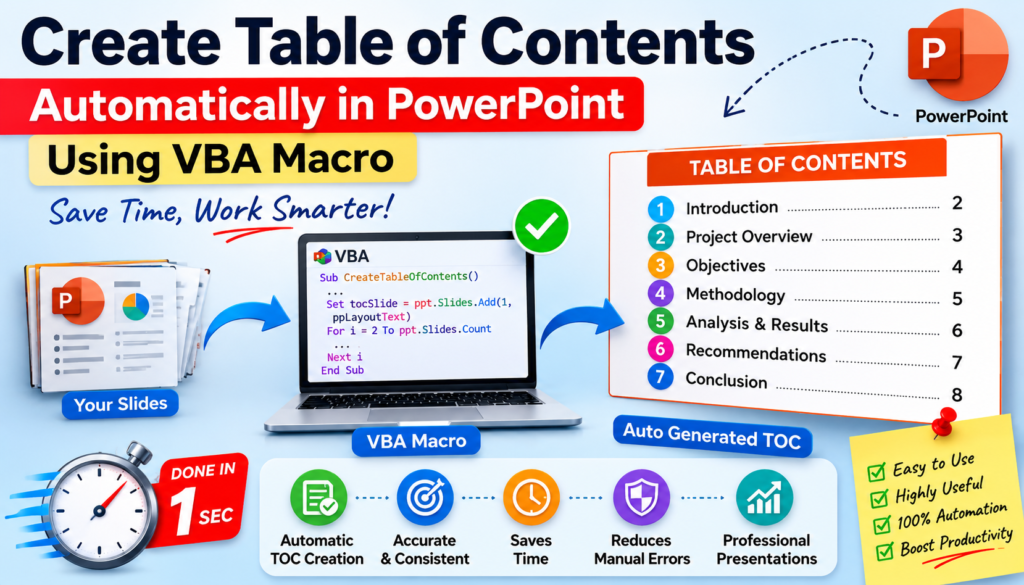

PowerPoint VBA Trick: Learn how to automate Table of Contents creation in PowerPoint using VBA. Save time, improve presentation quality, and generate TOC slides automatically with this simple macro.
Creating a professional PowerPoint presentation often takes hours. You carefully design slides, add visuals, refine content, and organize information. But there is one task that many professionals still do manually: creating a Table of Contents (TOC).
If your presentation has 20, 30, or even 50 slides, manually updating a Table of Contents can become frustrating. Every time a slide is added, deleted, or rearranged, the TOC must be updated again.
Fortunately, PowerPoint VBA can automate this entire process.
In this article, you’ll learn how a simple VBA macro can automatically generate a Table of Contents slide by reading all slide titles in your presentation. Whether you’re a project manager, business analyst, trainer, consultant, or PowerPoint power user, this automation can save significant time and improve presentation quality.
Why a Table of Contents Matters
A Table of Contents helps audiences understand the structure of your presentation before you begin.
Benefits include:
- Improves navigation during meetings
- Creates a professional appearance
- Helps stakeholders follow the presentation flow
- Makes large presentations easier to understand
- Provides a quick overview of topics covered
For executive reviews, project updates, quality reports, and customer presentations, a well-structured Table of Contents is often expected.
The Problem with Manual TOC Creation
Most users create a Table of Contents manually by typing slide titles one by one.
For example:
- Introduction
- Project Overview
- Risk Analysis
- Budget Review
- Timeline
- Conclusion
The challenge appears when changes occur.
Imagine you insert a new slide between “Project Overview” and “Risk Analysis.”
Now you must:
- Update numbering
- Change slide order
- Edit the Table of Contents
- Verify all titles again
In large presentations, this process becomes repetitive and error-prone.
Introducing PowerPoint VBA Automation
VBA (Visual Basic for Applications) allows users to automate repetitive tasks in Microsoft Office applications.
With VBA, PowerPoint can:
- Create slides automatically
- Update content dynamically
- Format text
- Generate reports
- Build navigation systems
- Create a Table of Contents instantly
Instead of manually maintaining a TOC, VBA can scan every slide title and build the list automatically.
The VBA Macro
The following macro creates a new slide at the beginning of the presentation and automatically lists all slide titles.
Sub CreateTableOfContents()

    Dim ppt As Presentation
    Dim sld As Slide
    Dim tocSlide As Slide
    Dim txt As String
    Dim i As Long

    Set ppt = ActivePresentation

    'Create TOC Slide
    Set tocSlide = ppt.Slides.Add(1, ppLayoutText)

    'Set TOC title
    tocSlide.Shapes.Title.TextFrame.TextRange.Text = "Table of Contents"

    txt = ""

    For i = 2 To ppt.Slides.Count

        Set sld = ppt.Slides(i)

        If sld.Shapes.HasTitle Then
            txt = txt & (i - 1) & ". " & _
                  sld.Shapes.Title.TextFrame.TextRange.Text & vbCrLf
        Else
            txt = txt & (i - 1) & ". (No Title)" & vbCrLf
        End If

    Next i

    If tocSlide.Shapes.Placeholders.Count >= 2 Then
        tocSlide.Shapes.Placeholders(2).TextFrame.TextRange.Text = txt
    End If

    MsgBox "Table of Contents created successfully.", vbInformation

End Sub
How the VBA Code Works
Let’s break down the logic.
Step 1: Reference the Active Presentation
Set ppt = ActivePresentation
This tells VBA to work with the currently open PowerPoint file.
Step 2: Create a New Slide
Set tocSlide = ppt.Slides.Add(1, ppLayoutText)
A new slide is inserted at position 1.
This becomes the Table of Contents slide.
Step 3: Add the Title
tocSlide.Shapes.Title.TextFrame.TextRange.Text = _
"Table of Contents"
The slide title is automatically populated.
Step 4: Read Every Slide
For i = 2 To ppt.Slides.Count
The macro loops through all presentation slides except the newly created TOC slide.
Step 5: Extract Slide Titles
If sld.Shapes.HasTitle Then
If a slide contains a title, VBA captures it.
Example:
- Introduction
- Dashboard Overview
- Risk Register
- Quality Metrics
Step 6: Build the TOC
Each title is added to a text string.
Example output:
- Introduction
- Dashboard Overview
- Risk Register
- Quality Metrics
- Lessons Learned
Step 7: Display the Results
tocSlide.Shapes.Placeholders(2).TextFrame.TextRange.Text = txt
The generated list appears automatically on the TOC slide.
Real Business Use Cases
This automation is useful for:
Project Managers
Create structured project review decks without manually updating slide indexes.
Quality Engineers
Generate TOC pages for audit reports and quality presentations.
Trainers
Quickly create training manuals and workshop presentations.
Consultants
Save time while preparing customer presentations.
Management Reviews
Create professional review decks with consistent navigation.
Additional Improvements You Can Add
The macro can be enhanced further.
Clickable Hyperlinks
Allow users to click a TOC item and jump directly to the slide.
Automatic Formatting
Apply custom fonts, colors, and branding.
Section-Based TOC
Group slides by department or topic.
Multiple TOC Pages
For presentations containing more than 30 slides.
Slide Number Integration
Display actual slide numbers beside each title.
Common Errors and How to Fix Them
Placeholder Error
Some PowerPoint templates may not contain Placeholder(2).
Solution:
Check whether the placeholder exists before writing data.
Duplicate TOC Slides
Running the macro multiple times creates multiple TOC slides.
Solution:
Delete the previous TOC slide before generating a new one.
Missing Titles
Slides without titles display:
(No Title)Adding proper titles improves TOC quality.
Why PowerPoint VBA Is Still Underrated
Many PowerPoint users know about animations and slide transitions but overlook VBA automation.
A few lines of VBA can save hours of repetitive work.
Tasks such as:
- Table of Contents creation
- Slide generation
- Report automation
- Data-driven presentations
- Dashboard updates
can all be automated with VBA.
For professionals who create presentations frequently, learning PowerPoint VBA can deliver immediate productivity gains.
Trending Dashboards
I Built a Complete Excel Dashboard in 60 Seconds! Using VBA — Here’s How It Changed My Workflow
Final Thoughts
Creating a Table of Contents manually may seem like a small task, but it becomes increasingly time-consuming as presentations grow.
This VBA macro eliminates repetitive work by automatically generating a structured Table of Contents based on slide titles.
The result is a cleaner presentation, fewer errors, and a more professional experience for both presenters and audiences.
If you regularly build PowerPoint presentations for management reviews, project updates, quality reports, or customer meetings, this is one automation worth adding to your toolkit today.


