
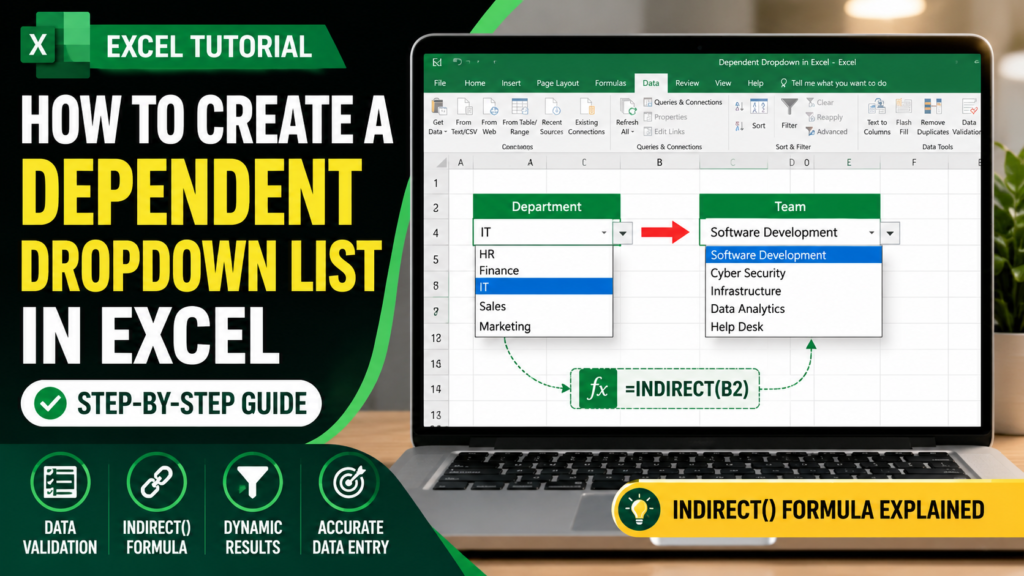

Dependent Dropdown List in Excel:- Learn one of the most useful Excel tricks that can make your spreadsheets smarter, cleaner, and more professional.
Introduction
Did you know that most Excel users create dropdown lists the hard way?
A basic dropdown list is useful when you want users to select from predefined options. However, a dependent dropdown takes things to the next level by automatically changing the available options based on a previous selection.
For example:
- Select IT as a department
- The second dropdown automatically shows IT teams only
- Select HR
- The second dropdown instantly switches to HR teams
This creates a smarter user experience, reduces errors, and makes your Excel files look professional.
In this tutorial, you’ll learn how to create a dependent dropdown list in Excel using the INDIRECT function.
What Is a Dependent Dropdown?
A dependent dropdown is a dropdown list whose values depend on another dropdown selection.
Example
| Department | Team |
|---|---|
| IT | Software Development |
| HR | Recruitment |
| Finance | Audit |
When a user selects a department, Excel automatically displays only the teams that belong to that department.
This technique is commonly used in:
- Employee Management Systems
- HR Forms
- Sales Dashboards
- Project Management Trackers
- Inventory Management Systems
- Data Entry Forms
Why Use Dependent Dropdowns?
Using dependent dropdowns provides several benefits:
1. Better Data Accuracy
Users can only select valid options.
2. Faster Data Entry
Instead of scrolling through hundreds of items, users see only relevant choices.
3. Professional User Experience
Your workbook feels more like an application than a spreadsheet.
4. Reduces Errors
Prevents incorrect combinations such as:
- HR Department → Software Development Team
- Finance Department → Recruitment Team
Step 1: Prepare Your Data
Before creating dropdowns, organize your data properly.
Create a worksheet containing departments and their respective teams.
Sample Structure
| HR | Finance | IT | Sales |
|---|---|---|---|
| Recruitment | Audit | Help Desk | Domestic Sales |
| Payroll | Taxation | Infrastructure | International Sales |
| Training | Budget Planning | Software Development | Retail Sales |
| Employee Relations | Accounts Payable | Cyber Security | Channel Sales |
Each column represents a department.
Each item below the department represents its team.
This structure is essential because Excel will use it to build the dependent dropdown.
Step 2: Create the First Dropdown
Now let’s create the Department dropdown.
Steps
- Select the cell where you want the dropdown.
- Go to the Data tab.
- Click Data Validation.
- Under Allow, choose List.
- Select the department names.
- Click OK.
You should now see a dropdown arrow.
When clicked, it displays:
- HR
- Finance
- IT
- Sales
Congratulations! Your first dropdown is ready.
Step 3: Create Named Ranges
This is the most important step.
Excel needs a way to identify which team list belongs to which department.
Creating a Named Range
Select the HR team list.
Go to:
Formulas → Define Name
Name the range:
HRRepeat for every department:
Finance
IT
Sales
Make sure the name matches the department exactly.
For example:
Department:
FinanceNamed Range:
FinanceEven a small spelling difference can break the dropdown.
Step 4: Create the Dependent Dropdown
Now comes the magic.
Select the cell where you want the Team dropdown.
Go to:
Data → Data Validation
Select:
Allow → List
In Source, enter:
=INDIRECT(A2)Where:
- A2 contains the Department dropdown
Click OK.
Done!
How Does INDIRECT Work?
Many Excel users use the formula without understanding what it actually does.
Let’s break it down.
Suppose A2 contains:
ITExcel evaluates:
=INDIRECT(A2)as:
=INDIRECT("IT")Excel then looks for a named range called:
ITand displays all values from that range.
If A2 changes to:
HRExcel automatically looks for the HR named range.
That’s why the second dropdown changes instantly.
Testing the Dropdown
Try selecting different departments.
Select HR
Dropdown shows:
- Recruitment
- Payroll
- Training
- Employee Relations
Select IT
Dropdown shows:
- Help Desk
- Infrastructure
- Software Development
- Cyber Security
Select Finance
Dropdown shows:
- Audit
- Taxation
- Budget Planning
- Accounts Payable
Everything updates automatically.
Real-World Applications
Dependent dropdowns are used extensively in business environments.
Employee Management
| Department | Team |
|---|---|
| HR | Recruitment |
| IT | Infrastructure |
Sales Dashboard
| Region | Country |
|---|---|
| Asia | India |
| Europe | Germany |
Inventory Management
| Category | Product |
|---|---|
| Electronics | Laptop |
| Furniture | Chair |
Project Management
| Project | Phase |
|---|---|
| SAP Migration | Planning |
| CRM Upgrade | Testing |
Common Mistakes to Avoid
1. Incorrect Named Range
If your department is:
Human ResourcesThe named range must also be:
Human ResourcesExactly the same.
2. Extra Spaces
This causes many dropdown errors.
For example:
HRis different from:
HRwith a hidden space.
Always check for extra spaces.
3. Wrong Cell Reference
If your department dropdown is in A2:
=INDIRECT(A2)If it’s in B2:
=INDIRECT(B2)Use the correct reference.
4. Missing Named Range
If Excel cannot find a matching named range, the dependent dropdown will appear empty.
Advanced Dropdown Ideas
Once you’ve mastered dependent dropdowns, you can build more advanced systems.
Searchable Dropdowns
Allow users to type and search items instantly.
Dynamic Dropdown Lists
Automatically update when new records are added.
Multi-Level Dropdowns
For example:
Country → State → City
Dashboard Filters
Connect dropdowns with charts and reports.
Employee Lookup Systems
Use dropdowns together with XLOOKUP.
Why This Trick Is So Powerful
Many Excel users know how to create a basic dropdown.
Very few know how to make dropdowns dynamic.
That’s what makes dependent dropdowns valuable.
They help you:
- Build professional dashboards
- Create smarter forms
- Improve user experience
- Reduce manual errors
- Automate data entry
Whether you’re an HR professional, analyst, manager, or Excel enthusiast, this technique can save hours of work.
Final Thoughts
Dependent dropdowns are one of the most practical Excel features you can learn.
By combining:
- Data Validation
- Named Ranges
- INDIRECT Function
you can create interactive spreadsheets that feel like real applications.
The best part?
Once you learn the concept, you can use it in almost every Excel project—from dashboards and trackers to inventory systems and employee databases.
Start with a simple department-and-team example, then expand it into larger business solutions.
The more you use dependent dropdowns, the more professional and efficient your Excel workbooks will become.


